How to Insert Figures and Captions in Microsoft Word
TL;DR
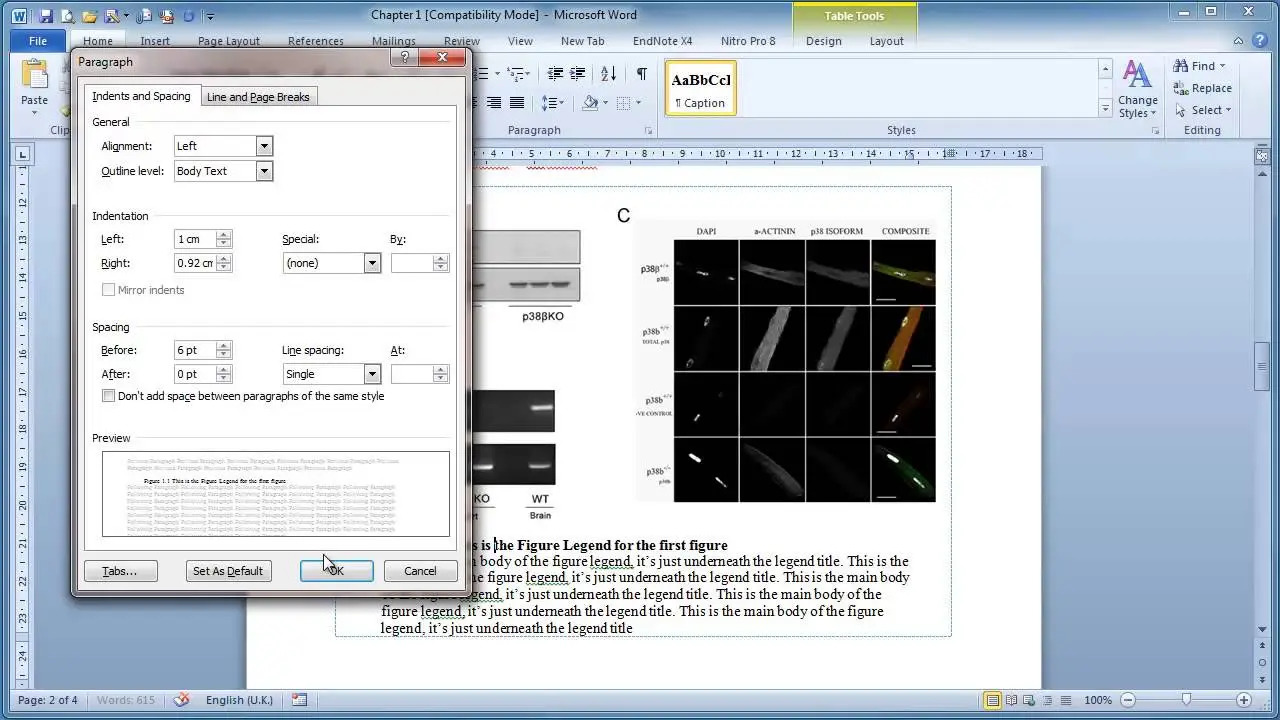
To insert figures and captions in Microsoft Word, use tables to organize your images and maintain alignment with your text. Automatic caption numbering simplifies the renumbering process when adding or modifying content, streamlining your thesis writing. This method also allows you to create a table of figures for easy reference throughout your document.
Transcript
hi it's dr. Clark here again and this is part of the Microsoft Word tutorial series this is the second in the series the first in the series we've looked at creating heading numbering a table of contents and we left our document with the table of contents and some introduction materials and methods section the next step we want to do in this contex... Read More
Key Insights
- 🚰 Inserting figures inside tables in Microsoft Word helps maintain organization and alignment with the text.
- ⌛ Automatic caption numbering saves time and ensures accurate figure numbering when making modifications.
- 🫥 Positioning figures in line with text is recommended to avoid layout problems.
- 👻 Creating a table of figures allows for easy reference and navigation within the document.
- 😵 Word's cross-reference feature enables linking to figures and headings automatically, simplifying referencing within the thesis.
- ❓ Modifying styles for captions and indenting them enhances the presentation of figure legends.
- 🚰 Using tables for figures and captions can be applied to other elements, such as tables, equations, and plates, for consistent formatting.
Install to Summarize YouTube Videos and Get Transcripts
Explore YouTube Video Summarizer or Get YouTube Transcript Extractor
Questions & Answers
Q: Why is it beneficial to insert figures inside a table in Microsoft Word?
Inserting figures inside a table helps keep them together, prevents the figure legend from moving around, and ensures that the figures are always in line with the text.
Q: How can automatic caption numbering make thesis writing easier?
Automatic caption numbering in Word eliminates the need to manually change figure numbers when adding or modifying figures, saving time and effort in thesis writing.
Q: What is the recommended option for positioning figures in Word?
It is advised to keep figures in line with text and avoid using text wrapping functions or floating objects, as they can cause layout issues in the document.
Q: How can a table of figures be created in Word?
A table of figures can be inserted by going to the References tab, clicking on "Insert Table of Figures," and choosing the desired format. This table lists all the figures in the document.
Summary & Key Takeaways
-
This tutorial focuses on how to add figures and captions in Microsoft Word using tables to keep them organized and in line with the text.
-
By using automatic caption numbering, figures can be easily renumbered when adding or modifying them, making thesis writing more efficient.
-
The tutorial also covers how to create a table of figures to list all the figures in the document.
Read in Other Languages (beta)
Share This Summary 📚
Summarize YouTube Videos and Get Video Transcripts with 1-Click
Try YouTube Summary with ChatGPT & Claude or YouTube Transcript Generator
Explore More Summaries from Dory Video 📚




Summarize YouTube Videos and Get Video Transcripts with 1-Click
Try YouTube Summary with ChatGPT & Claude or YouTube Transcript Generator