How to Outline Text in Canva for Better Visibility
TL;DR
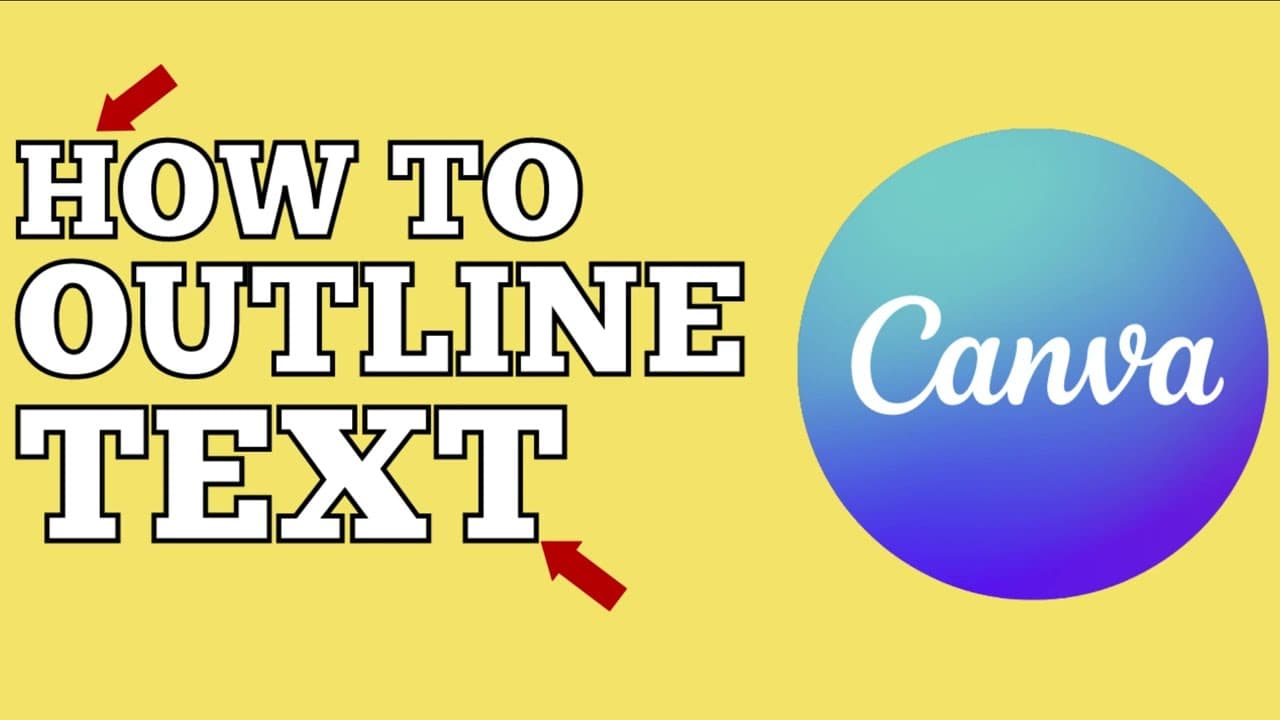
To outline text in Canva, duplicate your text layer, apply the splice effect, and adjust the fill and outline colors. Fine-tune the thickness and offset settings to achieve the desired appearance. Alternatively, you can use the shadow effect to enhance text visibility by creating depth.
Transcript
in this video i'm going to show you how you can outline text in canva but before i do that consider subscribing to my youtube channel where each week i'll be uploading new videos on a variety of different topics so thank you for your consideration and now let's talk a little bit about canva so if you're like me you've tried to create images where y... Read More
Key Insights
- ❓ Canva does not have a native text outline or stroke feature.
- ❓ The splice effect in Canva can be used to create an outline around text by adjusting colors and settings.
- 🪜 Additionally, the shadow effect in Canva can add depth and improve readability.
- 🫥 It is important to balance the thickness of the outline to ensure it is visible but not overwhelming.
- 🧍 Outlining or adding shadows to text can make it stand out, providing better readability and visibility.
- ❓ Adjusting the transparency and direction of the shadow effect can further enhance the text's appearance.
- 💨 Experimenting with different effects and settings in Canva can help find the best way to make text more readable.
Install to Summarize YouTube Videos and Get Transcripts
Explore YouTube Video Summarizer or Get YouTube Transcript Extractor
Questions & Answers
Q: How can I add an outline to my text in Canva?
To add an outline to your text in Canva, duplicate the text, adjust colors, and apply the splice effect. This creates an outline around the text, improving readability.
Q: Can I customize the thickness of the text outline in Canva?
Yes, you can customize the thickness of the text outline by adjusting the settings in the splice effect. However, it is recommended to find a balance so that the outline is visible but not overpowering.
Q: Is there an alternative to outlining text in Canva?
Yes, you can also use the shadow effect in Canva to add depth and make the text stand out. Adjust the transparency and direction of the shadow to achieve the desired effect.
Q: How can outlining or adding shadows to text improve readability?
Outlining or adding shadows to text can make it easier to read by providing better contrast and making the text stand out from the background. It can enhance visibility, especially when the text color is similar to the background color.
Summary & Key Takeaways
-
Canva does not have a built-in text outline or stroke feature, but there is a workaround to create outlined text.
-
By duplicating the text, adjusting colors, and using the splice effect, you can create an outline around your text in Canva.
-
Alternatively, using the shadow effect can also add depth and make the text stand out.
Read in Other Languages (beta)
Share This Summary 📚
Summarize YouTube Videos and Get Video Transcripts with 1-Click
Try YouTube Summary with ChatGPT & Claude or YouTube Transcript Generator
Explore More Summaries from EdTech Hustle 📚



![Keynote: Remove The Background of Any Photo [Using Instant Alpha] thumbnail](/_next/image?url=https%3A%2F%2Fi.ytimg.com%2Fvi%2F0Ji-uTffzJE%2Fhqdefault.jpg&w=750&q=75)
Summarize YouTube Videos and Get Video Transcripts with 1-Click
Try YouTube Summary with ChatGPT & Claude or YouTube Transcript Generator