What Are the Best Canva Productivity Tips for Faster Design?
TL;DR
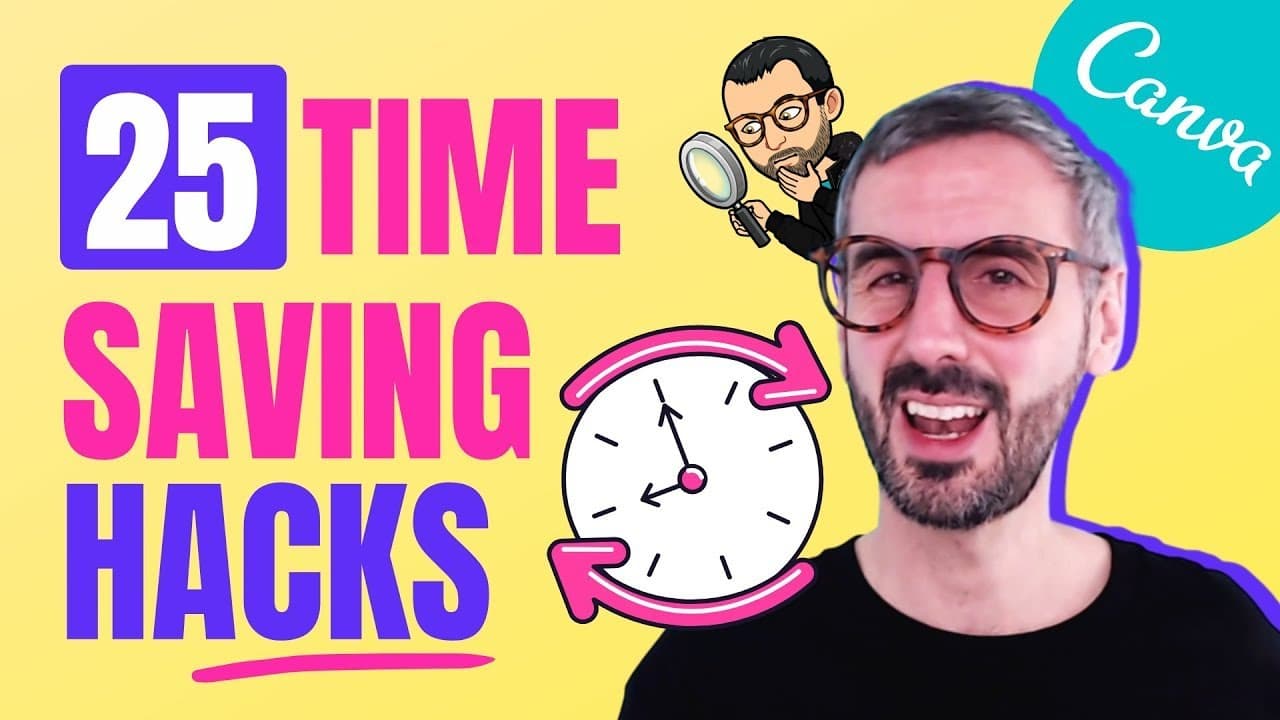
To design faster in Canva, utilize 25 key productivity tips including keyboard shortcuts for undo/redo, showing rulers, collapsing side panels, and quickly duplicating elements. Other tips involve managing layers, creating text boxes, and formatting with shortcuts for a more efficient workflow.
Transcript
if there is one thing that annoys me it's losing my time i can't stand losing my time so in today's video i am going to help you save your time by designing faster and more efficiently in the canva editor i am going to present 25 tips and hacks in canva that will help you speed up your workflow and increase your productivity so without further ado ... Read More
Key Insights
- 🎹 Utilize keyboard shortcuts for efficient undo and redo actions in Canva.
- 🛀 Increase productivity by showing rulers and guides with the shortcut Shift + R.
- 🤩 Speed up workflow by zooming in and out using Command/Ctrl + Plus or Minus keys.
- 🤩 Save screen space by collapsing the side panel with Command/Ctrl + Slash key.
- 💦 Enhance efficiency by utilizing presentation mode in Canva for working on documents and presentations.
- 🎹 Quickly duplicate slides in Canva using the Option/Alt key drag or keyboard shortcuts.
- 👥 Manage elements easily by grouping them with Command/Ctrl + G and ungrouping with Command/Ctrl + Shift + G.
Install to Summarize YouTube Videos and Get Transcripts
Explore YouTube Video Summarizer or Get YouTube Transcript Extractor
Questions & Answers
Q: How can you undo mistakes in Canva?
To undo mistakes in Canva, use the shortcut Command + Z on a Mac or Control + Z on a PC. This keyboard shortcut quickly reverses your last action, allowing for efficient workflow in Canva.
Q: How can you quickly duplicate elements in Canva?
There are multiple ways to duplicate elements in Canva. One method is to hold the Option key on a Mac or the Alt key on a PC and then drag the element to create a duplicate. Additionally, you can use the keyboard shortcuts Command + C to copy and Command + V to paste elements.
Q: How can you bring elements forward or backward in Canva?
To adjust the layering of elements in Canva, use the shortcuts Command + Left Hook to push an element backward and Command + Right Hook to bring an element forward. These shortcuts help in managing the stacking order of elements on your design canvas.
Q: How can you justify text in Canva?
To justify text alignment in Canva, select the text box and use the shortcut Command + Shift + R to justify the text to the right. Similarly, Command + Shift + C can be used to justify text to the center. These shortcuts help in quickly formatting text alignment in your designs.
Summary & Key Takeaways
-
Canva design tutorial with 25 productivity tips and shortcuts.
-
Tips include undo/redo shortcuts, showing rulers and guides, zooming in and out, collapsing side panel, presentation mode, duplicating slides, duplicating elements, deleting pages, grouping elements, bringing elements forward or backward, selecting hidden elements, creating text boxes, formatting text, creating lines, rectangles, and circles, selecting all elements, selecting multiple elements, justifying text, copying and pasting styles, and moving elements precisely with keyboard arrows.
-
Detailed demonstrations of each tip with keyboard shortcuts provided for quick implementation.
Read in Other Languages (beta)
Share This Summary 📚
Summarize YouTube Videos and Get Video Transcripts with 1-Click
Try YouTube Summary with ChatGPT & Claude or YouTube Transcript Generator
Explore More Summaries from Design with Canva 📚




Summarize YouTube Videos and Get Video Transcripts with 1-Click
Try YouTube Summary with ChatGPT & Claude or YouTube Transcript Generator