How to Customize the Sidebar on thinkorswim Desktop
TL;DR
To customize the sidebar on thinkorswim, click the gear icon to add or remove gadgets, rearrange them by dragging, and link your watchlist to other platform sections. You can also collapse the sidebar for more screen space and use privacy mode to hide account information when needed.
Transcript
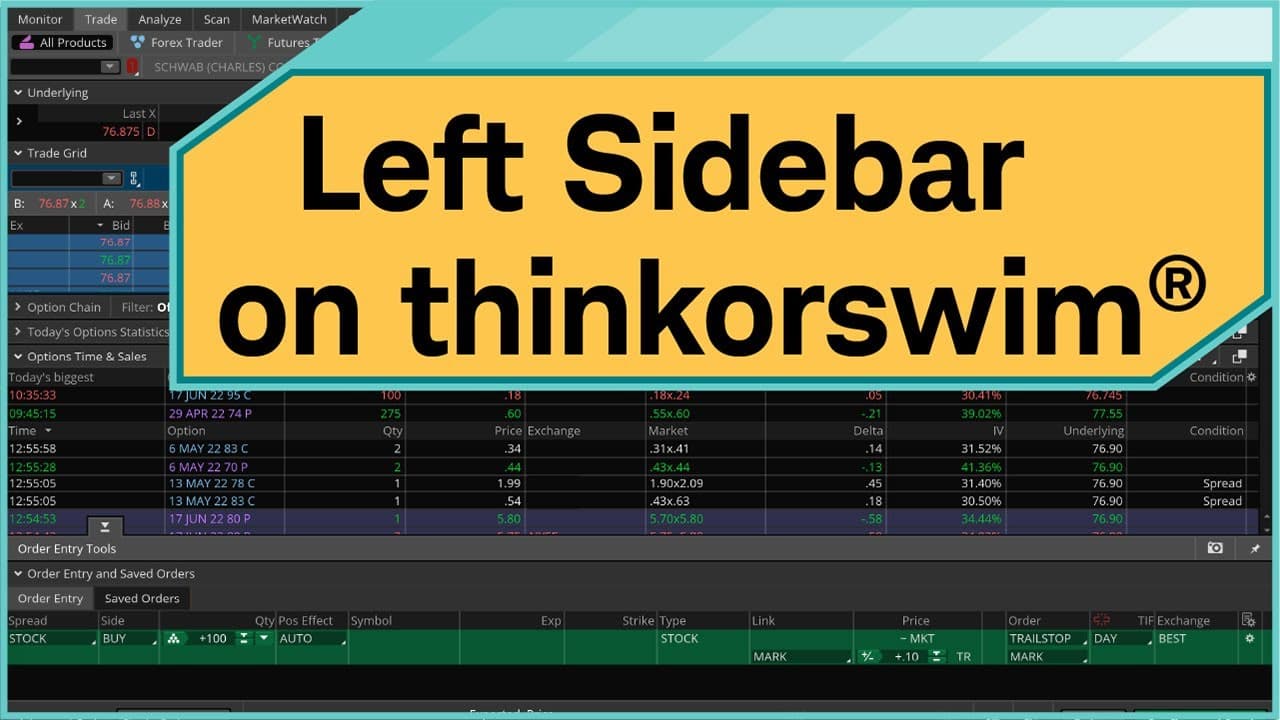
Hi, traders. I'm Anthony Panzeca. The left sidebar is an area in the thinkorswim® platform where you can keep track of all of your account balances, view market information, and watch live news without ever having to leave the main window of the platform. Let's jump right in and take a look. The left-hand side bar is located on the left-han... Read More
Key Insights
- 🗨️ The left sidebar in the thinkorswim platform serves as a convenient dashboard, offering quick access to important information and features.
- 👤 Users can customize the sidebar by adding or removing gadgets, including utilities and other features.
- 🤬 The watchlist is a versatile tool that allows users to add, remove, and rearrange symbols for tracking.
- 🥳 The watchlist can be linked to other parts of the platform, such as the Trade tab and charts, for a seamless experience.
- 👤 Users can change the color and appearance of gadgets to personalize the sidebar.
- 🗨️ The left sidebar can be collapsed or expanded to optimize screen real estate.
- 🔒 Certain gadgets, such as the Account Information section, cannot be deleted for security reasons.
Install to Summarize YouTube Videos and Get Transcripts
Explore YouTube Video Summarizer or Get YouTube Transcript Extractor
Questions & Answers
Q: What is the left sidebar in the thinkorswim platform?
The left sidebar is a dashboard-like feature that allows users to access account balances, market information, and live news without leaving the main platform window.
Q: Can I customize the gadgets in the left sidebar?
Yes, the left sidebar is fully customizable. Users can add or remove various gadgets by clicking on the gear icon or the X button. However, the Account Information section cannot be deleted.
Q: How can I hide my account information in a public place?
To hide your account information in a public place, you can click on Option Buying Power or Net Liq & Day Trades and put it into Privacy Mode. This will hide all sensitive information.
Q: How can I personalize my watchlist?
You can personalize your watchlist by adding or removing symbols. Simply click on an empty field to add a symbol, and use backspace and enter to delete a symbol. You can also rearrange symbols by dragging them up or down the watchlist.
Summary & Key Takeaways
-
The left sidebar in the thinkorswim platform acts as a dashboard, providing easy access to account balances, market information, and live news.
-
The sidebar is fully customizable, allowing users to add or remove various gadgets and features.
-
Users can personalize the watchlist, move symbols around, and link it to other parts of the platform for seamless navigation.
Read in Other Languages (beta)
Share This Summary 📚
Summarize YouTube Videos and Get Video Transcripts with 1-Click
Try YouTube Summary with ChatGPT & Claude or YouTube Transcript Generator
Explore More Summaries from Charles Schwab 📚






Summarize YouTube Videos and Get Video Transcripts with 1-Click
Try YouTube Summary with ChatGPT & Claude or YouTube Transcript Generator