How to Use Text-to-Speech in Microsoft Word
TL;DR
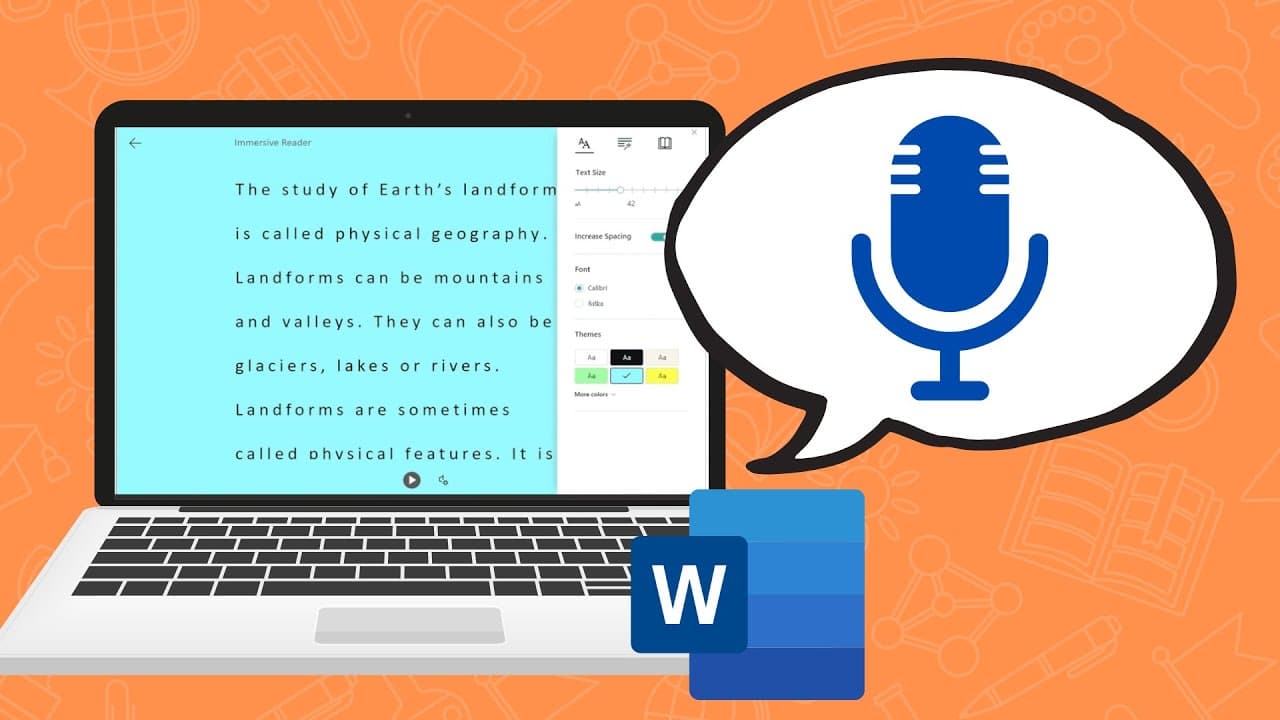
To use text-to-speech in Microsoft Word, utilize the Immersive Reader feature for a dedicated reading window or the Read Aloud function for direct inline reading. Both features highlight text as they read aloud, and you can adjust settings like voice and reading speed. A subscription to Office 365 or Microsoft Office 2019 or higher is required.
Transcript
so there are two very helpful features in microsoft word that will allow you to read the text out loud using a text to speech feature and it's one that i don't think many people know about so i want to share both of those right now one thing to keep in mind is the version of word that i'm using is the office 365 version in order to access this you ... Read More
Key Insights
- 😯 Microsoft Word offers two text-to-speech features: Immersive Reader and Read Aloud.
- 🫠 Both features allow for the text to be read aloud, but Immersive Reader opens a different window for a unique view of the document.
- 🫠 Read Aloud reads the text directly within the Word document and highlights each word as it is spoken.
- 🫠 You can adjust settings such as reading speed and voice through the text-to-speech feature.
- ✋ An Office 365 account or Microsoft Office 2019 or higher is required to access these features.
- 😯 The text-to-speech feature can be beneficial for proofreading, listening to your written work, or improving reading comprehension.
- 🎮 Immersive Reader has a deep dive video available for more detailed instructions.
Install to Summarize YouTube Videos and Get Transcripts
Explore YouTube Video Summarizer or Get YouTube Transcript Extractor
Questions & Answers
Q: How can I access the text-to-speech feature in Microsoft Word?
You can access the text-to-speech feature in Microsoft Word by having an Office 365 account or using Microsoft Office 2019 or higher.
Q: What is the difference between Immersive Reader and Read Aloud?
Immersive Reader opens a separate window with a different view of the document, while Read Aloud reads the text aloud within the Word document itself.
Q: Can I adjust the voice and reading speed for the text-to-speech feature?
Yes, you can customize the voice and reading speed by clicking on the settings button in Read Aloud or Immersive Reader.
Q: How do I start reading the text from a specific point?
Simply move your cursor to the desired starting point and click the play button, and the text-to-speech feature will start reading from there.
Summary & Key Takeaways
-
Microsoft Word offers two helpful text-to-speech features: Immersive Reader and Read Aloud.
-
Immersive Reader creates a new window with a different view of your document, highlighting and reading the text aloud.
-
Read Aloud automatically reads the text aloud within the Word document, allowing you to adjust settings such as reading speed and voice.
Read in Other Languages (beta)
Share This Summary 📚
Summarize YouTube Videos and Get Video Transcripts with 1-Click
Try YouTube Summary with ChatGPT & Claude or YouTube Transcript Generator
Explore More Summaries from EdTech Hustle 📚


![Keynote: Remove The Background of Any Photo [Using Instant Alpha] thumbnail](/_next/image?url=https%3A%2F%2Fi.ytimg.com%2Fvi%2F0Ji-uTffzJE%2Fhqdefault.jpg&w=750&q=75)



Summarize YouTube Videos and Get Video Transcripts with 1-Click
Try YouTube Summary with ChatGPT & Claude or YouTube Transcript Generator