How to Make AI Videos with CapCut Desktop
TL;DR
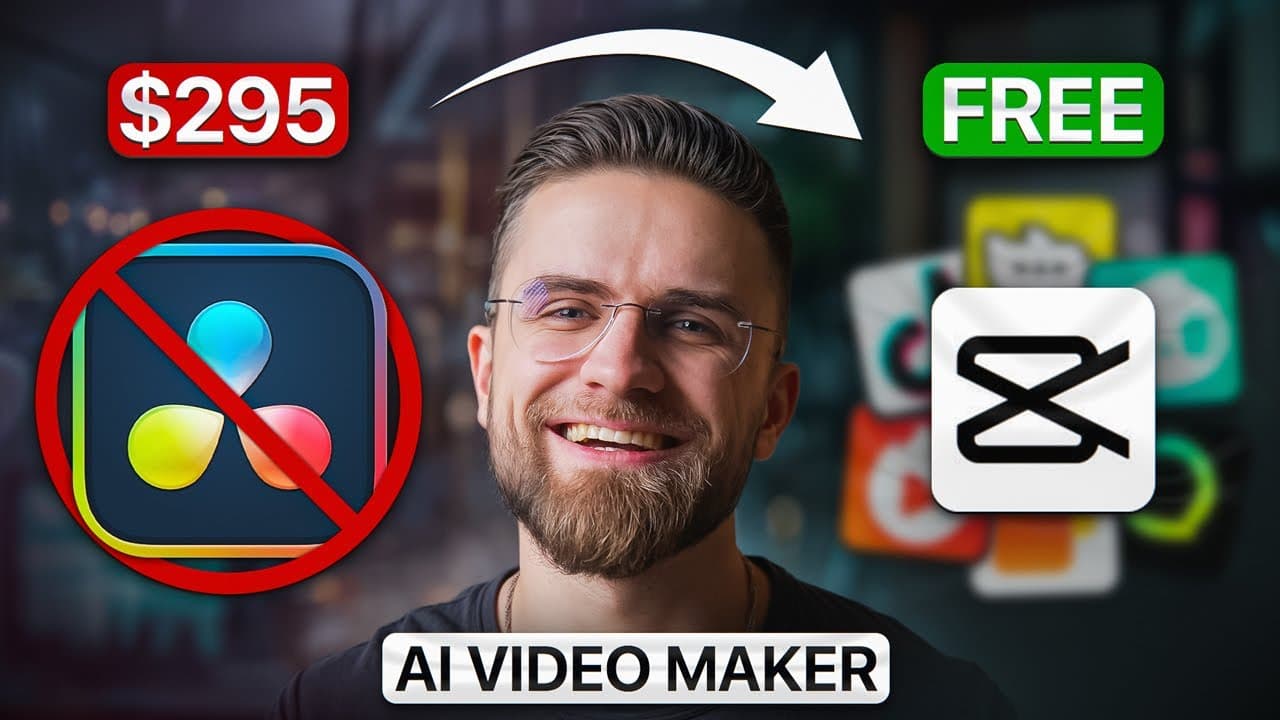
CapCut Desktop can turn a topic or finished script into a structured video with AI-generated narration, an avatar presenter, matched visuals, synchronized captions, and background music. Start with Brainstorm with AI when you need an outline and script, then review every automated choice, strengthen the opening hook, replace weak media, and add a personal touch before exporting.
Transcript
Have you ever burned out juggling too many editing tools, writing scripts at 2:00 a.m., or stressing over your faceless YouTube channel content? Yeah, me too. It's a lot. One minute you're brainstorming ideas, the next you're voicing over, adding subtitles, finding stock clips. Exhausting. Now, imagine one free tool that can do all of that for you.... Read More
Key Insights
- CapCut’s AI Video Maker is a central workspace for generating scripts, voice-overs, visuals, captions, and avatar presentations. Its available starting points include Instant AI Video, Brainstorm with AI, Avatar Video, and Match Media to Script, allowing creators to begin with either a topic or an existing script.
- Brainstorm with AI converts a broad topic into a mind map of possible subtopics. Creators can expand individual branches, pin the strongest ideas, and generate a structured script from those selections, providing a practical route from an undeveloped concept to a scene-based narrative.
- AI-generated scripts require human revision because polished language can still feel generic or unnatural. The demonstrated workflow specifically rewrites the opening line to create a stronger hook, showing that automation supplies a useful draft while personal judgment improves tone, authenticity, and audience appeal.
- The scenes editor converts script paragraphs into sequential video segments. This storyboard-like structure creates a foundation for assigning narration, presenters, footage, and captions to each part, making it easier to inspect and refine the relationship between the written narrative and the final visual sequence.
- CapCut’s avatar feature provides built-in presenters across casual, professional, trending, and other categories. A selected avatar can deliver the script, be resized or repositioned, and appear full screen or as a picture-in-picture element, while custom photo-based avatars have limited free usage.
- CapCut’s text-to-speech system offers male and female voices, different accents, languages, and delivery styles. Applying a selected voice across all scenes generates narration scene by scene and synchronizes the avatar’s lip movements, while alternative voices can be previewed and substituted with a few selections.
- Match Stock Media analyzes each scene’s text and suggests related footage or images. The automated results can replace time-consuming stock-library searches, but every suggestion remains reviewable and replaceable when a generic animation, irrelevant clip, or weak visual does not fit the intended message.
- CapCut’s timed captions are created from the provided script and synchronized narration. Caption templates can add bold fonts, word-by-word animation, highlighting, or other visual treatments, while the built-in music library supplies royalty-free tracks categorized by mood and genre for the final edit.
Install to Summarize YouTube Videos and Get Transcripts
Explore YouTube Video Summarizer or Get YouTube Transcript Extractor
Questions & Answers
Q: How do you make an AI video with CapCut Desktop?
Open CapCut Desktop, sign in, and select AI Video Maker from the home screen. Begin with Instant AI Video if a script is ready, or choose Brainstorm with AI to develop a topic into an outline and script. Convert the script into scenes, add an avatar and voice-over, match visuals to each scene, style the synchronized captions, add background music, preview the project, and export the finished video.
Q: How does CapCut Brainstorm with AI generate a script?
Brainstorm with AI starts with a topic entered by the creator and produces a mind map containing related subtopics. Each branch can be expanded through its AI control, while pin controls identify the points that should appear in the video. After the preferred ideas are pinned, Generate Script creates a draft with an introduction, separate scenes for the selected points, and a conclusion.
Q: Why should you edit a CapCut AI-generated script?
A CapCut AI-generated script can provide a logical structure with very little initial effort, but its wording may sound overly polished, generic, or unnatural. Human revision helps add personality and align the language with the creator’s usual voice. The opening deserves particular attention because a generic introduction may fail to hook viewers, even when the remainder of the script is well organized.
Q: How do you add an AI avatar presenter in CapCut?
Select Avatar Video in the AI Video Maker interface and browse presenters organized into categories such as trending, casual, and professional. Choose a character whose appearance fits the intended tone, then place that avatar in the scene. The presenter can be resized and positioned as a full-screen subject or picture-in-picture element. CapCut also offers custom photo-based avatars, although their free usage is limited.
Q: How do you create an AI voice-over in CapCut?
Open the voice-over controls from the scenes panel or switch to the voice tab, then preview the available male, female, accent, language, and delivery options. Once an appropriate voice is selected, apply it to all scenes. CapCut generates the narration scene by scene and synchronizes the chosen avatar’s lip movements with it. The voice can later be changed, and an optional voice changer can adjust its tone.
Q: How does Match Media to Script work in CapCut?
Match Media to Script analyzes the text assigned to each scene and selects images or footage that correspond with the narration. Match Stock Media can automatically find relevant stock assets, while other options can generate AI images or fit imported creator-owned media into the timeline. Every automated selection can be reviewed and replaced, allowing the creator to correct generic or unsuitable visual suggestions.
Q: How do you add animated captions to a CapCut AI video?
CapCut uses the supplied script and generated voice-over to create timed subtitles for each scene, eliminating the need for manual transcription in the demonstrated workflow. Open the captions or text templates area to choose a visual style, such as bold type, karaoke-like highlighting, meme-inspired text, or word-by-word animation. Apply the chosen template across all captions, then preview their timing and appearance with the narration.
Q: What can CapCut AI Video Maker automate for faceless channels?
CapCut AI Video Maker can automate idea development, script generation, scene organization, text-to-speech narration, avatar presentation, lip synchronization, stock-media matching, and timed captions. It can also provide AI-generated images, caption templates, and background music from a built-in royalty-free library. Creators still need to review the script, strengthen weak hooks, replace unsuitable visuals, select an appropriate voice, and preview the complete edit before export.
Summary & Key Takeaways
-
CapCut’s AI Video Maker combines several production tasks within one desktop workspace. Creators can start from an existing script, brainstorm a new script from a topic, build an avatar-led presentation, or match supplied media to narration. This consolidated workflow is designed to reduce the tool switching involved in producing faceless YouTube content.
-
The demonstrated process begins with a creator-burnout topic. Brainstorm with AI produces a mind map, allows useful subtopics to be expanded or pinned, and converts selected ideas into a scene-based script. The generated draft includes an introduction, individual tips, and a conclusion, but its generic opening is manually rewritten to improve the hook.
-
After generating the script, each paragraph becomes a scene that can receive an avatar, text-to-speech narration, relevant stock footage, and timed captions. The creator selects one voice for all scenes, applies a modern animated caption style, adds background music, previews the assembled project, and prepares the finished video for export.
Read in Other Languages (beta)
Share This Summary 📚
Summarize YouTube Videos and Get Video Transcripts with 1-Click
Try YouTube Summary with ChatGPT & Claude or YouTube Transcript Generator
Explore More Summaries from AI Master 📚

Summarize YouTube Videos and Get Video Transcripts with 1-Click
Try YouTube Summary with ChatGPT & Claude or YouTube Transcript Generator