How to Speed Up Premiere Pro on Any PC Setup
TL;DR
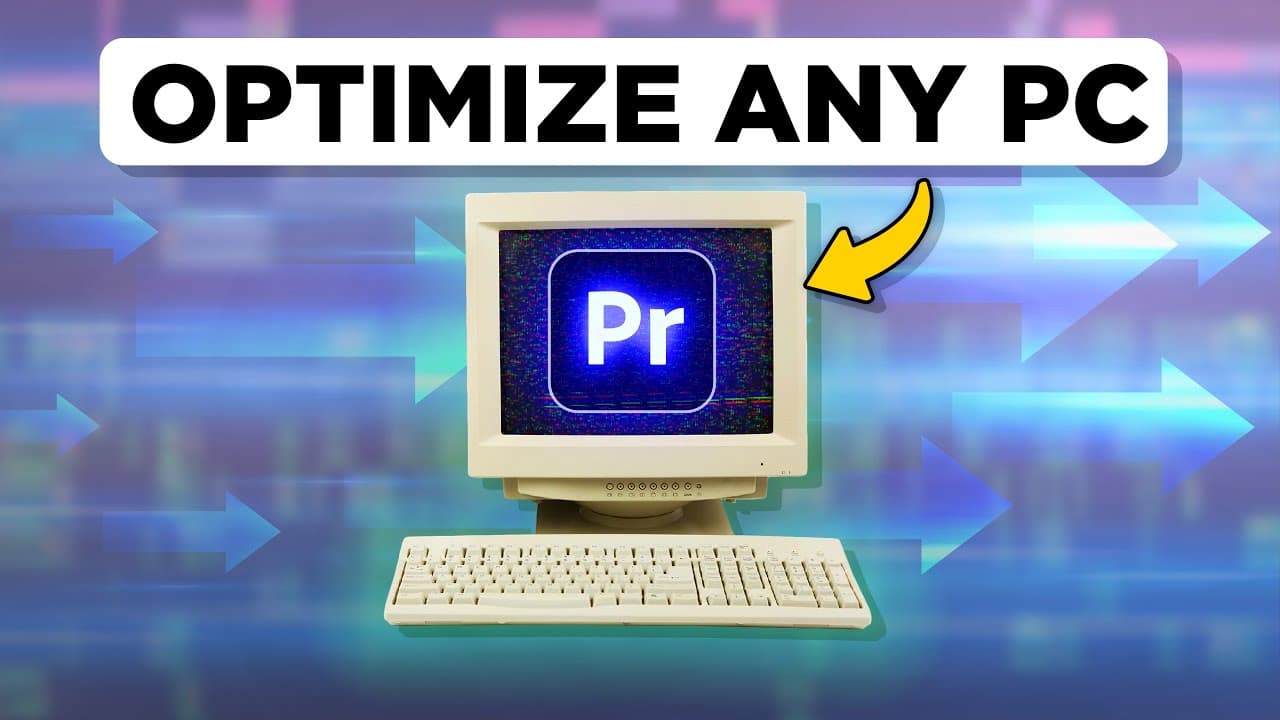
To speed up Premiere Pro on any PC, use proxies by creating them in the project settings, manage cache files to optimize storage, and consider a separate SSD for caching. Additionally, remove unused files, use render and replace for slow clips, and adjust your power plan and graphics card settings for maximum performance.
Transcript
here's Charlie again you guys know him now this time he has to make a video for a big client but he can never finish it in time on his potato PC he doesn't have the money to buy a new one so I'm going to help him today by sharing some secret settings that you can change on your computer to make Premiere go faster and yes it actually works now what'... Read More
Key Insights
- ❓ Using proxies can significantly improve the editing experience in Premiere Pro.
- 🛰️ Managing cache files and using a separate SSD for caching can optimize storage space and improve performance.
- 🚄 Removing unused files and consolidating duplicates can speed up Premiere Pro playback.
- ✈️ Adjusting power plan settings and optimizing graphics card settings can further enhance performance.
Install to Summarize YouTube Videos and Get Transcripts
Explore YouTube Video Summarizer or Get YouTube Transcript Extractor
Questions & Answers
Q: How do I make Premiere Pro faster when editing large projects?
To improve performance, you can create proxies, manage cache files, remove unused files, and consolidate duplicates. Using a separate SSD for caching and optimizing power plan settings can also help.
Q: How can I improve playback of slow After Effects comps in Premiere Pro?
Duplicate the comp in the timeline, right-click it, and choose render and replace. This creates a rendered clip that will play back smoothly while still keeping access to the original comp.
Q: What are some secret graphics card settings that can speed up Premiere Pro?
In the Nvidia control panel, you can change settings like texture filtering, optimization, and anti-aliasing for Adobe Premiere Pro. Make sure GPU acceleration mode is enabled in Premiere Pro's project settings.
Q: How do proxies work in Premiere Pro?
Proxies are lower-resolution copies of your videos that make editing faster. You can create proxies manually or set Premiere Pro to automatically create proxies when importing videos.
Key Insights:
- Using proxies can significantly improve the editing experience in Premiere Pro.
- Managing cache files and using a separate SSD for caching can optimize storage space and improve performance.
- Removing unused files and consolidating duplicates can speed up Premiere Pro playback.
- Adjusting power plan settings and optimizing graphics card settings can further enhance performance.
- Proxies allow for faster editing while preserving the quality of the original videos.
Summary & Key Takeaways
-
Use proxies to make editing faster by selecting videos in the project window, right-clicking them, and choosing to create proxies.
-
Manage cache files by going to Edit, Preferences, and Media Cache to delete unused cache and optimize storage space.
-
Use a separate, super-fast solid-state drive (SSD) for caching to improve editing performance.
-
Remove unused files and consolidate duplicates to speed up Premiere Pro playback.
-
Use the render and replace feature in Premiere Pro to improve playback of slow After Effects comps.
-
Optimize your power plan settings for the highest performance.
-
Toggle off effects using the FX toggle button to improve playback when working with projects that have lots of effects.
-
Adjust secret graphics card settings in the Nvidia control panel to maximize performance in Premiere Pro.
Read in Other Languages (beta)
Share This Summary 📚
Summarize YouTube Videos and Get Video Transcripts with 1-Click
Try YouTube Summary with ChatGPT & Claude or YouTube Transcript Generator
Explore More Summaries from Premiere Basics 📚


Summarize YouTube Videos and Get Video Transcripts with 1-Click
Try YouTube Summary with ChatGPT & Claude or YouTube Transcript Generator