How to Edit Videos in Canva for Beginners
TL;DR
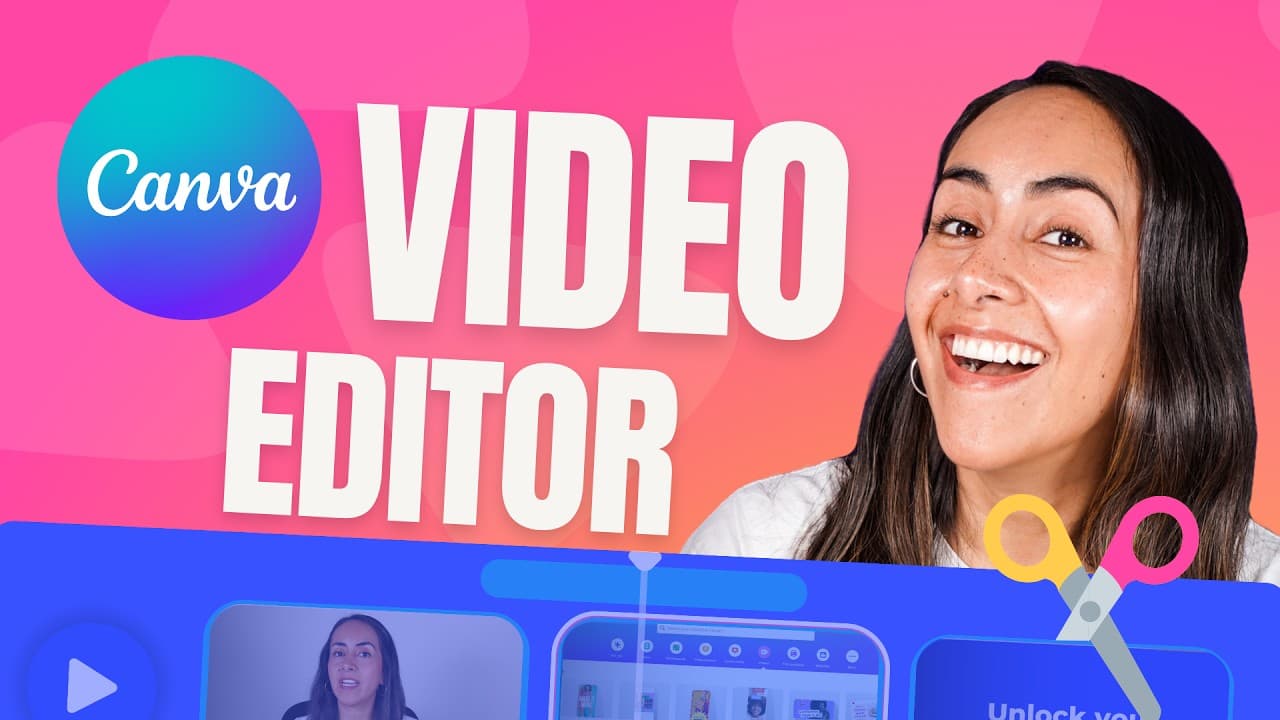
To edit videos in Canva, start by creating a new project and selecting a video format. Use customizable templates, access various editing tools for text and effects, and manage your project pages. You can preview, add transitions, trim videos, and download the finished product easily.
Transcript
after watching this tutorial you'll be able to edit your videos using only Cana let's start by creating a new video project in canva I suppose if you are watching this video it's because you are a beginner and some of you may not have a canva account yet if you don't have an account when you go to canva.com you may see a page like this one in which... Read More
Key Insights
- 🧘 Canva offers a user-friendly interface for beginners to create and edit video projects easily.
- 💁 Various video formats and templates tailored for social media platforms are available in Canva for seamless content creation.
- 🧡 The editor provides a wide range of tools like effects, adjustments, text customization, animations, and motion effects to enhance video projects.
- 🎮 Managing project pages, adding transitions, trimming videos, and utilizing motion effects enhances creativity and customization in video editing.
- 🎮 Canva's sharing and downloading options provide flexibility in distributing edited videos for different purposes.
- 🫵 Preview features, grid view, and zooming options assist users in viewing and editing video elements with precision.
- 🎮 Utilizing Canva's features like transitions and motion effects add dynamic elements and visual appeal to video projects.
Install to Summarize YouTube Videos and Get Transcripts
Explore YouTube Video Summarizer or Get YouTube Transcript Extractor
Questions & Answers
Q: How do I create a new video project in Canva?
To create a new video project in Canva, sign up for a free account, access the video tab, and choose a format suitable for your social media platform. Explore templates, customize, and edit your project.
Q: What tools are available in the Canva editor for video customization?
The Canva editor offers tools like effects, adjustments, animations, motion effects, text customization, transitions, trimming options, and preview features to enhance your video editing experience.
Q: How can I share and download my edited video in Canva?
You can share your video project via a link for viewing or editing. To download, select the file type (MP4 video), choose the quality, select pages, and then proceed to download your edited video for further use.
Q: What features in Canva assist in managing project pages and enhancing video elements?
Canva allows users to manage project pages by renaming, adding, duplicating, deleting, or adjusting their durations. Features like transitions, motion effects, and detailed timeline adjustments help enhance video elements.
Summary & Key Takeaways
-
Create a new video project in Canva, sign up for a free account, and explore different video formats compatible with various social media platforms.
-
Customize video templates, navigate the Canva editor, and utilize tools like effects, adjustments, and animations.
-
Manage project pages, add transitions, trim videos, apply motion effects, preview, share, and download your edited video.
Read in Other Languages (beta)
Share This Summary 📚
Summarize YouTube Videos and Get Video Transcripts with 1-Click
Try YouTube Summary with ChatGPT & Claude or YouTube Transcript Generator
Explore More Summaries from Design with Canva 📚




Summarize YouTube Videos and Get Video Transcripts with 1-Click
Try YouTube Summary with ChatGPT & Claude or YouTube Transcript Generator