How to Create a YouTube Banner That Looks Great Everywhere
TL;DR
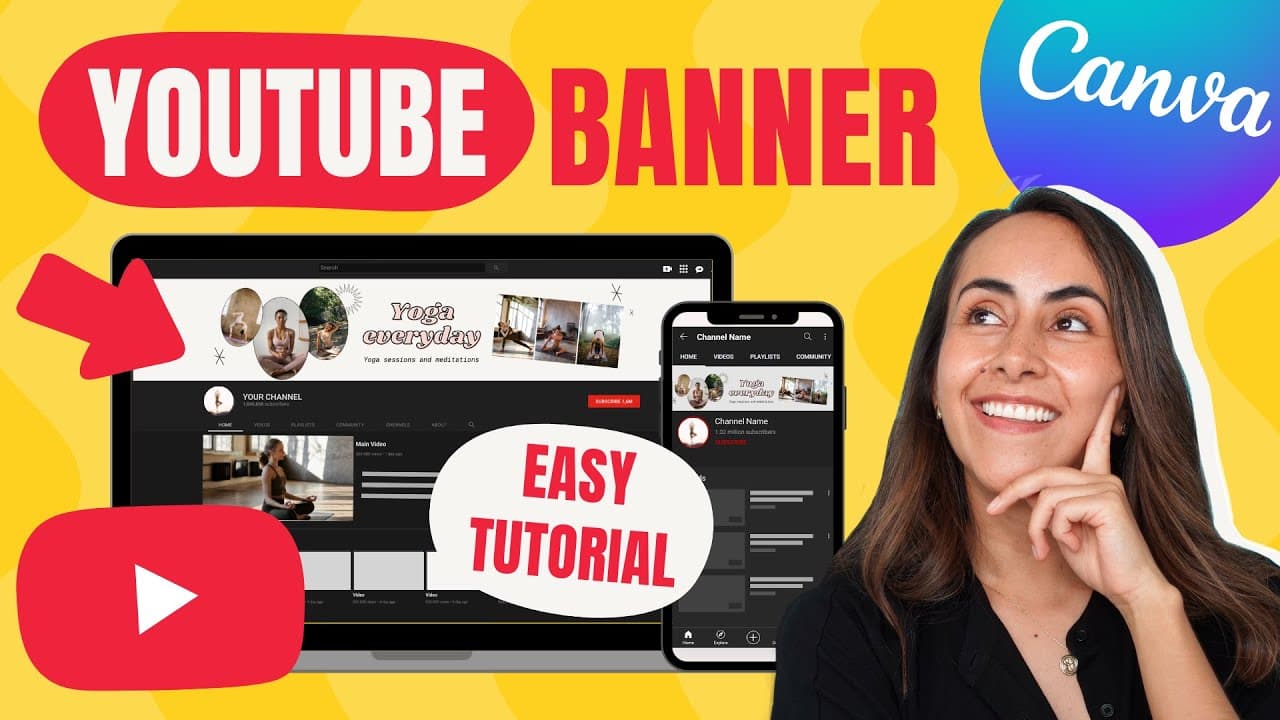
To create a YouTube banner that looks good on all devices, use Canva to set safe areas for optimal viewing. Start by designing your banner with guiding lines for desktops, tablets, and phones, then customize it with your images and colors. Finally, upload the banner to YouTube, ensuring you publish the changes for it to appear on your channel.
Transcript
today i'm going to teach you how to create youtube channel arts also known as youtube banners we're going to create them in canva and i'm going to show you how to design them using safe areas so your banners look good on desktop tablets phones and other devices you can create these banners using canva free or canva pro and this video is going to be... Read More
Key Insights
- 🥰 Canva allows users to create YouTube channel arts with safe areas for optimal viewing on different devices.
- 🥶 Templates are available in Canva, both for Canva Pro users and those using the free version.
- 🎨 Users can customize the design by adding their own photos and choosing color palettes.
- 🦺 Uploading the created banner to YouTube requires selecting the appropriate safe areas and publishing the changes.
Install to Summarize YouTube Videos and Get Transcripts
Explore YouTube Video Summarizer or Get YouTube Transcript Extractor
Questions & Answers
Q: Why is it important to create safe areas for YouTube channel arts?
Creating safe areas ensures that important content within the banner will be visible on different devices, such as desktops, tablets, phones, and TVs. Without safe areas, elements may be cut off or not displayed properly.
Q: Can I create a YouTube channel art for free on Canva?
Yes, you can create YouTube channel arts for free on Canva. While some templates require Canva Pro, there are also free options available. Simply select a template without a "Crown" label to access the free options.
Q: Can I use my own photos in the YouTube channel art?
Absolutely! Canva allows you to upload your own images to personalize your YouTube channel art. Simply go to the "Uploads" section and select the "Upload Media" button to add your own photos.
Q: How do I upload the created banner to my YouTube channel?
After downloading the banner as a PNG file, navigate to your YouTube channel and make sure you are logged in. Select "Customize Channel," then go to "Branding" and choose "Upload" under "Banner Image." Select the downloaded banner file and ensure it fits within the safe areas displayed. Finally, select "Publish" to apply the banner to your channel.
Summary & Key Takeaways
-
This tutorial teaches how to create YouTube channel arts (banners) using Canva, ensuring they look good on desktops, tablets, phones, and TVs.
-
The video covers creating guides in Canva to visualize safe areas for different devices, selecting templates or starting from scratch, customizing the design, and uploading the banner to YouTube.
-
Tips are provided on using Canva's features, adjusting elements for visibility, and personalizing the design with photos and colors.
Read in Other Languages (beta)
Share This Summary 📚
Summarize YouTube Videos and Get Video Transcripts with 1-Click
Try YouTube Summary with ChatGPT & Claude or YouTube Transcript Generator
Explore More Summaries from Design with Canva 📚




Summarize YouTube Videos and Get Video Transcripts with 1-Click
Try YouTube Summary with ChatGPT & Claude or YouTube Transcript Generator