How to Repurpose Long Videos Into YouTube Shorts
TL;DR
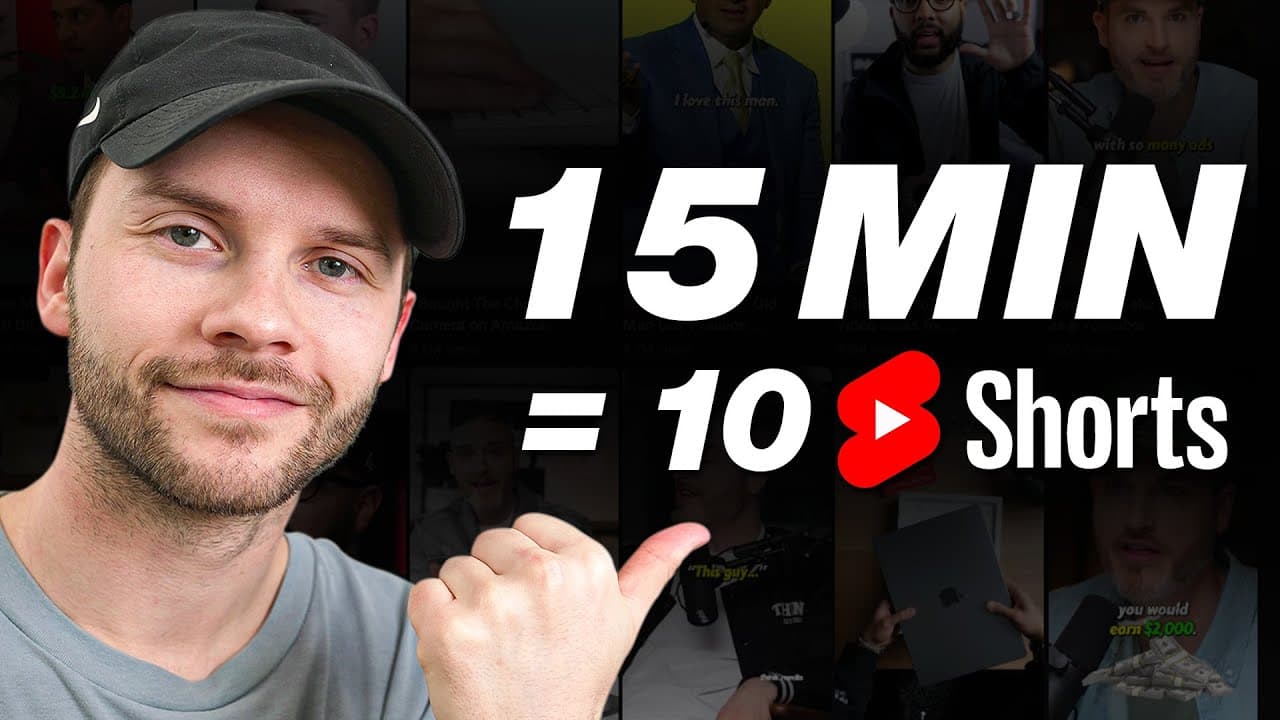
Paste a finished YouTube video link into Submagic Magic Clips to automatically generate multiple potential Shorts, then select a clip, correct its captions, customize the text style, and export it vertically. The same editor can also turn dedicated vertical footage or unedited talking-head footage into polished Shorts, with trimming, animated captions, and precisely timed custom B-roll.
Transcript
if you want to start making YouTube shorts but feel like it takes way too much time you are not alone the good news is though there's a way to create high quality shorts in minutes without spending countless hours editing so in this video we'll show you a simple AI tool that helps you make shorts quickly but also still looks really professional you... Read More
Key Insights
- Magic Clips is an AI-assisted repurposing feature that accepts either a desktop upload or a pasted YouTube link. It analyzes the source, identifies potentially useful moments, and converts them into candidate short-form clips instead of requiring the creator to search through the entire recording manually.
- The demonstrated podcast episode produced ten separate Shorts after approximately 10 to 15 minutes of automated processing. Each candidate appeared at a different point selected by the software as a potentially viral-style moment, leaving the creator to choose which result deserved further editing.
- Caption styling is controlled through built-in presets that can change the font, animation, size, position, and color treatment. Text can be placed around the lower third while remaining high enough to avoid conflicting with the description and interface text displayed near the bottom of a YouTube Short.
- Caption accuracy still requires human review even when the automated transcription performs well. In the example, the software reported 99.88 percent accuracy and highlighted a low-confidence word in orange, helping the creator find and correct a spoken wording mistake before exporting the finished clip.
- Vertical export is the appropriate choice demonstrated for YouTube Shorts, although a widescreen option is also available. The creator selected standard 1080p for simplicity, while the interface also presented 2K and 4K quality choices before processing the completed edit for download.
- Dedicated vertical footage is edited by trimming unwanted dead space before applying captions and visual enhancements. This workflow suits content recorded specifically as a Short, rather than repurposed from a finished long-form upload, and keeps the creator in control of the recording's exact starting and ending points.
- Custom B-roll is added by assigning an uploaded video clip or still image to a particular portion of the transcribed script. The inserted visual then overlays the corresponding part of the main footage, and its starting frame, duration, and associated words can be adjusted.
- Submagic supports several starting points for short-form production, including finished YouTube videos, dedicated vertical recordings, and unedited talking-head A-roll. These workflows combine automated clip selection or caption generation with manual control over trimming, text presentation, B-roll placement, and final export settings.
- Related book: YouTube Secrets
Install to Summarize YouTube Videos and Get Transcripts
Explore YouTube Video Summarizer or Get YouTube Transcript Extractor
Questions & Answers
Q: How can one long YouTube video become multiple Shorts?
Paste the finished video's YouTube link into a new Magic Clips project, select the desired clip duration and language, and start the automated clip-generation process. Submagic then analyzes the source and creates several candidate Shorts from different moments. In the demonstration, a podcast episode generated ten options after approximately 10 to 15 minutes, allowing the creator to choose one for further editing.
Q: How long does Submagic take to generate clips from a YouTube link?
The demonstrated Magic Clips process required roughly 10 to 15 minutes to analyze the pasted podcast video and create its candidate clips. Once processing finished, the interface displayed ten separate Shorts selected from different points in the episode. The creator could then open any result, review its content, customize its captions and visual style, and prepare it for export.
Q: How do you customize captions for an AI-generated YouTube Short?
Open the selected clip in the built-in editor and choose a caption preset that fits the desired presentation. The editor allows changes to animation style, text size, vertical position, and colors. The demonstration used smaller text around the lower third, positioned high enough to avoid the interface area near the bottom, while retaining the preset's yellow, green, and red colors.
Q: Why should AI-generated captions be reviewed before export?
Automated captions can be highly accurate while still containing uncertain or incorrect words. In the example, Submagic reported 99.88 percent accuracy but highlighted one low-confidence word in orange. The speaker had mistakenly said a word that did not match the intended sentence, so the creator manually changed it. Reviewing highlighted areas prevents visible caption errors from remaining in the exported Short.
Q: What export settings can be used for a YouTube Short in Submagic?
The demonstrated workflow used a vertical format because the clip was intended for YouTube Shorts, although the editor also offered a widescreen option. For resolution, the creator selected standard 1080p for simplicity. The export menu also presented 2K and 4K choices. After processing for a couple of minutes, the completed video could be downloaded directly to the computer's downloads folder.
Q: How do you create a Short from a dedicated vertical recording?
Upload the vertical recording as a new project, then trim any dead space from the beginning and end so the Short starts and finishes at the intended moments. Next, open the captions menu and select an animated preset, including an emoji-based style if desired. The footage can then be enhanced with custom B-roll assigned to specific script sections before it is reviewed and exported.
Q: How do you add custom B-roll to a Short in Submagic?
Open the B-roll tab, choose the relevant portion of the transcribed script, and use the plus button to add a visual. The editor accepts either an uploaded video clip or a still image. After uploading custom footage, select its starting frame and apply it. The B-roll overlays the chosen script section, while its duration and associated words can be adjusted afterward.
Q: What types of source footage can Submagic turn into Shorts?
The demonstrated workflows cover three source types. Magic Clips can analyze a finished YouTube video from a pasted link and produce multiple candidate Shorts. A dedicated vertical recording can be uploaded, trimmed, captioned, and enhanced with B-roll. Unedited talking-head A-roll from past or future content can also be uploaded as the main spoken portion of a short-form project.
Summary & Key Takeaways
-
Submagic's Magic Clips can repurpose a finished YouTube upload by analyzing its link and identifying sections that may work as short-form content. In the demonstration, one podcast episode produced ten candidate Shorts after roughly 10 to 15 minutes of processing, giving the creator several automatically selected moments to review and customize.
-
After choosing a generated clip, the creator can apply caption presets, resize and reposition text, change colors, and manually correct transcription errors. The demonstrated clip required only a small wording correction. It was then exported in a vertical format at standard 1080p quality and downloaded after a process involving roughly eight or nine clicks.
-
A dedicated vertical recording can also be uploaded and edited directly. Dead space at the beginning and end can be trimmed, animated caption themes can be applied, and uploaded B-roll can be assigned to specific script sections. Clip timing and associated words remain adjustable, allowing creators without extensive editing knowledge to reinforce spoken points visually.
Read in Other Languages (beta)
Share This Summary 📚
Summarize YouTube Videos and Get Video Transcripts with 1-Click
Try YouTube Summary with ChatGPT & Claude or YouTube Transcript Generator
Explore More Summaries from Think Media 📚
Summarize YouTube Videos and Get Video Transcripts with 1-Click
Try YouTube Summary with ChatGPT & Claude or YouTube Transcript Generator