Products
Features
YouTube Video Summarizer
Summarize YouTube videos
Web & PDF Highlighter
Highlight web pages & PDFs
Chat with PDF
Ask any PDF questions with AI
Ask AI Clone
Chat with your highlights & memories
Audio Transcriber
Transcribe audio files to text
Glasp Reader
Read and highlight articles
Kindle Highlight Export
Export your Kindle highlights
Idea Hatch
Hatch ideas from your highlights
Integrations
Obsidian Plugin
Notion Integration
Pocket Integration
Instapaper Integration
Medium Integration
Readwise Integration
Snipd Integration
Hypothesis Integration
Apps & Extensions
Chrome Extension
Safari Extension
Edge Add-ons
Firefox Add-ons
iOS App
Android App
Discover
Discover
Ideas
Discover new ideas and insights
Articles
Curated articles and insights
Books
Book recommendations by great minds
Posts
Essays and notes from readers
Quotes
Inspiring quotes collection
Videos
Curated videos and summaries
Explore Glasp
Glasp Story
How we grew from 0 to 3 million users
Glasp Newsletter
Weekly insights and updates
Glasp Talk
Interview series with great minds
Glasp Blog
Latest news and articles
Glasp Use Cases
Learn how others use Glasp
Build & Support
Glasp API
Access Glasp's API for developers
MCP Connector
Connect Glasp to Claude & ChatGPT
Community
Glasp Reddit Community
Students
Student discount and benefits
FAQs
Frequently Asked Questions
AboutPricing
DashboardLog inSign up

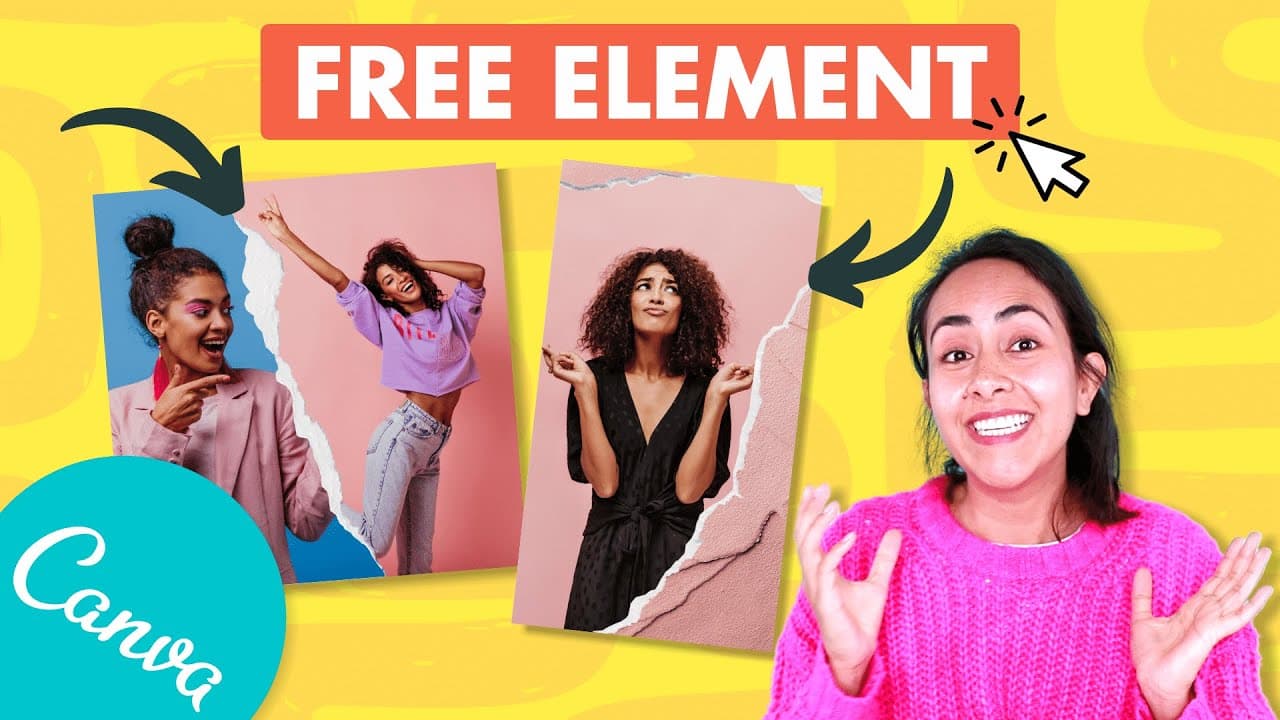
How to Create a Ripped Paper Effect in Canva?
49.6K views
•
October 4, 2020
by
Design with Canva
YouTube video player
How to Create a Ripped Paper Effect in Canva?

TL;DR

To create a ripped paper effect in Canva, choose the appropriate ripped paper frames that match the aspect ratio of your design, such as Instagram posts or stories. Select photos that fit well within these frames, and consider adding colors, textures, or additional elements to enhance your design's visual appeal.

Transcript

in this tutorial i'm going to show you how to create this creative and trendy effect the ripped paper effect for this trick i'm going to show you today you can use a canva free or a camber pro account and you will see that it is super easy and fast to achieve hello everyone my name is diana munoz i am a canvas certified creative and also an online ... Read More

Key Insights

  • 🎞️ Canva offers a wide range of ripped paper frames for creating trendy effects in designs.
  • 🥳 Selecting the right frame size and aspect ratio is crucial to ensure a visually pleasing design.
  • 🖼️ Careful consideration should be given to choosing photos that complement the frame and showcase the subject effectively.
  • 🎨 Adding additional elements like colors, textures, and drawings can enhance the overall design and make it more visually appealing.
  • 🎞️ Canva's photo database provides a variety of textures that can be used to add depth and interest to the ripped paper effect.
  • 🎨 Exploring hidden features and elements within Canva can unlock even more creative possibilities for design.
  • ♿ Subscribing to the channel ensures access to future tutorials, including one on creating a 3D effect in Canva.

Install to Summarize YouTube Videos and Get Transcripts

Explore YouTube Video Summarizer or Get YouTube Transcript Extractor

Questions & Answers

Q: What is the main focus of the tutorial?

The tutorial focuses on teaching how to create a trendy ripped paper effect using Canva and provides separate designs for Instagram posts and stories.

Q: How can one ensure a seamless design when using different frame sizes?

It is important to select a frame with a similar aspect ratio as the intended design format, whether it's for an Instagram post or story. This ensures that the frame fits perfectly without distorting the design elements.

Q: What tips are provided for selecting the right photos?

The tutorial suggests avoiding photos where important parts of the subject are cut off by the frame. It advises choosing photos with extra empty space around the subject, allowing for better composition within the frame.

Q: Are there other elements that can be added to the design?

Yes, in addition to photos, the tutorial demonstrates how to add colors, textures, drawings, and even text to the ripped paper frames, offering more creative possibilities.

Summary & Key Takeaways

  • The tutorial shows how to create a ripped paper effect using Canva for both Instagram posts and stories.

  • It highlights the importance of selecting the right frame size and aspect ratio to ensure a seamless design.

  • It offers tips on choosing the appropriate photos that match the frame and demonstrates how to add colors, textures, and other elements to enhance the design.


Read in Other Languages (beta)

English

Share This Summary 📚

Summarize YouTube Videos and Get Video Transcripts with 1-Click

Download browser extensions on:

Try YouTube Summary with ChatGPT & Claude or YouTube Transcript Generator

Explore More Summaries from Design with Canva 📚

OFFEO - First Impressions & first animated video thumbnail
OFFEO - First Impressions & first animated video
Design with Canva
How to Create Videos with Animations and Music in Canva FOR FREE! - Updated Tutorial thumbnail
How to Create Videos with Animations and Music in Canva FOR FREE! - Updated Tutorial
Design with Canva
How to Make an Animated LOWER THIRD - Easy  & Quick Canva Tutorial thumbnail
How to Make an Animated LOWER THIRD - Easy & Quick Canva Tutorial
Design with Canva
5 Ways to USE Canva to MAKE MONEY (Part 1) - Tips you NEED to know to be successful thumbnail
5 Ways to USE Canva to MAKE MONEY (Part 1) - Tips you NEED to know to be successful
Design with Canva
How to BLUR OUT Portions of a Video | Free in Canva thumbnail
How to BLUR OUT Portions of a Video | Free in Canva
Design with Canva
Collaborative video editing - How to make a group video in Canva - New feature - Canva tutorial thumbnail
Collaborative video editing - How to make a group video in Canva - New feature - Canva tutorial
Design with Canva

Summarize YouTube Videos and Get Video Transcripts with 1-Click

Download browser extensions on:

Try YouTube Summary with ChatGPT & Claude or YouTube Transcript Generator

Apps & Extensions

  • Chrome Extension
  • Safari Extension
  • Edge Add-ons
  • Firefox Add-ons
  • iOS App
  • Android App

Key Features

  • YouTube Video Summarizer
  • Web & PDF Summarizer
  • Web & PDF Highlighter
  • Chat with PDF
  • Ask AI Clone
  • Audio Transcriber
  • Glasp Reader
  • Kindle Highlight Export
  • Idea Hatch

Integrations

  • Obsidian Plugin
  • Notion Integration
  • Pocket Integration
  • Instapaper Integration
  • Medium Integration
  • Readwise Integration
  • Snipd Integration
  • Hypothesis Integration

More Features

  • APIs
  • MCP Connector
  • Blog & Post
  • Embed Links
  • Image Highlight
  • Personality Test
  • Quote Shots

Company

  • About us
  • Our Story
  • Blog
  • Community
  • FAQs
  • Job Board
  • Newsletter
  • Pricing
Terms

•

Privacy

•

Guidelines

© 2026 Glasp Inc. All rights reserved.