How to Create a Sliced Text Effect in Canva
TL;DR
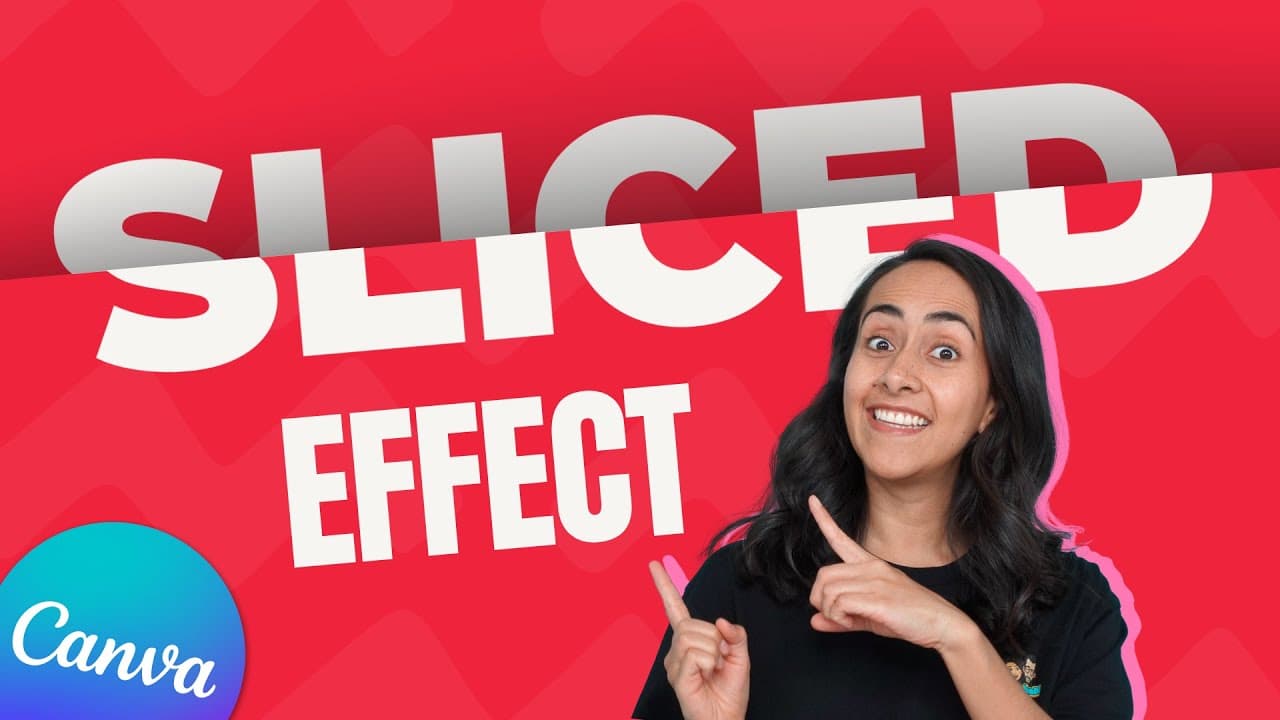
To create a sliced text effect in Canva, use a bold font and customize its color before exporting it as a PNG. Upload the image back to Canva, apply the Slice app effect, and adjust settings to achieve the desired look. Optionally, add shadows and other elements to enhance your design. A free account can achieve a similar effect with available shadow features.
Transcript
today i'm going to show you how to create a sliced text effect in canva like this one so if you guys are interested in this tutorial let's go to my computer let's go to combat.com homepage and we're going to create a new document for this project i'm going to go for a presentation document you can find it under this section so let's use the first o... Read More
Key Insights
- 👻 Canva allows users to create a sliced text effect by adding a bold font, customizing the text color, and applying a shadow element.
- 👤 Users can export the design as a PNG with a transparent background to have more flexibility in changing the background color later.
- 😀 The Slice app in Canva offers various slicing options to create the desired effect on the uploaded image.
- 👤 Canva Pro users have access to additional features, such as more fonts and the ability to download text without a background.
- 🧘 The design can be further enhanced by adding additional elements, like pizza slices, and adjusting their position and size.
- 🥶 It is possible to achieve a similar sliced text effect with a free Canva account by cropping the shadow or using a free shadow option.
- 🥶 Canva offers a range of design tutorials and a 45-day free trial of Canva Pro.
Install to Summarize YouTube Videos and Get Transcripts
Explore YouTube Video Summarizer or Get YouTube Transcript Extractor
Questions & Answers
Q: How do I create a sliced text effect in Canva?
To create a sliced text effect in Canva, start by adding a text box with a bold font and custom color. Export the page as a PNG with a transparent background. Next, upload the image to Canva, add a slice effect using the Slice app, and apply a shadow effect to the sliced text.
Q: Can I use any font for the sliced text effect?
Yes, you can use any font for the sliced text effect. It is recommended to use a bold font for better visibility. Canva provides a search feature to find bold fonts easily, and some fonts are available for free while others require a Canva Pro account.
Q: How do I adjust the shadow in the sliced text effect?
To adjust the shadow in the sliced text effect, open the Elements section in Canva and search for a shadow effect. Select the desired shadow element and position it above the sliced text. Adjust the size and position of the shadow to fit the text.
Q: Can I create a sliced text effect without a transparent background?
Yes, you can create a sliced text effect without a transparent background. If you have a free Canva account, you can download the image with a solid background. To achieve a similar effect, you can crop the shadow element or use a free shadow option in Canva.
Summary & Key Takeaways
-
Start by creating a new document in Canva and adding a text box with a bold font like Montserrat.
-
Customize the text by typing the desired word, making it large, and choosing a bright color.
-
Export the page as a PNG with a transparent background for more flexibility.
-
Upload the image to Canva, add a slice effect using the Slice app, and adjust the settings to your liking.
-
Apply a shadow effect to the sliced text and further customize the design with additional elements.
Read in Other Languages (beta)
Share This Summary 📚
Summarize YouTube Videos and Get Video Transcripts with 1-Click
Try YouTube Summary with ChatGPT & Claude or YouTube Transcript Generator
Explore More Summaries from Design with Canva 📚




Summarize YouTube Videos and Get Video Transcripts with 1-Click
Try YouTube Summary with ChatGPT & Claude or YouTube Transcript Generator