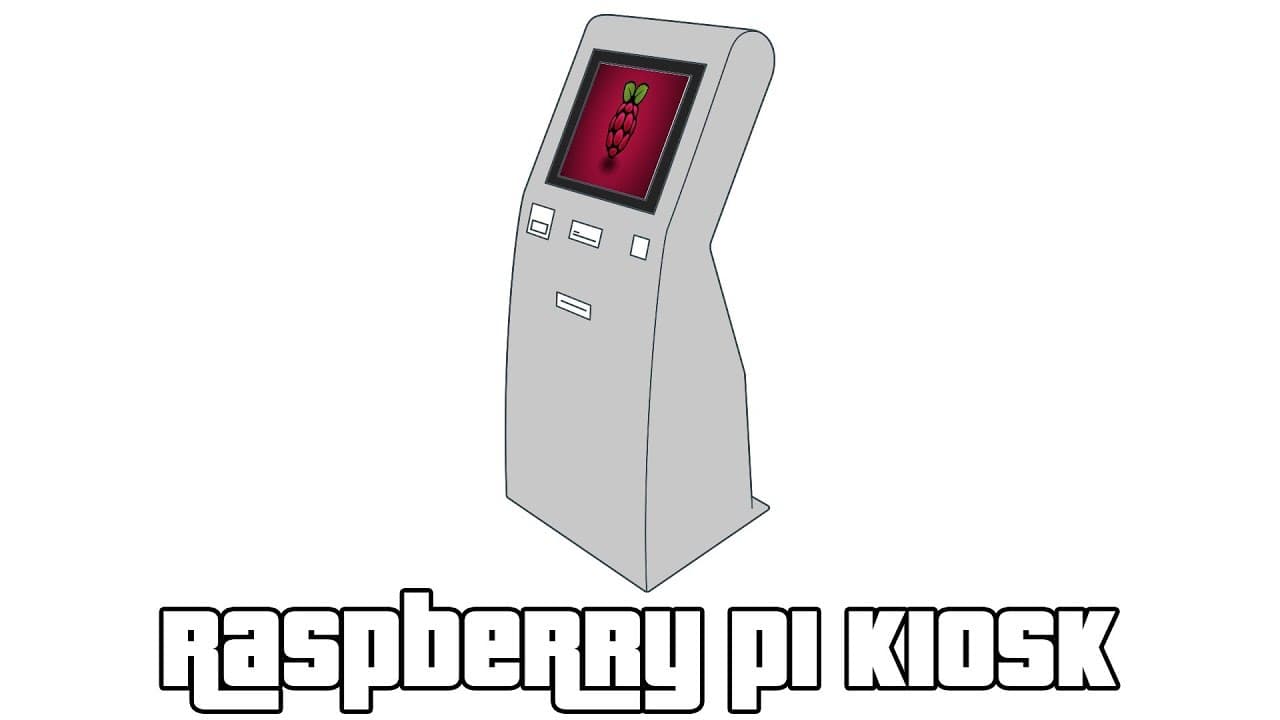
How to Set Up a Raspberry Pi as a Kiosk Machine
TL;DR
To set up a Raspberry Pi as a kiosk machine, install Raspbian Lite, configure your network, and install a minimal desktop environment. Launch the desired application, like Chromium in kiosk mode, on startup by modifying the auto-start file and disabling screen savers. This setup is ideal for small businesses to display targeted information without distractions.
Transcript
hey guys going on down here from Nova spirit again you may have noticed this is a new setup now I got a standing desk the hand-crank one from Ikea because I come on make videos for YouTube I can't afford the electrical one - I also got a brand new camera if you guys see me on Instagram I'll be testing it and playing around a lot with this guy and t... Read More
Key Insights
- 💁 Kiosk machines serve practical purposes in retail and service environments by providing targeted information to customers.
- ❓ Initial setup involves configuring the operating system and network settings before proceeding with software installations.
- 🎨 The Raspberry Pi's lightweight design makes it suitable for dedicated tasks without complex operating systems interfering with performance.
- 👻 Openbox is chosen as a desktop manager due to its minimal resource usage, allowing better performance for the kiosk application.
- 👻 Specific programming commands allow for a custom experience tailored to user needs while maintaining device longevity.
- 👨💼 Users can customize kiosks beyond just browsers, utilizing various applications to fit unique business requirements.
- 🆘 Effective troubleshooting techniques help overcome common setup issues, ensuring smooth kiosk operation from start to finish.
Install to Summarize YouTube Videos and Get Transcripts
Explore YouTube Video Summarizer or Get YouTube Transcript Extractor
Questions & Answers
Q: What are the benefits of using a Raspberry Pi for a kiosk machine?
Raspberry Pi is cost-effective, energy-efficient, and versatile, making it ideal for kiosk applications in small businesses. It allows for easy setup and customization while being sufficiently powerful for basic tasks. Users can tailor the kiosk to specific needs, whether displaying menus in a restaurant or showing information in stores, without requiring advanced hardware.
Q: How do you initially set up the Raspberry Pi for the kiosk project?
Begin by installing Raspbian Light on the Raspberry Pi, which is a stripped-down version without a desktop environment. Next, connect to the Wi-Fi and configure key settings through the sudo raspi-config command. This ensures the device is ready for further software installations and custom configurations suited for kiosk functionality.
Q: Why is Chromium used in this kiosk setup?
Chromium is preferred for this setup due to its built-in kiosk mode, which allows the browser to run without any user interface elements like toolbars and address bars. This functionality is essential for creating a focused experience on kiosks, ensuring users only access the intended web application or content without distractions.
Q: What command is used to disable screen blanking and screen savers in the kiosk setup?
To prevent screen blanking and screen savers, specific commands need to be added to the autostart configuration file. The commands xset s off, xset s noblank, and xset dpms 0 0 0 can be included in the Openbox autostart file, maintaining continuous display for the kiosk.
Q: Can the kiosk setup be applied to other Raspberry Pi models?
Yes, the kiosk machine setup can be implemented on various Raspberry Pi models, including the Raspberry Pi Zero or any compatible board. The instructions are flexible enough to adapt to different hardware, enabling a range of users to utilize this kiosk functionality based on their needs and available resources.
Q: How can users exit the kiosk mode if needed?
Users can exit kiosk mode by pressing Ctrl + Alt + F2, allowing access to the command line. This enables users to shut down the system or make necessary changes. However, measures can be taken to limit access to this feature in a fully operational kiosk environment.
Q: What is the significance of auto-login in the kiosk setup?
Auto-login simplifies the user experience by allowing the kiosk to boot directly to the intended application without requiring manual login each time. This feature is particularly important for environments where the kiosk is in constant use, reducing downtime between transitions and ensuring a seamless experience for users.
Q: What challenges were faced during the video recording?
The creator encountered multiple distractions including ringing doorbells, poor lighting conditions, and interruptions from a phone. These challenges required several takes to achieve a satisfactory video quality, showcasing the creator's commitment to delivering informative content despite technical and environmental difficulties.
Summary & Key Takeaways
-
The video presents a tutorial on building a kiosk machine using Raspberry Pi, specifically aimed at small businesses like restaurants or retail stores.
-
The setup involves configuring Raspbian Light, installing minimal software, and customizing the kiosk to boot directly into a designated application, using Chromium in kiosk mode.
-
Additional details include troubleshooting advice and steps for disabling screen savers and monitor blanking to ensure the kiosk runs continuously without interruption.
Read in Other Languages (beta)
Share This Summary 📚
Summarize YouTube Videos and Get Video Transcripts with 1-Click
Try YouTube Summary with ChatGPT & Claude or YouTube Transcript Generator
Explore More Summaries from Novaspirit Tech 📚





Summarize YouTube Videos and Get Video Transcripts with 1-Click
Try YouTube Summary with ChatGPT & Claude or YouTube Transcript Generator