How to Create Thin Lines in Canva Easily
TL;DR
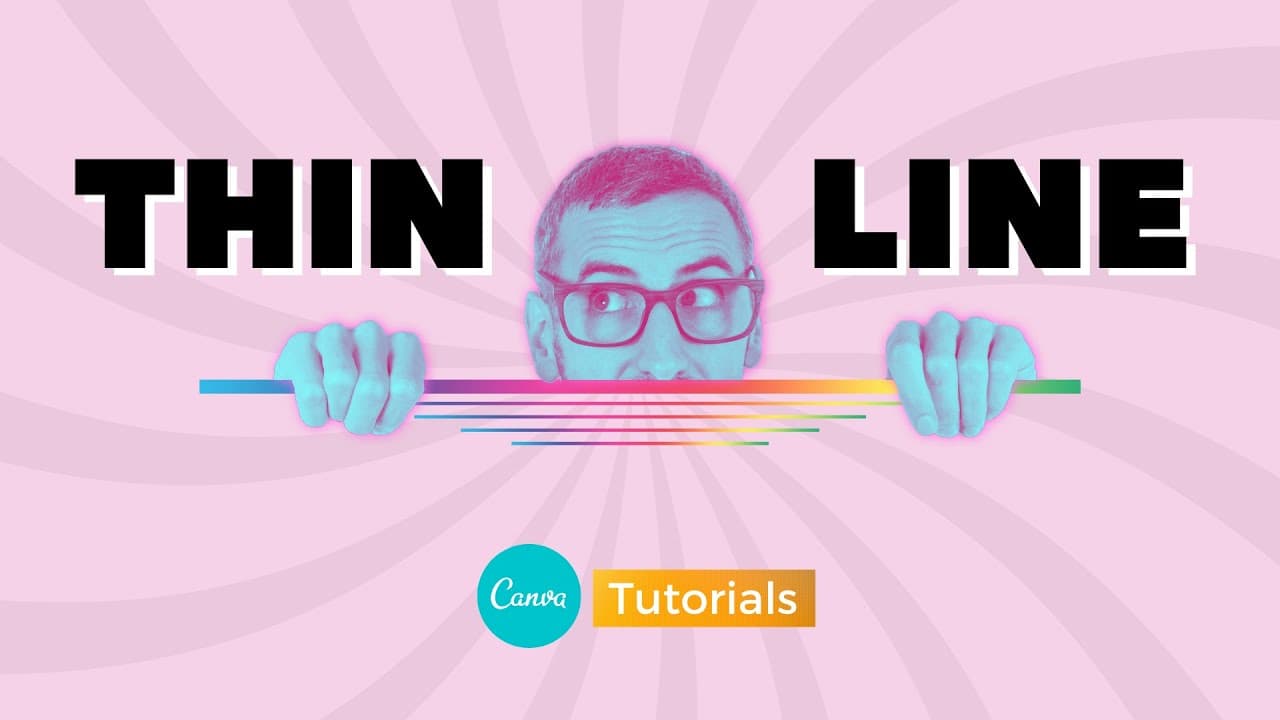
To create thin lines in Canva, use rectangles or grids instead of the line tool for better control. By reducing the height of rectangles or using grids as placeholders, you can achieve thin lines that can be customized with colors, gradients, or textures for added visual appeal.
Transcript
the second question that I have found on the Internet is how to create thin lines with canva okay so let's jump into this I have a presentation style canvas right here so it's 1920 by 1080 but again doesn't matter which size of canva we are using let's see how we can manage lines in canvas so the first thing I know is that if you go to the elements... Read More
Key Insights
- 🫥 Canva offers various options for creating thin lines, including using lines, rectangles, and grids as placeholders.
- 🫥 Using rectangles to create thin lines is more practical as it allows for more precise control over the line's size.
- 🤔 Thin lines can be customized with different colors, gradients, or textures to enhance their visual appeal.
- 🤔 Adding gradients to thin lines can create a visually striking effect.
- 🤔 Textures can be used to add depth and uniqueness to thin lines.
- 🤔 Thin lines created with rectangles or grids can be used as separators or design elements.
- 🤔 The versatility of Canva's tools allows for creative exploration when it comes to designing thin lines.
Install to Summarize YouTube Videos and Get Transcripts
Explore YouTube Video Summarizer or Get YouTube Transcript Extractor
Questions & Answers
Q: How can I create thin lines in Canva?
There are multiple methods for creating thin lines in Canva. You can use the line tool and reduce its size using the handle, or you can use rectangles and reduce their height. Both options allow you to create thin lines for your designs.
Q: Can I customize the thin lines with different colors?
Yes, you can customize the thin lines with different colors in Canva. Whether you're using the line tool or rectangles, you can easily change the line's color to match your design preferences.
Q: Is there a way to add gradients to the thin lines?
Absolutely! To add gradients to the thin lines in Canva, you can use rectangles and apply gradients to them. Simply choose a gradient from the elements tab and drop it onto your rectangle. You can then adjust the size of the line and gradient to achieve your desired effect.
Q: Can I insert textures into the thin lines?
Yes, you can insert textures into the thin lines in Canva. Instead of using gradients, you can search for textures in the elements tab and apply them to your rectangles or grids. This allows you to create unique and textured thin lines for your designs.
Summary & Key Takeaways
-
Canva offers multiple ways to create thin lines, including using the line tool and reducing its size, using rectangles and reducing their height, and using grids as placeholders.
-
Rectangles offer a more practical option for creating thin lines compared to using the line tool, as they do not reduce the line's length.
-
Thin lines can be customized with different colors, gradients, or textures, allowing for creative design possibilities.
Read in Other Languages (beta)
Share This Summary 📚
Summarize YouTube Videos and Get Video Transcripts with 1-Click
Try YouTube Summary with ChatGPT & Claude or YouTube Transcript Generator
Explore More Summaries from Design with Canva 📚





Summarize YouTube Videos and Get Video Transcripts with 1-Click
Try YouTube Summary with ChatGPT & Claude or YouTube Transcript Generator