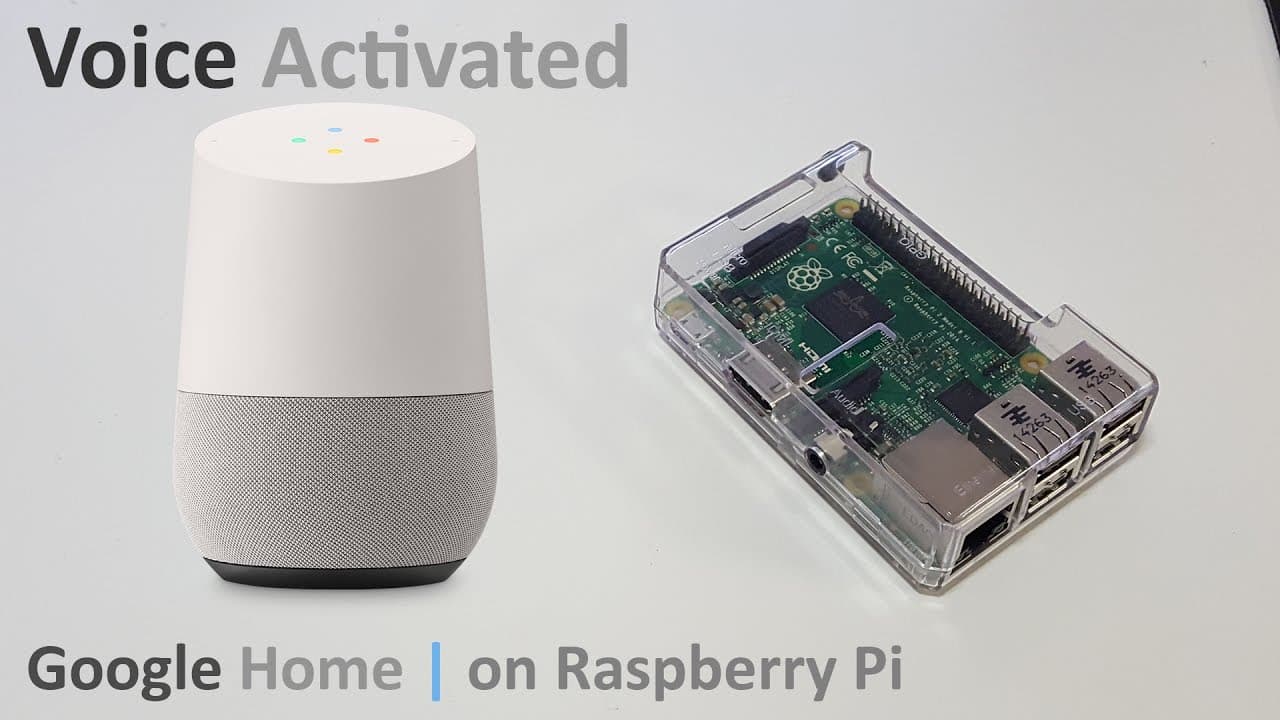
How to Set Up Voice Activation for Google Assistant on Raspberry Pi
TL;DR
To set up voice activation for Google Assistant on Raspberry Pi, create a project on Google Cloud Console and enable Google Assistant services. Follow the tutorial to configure OAuth credentials, manage required Python libraries, and execute commands to activate Google Assistant, allowing for an interactive voice-activated experience.
Transcript
Hey guys what's going on it's Don here from Novaspirit Tech and today we are going to be adding voice activation To our Google Assistant on Raspberry Pi so let's get started So before we begin I got to say what do you guys think of my glasses No, I'm just kidding I really wanted to talk about my Patreon something that can help support the channel n... Read More
Key Insights
- 😫 Setting up Google Assistant on Raspberry Pi enhances its interactivity with voice commands, making it a versatile tool.
- 💦 The integration requires a solid understanding of working on Google Cloud Console for project management and service activation.
- ♿ Precise configuration of permissions in your Google account is fundamental to avoid access issues during setup.
- 😄 The tutorial adeptly guides users through coding commands, ensuring clarity in a step-by-step format for ease of understanding.
- 📽️ Voice activation can significantly elevate the usability of Raspberry Pi projects by incorporating seamless voice recognition features.
- 💝 The importance of updates and package management in Python is emphasized, ensuring that users have the latest tools at their disposal.
- 📽️ The creator encourages sharing the tutorial, highlighting the community aspect and potential growth of interest in Raspberry Pi projects.
Install to Summarize YouTube Videos and Get Transcripts
Explore YouTube Video Summarizer or Get YouTube Transcript Extractor
Questions & Answers
Q: What initial preparations are needed before setting up Google Assistant on Raspberry Pi?
Before setting up Google Assistant, ensure you have a fresh install of Raspbian PIXL on your Raspberry Pi and verify that all system updates are completed. Additionally, you need to create a project on the Google Cloud Console and enable the Google Assistant API. It is also important to ensure that necessary permissions, like Web activity and Voice Audio Activity, are enabled in your Google account settings.
Q: How do you create a project on Google Cloud Console for the Google Assistant?
You can create a project by navigating to the Google Cloud Console, signing in, and clicking on "Create project." Name your project (e.g., "Voice") and hit "Create." After a brief wait for the project to appear, access the API Manager to enable the Google Assistant services, ensuring your project is selected to manage the configurational aspects.
Q: What steps are involved in setting up OAuth credentials for Google Assistant?
To set up OAuth credentials, go to the Credentials section in the Google Cloud Console and navigate to the OAuth Consent Screen. Here, you can name your project, followed by creating a new credential by selecting "Create Credentials" and then "OAuth Client ID." After selecting 'Other,' download the Json key for future use in your Raspberry Pi project.
Q: What Python packages need to be installed to support Google Assistant on Raspberry Pi?
The required Python packages include 'python3-dev' and 'python3-venv' which can be installed using the command: "sudo apt-get install python3-dev python3-venv." After this, you will need to create and activate a Python virtual environment, and then update pip and setuptools for managing package installations.
Summary & Key Takeaways
-
The tutorial provides a comprehensive guide for setting up voice activation for Google Assistant using Raspberry Pi, specifically targeting users with a fresh install of Raspbian PIXL.
-
It emphasizes the necessity of creating a project on the Google Cloud Console to enable Google Assistant services, highlighting the steps involved in setting up credentials and permissions.
-
The content also covers the installation of required Python dependencies and the commands necessary to activate Google Assistant, making it approachable for tech enthusiasts.
Read in Other Languages (beta)
Share This Summary 📚
Summarize YouTube Videos and Get Video Transcripts with 1-Click
Try YouTube Summary with ChatGPT & Claude or YouTube Transcript Generator
Explore More Summaries from Novaspirit Tech 📚

Summarize YouTube Videos and Get Video Transcripts with 1-Click
Try YouTube Summary with ChatGPT & Claude or YouTube Transcript Generator