Desk Setup Upgrade - 35" UltraWide Monitor | Life as a Junior Doctor
TL;DR
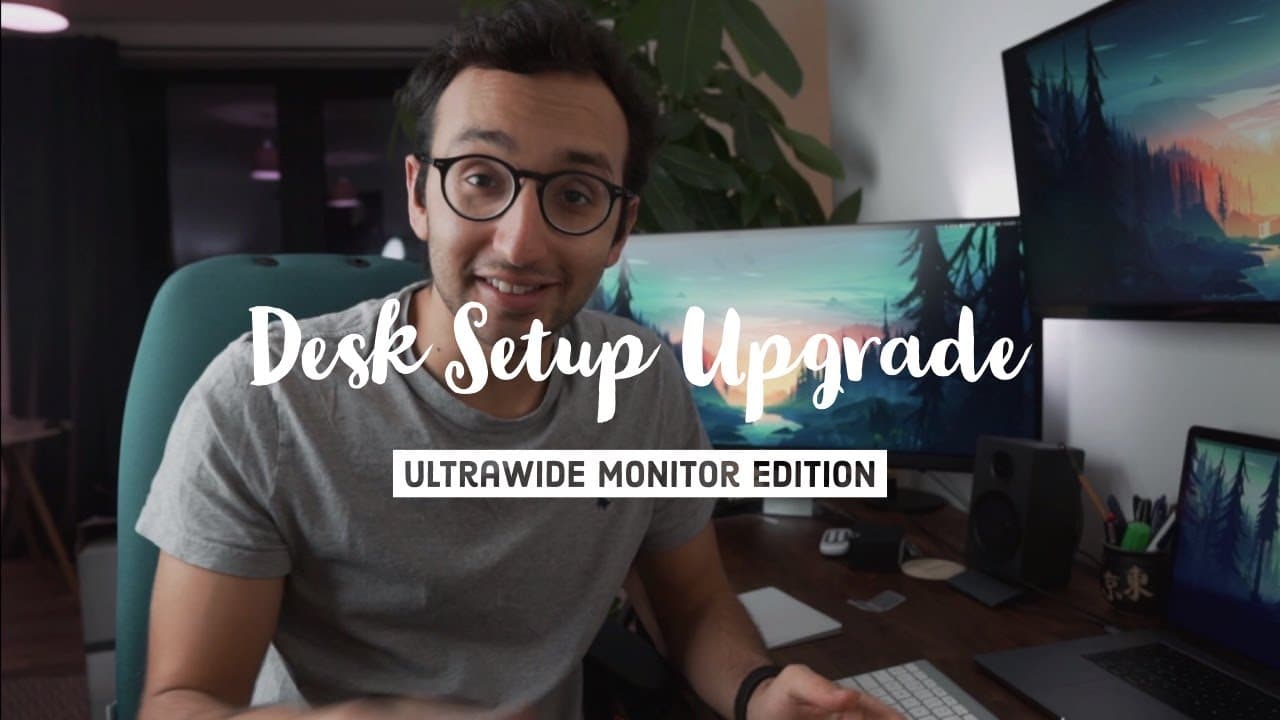
The 35-inch curved BenQ ultrawide upgrades Ellie’s junior-doctor desk by connecting directly to her 15-inch MacBook Pro through one USB-C cable while also charging it. Her temporary triple-monitor setup adds the BenQ display alongside a 34-inch LG ultrawide, with features including a 100Hz refresh rate, AMD FreeSync, and ambient-light brightness adjustment. Read on for the setup details, connection results, and her planned wall-mounted arrangement.
Transcript
hey guys welcome back to the channel if you new here my name is Ellie I'm a junior doctor working in Cambridge and for a while now it's kind of been a little hobby of mine to pimp out my desk set up to be as overkill as I possibly can without spending too much money so at the moment it's based around the 15-inch MacBook Pro which is fairly Specter ... Read More
Key Insights
- 🤑 Ellie enjoys upgrading her desk setup to be more high-tech and efficient without spending a lot of money.
- 👶 The new monitor with USB C connectivity simplifies the setup by allowing for just one cable connection to the laptop.
- ⚡ The monitor's curved design and advanced features, such as high refresh rate and ambient light detection, enhance the overall user experience.
Install to Summarize YouTube Videos and Get Transcripts
Explore YouTube Video Summarizer or Get YouTube Transcript Extractor
Questions & Answers
Q: How does the 35-inch ultrawide monitor upgrade Ellie’s desk setup?
The curved BenQ monitor connects directly to Ellie’s 15-inch MacBook Pro with a single USB-C cable. The connection drives the screen and charges the laptop, moving her closer to a desk setup that does not require many separate connections.
Q: Why did Ellie want a monitor with USB-C connectivity?
Her 34-inch LG ultrawide required a Satechi dongle to connect the USB-C MacBook Pro through HDMI. She wanted a direct connection and ultimately hoped to use one cable between her laptop and the entire desk setup.
Q: Did the MacBook Pro connect successfully to the BenQ monitor through USB-C?
Yes, the screen worked when Ellie connected it to the MacBook Pro with one USB-C cable. The laptop also began charging through that same connection.
Q: What displays are included in Ellie’s temporary triple-monitor setup?
The setup includes the 15-inch MacBook Pro, a 34-inch LG ultrawide, and the new 35-inch curved BenQ ultrawide. The LG connects through HDMI, while the BenQ connects through USB-C.
Q: What features does the 35-inch curved monitor have?
Ellie says the monitor has a 100Hz refresh rate and AMD FreeSync, features presented as useful for gaming. It also detects ambient light and adjusts its brightness accordingly.
Q: How does the monitor’s ambient-light feature help Ellie?
The monitor adjusts brightness based on the light in the room. Ellie explains that it can lower brightness while she edits late at night and raise it during the day.
Q: Why did Ellie keep the 34-inch LG monitor in the setup?
Removing it was difficult because its existing wall mount was poorly done. Ellie therefore tried placing the new BenQ monitor alongside it, creating a temporary triple-monitor arrangement.
Q: How does Ellie plan to change the desk setup later?
She plans to take the 34-inch LG monitor off the wall and mount the 35-inch BenQ monitor there once she has tools and a drill. She then expects to return to an arrangement with one monitor on each side of the MacBook Pro.
Summary & Key Takeaways
-
Ellie, a junior doctor, loves upgrading her desk setup to be as overkill as possible without spending too much money.
-
She unboxes and sets up a 35-inch curved monitor with USB C connectivity, replacing her previous monitor that required a dongle for connection.
-
The new monitor allows for a clean and streamlined desk setup with just one cable connecting her laptop to the entire setup.
Read in Other Languages (beta)
Share This Summary 📚
Summarize YouTube Videos and Get Video Transcripts with 1-Click
Try YouTube Summary with ChatGPT & Claude or YouTube Transcript Generator
Explore More Summaries from Ali Abdaal 📚

Summarize YouTube Videos and Get Video Transcripts with 1-Click
Try YouTube Summary with ChatGPT & Claude or YouTube Transcript Generator