What Is the Analyze Tab in thinkorswim and How to Use It?
TL;DR
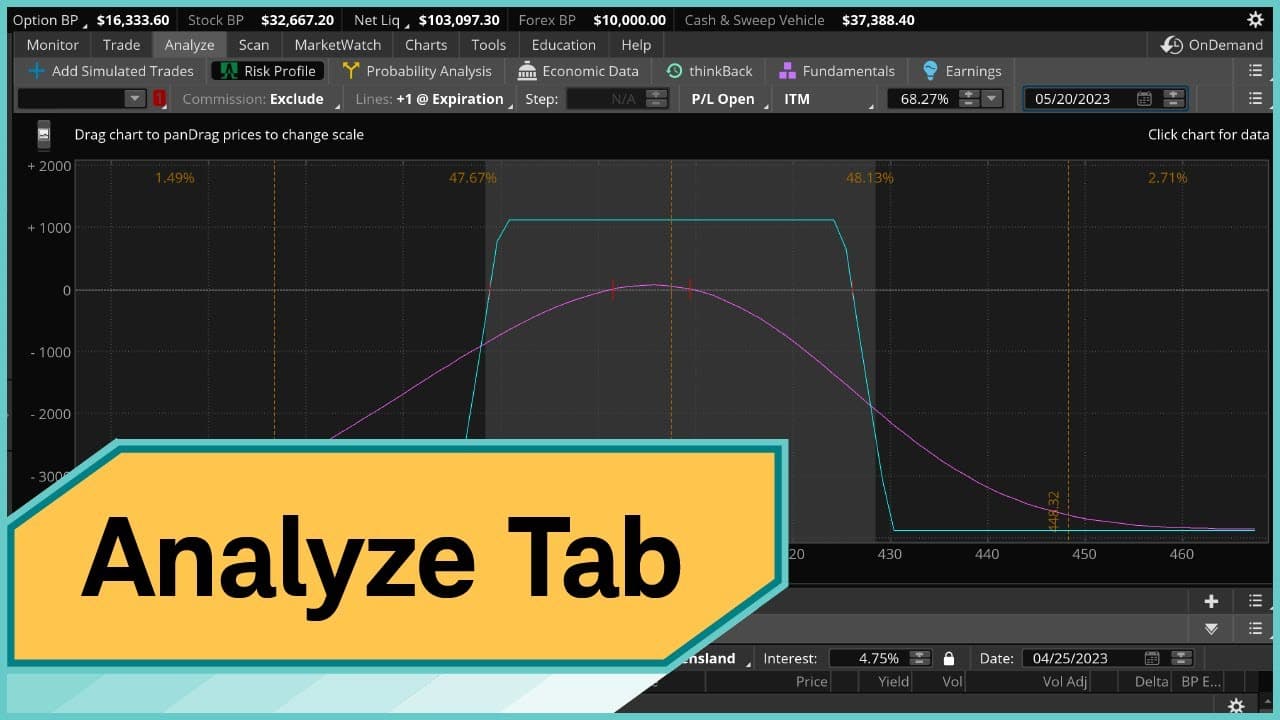
The Analyze tab in thinkorswim provides advanced tools for options traders, including simulated trades, risk profiles, probability analysis, economic data, back-testing with thinkBack, and fundamental analysis. Key features include visualizing potential profits and losses, gauging the probability of price ranges, and accessing economic indicators. These tools enhance trading strategies and decision-making for both options traders and fundamental investors.
Transcript
The Analyze tab is chock full of advanced tools that allow to create and manipulate simulated trades, examine risk profiles, and explore probabilities. Let's do a quick overview of the various subtabs. All right. So we're starting here from our home screen, and we're going to navigate directly to the Analyze tab. And you'll immediately notice that ... Read More
Key Insights
- 📑 The Analyze tab in thinkorswim offers advanced tools for options traders, including simulated trades, risk profile, probability analysis, economic data, thinkBack, and fundamentals.
- 🌸 The Risk Profile subtab helps visualize the potential profits and losses of options trades at different price levels.
- 🧡 The Probability Analysis subtab provides insights into the probability of a stock staying within a certain range on a specific date.
- 👻 The thinkBack subtab allows options traders to back-test their strategies by simulating trades in the past.
- 💁 The Fundamentals subtab provides comprehensive fundamental information about stocks.
- ⌛ The Economic Data subtab offers access to a database of economic indicators and time series.
- 📑 The tools in thinkorswim's Analyze tab can assist both options traders and fundamental investors.
Install to Summarize YouTube Videos and Get Transcripts
Explore YouTube Video Summarizer or Get YouTube Transcript Extractor
Questions & Answers
Q: How can the Analyze tab in thinkorswim help options traders?
The Analyze tab provides advanced tools such as simulated trades, risk profile, and probability analysis, allowing options traders to analyze potential profits, losses, and the likelihood of stock movements.
Q: Can you explain how the Risk Profile subtab works?
The Risk Profile subtab displays a chart showing the potential profits and losses of a specific options trade, based on different stock price levels. It helps traders visualize the risk/reward profile of their positions.
Q: What is the purpose of the Probability Analysis subtab?
The Probability Analysis subtab helps options traders evaluate the likelihood of a stock staying within a certain price range on a specific date. It uses a price parabola to show the probability percentage based on standard deviations.
Q: How does the thinkBack subtab assist options traders?
The thinkBack subtab allows options traders to back-test their trading strategies by simulating trades in the past. Traders can analyze how their strategies would have performed under different market conditions.
Summary & Key Takeaways
-
The video introduces the Analyze tab in thinkorswim, which offers various subtabs such as Add Simulated Trades, Risk Profile, Probability Analysis, Economic Data, thinkBack, and Fundamentals.
-
The speaker demonstrates how to use the Add Simulated Trades subtab to analyze a long call option on Microsoft.
-
The Risk Profile subtab shows the potential profits and losses of the long call option at different price levels, while the Probability Analysis subtab visualizes the likelihood of the stock staying within a certain range on a specific date.
-
The video also briefly explores the Economic Data subtab, thinkBack(back-testing tool), and Fundamentals subtab for fundamental analysis.
Read in Other Languages (beta)
Share This Summary 📚
Summarize YouTube Videos and Get Video Transcripts with 1-Click
Try YouTube Summary with ChatGPT & Claude or YouTube Transcript Generator
Explore More Summaries from Charles Schwab 📚






Summarize YouTube Videos and Get Video Transcripts with 1-Click
Try YouTube Summary with ChatGPT & Claude or YouTube Transcript Generator