How to Animate Product Photos with Adobe Firefly
TL;DR
Create a product animation by preparing a still mockup in Photoshop, using Firefly Image to Video to generate motion, and polishing the result in Premiere Pro. Multiple generations, careful trimming, Generative Extend, color matching, transitions, sound design, and looping can turn short AI-generated clips into believable product promotions for Instagram or other platforms.
Transcript
In this video, I'm going to show you how you can create really cool product animations with generate video powered by the Firefly video model. Let's jump on in. So, first off, Adobe is the sponsor of this video, which is awesome, but they didn't tell me what to say. They simply asked me to use Firefly in my workflow and share it. And that's what we... Read More
Key Insights
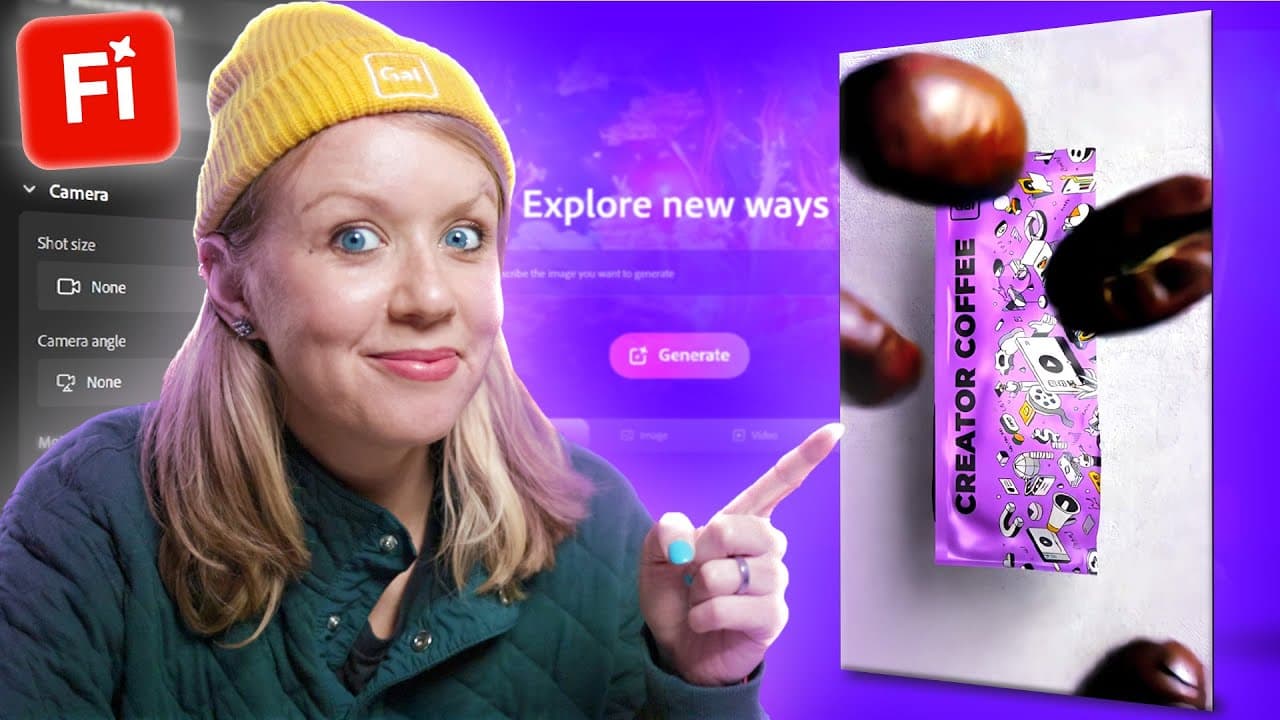
- Product animation starts with a clean Photoshop mockup that gives Firefly a controlled visual reference. Generative Expand can enlarge or reduce the apparent background area, allowing the product to occupy an appropriate amount of a vertical composition before the image is exported as a JPEG.
- Firefly Image to Video animates a still image according to a written motion prompt. Uploading the coffee package as the first frame and requesting falling coffee beans produced motion in which beans entered from above, surrounded the bag, bounced, and appeared to interact with it.
- Start and end frames can define a generated product action more precisely. Generative Fill was used to remove the coffee bag from the table image, creating an empty starting frame that could be paired with the original product image as the ending frame.
- Prompt iteration is necessary because different wording and generations produce different results. Variations such as asking a coffee bag to fall, drop onto a table, or be placed by someone were tested before the preferred hand-placement generation and plant-growth generation were selected.
- Generative Extend creates new matching footage instead of merely repeating existing frames. It extended one clip by 2 seconds to fit a 15-second music edit and later added media before another clip so that Premiere Pro had enough visual information to apply Morph Cut.
- Seamless editing depends on hiding differences between generated clips. Morph Cut can blend adjacent scenes by analyzing the background, while Lumetri Color temperature adjustments can reduce warm and cool mismatches that would otherwise reveal the transition between separate Firefly generations.
- Keyframed motion can strengthen movement already present in generated footage. Position and scale keyframes created a gradual zoom as the plant grew, and Ease Out at the beginning with Ease In near the end made the animation change more smoothly over time.
- Sound design makes generated product motion feel more believable and establishes the setting. Coffee-shop ambience, a bag impact, spilling beans, plant-growth effects, music, and a radio-style Essential Sound preset combined with grain, film effects, and darker grading to produce a cohesive retro atmosphere.
Install to Summarize YouTube Videos and Get Transcripts
Explore YouTube Video Summarizer or Get YouTube Transcript Extractor
Questions & Answers
Q: How do you create a product animation with Adobe Firefly?
Create a product mockup in Photoshop, adjust its surrounding space with Generative Expand if needed, and export the result as a JPEG. In the Firefly web app, choose Image to Video, select the desired aspect ratio, upload the mockup as the first frame, and write a prompt describing the motion. Generate several options, then bring the preferred result into Premiere Pro for editing, sound, and finishing.
Q: How can Photoshop prepare images for Firefly Image to Video?
Photoshop can prepare both the composition and alternate frames for the animation. The Crop tool with Generative Expand can make the background larger or smaller, changing how large the product appears in the frame. Generative Fill can remove the product from a scene, producing an empty version that works as a starting frame while the original product mockup serves as the ending frame.
Q: How should prompts describe motion in Firefly product animations?
Prompts should directly state the visible action that Firefly should generate around the uploaded product. Examples in the workflow include coffee beans falling into the frame and surrounding the bag, a coffee bag dropping onto a table, and a coffee plant growing around the package. Since outputs can differ, test multiple descriptions and generations, then choose the version with the most convincing movement and product appearance.
Q: Why should you generate multiple versions of a Firefly animation?
Multiple generations are useful because a prompt may not produce the desired action or preserve the product graphics equally well every time. The coffee-bag placement required several prompt variations before a preferred hand-placement result was found, and the plant-growth scene was also selected after several generations. Comparing options lets the editor choose stronger motion and avoid the most noticeable distortions.
Q: How does Generative Extend help edit short AI video clips?
Generative Extend adds newly generated video that matches the existing footage rather than simply repeating frames. In one example, it added 2 seconds so the visual could better fit a music track shortened to 15 seconds. In another, it extended the beginning of a clip to provide additional media, allowing Morph Cut to analyze and blend the transition between two generated scenes.
Q: How can separate Firefly generations be blended smoothly?
Trim each generation to its strongest section, place the clips together, and inspect differences in timing, shadows, color, and product graphics. If Morph Cut lacks enough media, use Generative Extend to add footage around the edit. Apply a short Morph Cut to soften the transition, then use Lumetri Color temperature adjustments to bring warmer and cooler clips into closer visual agreement.
Q: How do you make a Firefly product animation loop seamlessly?
Shift the timeline assets to create space, extend the first clip, and cut a short portion from its beginning. Move that opening portion to the end of the sequence so the final frames reconnect with the start. Trim the pieces as needed, close the initial gap, and use loop playback in the Program Monitor to check whether the transition repeats without an obvious interruption.
Q: What sound and finishing effects improve an AI product animation?
Layer sound that matches both the action and the intended environment. The demonstrated edit uses coffee-shop ambience, a bag hitting the table, spilling beans, plant-growth effects, and music processed with an Essential Sound radio preset. Scratchy grain, film effects, darker color grading, a film-burn transition, crossfades, and controlled sound-effect volume help the separate generated elements feel like one believable retro product promotion.
Summary & Key Takeaways
-
The workflow begins with a product mockup created in Photoshop. Generative Expand can resize the surrounding background, while Generative Fill can remove the product to create alternate starting and ending frames. These still images are exported and uploaded to Firefly Image to Video, where text prompts describe the desired product motion.
-
Firefly can animate a single starting image or generate movement between separate starting and ending frames. Prompts can make coffee beans fall, place a coffee bag on a table, or grow a plant around the package. Because results vary, several prompt variations and generations may be needed before selecting the strongest clips.
-
Premiere Pro turns the selected generations into a finished promotion through trimming, Generative Extend, Morph Cut, color grading, keyframed zooms, transitions, and layered audio. Music, ambience, impacts, bean spills, and plant-growing sounds make the visuals more believable. Repositioning part of the opening clip at the end creates a seamless repeating loop.
Read in Other Languages (beta)
Share This Summary 📚
Summarize YouTube Videos and Get Video Transcripts with 1-Click
Try YouTube Summary with ChatGPT & Claude or YouTube Transcript Generator
Explore More Summaries from Premiere Gal 📚
Summarize YouTube Videos and Get Video Transcripts with 1-Click
Try YouTube Summary with ChatGPT & Claude or YouTube Transcript Generator