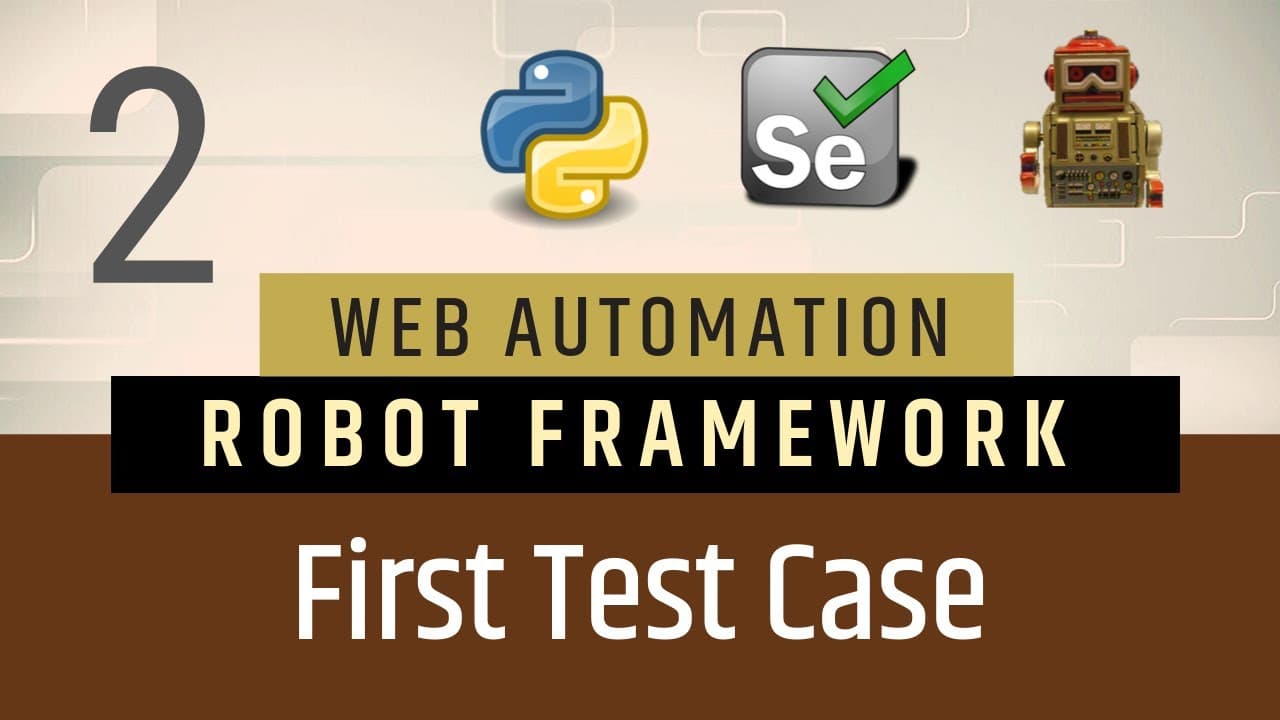
Part 2: How Do You Write Your First Robot Framework Test, Choose File Extensions, and Prepare Reporting?
TL;DR
To write your first Robot Framework test, install Selenium, Robot Framework, and Robot Framework SeleniumLibrary, then create a .robot file inside a test-cases directory. Organize it into Settings, Variables, Test Cases, and Keywords sections, import SeleniumLibrary, and add steps beneath a named test such as Login Test. Read on for the exact project setup, supported file extensions, and purpose of each section.
Transcript
hello everyone welcome in this video I am going to show you few basic options from Robo framework so first of all it is start with creation of new project and will see what is a folder structure and then I will talk about what are the different files will be there in the robot framework and what are those extensions and then we will see w... Read More
Key Insights
- Robot Framework browser automation requires three project packages in this tutorial: Selenium, Robot Framework, and Robot Framework SeleniumLibrary. The instructor installs each package through PyCharm by opening the project interpreter settings, selecting the add-package option, searching for each package, and installing it.
- The .robot extension identifies the main Robot Framework test-case file. The instructor distinguishes this file from supporting resources, which may include .xls files for test data, .txt files for notes or prepared data, and .py files containing implementations for keywords.
- A test-cases directory provides a clearer project structure than placing test files directly under the project root. The instructor first creates TC1.robot at the root, removes it, creates a dedicated directory, and then creates the test file inside that directory.
- The Settings section declares the libraries required by a test. The example uses the Library setting followed by SeleniumLibrary, making the predefined keywords from that library available for use in the test cases contained in the robot file.
- The Variables section stores values that can be used commonly across test cases. The tutorial introduces this section as one of the four available robot-file sections but leaves it empty while building the initial basic example.
- The Test Cases section contains one or more named tests and their individual steps. The example starts with a test named Login Test, then places its steps beneath the name using spacing and predefined keywords supplied by SeleniumLibrary.
- The Keywords section defines user-created keywords. Robot Framework libraries already provide predefined keywords for operations, but the instructor explains that project-specific keywords can be created in this section when the available library keywords do not represent the desired reusable behavior.
- Robot-file sections can be kept together or separated into different files. The tutorial keeps Settings, Variables, Test Cases, and Keywords in one file for the beginner example, while noting that variables, test cases, and keywords may be maintained separately in a normal framework structure.
Install to Summarize YouTube Videos and Get Transcripts
Explore YouTube Video Summarizer or Get YouTube Transcript Extractor
Questions & Answers
Q: How do you write your first Robot Framework test?
Create a file with the .robot extension inside a test-cases directory. Add Settings, Variables, Test Cases, and Keywords sections, import SeleniumLibrary under Settings, and place test steps beneath a named test such as Login Test.
Q: How do you set up a Robot Framework project in PyCharm?
Create a new PyCharm project, such as automation, and open File, Settings, the current project, and Project Interpreter. Use the add-package option to install Selenium, Robot Framework, and Robot Framework SeleniumLibrary.
Q: Which packages are needed for the first Robot Framework test?
The tutorial installs three packages: Selenium, Robot Framework, and Robot Framework SeleniumLibrary. Robot Framework and Robot Framework SeleniumLibrary are separate packages, so each must be installed through the PyCharm project interpreter.
Q: What file extension does a Robot Framework test use?
The main Robot Framework test-case file uses the .robot extension and contains the actual test cases. The tutorial also identifies .xls and .txt files as supporting data resources and .py files as a place to implement keyword code.
Q: How should Robot Framework test files be organized?
The instructor recommends grouping related files in directories instead of putting test files directly under the project root. After initially creating TC1.robot at the root, the tutorial removes it, creates a test-cases directory, and places the robot file there.
Q: What sections can a Robot Framework file contain?
A robot file can contain Settings, Variables, Test Cases, and Keywords sections. Settings imports libraries, Variables stores commonly used values, Test Cases contains named tests and steps, and Keywords defines custom keywords.
Q: How do you import SeleniumLibrary in a robot file?
Add the import under the Settings section using the Library setting followed by SeleniumLibrary. This makes the library's predefined keywords available to the test cases in that robot file.
Q: What are variables and custom keywords used for in Robot Framework?
Variables store values that can be reused across test cases, while custom keywords describe operations created by the test author. They can remain in the same robot file as the tests or be maintained separately in a larger framework structure.
Summary & Key Takeaways
-
The tutorial begins by creating an automation project in PyCharm and reviewing its initial structure. The new project contains a virtual environment and initially has Python associated with it. To prepare the project for browser automation, the instructor installs Selenium, Robot Framework, and Robot Framework SeleniumLibrary through the project interpreter settings.
-
Robot Framework test cases use the .robot extension, while supporting resources may use .xls, .txt, or .py extensions. Python files can implement keyword code, and other files can store supporting data. The instructor recommends organizing related test files in directories, so a test-cases folder is created before adding the first robot file.
-
A robot file can contain Settings, Variables, Test Cases, and Keywords sections. Settings imports required libraries, Variables holds commonly used values, Test Cases contains named tests and their steps, and Keywords defines custom keywords. The example imports SeleniumLibrary and begins a Login Test whose steps will use predefined SeleniumLibrary keywords.
Read in Other Languages (beta)
Share This Summary 📚
Summarize YouTube Videos and Get Video Transcripts with 1-Click
Try YouTube Summary with ChatGPT & Claude or YouTube Transcript Generator
Explore More Summaries from SDET- QA 📚


Summarize YouTube Videos and Get Video Transcripts with 1-Click
Try YouTube Summary with ChatGPT & Claude or YouTube Transcript Generator