How to Write a Blog on Glasp: Post Feature

Sep 20, 2025
5 min read
197 views
Want to write blogs and articles directly on Glasp? With Glasp’s new Post feature, you can easily create and publish articles, curate insights from your highlights, and share your thoughts with the community. Unlike traditional blogging platforms, Glasp lets you smoothly integrate your saved highlights and turn them into meaningful posts.
This makes Glasp a great place for:
Learners sharing insights from books, articles, and YouTube videos
Knowledge workers curating research into posts
Bloggers who want a lightweight and highlight-driven publishing tool
In this tutorial, we’ll show you how to use the Post feature to write, publish, and manage your blogs on Glasp.
If you haven't signed up for Glasp or installed the Glasp browser extension, please do so. You can refer to this tutorial.
👉 Related: How to Hatch a New Idea with Glasp
Introducing the New Post Feature on Glasp: Curate to Create (YouTube)
Step 1: Go to Your Profile Page
Click Profile in the left sidebar and go to your profile page.
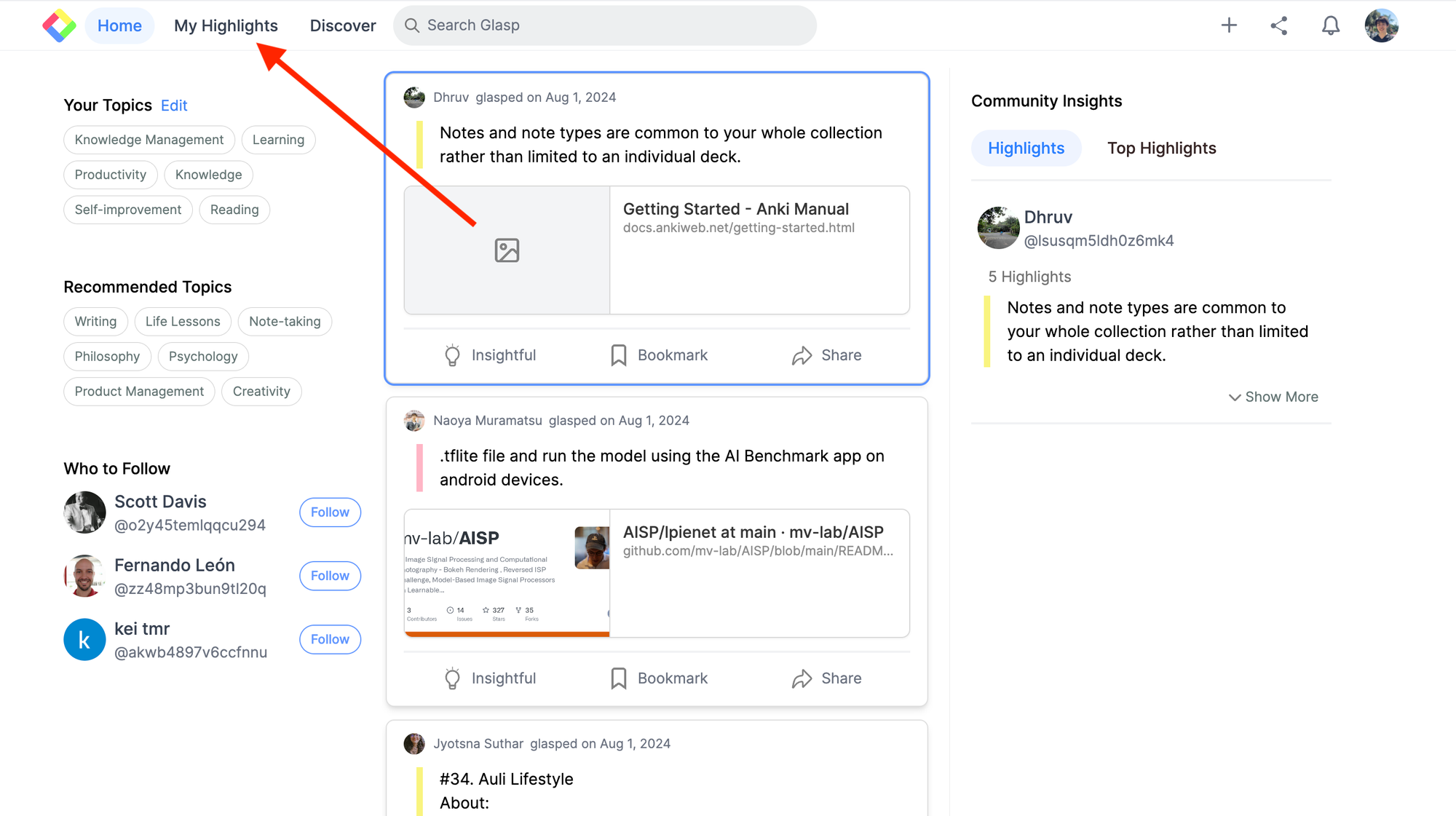
You can see the Posts section at the top, so click it. It takes you to the Posts page.
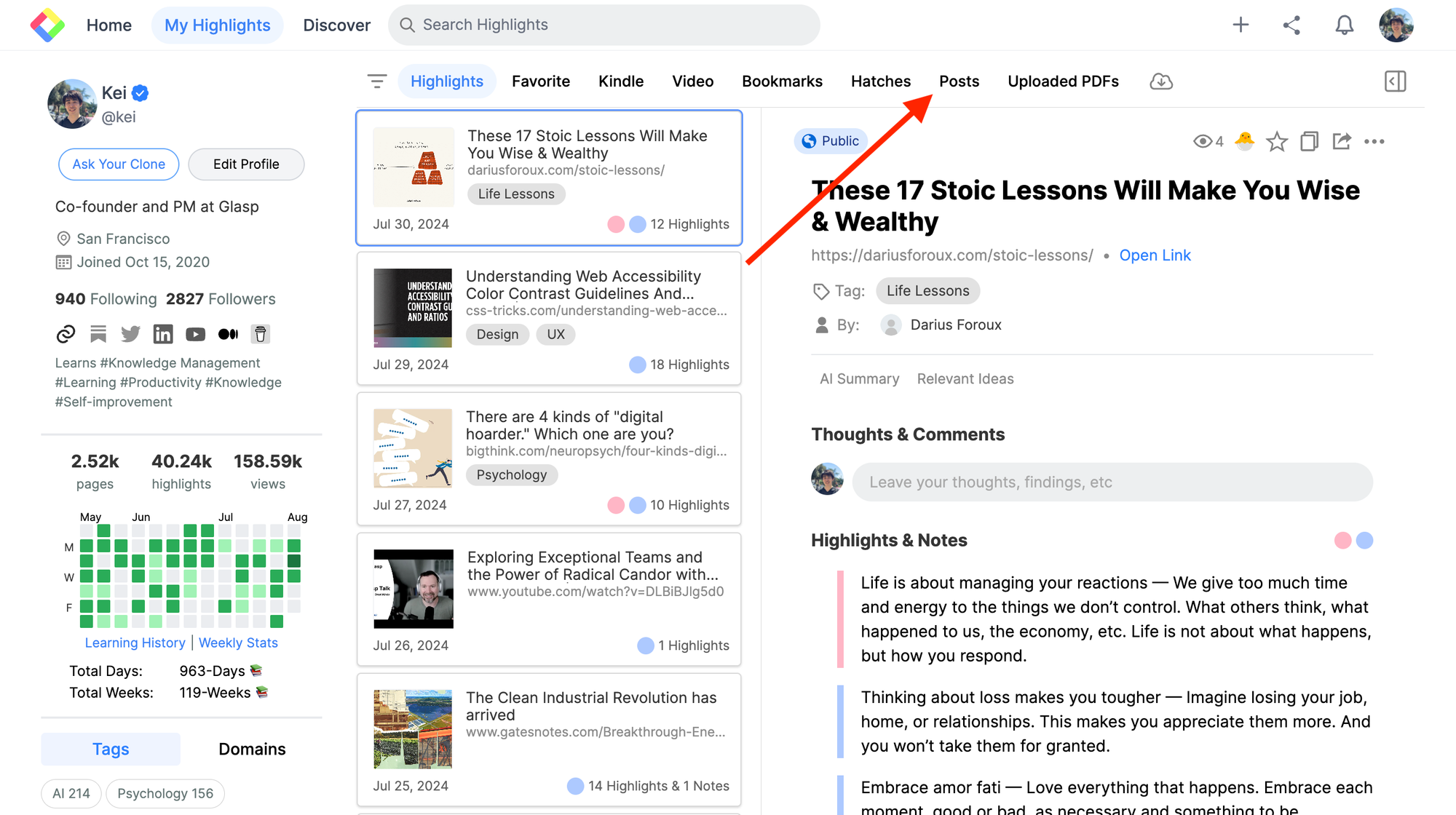
Step 2: Write a Post
On the Post page, you can see all the posts you made before if there are any. You can see the Write a Post button, so click it to start writing.
It opens an empty page where you can start writing. Write whatever comes to your mind. It's markdown style.
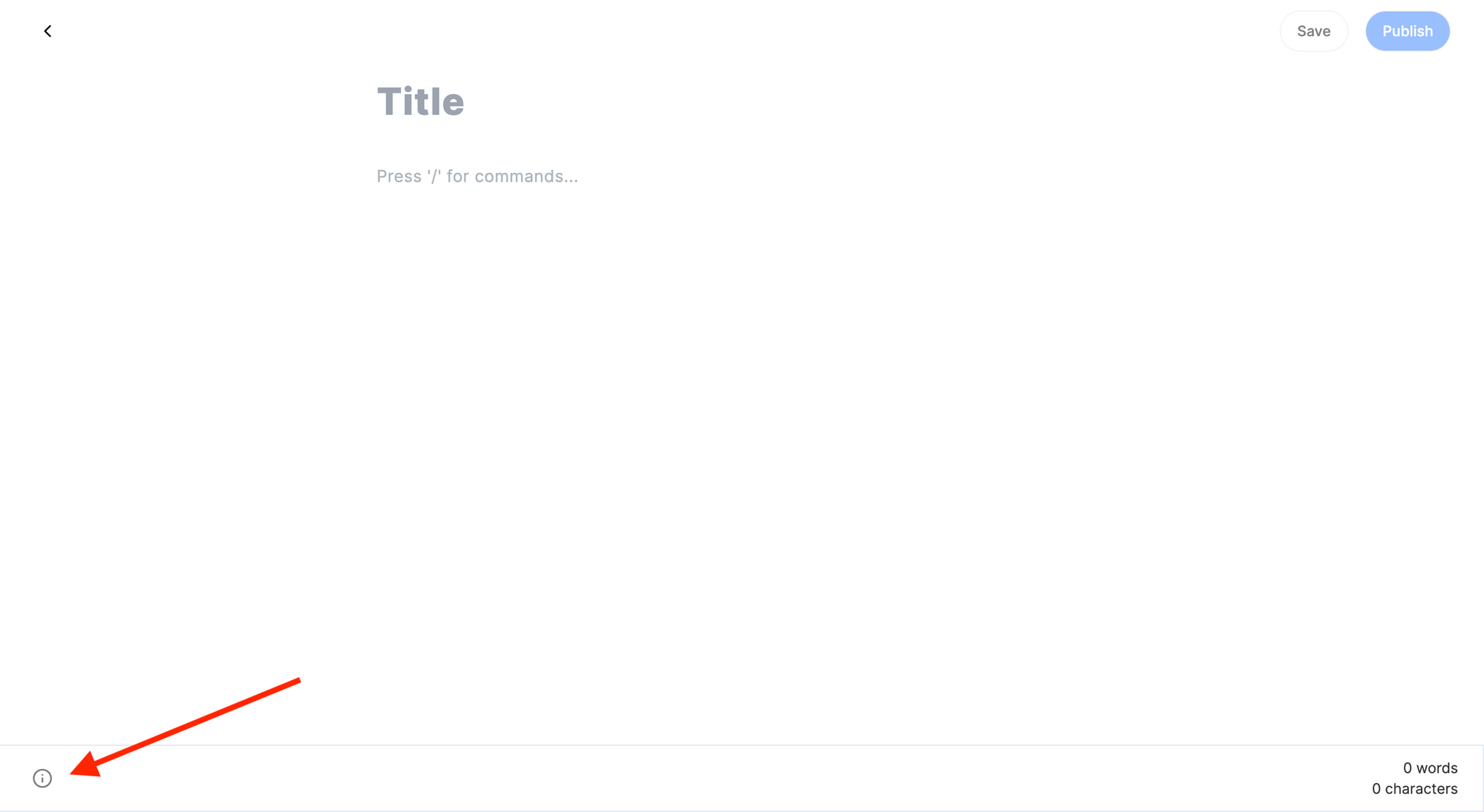
If you type any letter, it's a plain text. But if you'd like to customize the format, please click an information icon at the bottom left.
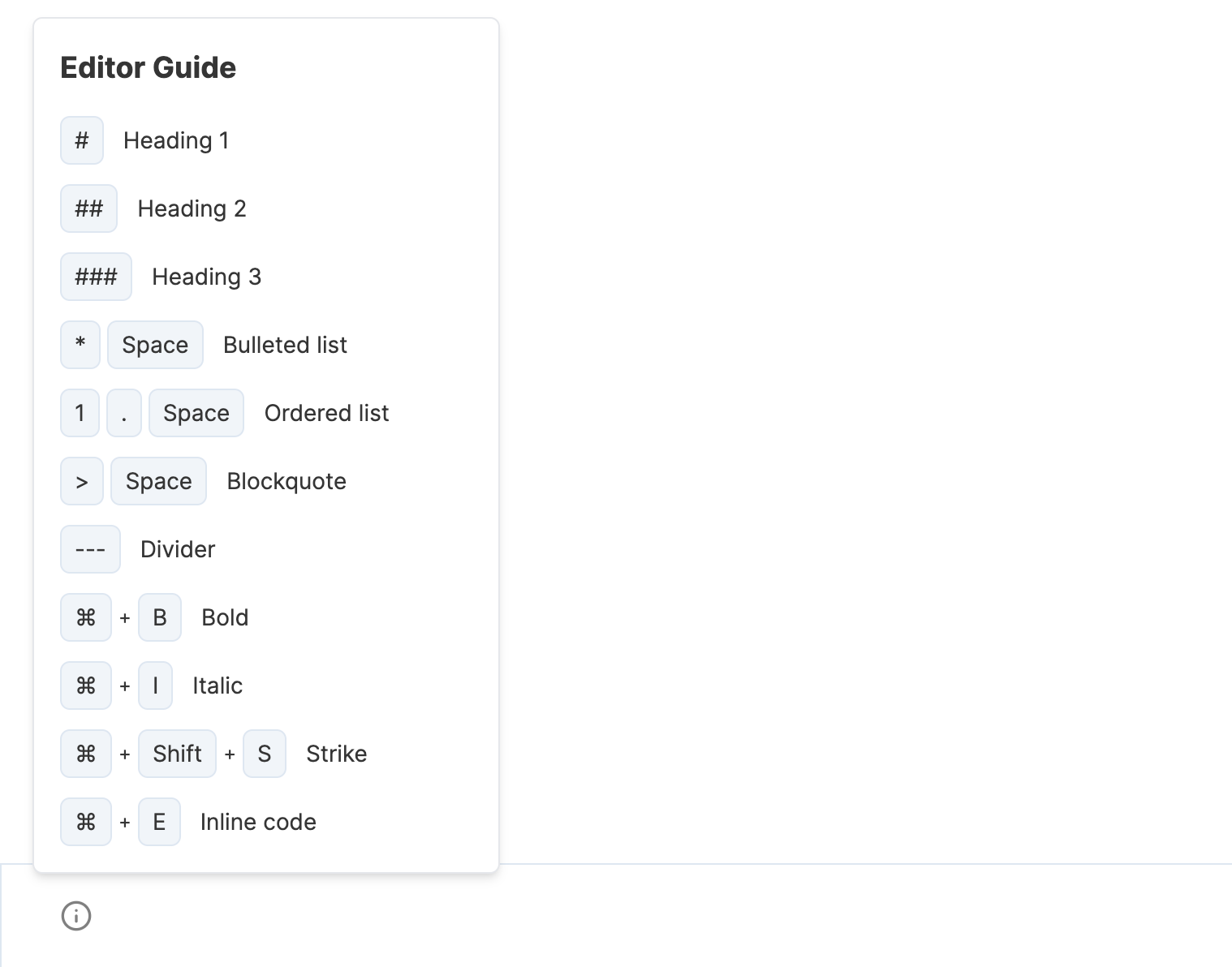
It shows the editor's guide. So, you can follow the guide to customize the format.

For example, type and click on the keyboard to use the bullet list on the article* and then click Space. It turns plain text into bullet points.
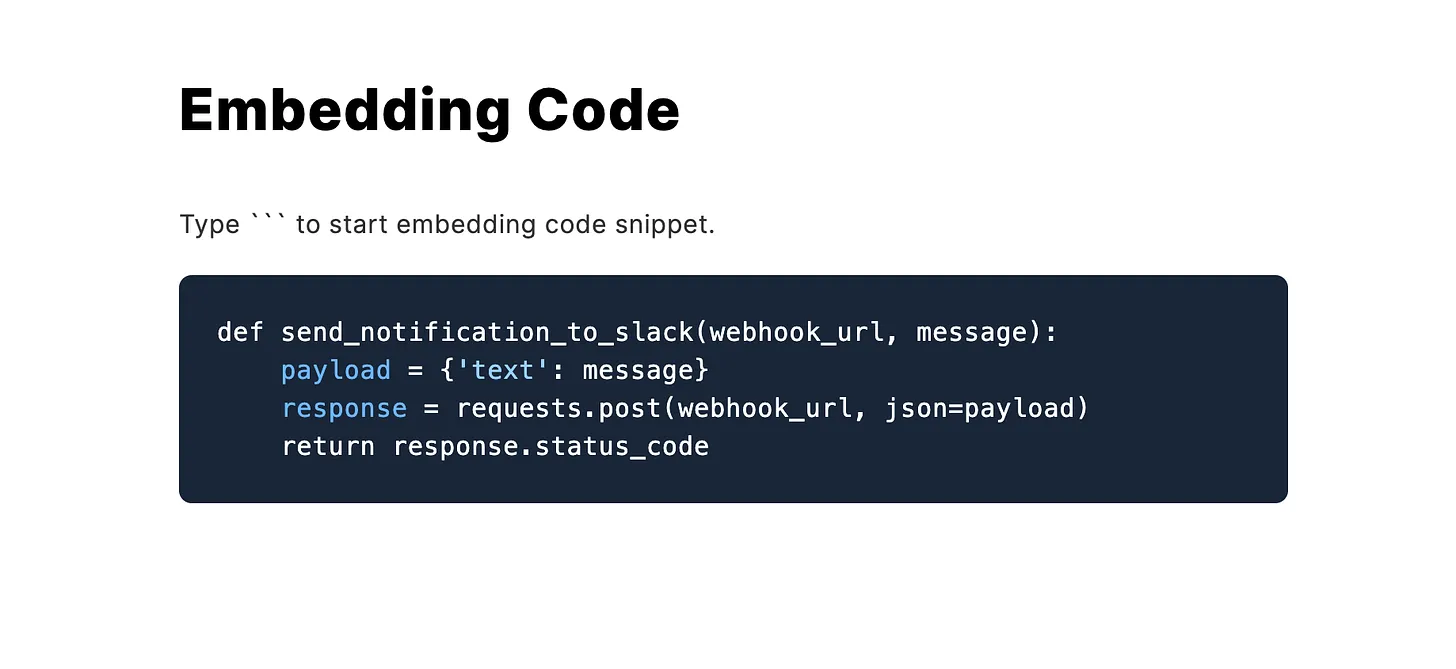
If you want to add a code snippet to the post, type ``` to start embedding.
Step 3: Publish a Post
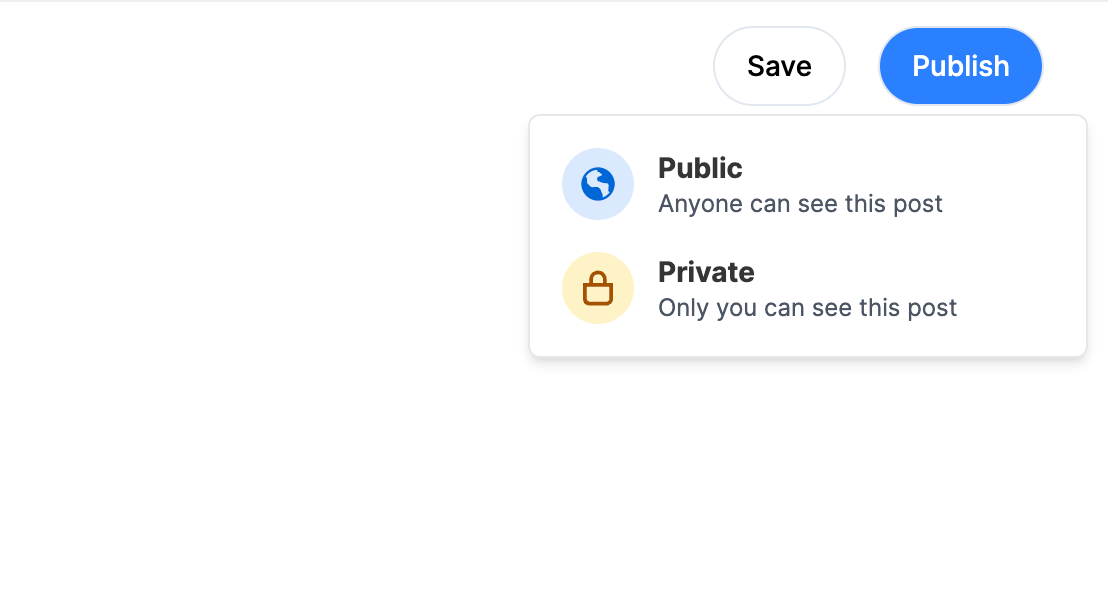
If you add a title to the post, you can post it by clicking Publish at the top right. If you just want to save the post as a draft, click Save next to the Publish button.
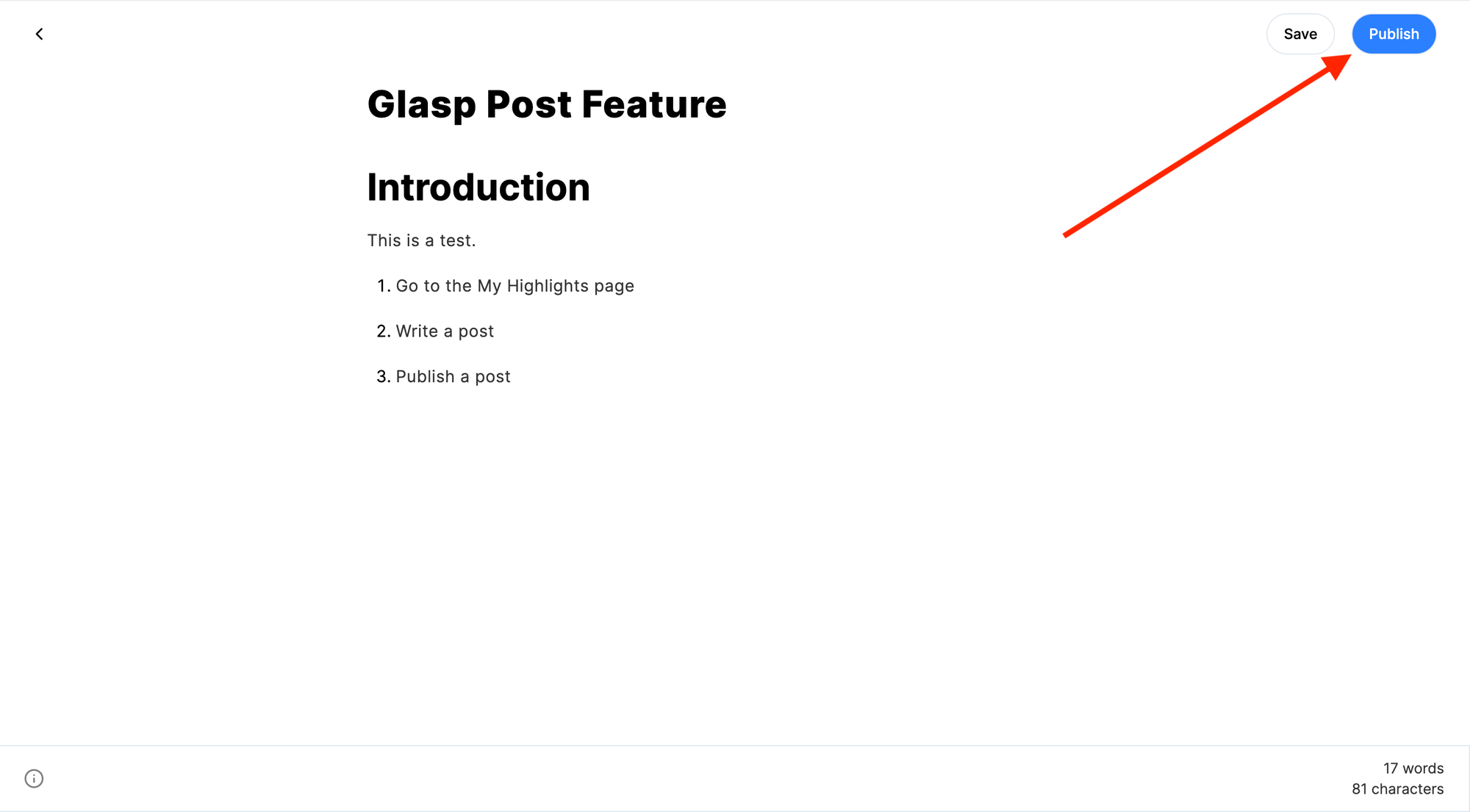
When you click the Publish button, you can choose the post's visibility. If you selectPublic, the post is visible to anyone on and off Glasp. If you selectPrivate, the post is stored privately, and no one can see your post.
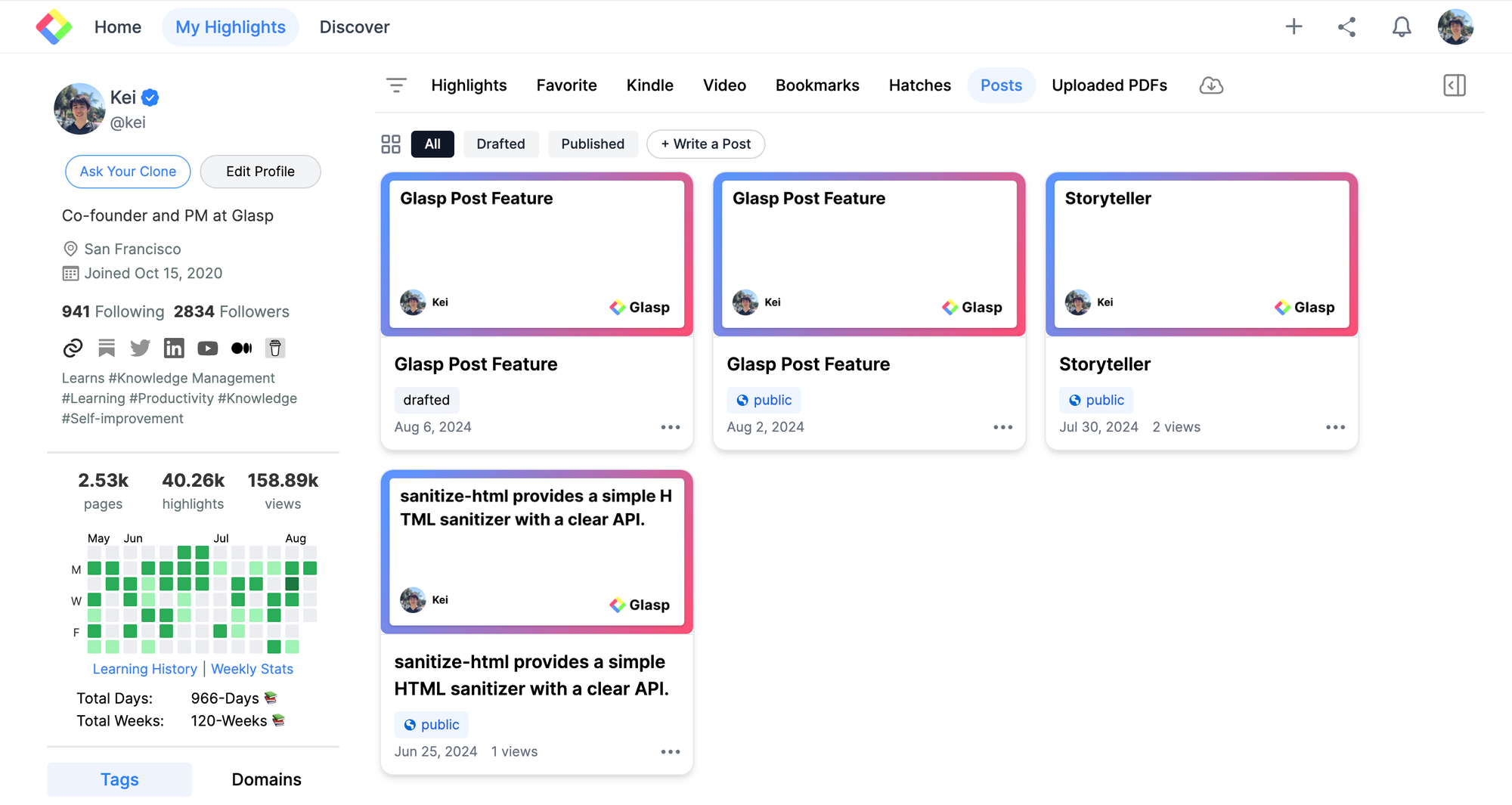
Once the post is published, it's shown in the Posts section on your profile page.
(Optional) Step 4: Update a Post
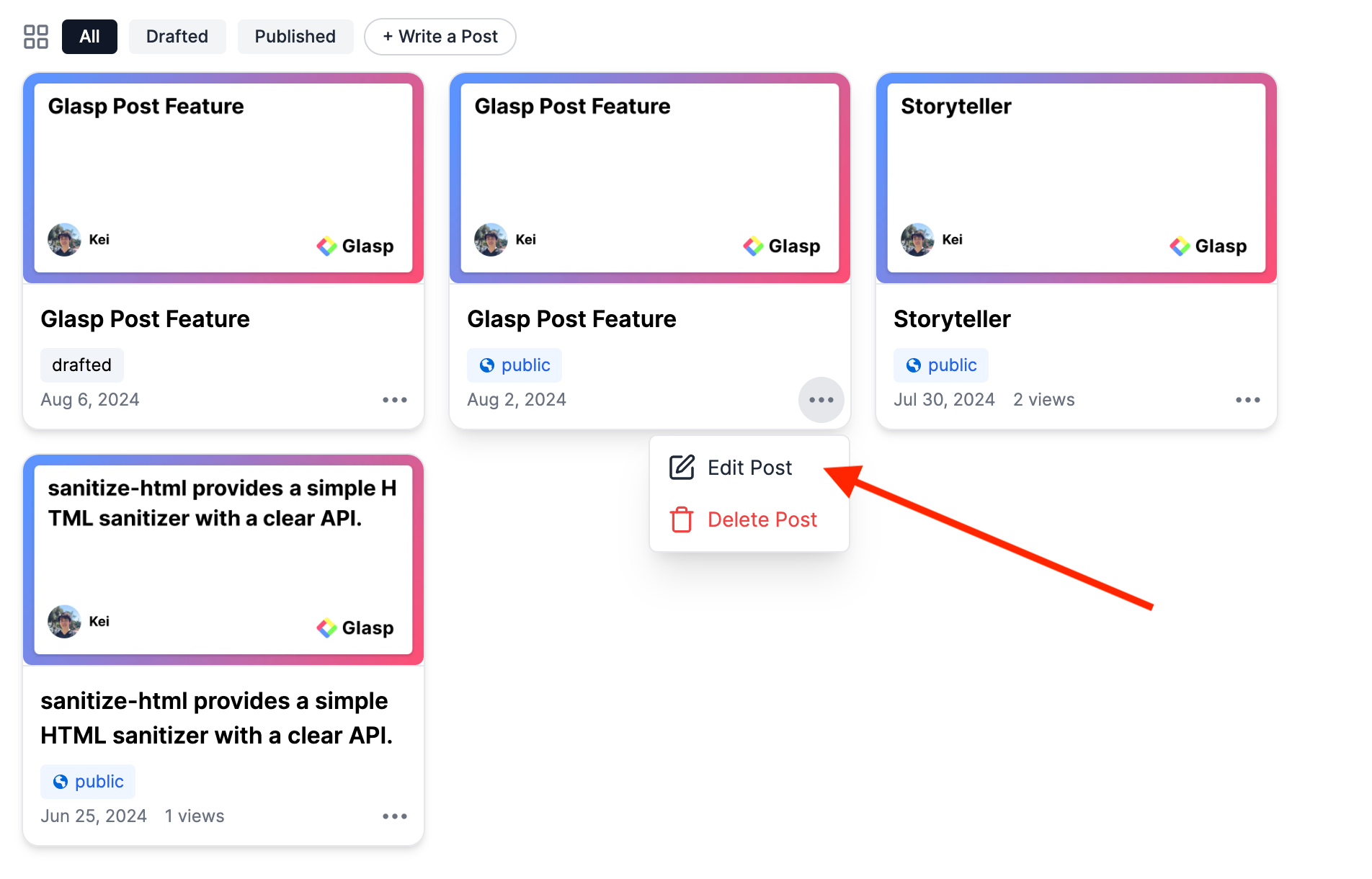
If you want to modify the post, click the three dots icon on the post section and click the Edit Post button.
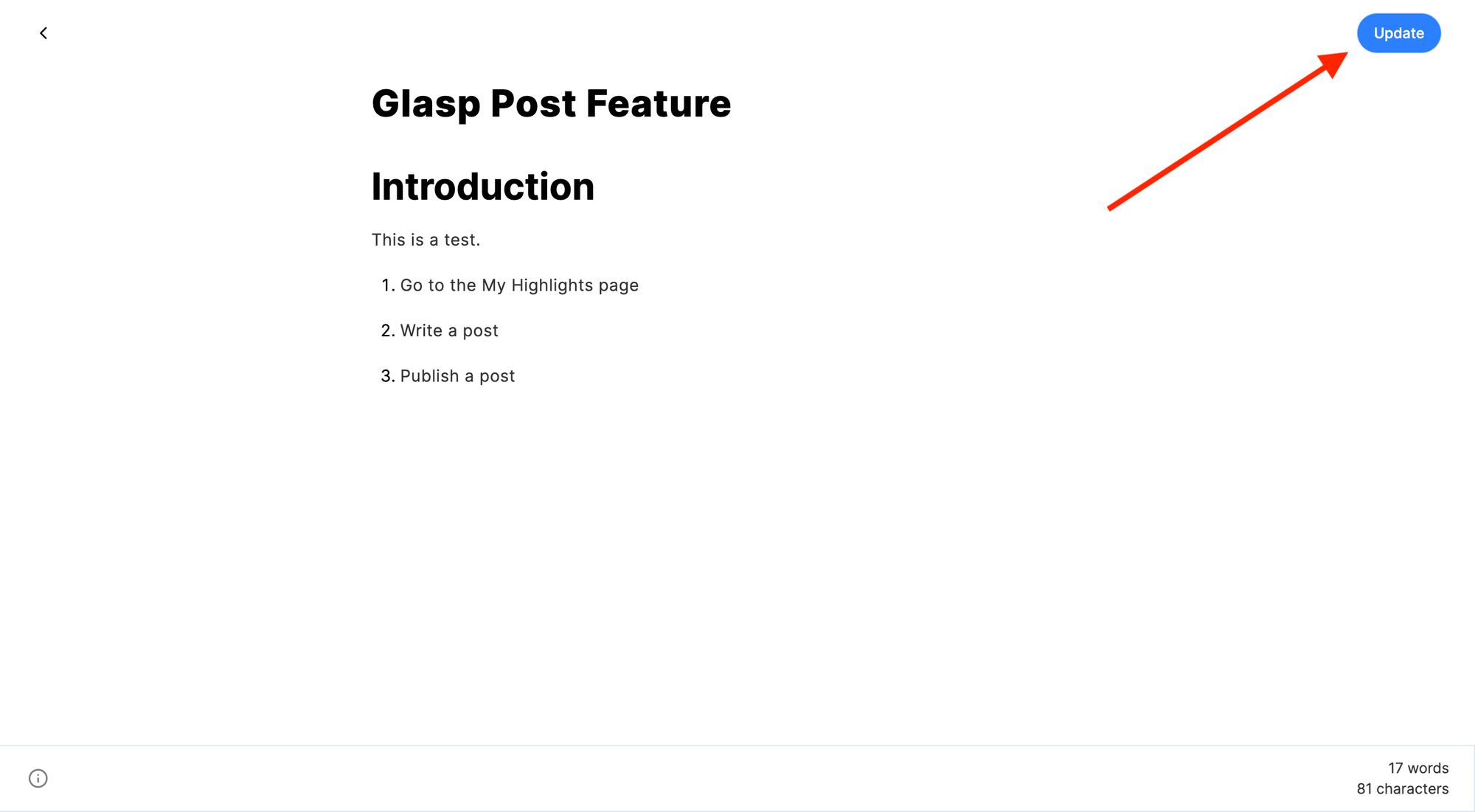
After editing the post, click Update at the top right to reflect the updates.
(Optional) Step 5: Delete a Post
If you want to delete a post, go to the Post section on your profile page. Select the post you wish to delete, and then, click the three dots icon at the bottom right of the post section.
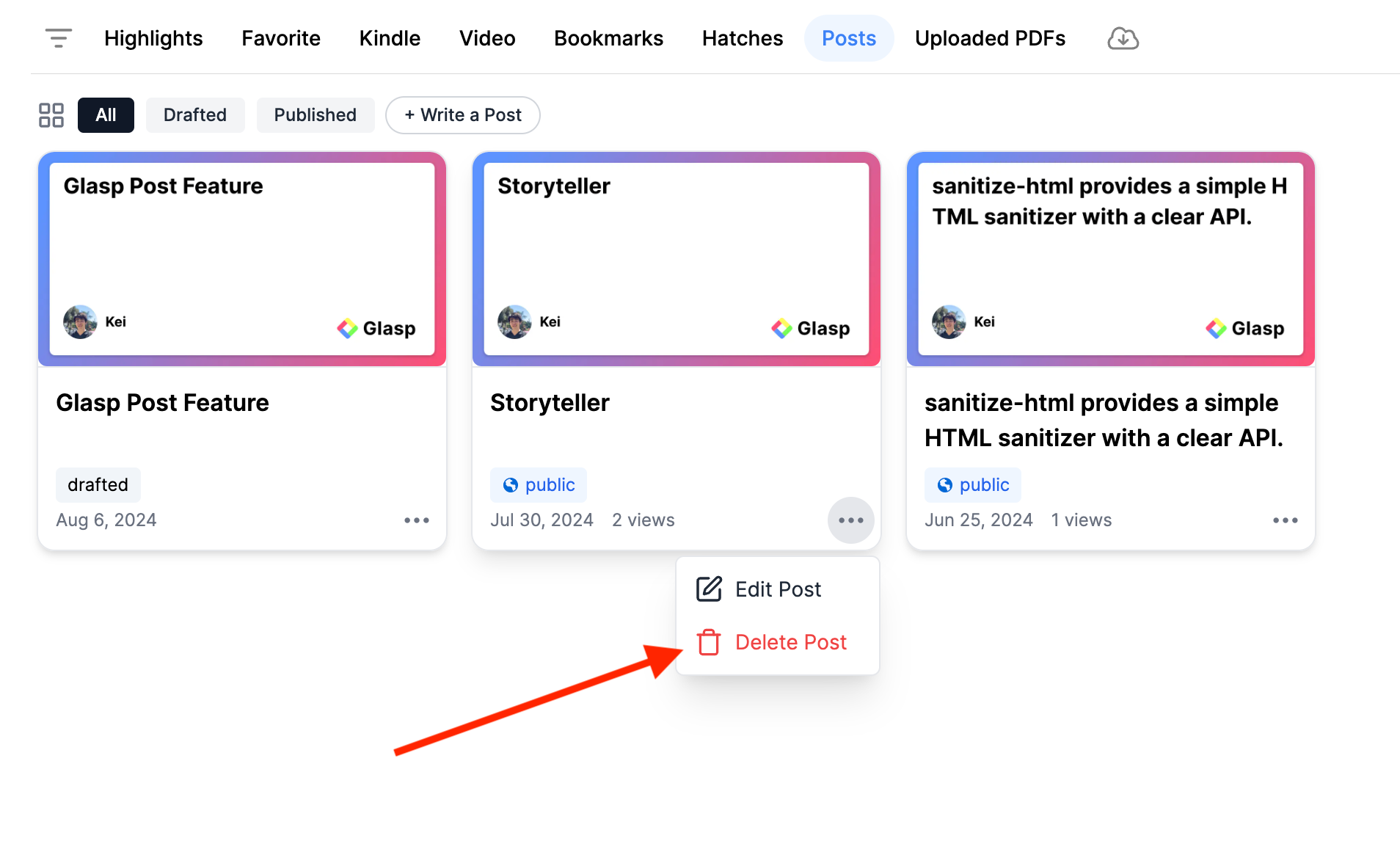
You see an alert at the top, so click Ok to delete the post.
(Optional) Step 6: Highlight Sentences on the Post
Optionally, you can highlight sentences on the post without installing the Glasp Chrome extension. When you select a sentence, you can see a popup with a four-color palette. So, please click any color you like.
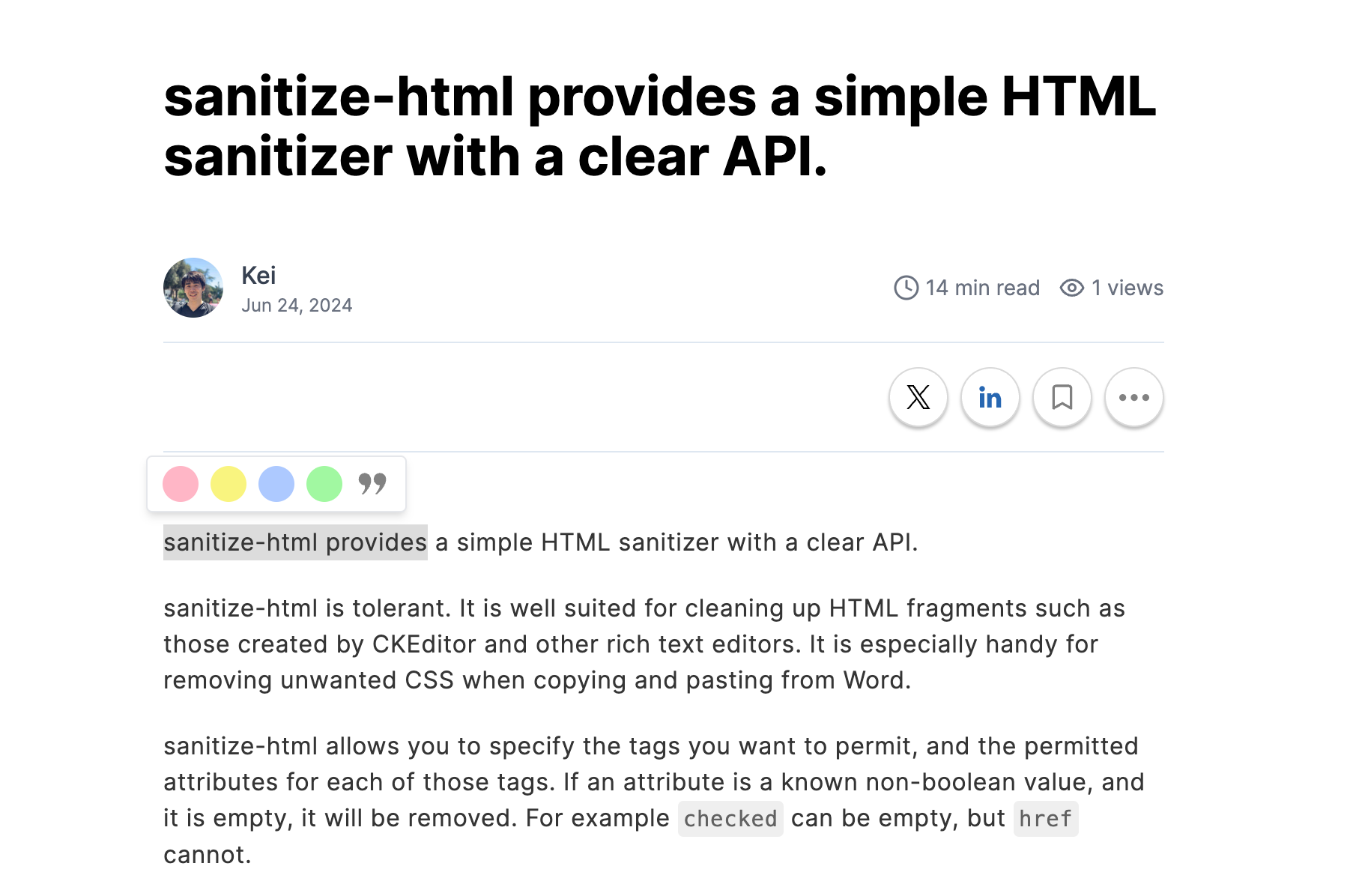
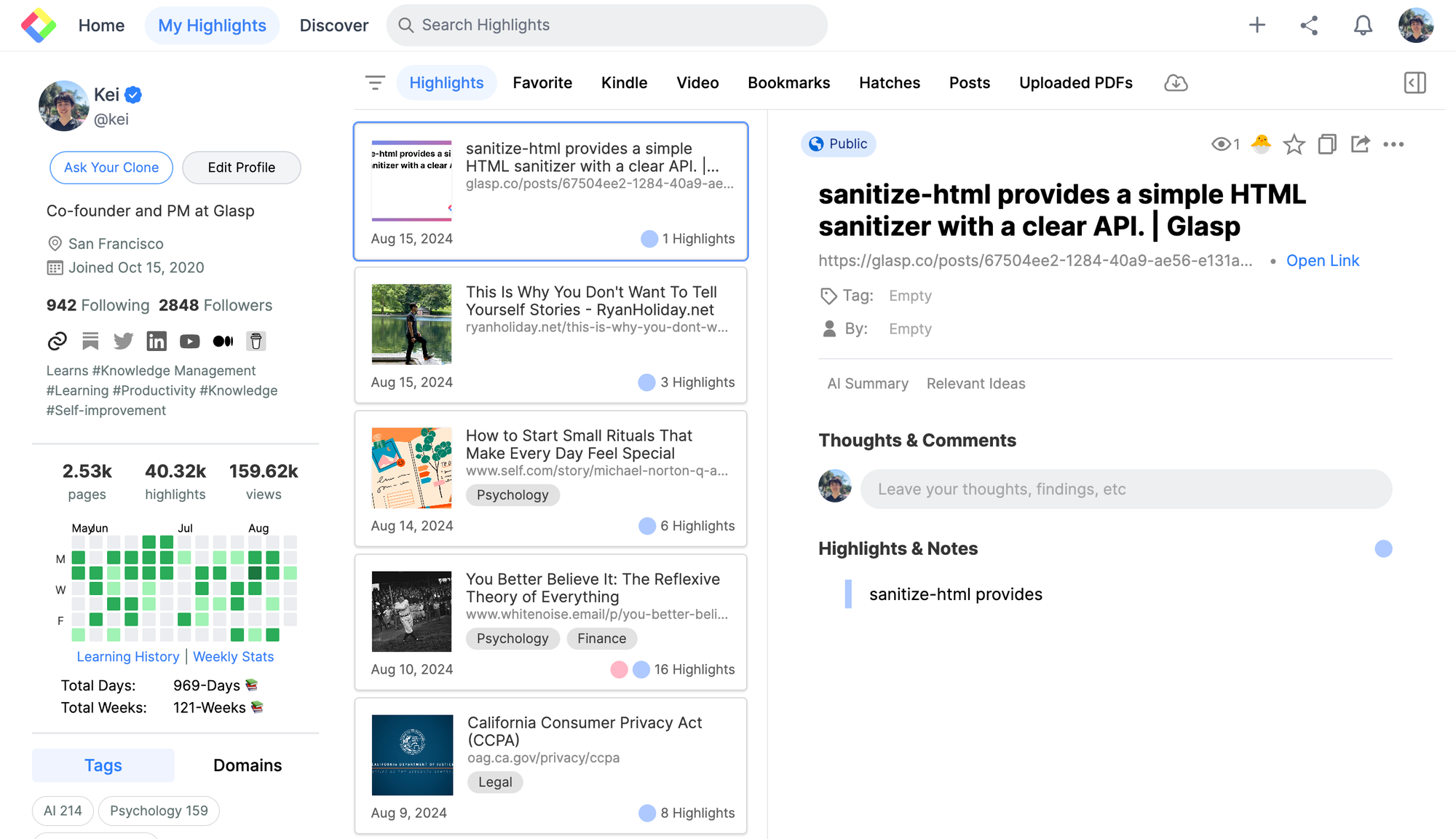
You can see your highlights on your profile page. So, please click Profile in the left sidebar.
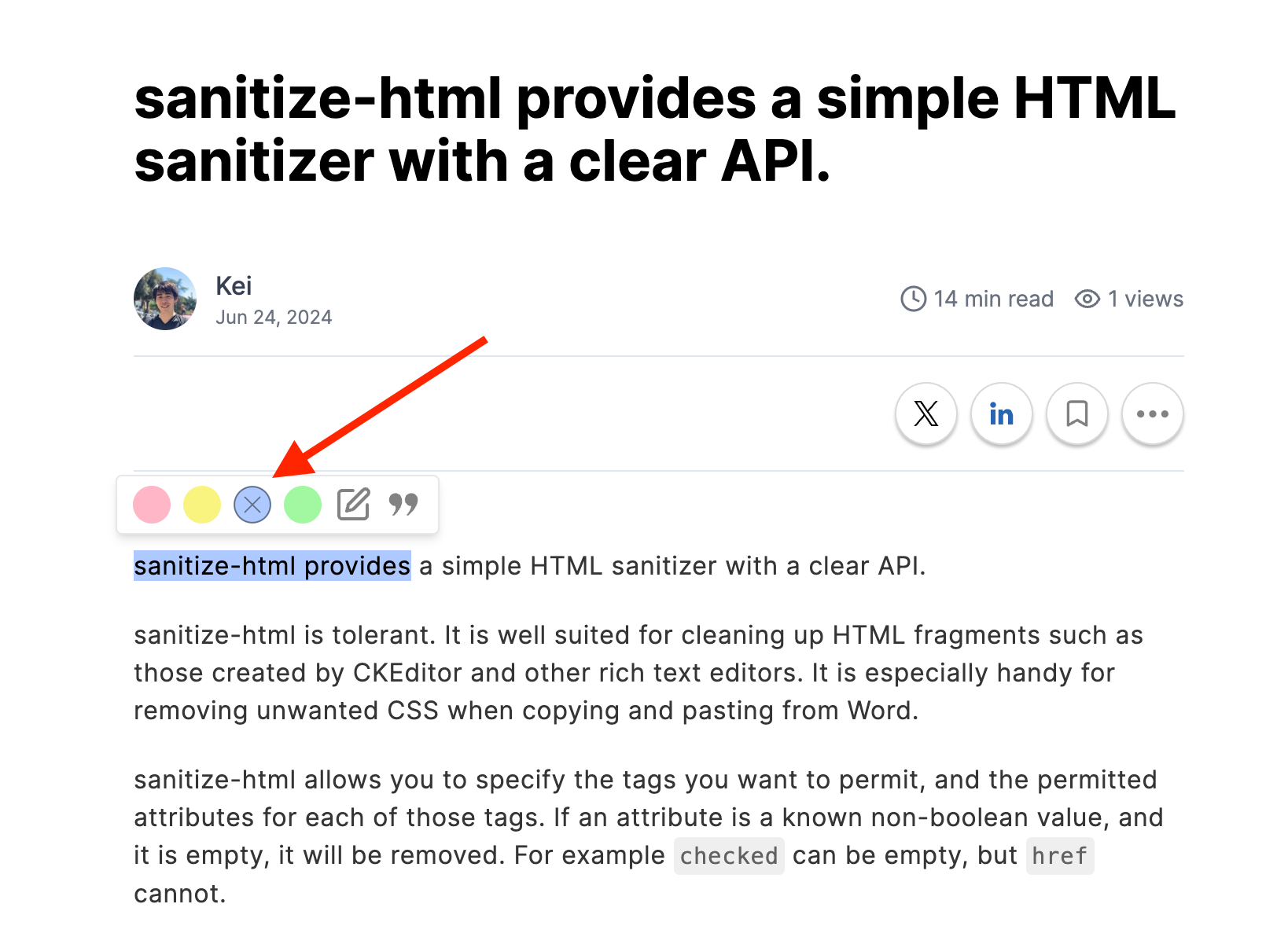
If you want to delete the highlight, click the highlighted sentence. You can see the x button on the four-color palette.
(Optional) Step 7: Comment on the Post
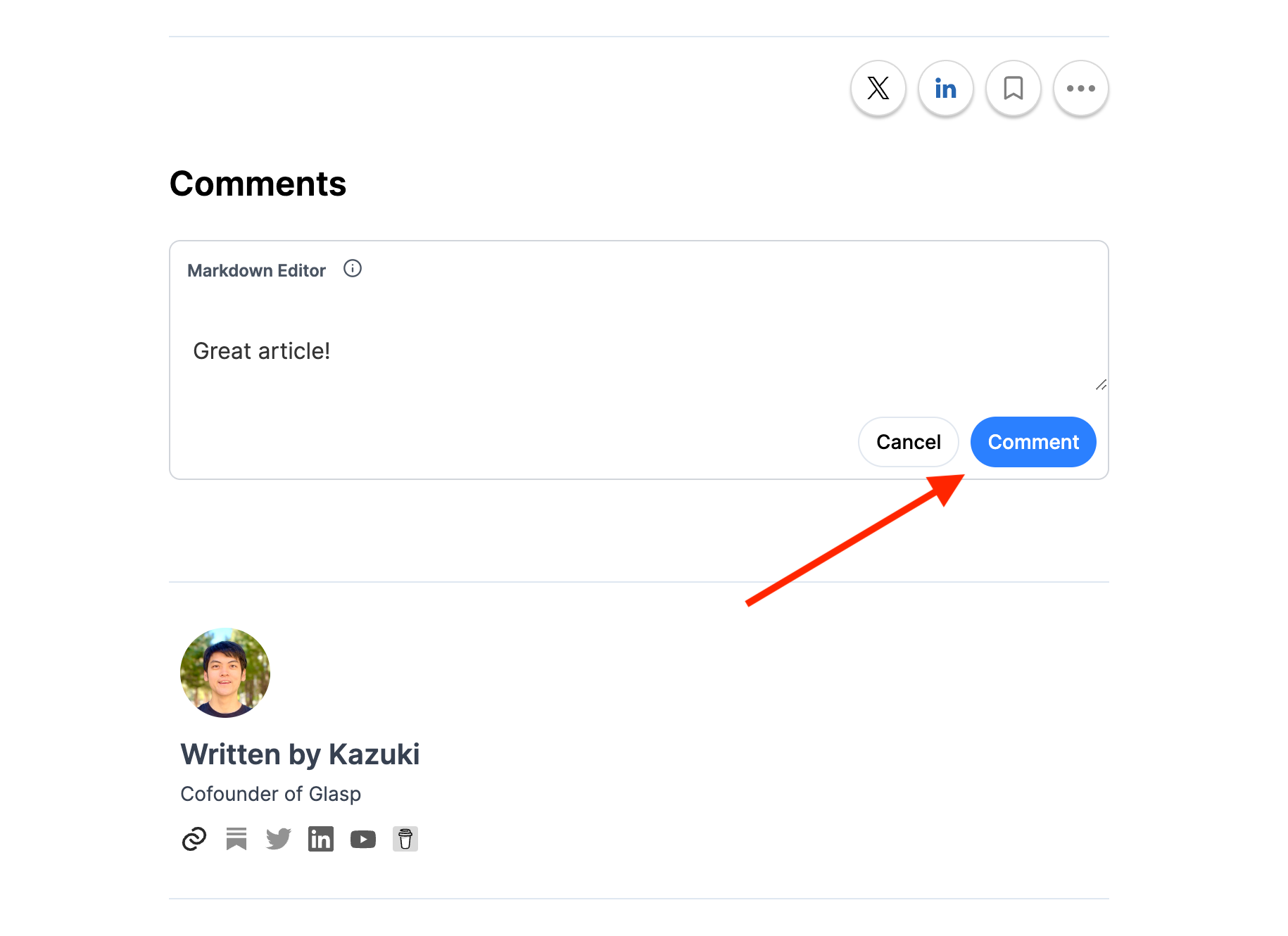
If you want to interact with other writers on Glasp, you can leave comments on the post. Go to someone's post and go down to the section called Comments.
Add any comment you want (no hate-speech, no spam, no content again policy) and click Comment button.
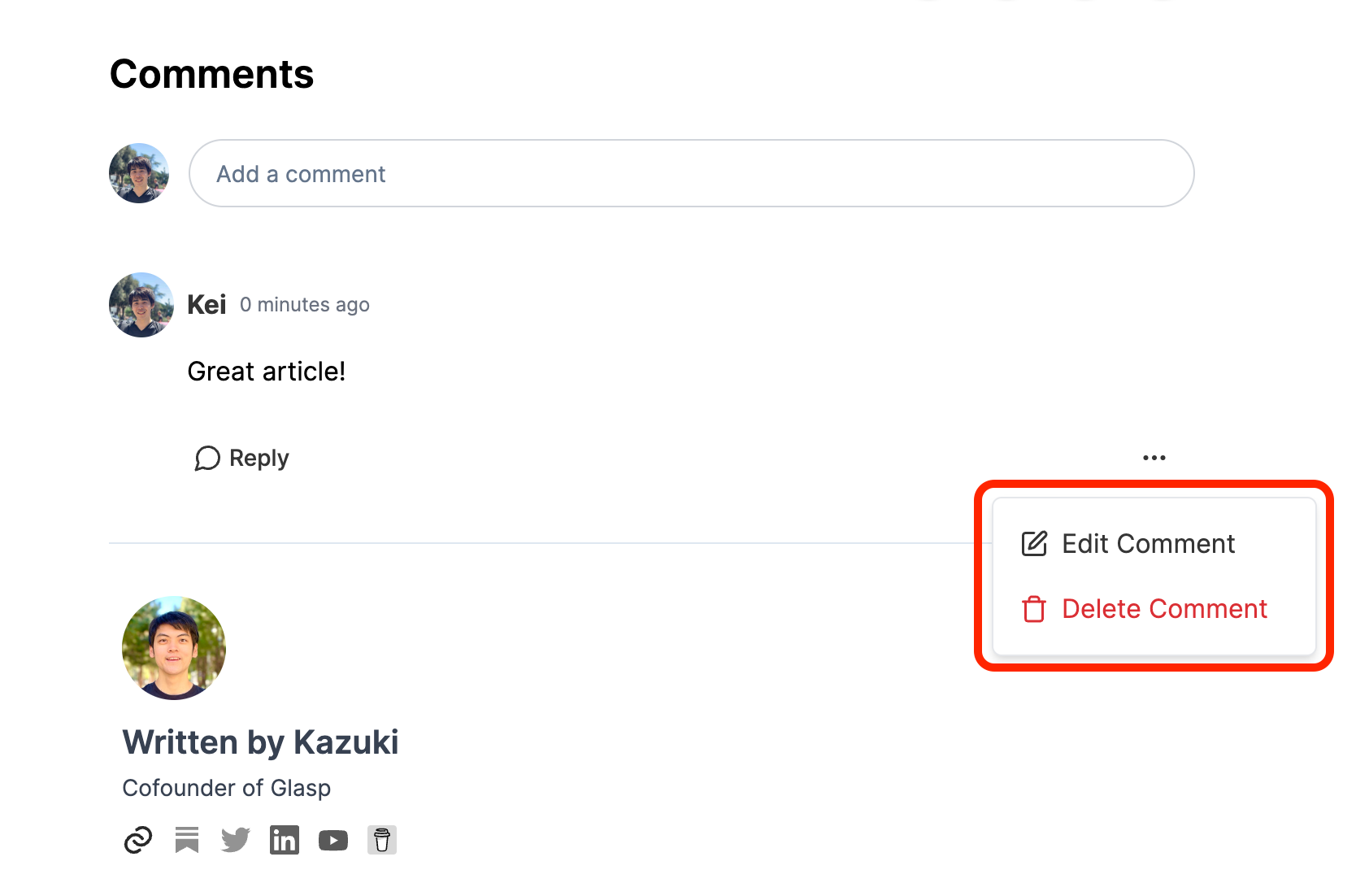
If you want to edit or delete the comment, click the three dots at the right. You can select Edit Comment or Delete Comment, so click any of them you want.
FAQs
Q. Do I need a Glasp account to use the Post feature?
Yes. You’ll need a free Glasp account. Sign up via Google or Apple and log in to start writing posts.
Q. Can I save drafts before publishing?
Yes. You can Save as Draft if you’re not ready to publish. Drafts stay private until you publish them.
Q. Can I make my posts private?
Yes. When publishing, choose Private if you want to keep your post visible only to yourself.
Q. What formatting options are available?
Glasp supports Markdown formatting. You can add bullet points, headers, bold/italic text, and even code snippets using Markdown syntax.
Q. Can I highlight my own posts?
Yes. You can highlight sentences in your post even without the Glasp extension. The highlights will appear on your profile page.
Q. Can I edit or delete a post after publishing?
Yes. You can edit posts anytime and click Update to save changes. To delete a post, click the three dots menu and choose Delete Post.
Q. Can I interact with other writers on Glasp?
Yes. You can leave comments on others’ posts and also receive comments on your own. (Reminder: keep it respectful — no spam, hate speech, or policy violations.)
Q. Is the Post feature free?
Yes. Writing and publishing posts on Glasp is completely free.
Q. Can Claude or ChatGPT read my Glasp highlights?
Yes. With the Glasp MCP Connector, AI assistants such as Claude, ChatGPT, and Claude Code can search and read your own highlights, notes, Kindle highlights, and AI summaries, including your YouTube summaries. The connection is read-only and private to you. See How to Connect Glasp to Claude, ChatGPT, and Claude Code (MCP Connector).
Q. Can I use Glasp on my phone?
Yes. Glasp has native apps for iPhone, iPad, and Android, and the Glasp Safari extension for iPhone and iPad comes with the iOS app. Your highlights sync between the apps, the web, and the desktop extension. See How to Use the Glasp Mobile App on iOS, iPad, and Android.
Before you leave
If you have any questions, please refer to the FAQ or contact us.
👉 FAQs
👉 X
See you next time,
Glasp team