How to Hatch a New Idea with Glasp

Sep 01, 2025
4 min read
423 views

Do you ever struggle to come up with fresh ideas for writing, research, or content creation? Glasp’s new feature, Hatch, helps you generate unique insights by combining highlights from two different articles. With just a few clicks, you can create a brand-new article or perspective based on your past highlights.
This is especially useful for:
Writers and bloggers looking for inspiration
Students and researchers connecting ideas across sources
Knowledge workers building new frameworks from existing notes
In this tutorial, we’ll walk you through how to use Hatch to spark new ideas and generate original content.
If you haven't signed up for Glasp or installed the Glasp browser extension, please do so. Hatching Ideas with Glasp AI.
Hatching Ideas with Glasp AI (YouTube)
Step 1: Go to the Home page on Glasp
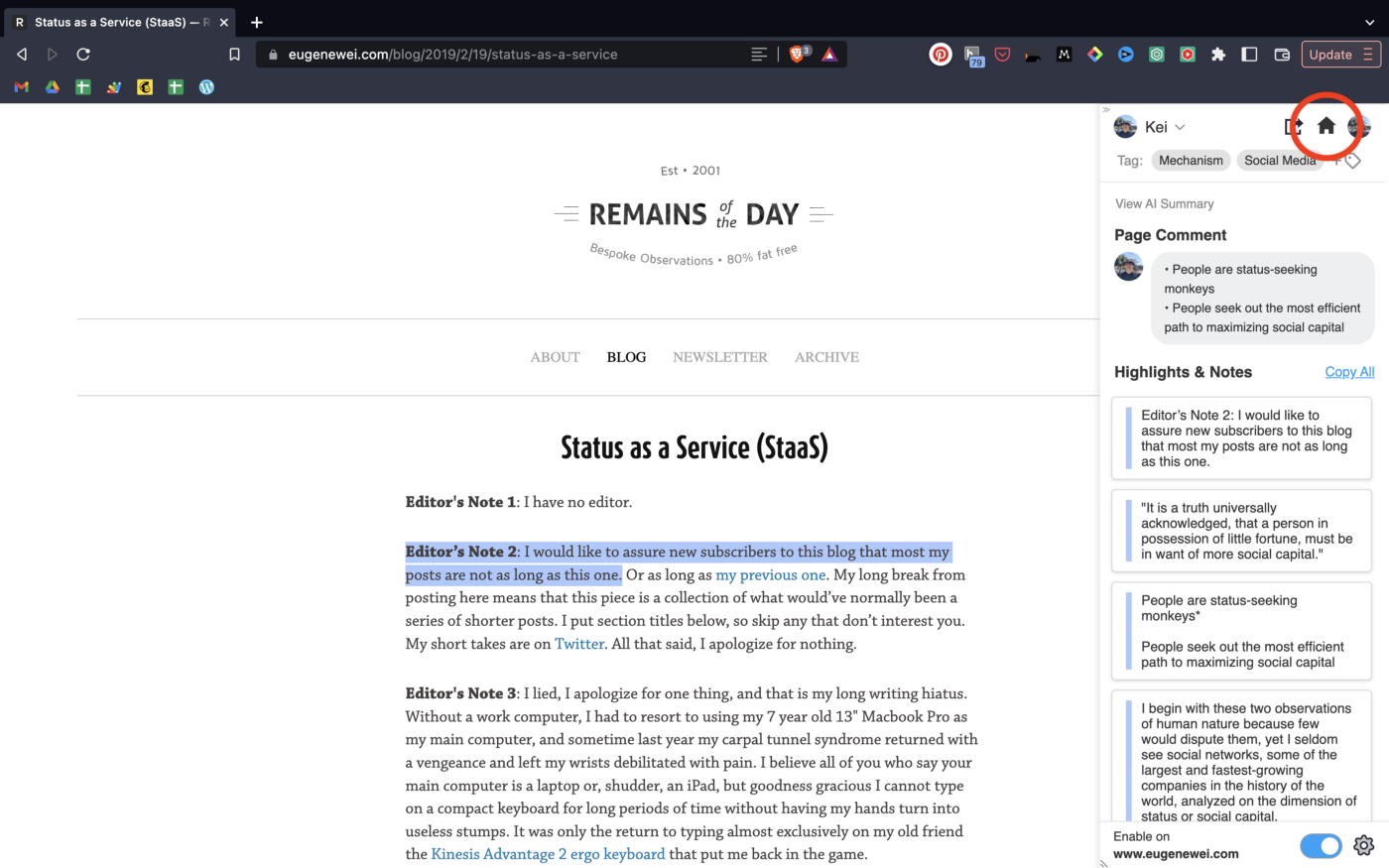
Once you’ve installed your Glasp extension, go to its home page. Here, you will see the sidebar opened where you can test highlighting words or sentences.
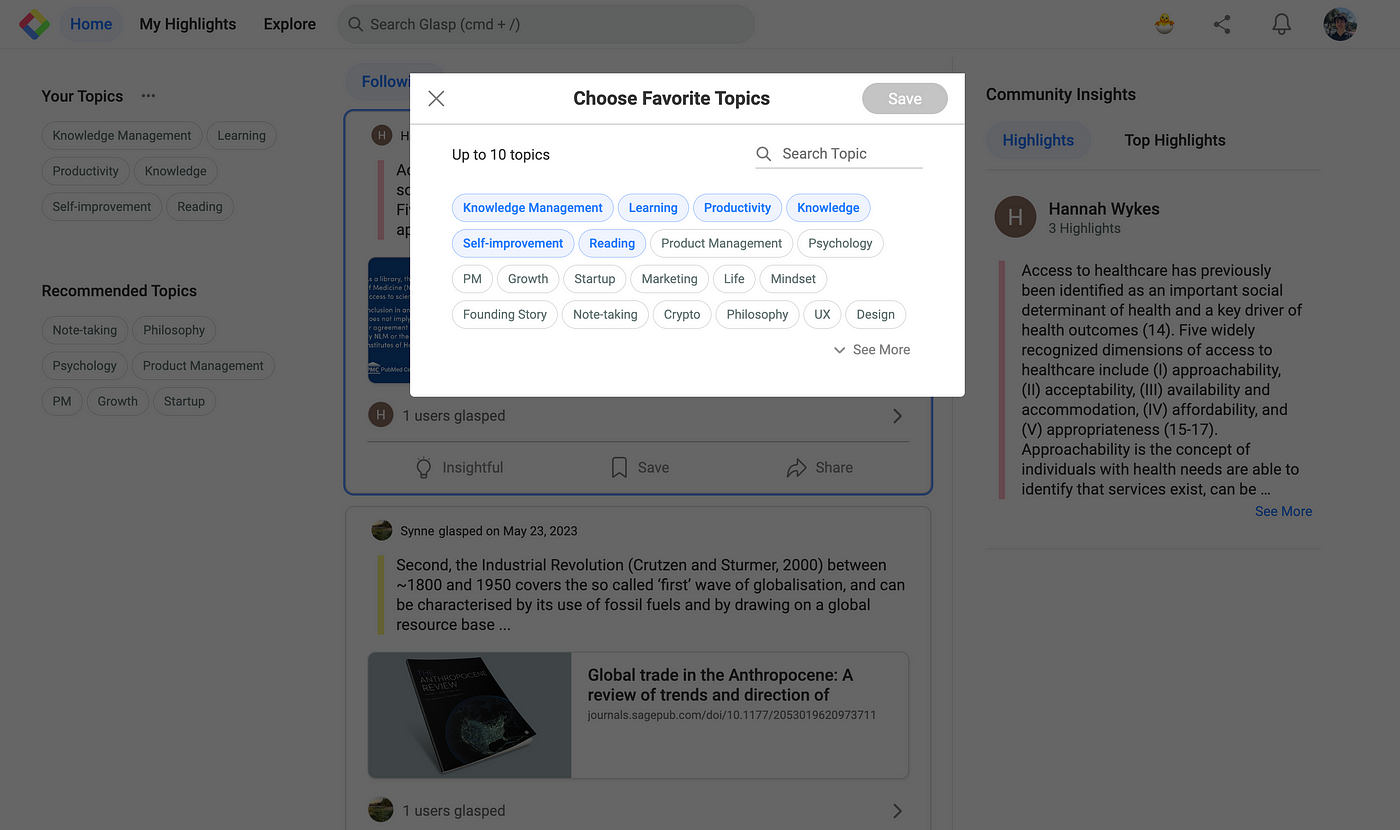
Also, you are free to choose your favorite topics. Choosing your topics could be a leap step as this will help you identify the articles in line with your interests.
If you’re new to Glasp and don’t have enough highlights, please highlight at least two articles to use the feature.
Step 2: Open the Hatch page
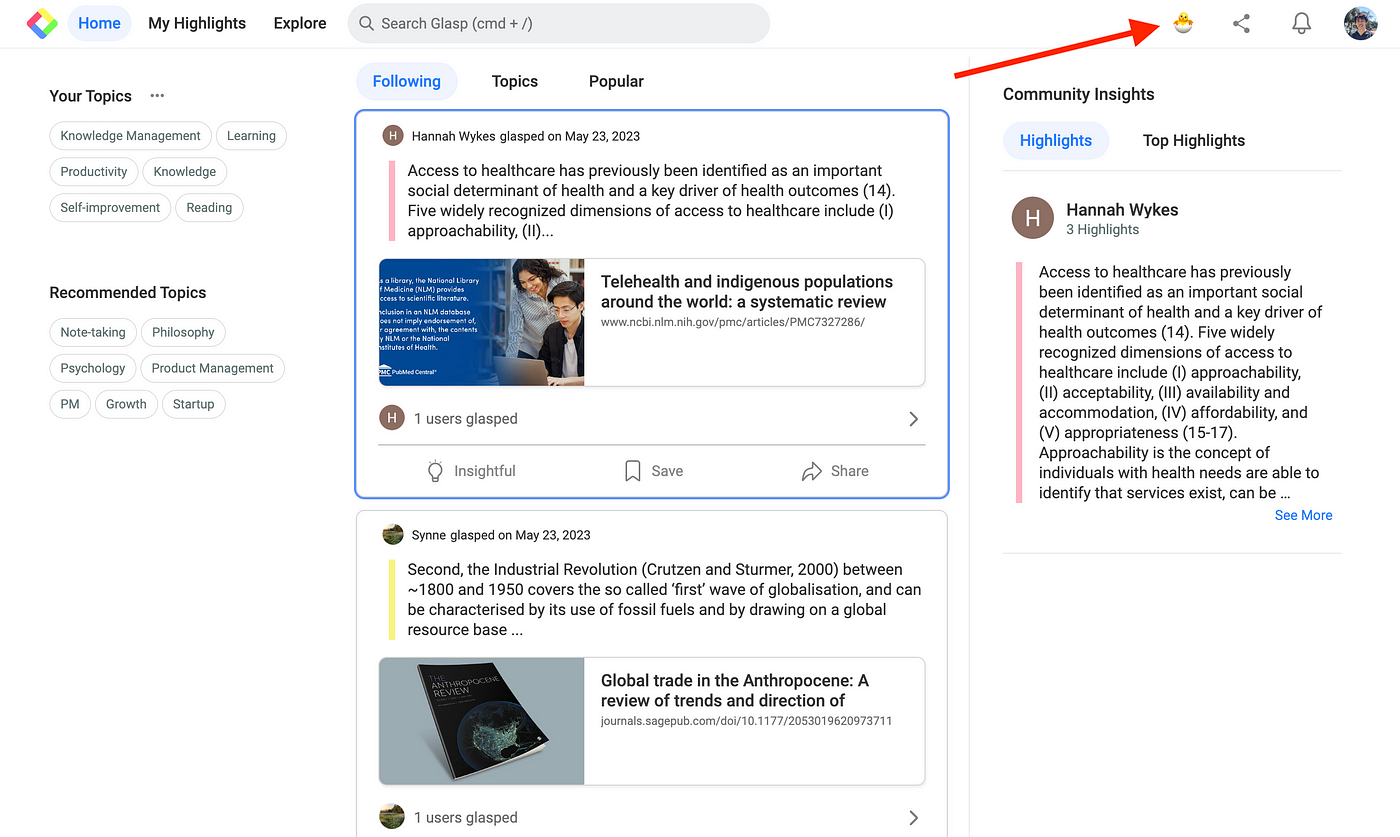
You can see an emoji icon at the top right, so please click it. It takes you to the Hatch page.
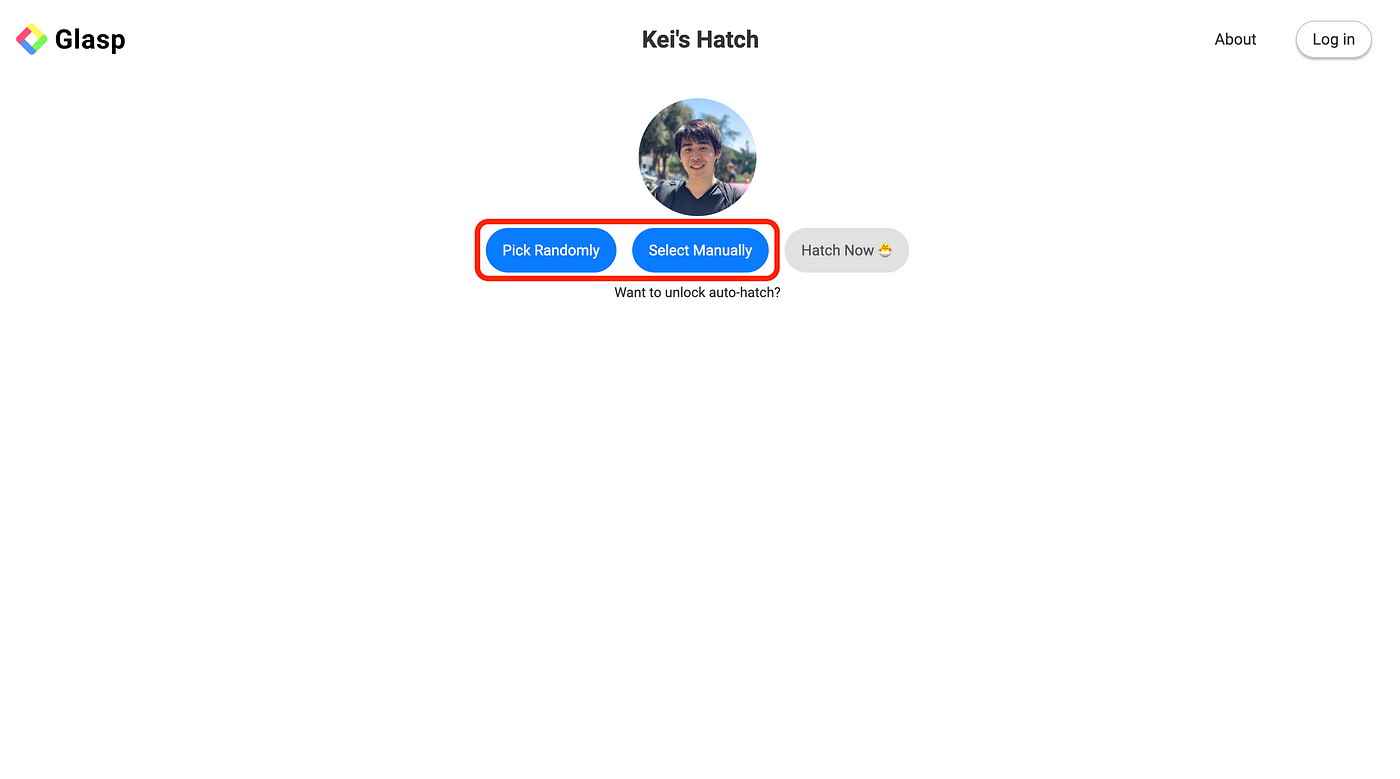
You can see two active buttons, Pick Randomly and Select Manually. Pick Randomly chooses two articles’ highlights from your collection randomly. Select Manually allows you to choose two articles’ highlights on your own.
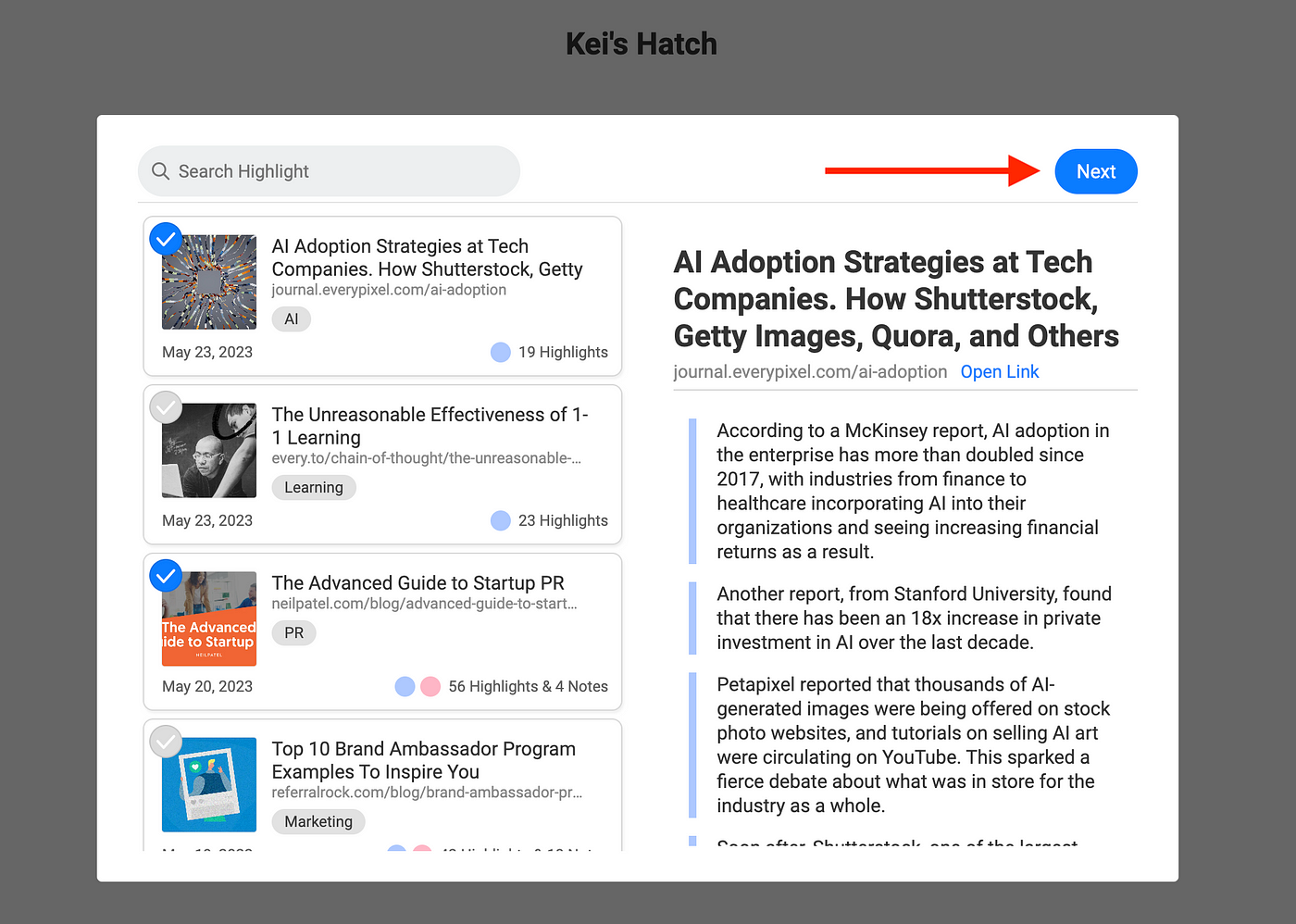
In this tutorial, I use Select Manually. After you click that button, it opens a modal where you can choose two articles. So, please choose any two articles you want to hatch with. Then, click Next to start hatching.
Step 3: Hatch the idea
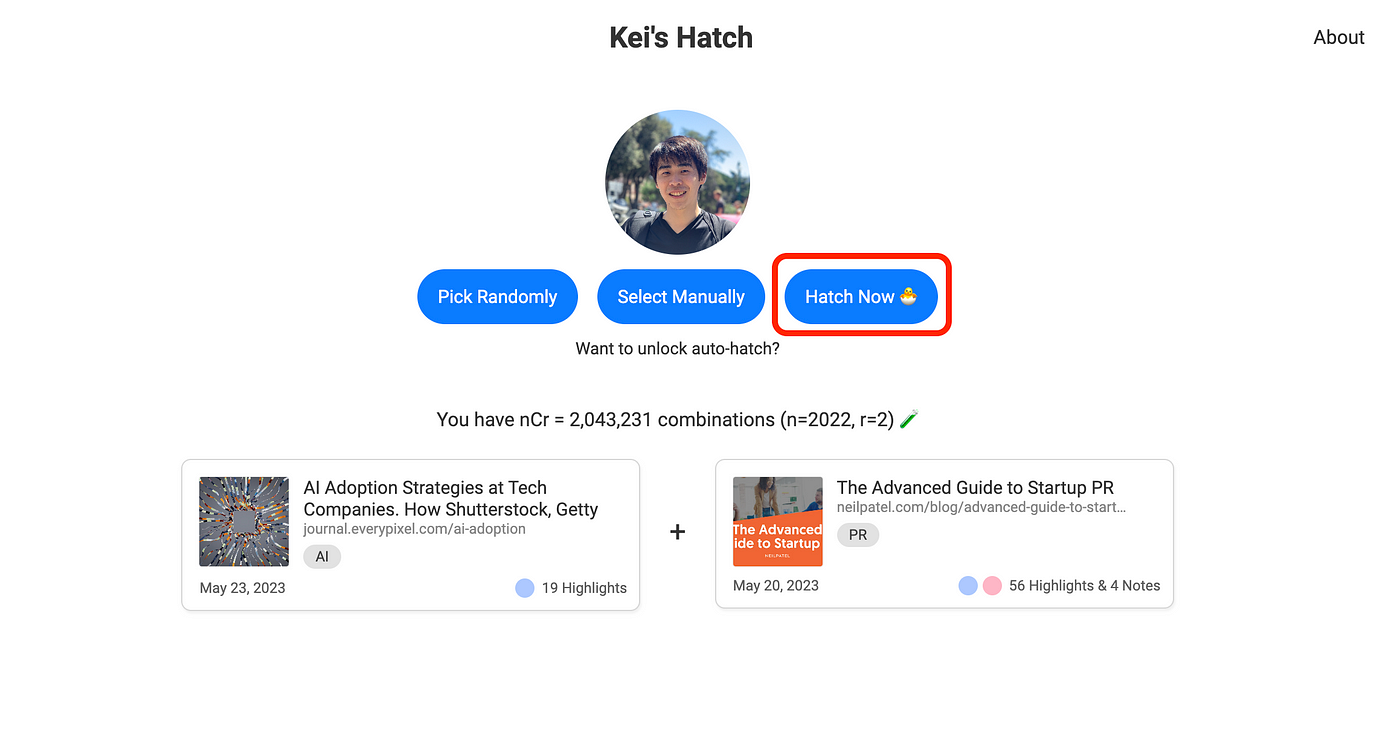
After choosing two articles’ highlights, you can see Hatch Now 🐣. You can start hatching a new idea by clicking the button.
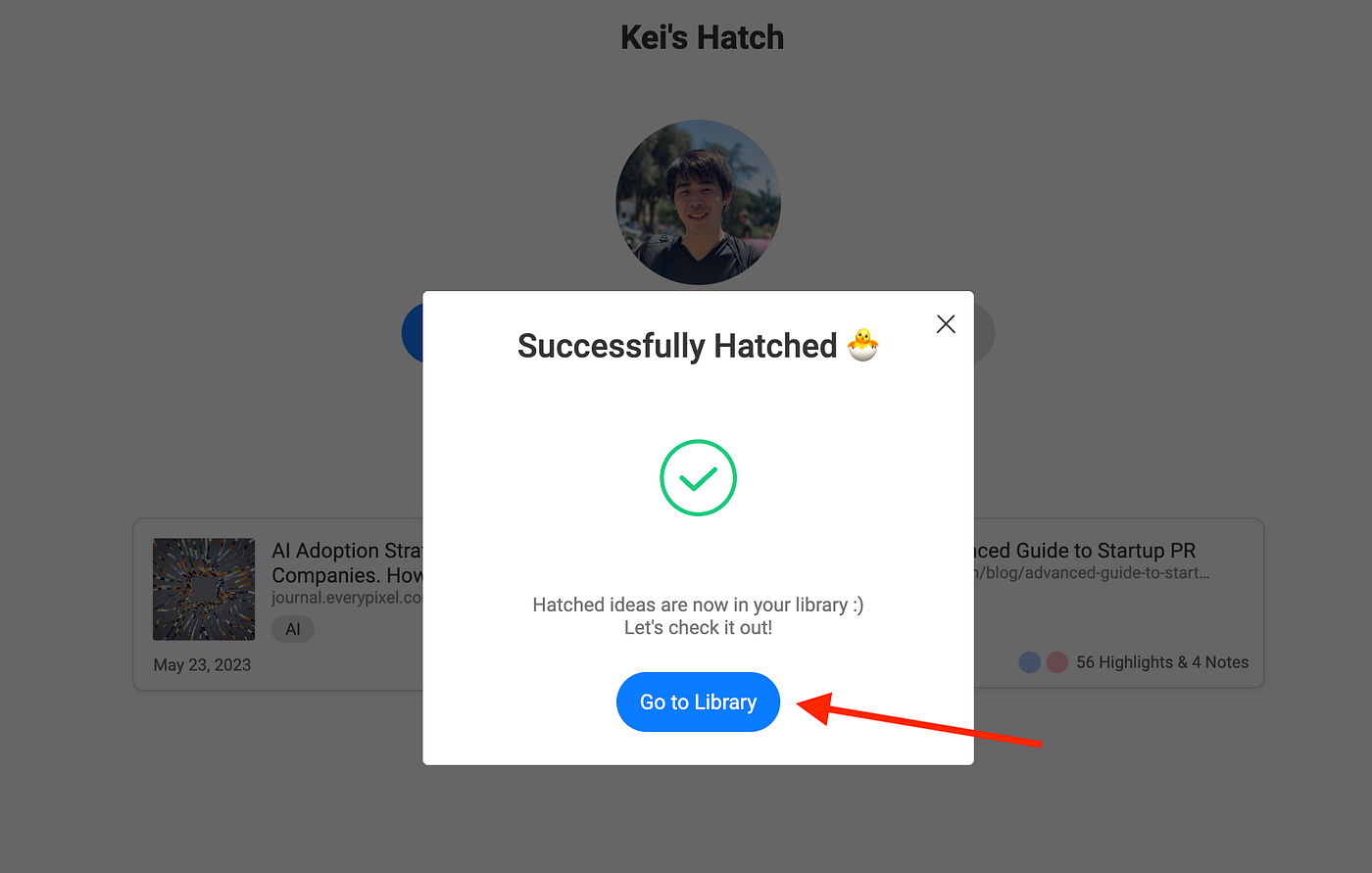
It takes around one minute to generate. When successfully hatched, you can see a modal below. To see the idea, please click Go to Library.
Step 4: See the hatched idea
After clicking Go to Library, it takes you to the page where you can see the idea.
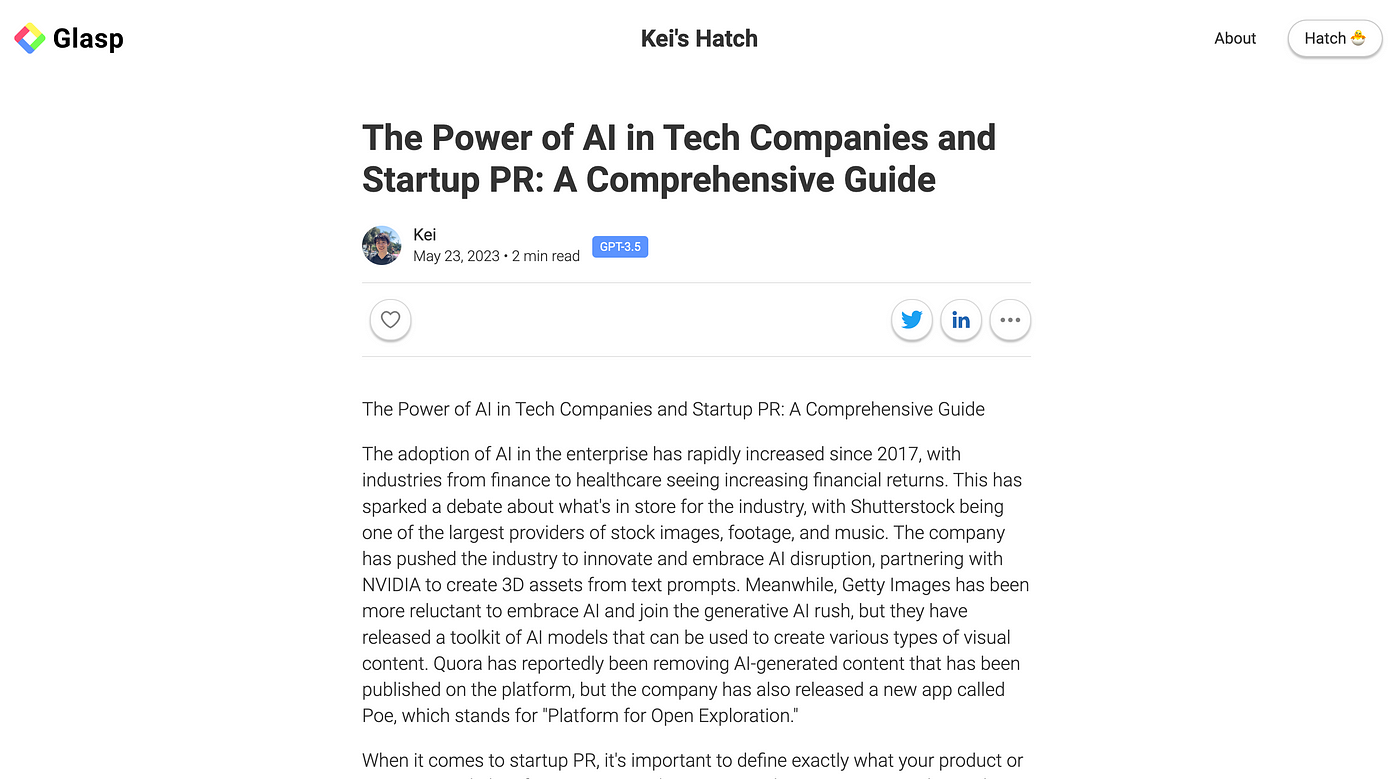
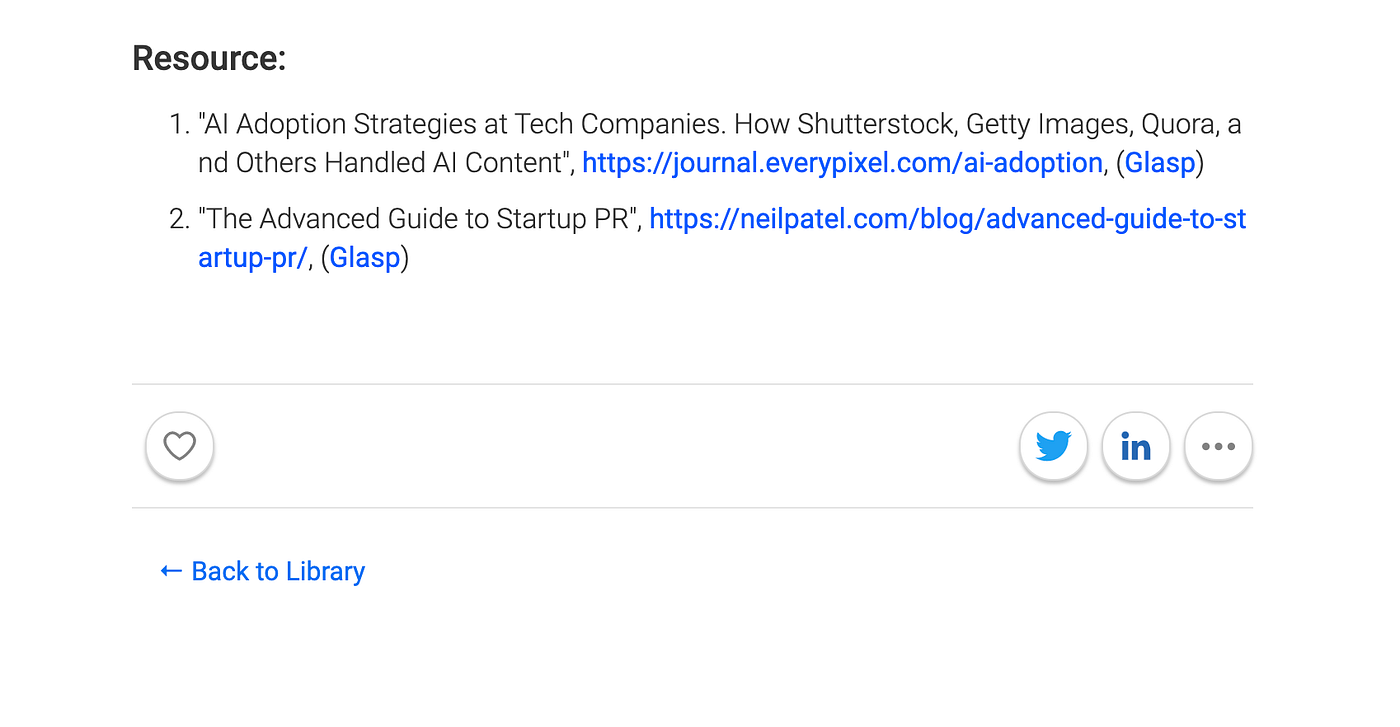
At the bottom of this page, you can see the resources of this article. If you click Glasp, you can see your highlights on your Glasp profile page. And clicking the link (https://journal.everypixel.com/ai-adoption) takes you to the original article.
Step 5: Share the hatched idea
Optionally, you can share the hatched idea. To share it on X or Linkedin, please click each icon.
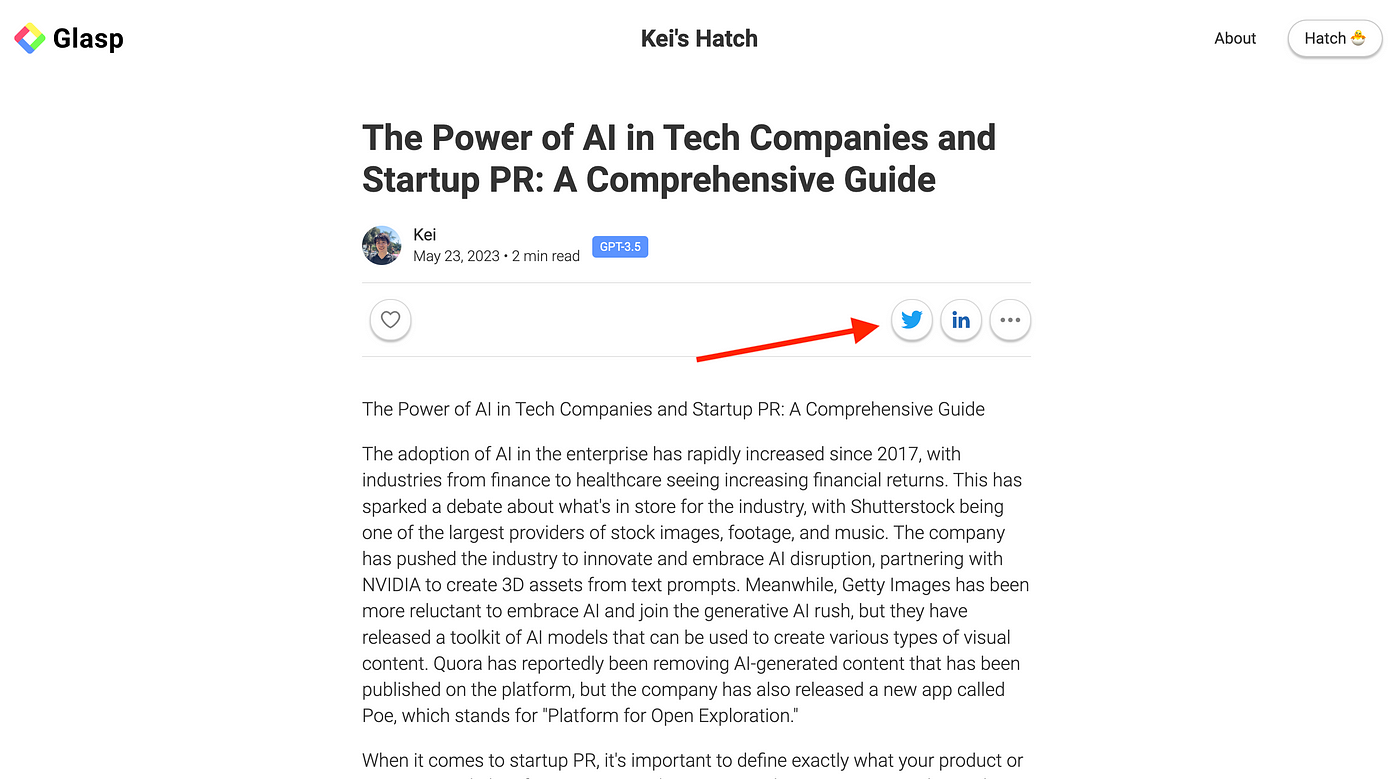
If you want to share it through a link, click the three dots at the right. It offers Copy Link, so you can copy and share the link with others.

As you can see, you can delete the hatched idea there. So, please come visit and delete it if you want.
Hope this Hatch feature helps you come up with a new idea and get a new perspective!
FAQs
Q. What is Glasp Hatch?
Hatch is a feature in Glasp that allows you to combine highlights from two articles to generate a new idea or article.
Q. Do I need a minimum number of highlights to use Hatch?
Yes. You’ll need at least two highlighted articles in your Glasp account to start hatching ideas.
Q. Can I choose which articles to hatch together?
Yes. You can either Pick Randomly (Glasp chooses two articles for you) or Select Manually (you choose the two articles yourself).
Q. How long does it take to hatch a new idea?
It usually takes around one minute for the idea to be generated after you click Hatch Now 🐣.
Q. Can I share my hatched ideas?
Yes. You can share them on X, LinkedIn, or by a direct link. Others will be able to see the new idea and its source highlights.
Q. Are hatched ideas private or public?
By default, your hatched ideas are saved in your Library. You can keep them for personal use or share them publicly.
Q. Can I delete a hatched idea later?
Yes. You can delete any hatched idea directly from the Library by clicking the three dots and selecting Delete.
Q. Can Claude or ChatGPT read my Glasp highlights?
Yes. With the Glasp MCP Connector, AI assistants such as Claude, ChatGPT, and Claude Code can search and read your own highlights, notes, Kindle highlights, and AI summaries, including your YouTube summaries. The connection is read-only and private to you. See How to Connect Glasp to Claude, ChatGPT, and Claude Code (MCP Connector).
Q. Can I use Glasp on my phone?
Yes. Glasp has native apps for iPhone, iPad, and Android, and the Glasp Safari extension for iPhone and iPad comes with the iOS app. Your highlights sync between the apps, the web, and the desktop extension. See How to Use the Glasp Mobile App on iOS, iPad, and Android.
Before you leave
If you have any questions, please refer to the FAQ or contact us.
If you’d like to learn more about how these Hatch ideas are born, we’re introducing them in our Hatching Growth series. Please check out the articles below if you’re interested.
👉 Hatching Growth #7: Hatch: Turning Highlights Into New Ideas
See you next time,
Glasp team