How to Run Claude Code Portably from a USB Drive
TL;DR
Format a USB drive as exFAT, download and extract Claude Code Portable, then launch start.bat on Windows or start.sh on macOS and Linux. The setup downloads its own platform-specific runtime, supports terminal and browser interfaces, connects to providers such as Anthropic, OpenRouter, Gemini, DeepSeek, and Nvidia, and carries saved settings, chats, projects, models, and API keys between computers.
Transcript
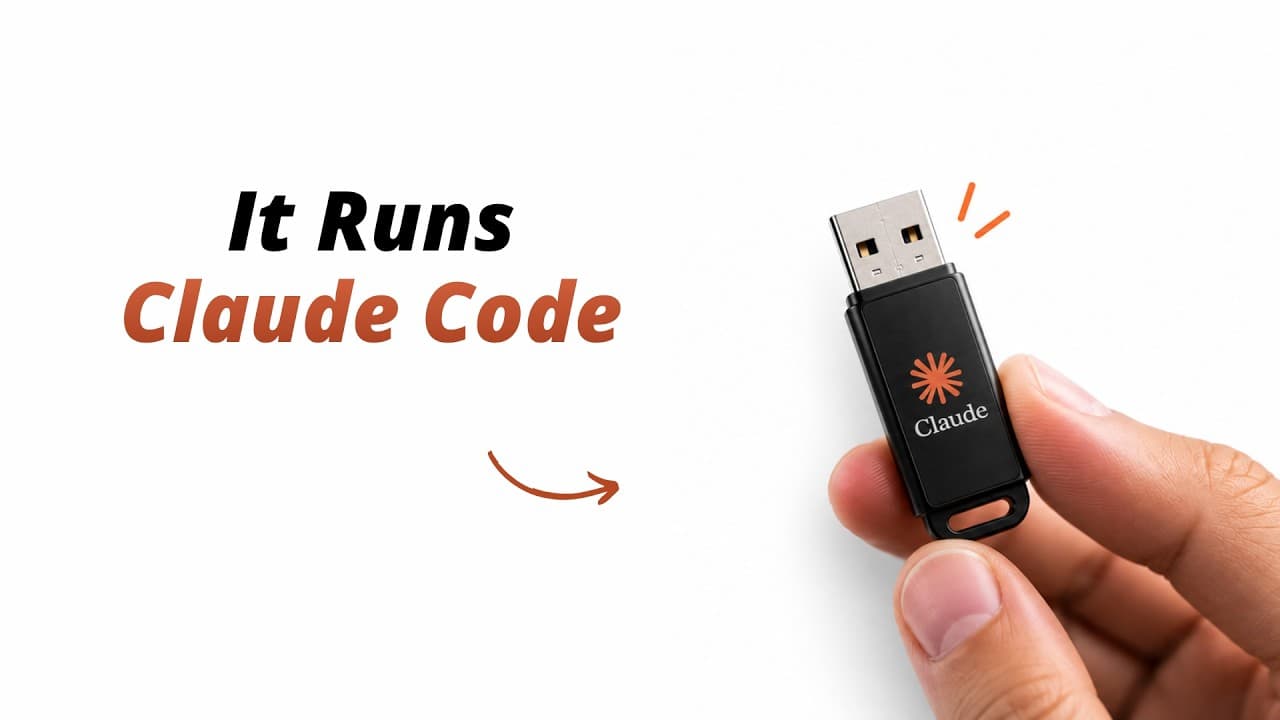
Okay. Take a look at this. This is just a normal $10 USB stick. But inside this tiny drive, I have a complete Claude code setup running. And yeah, this isn't a clone or some copycat version. It's the official Claude code. So, this is Claude code portable. A free and open-source project that lets you run the official Claude code from a USB drive or ... Read More
Key Insights
- Claude Code Portable is a free and open-source project that runs the official Claude Code from a USB drive or any folder. It provides two operating options: direct terminal access and a browser-based interface designed to simplify provider, model, project, and conversation management.
- Cross-platform portability is supported through start.bat for Windows and start.sh for macOS and Linux. Each operating system downloads its own required files during the first launch, after which the portable folder can provide the same Claude Code environment on that platform.
- An exFAT file system allows the same USB drive to work across Windows, macOS, and Linux. The presenter recommends initially extracting the downloaded project to the computer's Downloads folder because the internal SSD can download the engine faster, then moving the completed folder to the USB drive.
- The first Windows launch downloads a dedicated Node.js runtime and the official Claude Code packages into the engine folder. The automated installation is started by opening start.bat and confirming the prompt, and the presenter says the initial download can take two or three minutes.
- The browser dashboard supports Anthropic, OpenRouter, Gemini, DeepSeek, Nvidia, and additional providers. Users enter an API key, discover the provider's available models, select a model, test the connection, and save the connection before opening a chat.
- Review mode requires confirmation before Claude Code runs a command. In the Windows demonstration, the assistant requests permission before analyzing and summarizing the root folder, showing that this behavior can be controlled through a setting in the portable interface.
- Portable data includes saved settings, conversation history, API keys, projects, and provider configurations. When the same USB drive is opened on macOS or Linux, this information remains available, so the presenter can continue working without entering the demonstrated API key again.
- Multiple provider connections and models can be saved and switched from a new chat. The demonstration first uses a DeepSeek model, then adds Nvidia and selects the Nemotron model, showing that the portable setup is not restricted to a single AI provider or model.
Install to Summarize YouTube Videos and Get Transcripts
Explore YouTube Video Summarizer or Get YouTube Transcript Extractor
Questions & Answers
Q: How do you install Claude Code Portable on a USB drive?
Format the USB drive as exFAT so it can work across Windows, macOS, and Linux. Download the project ZIP from the GitHub repository in the description, extract it, and open the resulting folder. For faster setup, the presenter recommends extracting it to the Downloads folder first, running the initial installation there, and then copying or zipping the complete folder onto the USB drive.
Q: How do you start Claude Code Portable on Windows?
Open the extracted project folder and double-click start.bat, which is the Windows launcher. Confirm the prompt to begin the automatic installation. During the first launch, the setup downloads its own Node.js runtime and the official Claude Code packages into the engine folder. After installation finishes, press one and Enter in the menu to open the browser dashboard and configure an AI provider.
Q: How do you run Claude Code Portable on macOS and Linux?
Connect the USB drive, open a terminal in the portable project folder, and run the start.sh launcher with Bash. On the first launch for each operating system, the setup downloads the required platform-specific files. After that one-time preparation, the same menu and browser dashboard become available, including the settings, conversations, projects, providers, models, and API keys previously stored in the portable folder.
Q: Which AI providers can Claude Code Portable connect to?
The browser dashboard includes provider options such as Anthropic, OpenRouter, Gemini, DeepSeek, and Nvidia, along with additional choices mentioned but not individually named. The demonstration configures DeepSeek first, then adds Nvidia and selects the Nemotron model. Users can save multiple provider connections and switch among their saved models when opening a new chat, rather than remaining tied to one provider.
Q: How do you configure and test an AI provider?
Open the browser dashboard from the launcher menu, choose an AI provider, and enter the provider's API key. Select discover models to retrieve the models offered through that connection, then choose the desired model. Before saving, use the connection test to verify that the API key works. Once the test succeeds, save the connection and open a new chat to send a prompt.
Q: What information transfers between Windows, macOS, and Linux?
The portable folder carries the demonstrated settings, conversation history, API keys, projects, saved providers, and model configurations between operating systems. After configuring the setup on Windows and moving the USB drive to a Mac, the presenter opens the dashboard and finds the existing information already available. The same stored chats, settings, and projects also appear when the drive is later connected to Ubuntu.
Q: Can Claude Code Portable use different models without an Anthropic subscription?
The setup does not require the Anthropic subscription priced at $20 in the transcript. It can connect to multiple alternative providers, including OpenRouter, Gemini, DeepSeek, and Nvidia, and the presenter says free models are available. Access still depends on configuring a provider connection with an API key. Saved models can then be selected and switched through the browser dashboard when starting chats.
Q: What storage devices and interfaces support Claude Code Portable?
Claude Code Portable can run from a USB drive, an external SSD, an internal SSD, or another folder on the computer. The presenter uses a normal $10 USB stick for the cross-platform demonstration and notes that an SSD can provide better performance. Users can interact with the setup directly through the terminal or use its built-in browser dashboard for a cleaner interface.
Summary & Key Takeaways
-
Claude Code Portable runs the official Claude Code from a USB drive, external SSD, internal SSD, or ordinary folder. The same portable directory supports Windows, macOS, and Linux through separate launcher files, while offering both direct terminal operation and a browser-based dashboard for configuring providers, projects, models, and conversations.
-
The Windows setup begins by formatting the USB drive as exFAT, downloading the project from GitHub, extracting it, and running start.bat. On its first launch, the system downloads its own Node.js runtime and official Claude Code packages. The browser dashboard then lets users add an AI provider and discover models.
-
After the configured folder is copied to the USB drive, start.sh prepares the required platform-specific files on macOS and Linux. Saved API keys, settings, chats, projects, and provider configurations remain available across systems. Users can add several providers, save multiple models, and switch models when starting a new chat.
Read in Other Languages (beta)
Share This Summary 📚
Summarize YouTube Videos and Get Video Transcripts with 1-Click
Try YouTube Summary with ChatGPT & Claude or YouTube Transcript Generator
Explore More Summaries from Tech Jarves 📚
Summarize YouTube Videos and Get Video Transcripts with 1-Click
Try YouTube Summary with ChatGPT & Claude or YouTube Transcript Generator