How to Install Ubuntu 22.04 LTS on VirtualBox in Windows 11
TL;DR
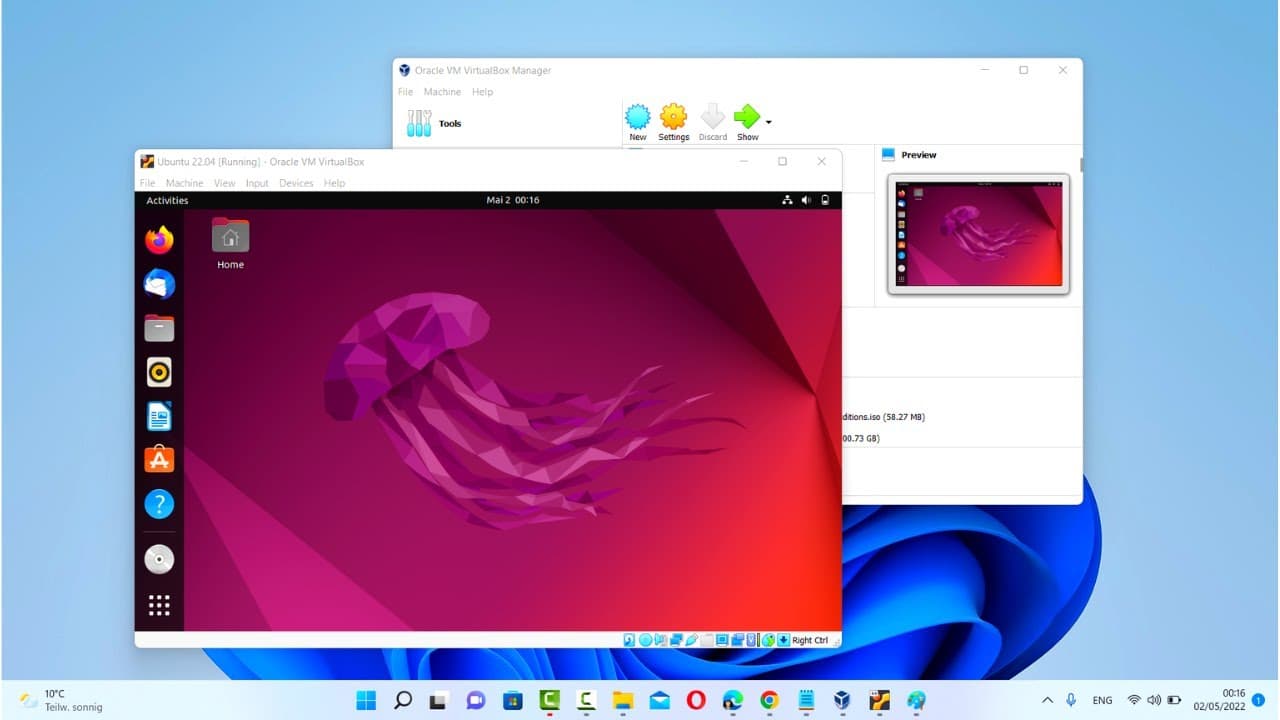
To install Ubuntu 22.04 LTS on VirtualBox, first download and install VirtualBox from the official website. Then, download the Ubuntu 22.04 ISO file from Ubuntu's website, create a new virtual machine in VirtualBox, and configure it to use the downloaded ISO during installation. Finally, follow the prompts to complete the Ubuntu setup on your Windows 11 system.
Transcript
hey guys in this video i'm going to show you how you can install ubuntu 22.04 lts version on oracle virtualbox on your windows 11 operating system so first of all what is virtualbox so virtualbox is a tool using which you can install any other operating system on your host operating system virtually so for example let's say i have this windows 11 o... Read More
Key Insights
- 👻 VirtualBox allows you to run other operating systems virtually on your host operating system.
- 🪡 To install Ubuntu on VirtualBox, you need to download VirtualBox from the official website and Ubuntu ISO file from the official Ubuntu website.
- 🎰 During the installation process, you can customize settings such as the machine name, memory size, hard disk size, and shared clipboard settings.
- 👤 After installation, you can improve the user experience by installing the VirtualBox guest additions, which enable features like resized desktop.
- 🍉 Ubuntu 22.04 LTS is a long-term supported version, providing extended support and stability.
- 💁 The installation process involves selecting language, keyboard layout, installation options, region, and personal information.
- 😒 Installing Ubuntu on VirtualBox is a safe way to try out or use Ubuntu on a Windows 11 system without affecting the host operating system.
Install to Summarize YouTube Videos and Get Transcripts
Explore YouTube Video Summarizer or Get YouTube Transcript Extractor
Questions & Answers
Q: What is VirtualBox and why would I want to use it?
VirtualBox is a tool that enables you to install and run other operating systems on your host operating system virtually. It allows you to use different operating systems without the need for separate hardware.
Q: How do I download and install VirtualBox?
To download VirtualBox, search for it on your browser, go to the official website (virtualbox.org), and click on the "Download VirtualBox" button. Follow the installation process by clicking "Next" and accepting the default settings.
Q: How do I download and install Ubuntu 22.04 LTS?
To download Ubuntu 22.04 LTS, go to the official Ubuntu website (ubuntu.com), click on the "Downloads" section, and select the LTS version (22.04). After downloading the ISO file, create a new virtual machine in VirtualBox and provide the ISO file location during the installation process.
Q: How do I resize the Ubuntu desktop on VirtualBox?
After installing Ubuntu on VirtualBox, you can resize the desktop by installing the VirtualBox guest additions. Open the Terminal in Ubuntu and run the provided commands (sudo apt update, sudo apt install -y build-essential linux-headers-$(uname -r)). Then, insert the guest additions CD image, run the autorun.sh file, and restart the virtual machine.
Summary & Key Takeaways
-
VirtualBox allows you to install and run other operating systems virtually on your host operating system, such as running Ubuntu on a Windows 11 system.
-
To download VirtualBox, search for it on your browser and click on the official website's download button.
-
To install Ubuntu 22.04 LTS on VirtualBox, download the ISO file from the official Ubuntu website, create a new virtual machine in VirtualBox, and provide the ISO file location during the installation process.
-
(Content reviewed on 2026-08-27.)
Read in Other Languages (beta)
Share This Summary 📚
Summarize YouTube Videos and Get Video Transcripts with 1-Click
Try YouTube Summary with ChatGPT & Claude or YouTube Transcript Generator
Explore More Summaries from ProgrammingKnowledge 📚
Summarize YouTube Videos and Get Video Transcripts with 1-Click
Try YouTube Summary with ChatGPT & Claude or YouTube Transcript Generator