How to use Claude in Excel for data analysis
TL;DR
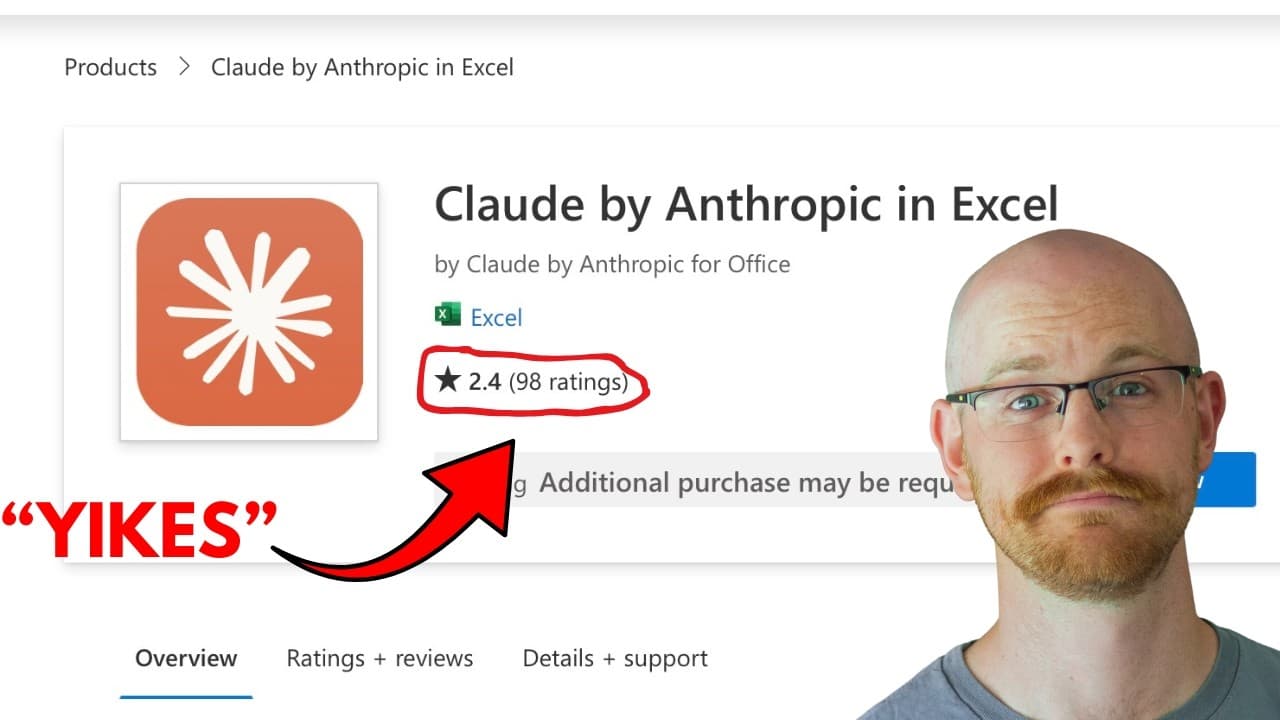
Claude in Excel lets you build pivot tables, charts, and data cleaning workflows inside Excel. The reviewer demonstrates generating a breakdown of products by revenue, creating a pivot chart, and a cleaned data sheet, while noting mixed performance and a 2.4 rating for the feature.
Transcript
All right, listen. This is not one of my normal videos. I just saw this and I was like, I'm gonna record it. I'm not even gonna, you know, practice anything or get anything set [clears throat] up. I'm literally just going to hit record and start going. Now, as a lot of you guys know, I really like Chad GBT. I've been using it for a long time, but I... Read More
Key Insights
- Claude in Excel is accessible via Claude Pro and Claude Co-Work in Excel, showing a practical integration path.
- The tool is currently labeled beta and carries a 2.4 rating, signaling early-stage performance and user feedback.
- Pivot tables and charts can be generated through Claude, with the script creating a new analysis sheet and a pivot chart.
- Claude can explain the workbook structure and list key inputs such as transaction ID, date, geography, product, and revenue.
- The workflow includes creating a cleaned data sheet when asked to fix data issues, demonstrating data cleaning capabilities.
- The user logs into Microsoft and enables Claude within Excel, indicating a required sign-in and permissions step.
- The video compares Claude with Copilot, suggesting a preference for Claude while acknowledging existing limitations.
- The presenter emphasizes token usage and how model choice (4.6, 4.5, Sonnet) affects performance and cost, implying resource considerations when using Claude.
Install to Summarize YouTube Videos and Get Transcripts
Explore YouTube Video Summarizer or Get YouTube Transcript Extractor
Questions & Answers
Q: A real search query question about the video (e.g. 'How to...', 'What is...', 'Why does...', 'When should...'). Question 1
Claude in Excel can build pivot tables and charts, explain the workbook layout, and generate a cleaned data sheet when issues are found. The video demonstrates inputting a dataset, prompting Claude to describe key fields, and then creating new sheets for analyses, all within an Excel workflow.
Q: What is the initial user attitude toward Claude in Excel in the video?
The presenter is curious and exploratory, choosing to test Claude in Excel firsthand rather than preparing extensively. The tone shows excitement and a willingness to assess its practicality, noting the beta status and a skeptical take on early results while aiming to discover useful capabilities like pivot tables and visualizations.
Q: What datasets are used to test Claude in Excel in the video?
A sample Apple global sales dataset from Kaggle is used to test Claude in Excel. The streamer highlights fields such as revenue USD, date, geography, product, pricing, and units, then tasks Claude with breakdowns and data quality checks to evaluate real-world usefulness in analysis tasks.
Q: What features does Claude in Excel try to perform beyond basic pivot tables?
Beyond basic pivot tables, Claude is asked to analyze the dataset for data quality, identify issues, and clean the data by creating a cleaned data sheet. The video demonstrates higher level tasks such as debugging, building a second analysis sheet, and generating a visualization for revenue by category.
Q: How does the video address the user experience and login process?
The video shows the user logging into Microsoft and enabling Claude in Excel, including a permission flow that reveals what access is granted. This process is presented as part of getting Claude to work inside Excel, indicating a necessary authentication step for the feature to function.
Q: What version notes are mentioned about Claude in Excel in the video?
The presenter references Claude 4.6 Sonnet and notes that Claude in Excel is beta, implying ongoing development and potential variability in performance. Different model options are discussed as a way to manage token usage and responsiveness during analysis tasks.
Q: How does the video view Claude in Excel relative to Copilot?
The reviewer expresses a preference for Claude over Copilot, framing Copilot as an unnecessary distraction while acknowledging that Claude is still a developing tool within Excel. This contrast underscores expectations that Claude could evolve into a stronger integrated AI assistant for spreadsheets.
Q: What limitations or caveats are highlighted in the video about Claude in Excel?
The video notes limitations such as the beta status, the possibility of performance issues with large datasets or heavy token usage, and the current reliance on model choice to influence speed and accuracy. It also points out potential data type and formatting issues during cleaning tasks.
Summary & Key Takeaways
-
Claude in Excel enables pivot table and chart creation with AI assistance, demonstrated on an existing dataset. The video walks through logging in, enabling the feature, and generating analyses, including identifying issues and cleaning data. The reviewer also comments on its beta status and compares it to Copilot figures.
-
The author shows how Claude can read workbook structure, describe inputs and calculated fields, and create new analysis sheets, highlighting both capabilities and limitations.
-
The video ends with reflections on the current state of AI in Excel, emphasizing that despite some strong outputs, performance may vary and reliance on AI is still developing within spreadsheet tools.
Read in Other Languages (beta)
Share This Summary 📚
Summarize YouTube Videos and Get Video Transcripts with 1-Click
Try YouTube Summary with ChatGPT & Claude or YouTube Transcript Generator
Explore More Summaries from Alex The Analyst 📚






Summarize YouTube Videos and Get Video Transcripts with 1-Click
Try YouTube Summary with ChatGPT & Claude or YouTube Transcript Generator