How to Install VS Code and Create an HTML File
TL;DR
Install VS Code for your operating system, open a dedicated course folder, create an index.html file, and enable Auto Save so edits are stored immediately. VS Code is preferred over Notepad because it provides coding features such as automatic opening and closing tags, HTML boilerplate generation, folder synchronization, configurable themes, and mouse-wheel font zoom.
Transcript
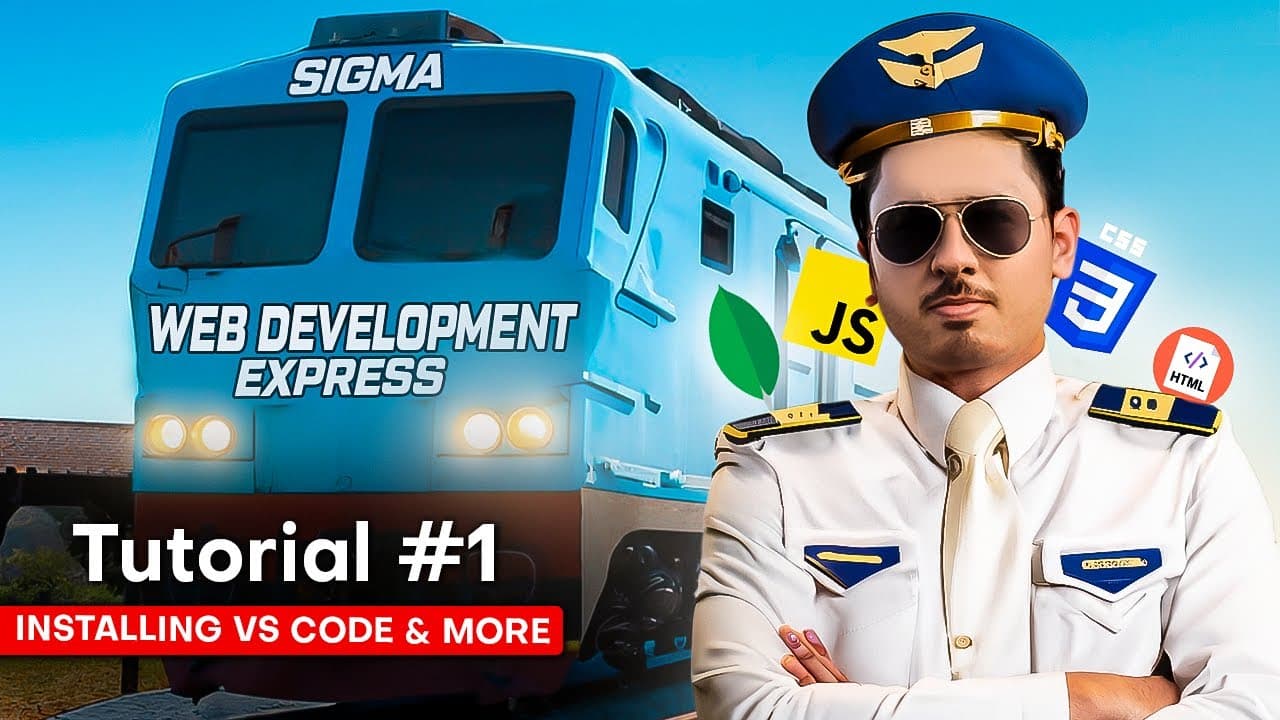
From today's video, we will start the Sigma Web Development course. Like it with high energy, guys. Because in this video, I am going to make you a profitable web developer from zero. This course will be very modern because web development has changed over time. A lot of new things have come. A lot of things have come in JavaScript that make work v... Read More
Key Insights
- VS Code is a source code editor that helps users create and edit code files. Although plain text editors such as Notepad can also modify code, VS Code includes conveniences designed specifically for programming and provides a more suitable workspace for following the course.
- The installation process depends on the operating system selected on the VS Code download page. The instructor demonstrates Windows installation, while noting that macOS and Linux users can follow a similar process even though particular screens and commands may not look exactly the same.
- A dedicated project folder keeps course files organized and synchronized with the VS Code Explorer. When the folder is opened in VS Code, creating index.html or a text file inside the editor also creates that file in the corresponding folder on the computer.
- The white dot beside an open file indicates that its latest changes have not been saved. Pressing Ctrl+S saves the file manually, while enabling Auto Save from the File menu stores edits as they are typed and removes the need for repeated manual saving.
- Editor: Mouse Wheel Zoom is a VS Code setting that changes the displayed font size. After enabling it in Settings, the user can hold Control and scroll the mouse wheel, making the code easier to read without changing the file's actual contents.
- VS Code accelerates HTML writing by automatically producing opening and closing tags. Entering an exclamation mark can also generate a basic HTML boilerplate template, although the instructor postpones a detailed explanation of that generated structure until later lessons in the course.
- Workspace Trust asks whether the user trusts the authors of files in an opened folder. For the folder created personally for the course, the instructor selects the trust option so that the project can open and operate normally within the editor.
- Project-based learning is presented as the course's preferred method for developing web skills. The planned path combines explanations with many websites and larger projects, progressing from a beginner-friendly start toward front-end, back-end, database, and full-stack development topics.
Install to Summarize YouTube Videos and Get Transcripts
Explore YouTube Video Summarizer or Get YouTube Transcript Extractor
Questions & Answers
Q: How do you install VS Code for web development?
Search for the VS Code download page, choose the installer that matches your operating system, and download the setup file. On Windows, open the downloaded installer, review and accept the agreement, proceed through the setup screens, select the recommended installer options, optionally create a desktop shortcut, and click Install. The process for macOS and Linux is described as similar, though individual screens may differ.
Q: What is VS Code used for in web development?
VS Code is a source code editor used to create and modify website files. It can open an entire project folder, display the files inside that folder, and keep newly created editor files synchronized with the computer's filesystem. It also provides coding conveniences such as paired HTML tags, boilerplate generation, themes, Auto Save, adjustable font zoom, settings, and a Command Palette.
Q: How do you create your first HTML file in VS Code?
Create a dedicated folder for the course and open that folder with VS Code. If Windows provides the option, hold Shift, right-click the folder, and choose Open with Code. Confirm that you trust the folder's authors, select the new-file control in VS Code, name the file index.html, press Enter, type some content, and save it manually or use Auto Save.
Q: Why should a beginner use VS Code instead of Notepad?
Notepad can edit code, so it is technically possible to use it for an HTML file. VS Code is recommended because it offers features tailored to coding. It can automatically insert matching opening and closing HTML tags, generate a basic HTML boilerplate from an exclamation mark, manage files within a project folder, save edits automatically, and provide a configurable coding interface.
Q: How do you enable Auto Save in VS Code?
Open the File menu in VS Code and enable the Auto Save option. Once enabled, the editor saves file changes as they are typed, so the unsaved-change dot disappears and repeatedly pressing Ctrl+S is unnecessary. Users who prefer manual control can leave Auto Save disabled and continue saving with Ctrl+S whenever they want to preserve their latest edits.
Q: How do you zoom the code font in VS Code?
Open VS Code Settings from the gear menu and search for the mouse setting. Find Editor: Mouse Wheel Zoom and enable its checkbox. After closing Settings, hold the Control key and scroll the mouse wheel to increase or decrease the displayed code font size. This is presented as a useful setup adjustment for making text more comfortable to read.
Q: How does a VS Code folder stay synchronized with project files?
When a computer folder is opened as the active workspace in VS Code, files created through the editor are placed inside that same folder. For example, creating index.html or a text file in the VS Code Explorer makes the corresponding file appear in the course folder on the computer. The same files can still be opened with another editor, including Notepad.
Q: What topics and learning method does the web development course use?
The course is designed to begin with people who know nothing about web development and then raise the difficulty in later lessons. Its planned coverage includes front-end development, back-end development, databases, and full-stack website creation. The instructor favors project-based learning, with many practice websites and larger concluding projects, plus planned notes, cheat sheets, references, and code repositories in upcoming videos.
Summary & Key Takeaways
-
The Sigma Web Development Course begins at a beginner-friendly level and plans to cover front-end development, back-end development, databases, and full-stack projects. The instructor emphasizes project-based learning, promising notes, cheat sheets, references, practice websites, and larger projects intended to strengthen practical skills, confidence, and understanding throughout the course.
-
The practical setup starts by downloading VS Code for Windows, macOS, Linux, or another supported operating system. Windows users run the downloaded installer, accept the agreement, select the recommended installer options, and optionally create a desktop shortcut. After installation, beginners can choose a theme and close the initial welcome screen.
-
A dedicated course folder is opened in VS Code, after which an index.html file is created and edited. Auto Save can remove the need to press Ctrl+S repeatedly, while Editor: Mouse Wheel Zoom allows font resizing with Control and scrolling. VS Code also generates matching HTML tags and boilerplate code.
Read in Other Languages (beta)
Share This Summary 📚
Summarize YouTube Videos and Get Video Transcripts with 1-Click
Try YouTube Summary with ChatGPT & Claude or YouTube Transcript Generator
Explore More Summaries from CodeWithHarry 📚






Summarize YouTube Videos and Get Video Transcripts with 1-Click
Try YouTube Summary with ChatGPT & Claude or YouTube Transcript Generator