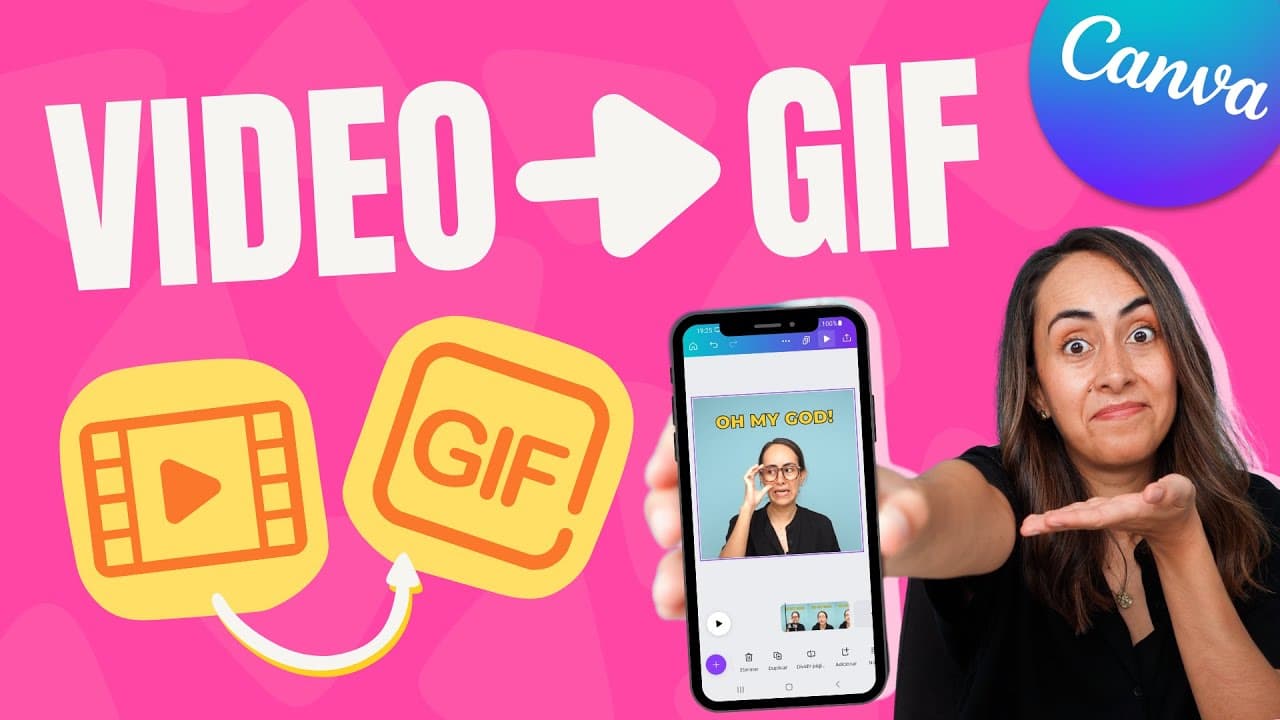
How to make a GIF from a VIDEO in Canva | Free, Easy, NO Watermarks
TL;DR
Learn how to make GIFs using Canva, either on a computer or a phone, with step-by-step instructions and additional tips.
Transcript
today i'm going to show you how to transform a video into a gif or gif and i'm going to show you two different options to do this one from a computer and another one from a phone so at the end you can decide which option is better for you we're gonna use canva and all the features that we're going to use today are completely free so if you guys are... Read More
Key Insights
- 👤 Canva provides a user-friendly platform for creating GIFs, with options available for both computers and phones.
- 🕴️ Users can choose from various dimensions to suit different social media platforms or create a custom-sized GIF.
- 💁 The tutorial offers additional tips on rotating, cropping, and trimming videos, as well as adding text with customizable options.
- 😒 Canva's features used in the tutorial, including uploads, editing, and exporting as a GIF, are all free to use.
- ❓ There is a possibility of using the GIFs created in Canva as stickers on WhatsApp, with the potential for a separate tutorial on this subject.
- 🎮 The tutorial emphasizes the importance of waiting for videos to fully upload in Canva to avoid potential issues with downloading the GIFs.
- 👤 Both the computer and phone options are explained in detail, making the tutorial accessible to users with different devices.
Install to Summarize YouTube Videos and Get Transcripts
Explore YouTube Video Summarizer or Get YouTube Transcript Extractor
Questions & Answers
Q: What are the two options for creating GIFs using Canva?
Canva offers options for creating GIFs either on a computer or a phone, providing flexibility for users with different devices.
Q: Are the features used in creating the GIFs in Canva free?
Yes, all the features used in this tutorial, including the video section, uploads, trimming, and adding text, are completely free within Canva.
Q: How can I adjust the size and dimensions of my GIF in Canva?
Canva allows you to choose from various dimensions, including landscape, square, and vertical modes. Additionally, you have the option to create a GIF with custom dimensions by entering the width and height manually.
Q: Can I add text to my GIF in Canva?
Yes, you can add text to your GIF by going to the text section in Canva and customizing the text. You can choose the font, size, color, and even add an outline to the text.
Q: Can I create GIFs to use as stickers on WhatsApp using Canva?
Yes, you can use the GIFs created in Canva as stickers on WhatsApp. If there is enough interest, the creator is willing to make a separate tutorial on how to convert GIFs into WhatsApp stickers.
Summary & Key Takeaways
-
This tutorial demonstrates how to transform a video into a GIF using Canva, a free online design tool.
-
The process is explained for both computer and phone options, making it accessible to a wide range of users.
-
The tutorial also includes additional tips on adding text and the potential use of the GIFs as stickers on WhatsApp.
Read in Other Languages (beta)
Share This Summary 📚
Summarize YouTube Videos and Get Video Transcripts with 1-Click
Try YouTube Summary with ChatGPT & Claude or YouTube Transcript Generator
Explore More Summaries from Design with Canva 📚



Summarize YouTube Videos and Get Video Transcripts with 1-Click
Try YouTube Summary with ChatGPT & Claude or YouTube Transcript Generator