How to Set Up Odoo 17 Development on Ubuntu
TL;DR
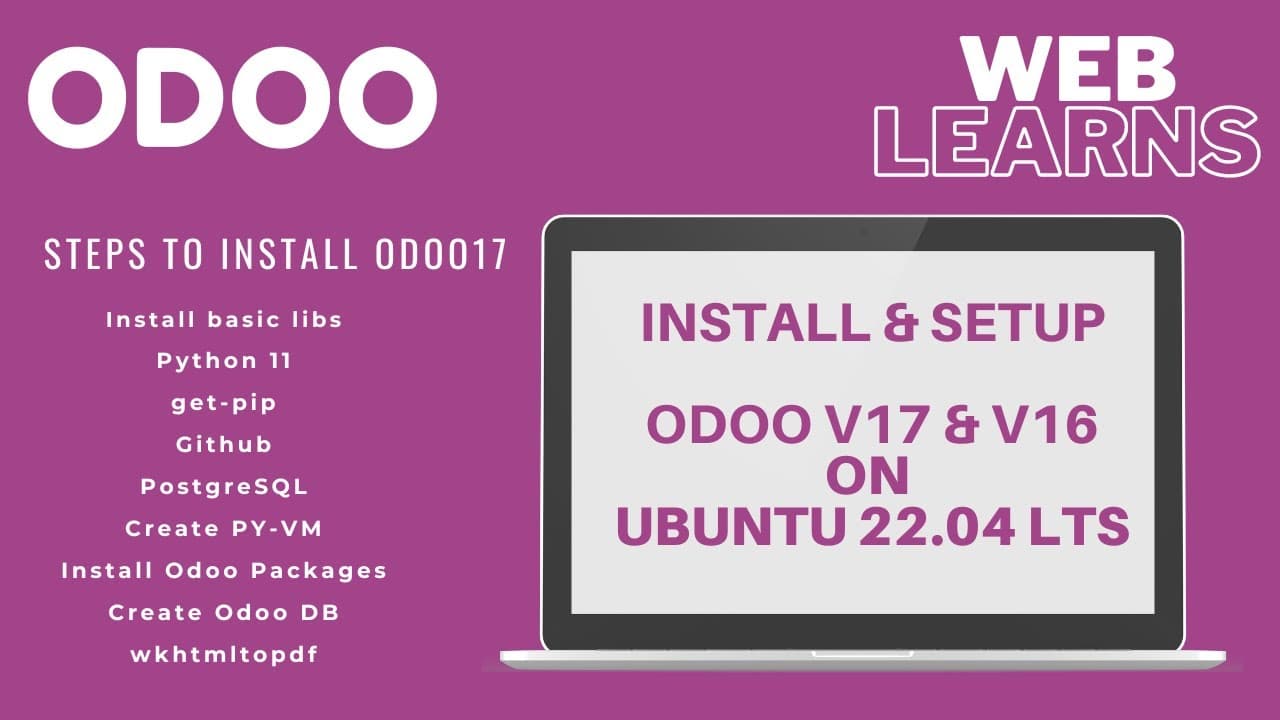
Install Odoo 17 on Ubuntu 22.04 LTS by preparing Python 3.11, Git, pip, Node packages, PostgreSQL, required system libraries, and a dedicated virtual environment. Clone only the version 17 branch, install its Python requirements, create a PostgreSQL login role, start Odoo on localhost port 8069, and install wkhtmltopdf to enable downloadable PDF reports.
Transcript
hello Community I hope you're are doing good in this discussion we will see how to set up ODU 17 in ubu 22.041 Latitude 7480 32 GB ddr4 Ram i5 processor 2.40 GHz and4 core and uh 500 GB SSD and you can see here this is the fres 22.0 for LTS Uber version so here I'm going to show you how to set up ODU different flavors of ODU in ubu system this is p... Read More
Key Insights
- The demonstrated installation is a development environment for Odoo 17, not a server-side deployment. It runs on a fresh Ubuntu 22.04 LTS installation and prepares the source code, programming tools, database, dependencies, reporting package, and development editor required for local work.
- Python 3.11 is installed even though Ubuntu reports Python 3.10.2 by default and Odoo 17 requires a minimum of Python 3.10. The tutorial deliberately selects the newer interpreter and later connects Odoo 17 to a virtual environment created with that specific Python version.
- A single-branch Git clone downloads only the selected Odoo version. The tutorial creates an Odoo projects directory, clones the version 17 branch from GitHub, and renames the resulting folder to identify it clearly alongside source directories for Odoo 16, Odoo 15, and Odoo 14.
- Virtual environments prevent Python library conflicts between different Odoo releases. Separate environments are created for Odoo 17, Odoo 16, and Odoo 15 because their requirements.txt files contain different packages, allowing each release to use its own interpreter and stored dependencies safely.
- Odoo dependencies include system packages, Python libraries, Node packages, and PostgreSQL. The setup installs these groups before launching Odoo because version 17 uses the OWL framework, which depends on Node packages, while PostgreSQL supplies the database used during initial configuration.
- PostgreSQL access is prepared by entering its database terminal and creating a role with login, password, and superuser privileges. Once the role is available, Odoo can start its database setup through the browser interface reached at localhost port 8069.
- Python requirement errors can be handled by isolating the packages that fail during the main installation. The tutorial removes two problematic entries from requirements.txt, installs the remaining dependencies again, and then installs the missing database adapter separately with the psycopg2-binary package.
- wkhtmltopdf is required for downloadable PDF reports in the demonstrated Odoo installation. The missing package becomes visible after installing Sales and attempting to produce a document, then the downloaded package and its missing dependencies are installed before Odoo recognizes the reporting tool.
Install to Summarize YouTube Videos and Get Transcripts
Explore YouTube Video Summarizer or Get YouTube Transcript Extractor
Questions & Answers
Q: How do you prepare Ubuntu 22.04 LTS for Odoo 17 development?
Begin by updating and upgrading the packages on the fresh Ubuntu 22.04 LTS installation. Install Python 3.11, Git, OpenSSH server, pip, the required Odoo system libraries, Node packages, and PostgreSQL. Create an Odoo projects directory for the source code, then prepare a dedicated Python virtual environment so Odoo 17 dependencies remain separate from libraries used by other releases.
Q: How do you clone only the Odoo 17 branch from GitHub?
Create or enter the Odoo projects directory, then run a Git clone command that identifies the version 17 branch and requests a single branch. Use the HTTP repository link shown on the Odoo GitHub page. This approach downloads only the selected final version, takes less time than cloning unnecessary branches, and lets the directory be renamed clearly as Odoo 17.
Q: Why should Odoo 17 use a separate Python virtual environment?
A separate virtual environment keeps the Python interpreter and installed libraries for Odoo 17 isolated from other Odoo versions. The tutorial also works with Odoo 16 and Odoo 15, whose requirements.txt files can specify different packages. Creating one environment for each release reduces library conflicts and ensures that activating Odoo 17 selects its Python 3.11 interpreter and stored dependencies.
Q: How do you create and activate the Odoo 17 virtual environment?
Install the Python virtual environment package, then use Python 3.11 with the venv module to create an environment named for Odoo 17. The command creates a directory containing a bin folder and an activate file. Use the source command with that activation file before installing requirements or running Odoo. The environment name then appears in the terminal prompt.
Q: How are the Odoo 17 Python requirements installed?
Activate the Odoo 17 virtual environment, enter the Odoo 17 source directory, and upgrade pip first. Next, install the packages listed in requirements.txt by using pip with the requirements file. If particular packages fail, the tutorial removes those entries temporarily, installs the remaining requirements again, and handles the excluded packages separately without their original version restrictions when necessary.
Q: How do you configure PostgreSQL for the Odoo 17 setup?
Install PostgreSQL, switch into its database terminal with the PostgreSQL system user, and create a role for the account used by the tutorial. The role is created with login capability, a password, and superuser privileges. Exit the database terminal after creating it. This PostgreSQL role supports the database configuration performed when Odoo starts and opens its setup page in the browser.
Q: How do you start Odoo 17 and create its first database?
Activate the Odoo 17 virtual environment, change to the Odoo 17 source directory, and run the Odoo executable from its bin path. Open localhost on port 8069 in a browser to reach the database page. Enter the displayed master password details, create the Odoo 17 database, and use the demonstrated admin credentials before installing an application such as Sales.
Q: How do you fix missing PDF downloads in Odoo 17?
Install the Sales application and attempt to generate its document to confirm whether PDF downloading works. If Odoo reports that the PDF component is unavailable, download the wkhtmltopdf package from the server used in the tutorial and install it with the package command. When dependency errors appear, force installation of the missing packages, reinstall wkhtmltopdf, restart or save the Odoo process, and verify that Odoo recognizes it.
Summary & Key Takeaways
-
The setup begins on a fresh Ubuntu 22.04 LTS system by updating and upgrading available packages. Python 3.11, Git, OpenSSH server, pip, and Odoo dependencies are then installed. The Odoo source is placed in an Odoo projects directory by cloning the single version 17 branch from GitHub.
-
A dedicated Python 3.11 virtual environment isolates Odoo 17 from the separate environments used for Odoo 16 and Odoo 15. After activation, pip is upgraded and the packages in requirements.txt are installed. Packages that cause installation errors are removed from the file temporarily and handled separately, including psycopg2-binary.
-
PostgreSQL is configured with a login role and password before Odoo is launched from its source directory. The database interface becomes available at localhost port 8069. After creating a database and installing Sales, wkhtmltopdf is added to correct PDF download problems, and PyCharm is configured with the existing environment interpreter.
Read in Other Languages (beta)
Share This Summary 📚
Summarize YouTube Videos and Get Video Transcripts with 1-Click
Try YouTube Summary with ChatGPT & Claude or YouTube Transcript Generator
Explore More Summaries from WebLearns 📚

Summarize YouTube Videos and Get Video Transcripts with 1-Click
Try YouTube Summary with ChatGPT & Claude or YouTube Transcript Generator