How to Add Link Units and Other Adsense Ads to a Wordpress Blog
TL;DR
This tutorial explains how to add Adsense ads to niche websites.
Transcript
hey everybody its Spencer here with niche pursuits calm and I wanted to make a quick video tutorial today this shows you how to insert Adsense ads into your niche websites or any other website that you might have I actually get this question quite a bit people are unsure of either a plug-in to use for their Adsense or the main question that's a lit... Read More
Key Insights
- 🫠 Integrating Adsense ads into websites can effectively monetize content if implemented correctly.
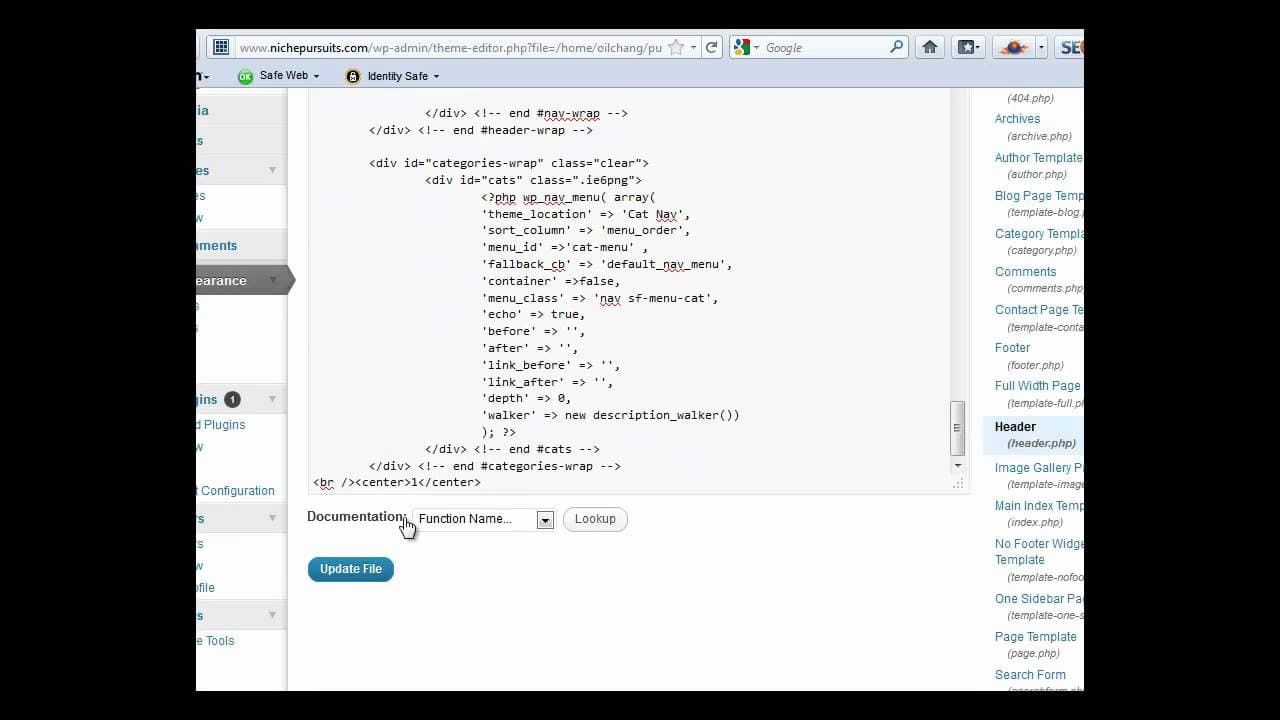
- 🫠 WordPress users can directly edit the header.php file to place Adsense ads, providing control over ad visibility.
- 🫠 Testing ad placements by using dummy markers is a practical approach to ensure ads are positioned correctly before actual deployment.
- 🫦 Users should be aware of the various themes in WordPress, as the file structure might differ, requiring a bit of flexibility in finding the correct placement.
- 👨💻 Adding Adsense to sidebars through widgets is straightforward and does not require in-depth coding knowledge.
- 🫠 Plugins like Quick Adsense enhance user experience by enabling easy management of ad placements within site content.
- 🥺 Regularly updating and experimenting with ad placement strategies can lead to better monetization results over time.
Install to Summarize YouTube Videos and Get Transcripts
Explore YouTube Video Summarizer or Get YouTube Transcript Extractor
Questions & Answers
Q: Why is adding Adsense ads beneath the navigation bar beneficial?
Placing Adsense ads under the navigation bar can enhance visibility without being intrusive, allowing visitors to notice the ads while navigating the site. This strategic placement can potentially increase click-through rates, as users often look for links—including advertisements—while exploring the content.
Q: What steps must be taken to locate the header.php file in WordPress?
In WordPress, to locate the header.php file, navigate to the admin panel, then go to "Appearance," and select "Editor." From there, find the header.php file in the theme files. This file typically contains the header section of your site, and it's where you'll add your Adsense code to integrate ads.
Q: How can one test the placement of Adsense ads correctly?
To test ad placement, users can insert a temporary marker, such as a number or letter, into the desired position in the code, update the file, and then refresh the website to see where the marker appears. This ensures the ad is placed accurately before replacing the marker with the actual Adsense code.
Q: What is the advantage of using a plugin like Quick Adsense for ad placement?
Using a plugin like Quick Adsense simplifies the process of embedding ads into posts. It allows users to easily manage multiple ad units and choose their placements within posts without needing to edit code each time, making it a user-friendly solution for non-technical users.
Q: Can users customize the placement of ads within their posts using Quick Adsense?
Yes, users can easily customize ad placements within their posts by selecting specific options in the Quick Adsense plugin. They can position ads at the beginning, middle, or end of posts and even after designated paragraphs, providing flexibility in how and where the ads appear.
Q: What should be done if the Adsense code does not display correctly?
If the Adsense code does not display correctly, users should first check if the code was copied accurately without alterations. Additionally, reviewing the placement of the code in the appropriate template files, ensuring that the theme supports the ad formats, and adjusting any CSS that might be hiding the ads are essential troubleshooting steps.
Summary & Key Takeaways
-
The video provides a step-by-step guide on how to insert Adsense ads into niche websites, specifically focusing on placing link units beneath the navigation bar.
-
It covers the use of WordPress's editor to find the appropriate files for ad placement, emphasizing the importance of making adjustments and testing for correct positioning.
-
The tutorial also demonstrates adding Adsense to sidebars using text widgets and introduces the Quick Adsense plugin for embedding ads within posts.
Read in Other Languages (beta)
Share This Summary 📚
Summarize YouTube Videos and Get Video Transcripts with 1-Click
Try YouTube Summary with ChatGPT & Claude or YouTube Transcript Generator
Explore More Summaries from Niche Pursuits 📚




Summarize YouTube Videos and Get Video Transcripts with 1-Click
Try YouTube Summary with ChatGPT & Claude or YouTube Transcript Generator