How to create professional motion graphics in CapCut
TL;DR
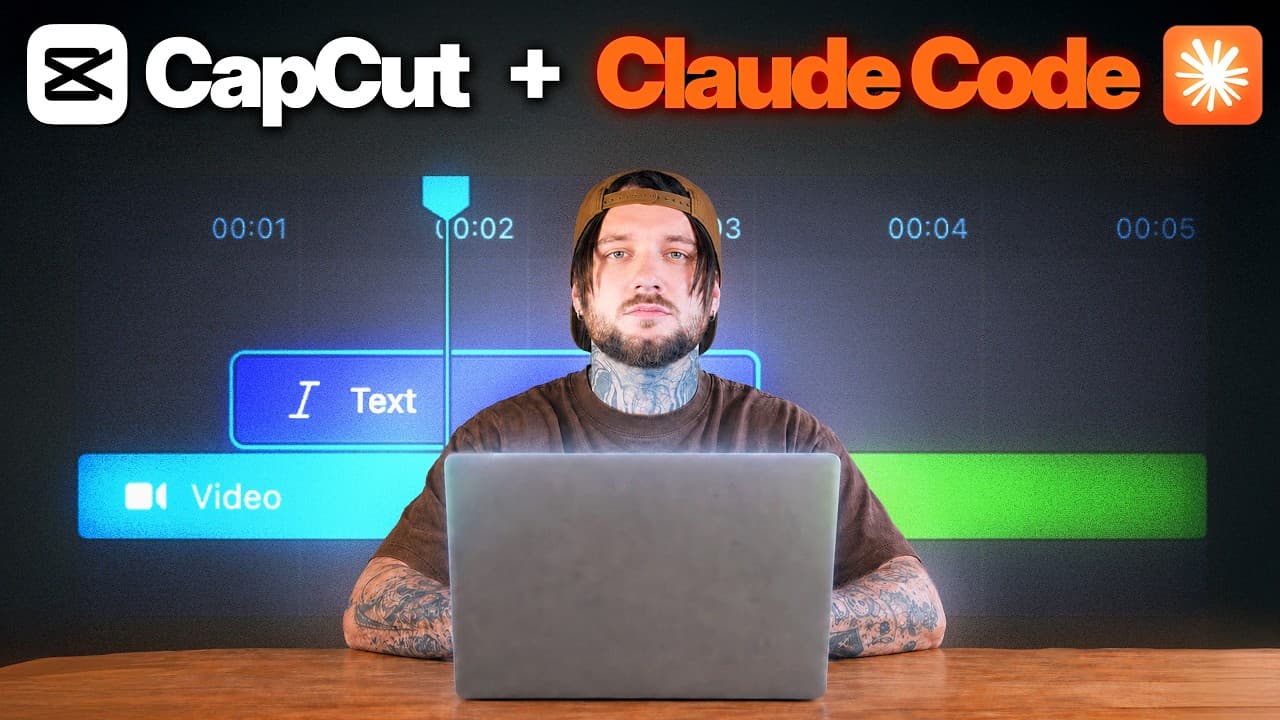
CapCut can produce professional looking motion graphics using a simple workflow with Cloud Code, avoiding complex programs. The method blends background shapes, gradients, glow effects, and masking to simulate premium visuals quickly. This helps editors earn more by delivering standout visuals without After Effects or DaVinci Resolve.
Transcript
Professional motion graphics are one of the reasons why my channel you're watching right now went from getting this many views to [music] getting this many views. That's because visuals are extremely important on YouTube. The right visuals can hold your viewers attention and keep them [music] watching for much longer. Not only that, but clients pay... Read More
Key Insights
- CapCut plus Cloud Code enables professional 3D motion graphics without heavy software.
- Visuals drive viewer retention and client value in video editing, according to the creator.
- Gradient backgrounds and rounded corners contribute to a premium feel in motion graphics.
- Duplicating shapes and using slight scale changes create subtle glow effects that enhance depth.
- Glow effects can be animated by layering and timing within the timeline.
- Masking is used to reveal only parts of a clip, enabling dynamic highlights.
- Keyframing mask rotation creates the illusion that a glow moves around a card.
- Compounding clips helps keep related effects grouped and manageable in CapCut.
Install to Summarize YouTube Videos and Get Transcripts
Explore YouTube Video Summarizer or Get YouTube Transcript Extractor
Questions & Answers
Q: How can CapCut be used to create 3D motion graphics without After Effects
CapCut supports a workflow that combines background shapes, gradient color transitions, glow effects, and masking to simulate 3D motion graphics. By creating a background, adding a card shaped element, applying gradient fills, and then using glow and mask techniques, you can achieve a premium look. The process uses simple timeline edits, keyframes for rotation, and compounding to keep effects organized, enabling faster production without external software.
Q: What is Cloud Code and how does it relate to CapCut workflows
Cloud Code is presented as a helper tool within the workflow to enhance CapCut's capabilities for creating motion graphics. It is used to streamline steps, allowing editors to build professional visuals more quickly. The idea is to leverage Cloud Code to automate or simplify routines such as color gradients, glow intensity, and timing of effects, reducing manual effort and time spent on effects.
Q: What are the essential steps to create a gradient background in CapCut
The essential steps include selecting the shape to serve as the background, choosing the gradient option, and adjusting the color boxes to define the gradient stops. You can set the angle to alter the direction of the gradient and fine tune the palette to match your design. Once configured, removing the palette leaves a smooth gradient background that serves as the base for further motion graphics.
Q: How do you create a glow highlight around a shape in CapCut
To create a glow highlight, duplicate the shape, slightly enlarge the duplicate, change its color to a lighter shade, and apply a glow effect from the effects menu. Place the glow layer on the timeline aligned with the base shape, then adjust glow intensity and size. If needed, duplicate the glow effect to increase intensity, and use compound clips to ensure the glow remains linked to the shape.
Q: What role does masking play in creating dynamic motion in CapCut
Masking isolates specific parts of a clip to reveal or hide content, enabling focused motion effects. By adding a mask, selecting a split mask, and increasing feathering, you create soft edges that blend with the background. Animating the mask with keyframes and rotating it creates the illusion that a highlight moves around a card, producing a premium, dynamic look without external tools.
Q: How can you animate a reveal or movement in CapCut with keyframes
Keyframes are used to set a starting point for an animation and then to define the end point or intermediate frames. In the workflow, you place the timeline indicator at the start, set a keyframe for a property such as rotation or mask, and then scrub to the end to apply changes. When played, CapCut interpolates the motion, producing smooth animation of the element or highlight.
Q: What is the purpose of using compound clips in CapCut
Compound clips group multiple graphics or effects into a single unit so they can be treated as one clip on the timeline. This helps manage complex visuals by keeping related elements together, making it easier to move, adjust, or duplicate the entire effect stack without breaking the relationships between layers. It also helps ensure that glow effects only affect the intended shape.
Q: Why is this CapCut workflow valuable for editors and YouTubers
The workflow provides a way to achieve professional looking motion graphics quickly, without mastering heavy programs like After Effects. It can improve viewer retention by delivering engaging visuals and potentially command higher rates from clients who value polished editing. For YouTubers, it lowers the barrier to creating high quality visuals that enhance content, supporting growth and credibility.
Summary & Key Takeaways
-
CapCut enables creation of professional level motion graphics by combining shapes, gradients, and glow effects to build a polished background. The workflow uses simple timeline edits and masking to simulate advanced visuals. The approach is designed to be faster and easier than traditional programs.
-
Gradient backgrounds, rounded corners, and glow effects are key to achieving a premium look in CapCut. The tutorial demonstrates duplicating elements, adjusting scale by small percentages, and using compound clips to keep effects organized.
-
Masking and keyframing in CapCut create the illusion of motion around a highlight, making static shapes appear dynamic and visually engaging, without leaving CapCut or using third party software.
Read in Other Languages (beta)
Share This Summary 📚
Summarize YouTube Videos and Get Video Transcripts with 1-Click
Try YouTube Summary with ChatGPT & Claude or YouTube Transcript Generator
Explore More Summaries from Danny Why 📚

Summarize YouTube Videos and Get Video Transcripts with 1-Click
Try YouTube Summary with ChatGPT & Claude or YouTube Transcript Generator