How to Reverse Engineer AI Image Prompts Effectively?
TL;DR
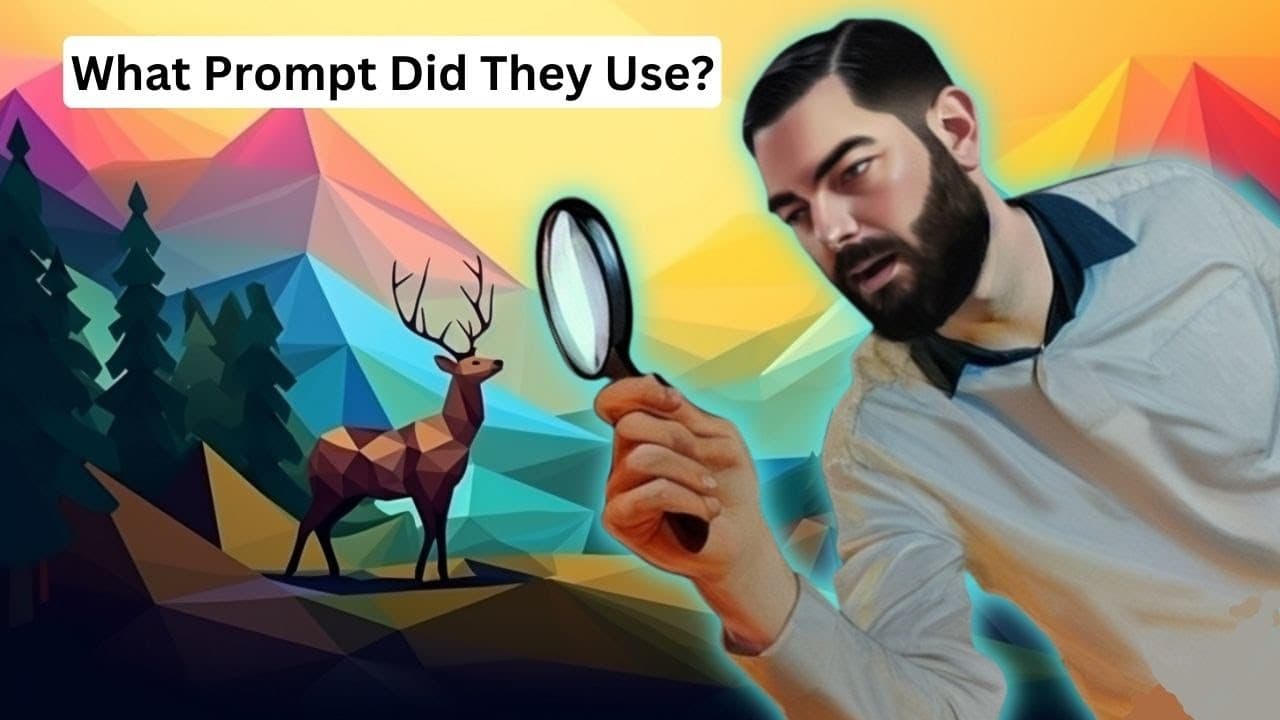
To reverse engineer AI-generated images, use Stable Diffusion's PNG info feature by dragging the image into the tab to reveal the exact prompt used. Alternatively, the Hugging Face Clip Interrogator can suggest prompts for any image, while Mid-Journey's Describe tool provides four text prompts for further image generation. These methods enhance your ability to recreate similar images and explore various artistic styles.
Transcript
in this video I'm going to show you how to reverse engineer images and try to figure out what prompt was used to get that image so let's get into it now one of the most common questions that I seem to get asked is if you find an image that you like that you know is AI generated how do I figure out what they use to generate that and reverse engineer... Read More
Key Insights
- 💁 Stable diffusion's PNG info function allows for extracting the exact prompt used to generate an image, providing accurate information for generating similar images.
- 👤 Hugging Face's Clip Interrogator enables users to obtain prompts for various images, even AI-generated ones, and use them in stable diffusion or Mid-Journey for generating similar images.
- 👻 Mid-Journey's Describe tool allows for obtaining text prompts to describe an image, which can then be used to generate similar images, providing a new way to reverse engineer AI-generated images.
- 🧑🎨 These methods give users the ability to explore different artist names, styles, and prompt techniques, expanding their toolbox for image generation.
Install to Summarize YouTube Videos and Get Transcripts
Explore YouTube Video Summarizer or Get YouTube Transcript Extractor
Questions & Answers
Q: How can I extract the prompt used to generate an AI-generated image using stable diffusion?
To extract the prompt, drag and drop the AI-generated image into stable diffusion's PNG info function. It will display the exact prompt used for generating the image, including details such as names, techniques, and settings.
Q: Can I reverse engineer AI-generated images using any image with Hugging Face's Clip Interrogator?
Yes, the Clip Interrogator allows users to drag and drop any image, whether AI-generated or real, to obtain a prompt that would generate a similar image. This prompt can be used in stable diffusion or Mid-Journey for generating similar images.
Q: How can I use Mid-Journey's Describe tool to reverse engineer an image?
In Mid-Journey, use the slash describe command and upload the image you want to reverse engineer. It will provide four text prompts describing the image, and you can generate images based on each prompt to achieve similar results.
Q: Can these methods provide accurate and identical results to the original AI-generated images?
While these methods can provide similar results, they may not be identical to the original AI-generated images. Various factors, such as differences in settings or training data, can influence the outcomes. However, the provided prompts are effective in achieving conceptually similar results.
Key Insights:
- Stable diffusion's PNG info function allows for extracting the exact prompt used to generate an image, providing accurate information for generating similar images.
- Hugging Face's Clip Interrogator enables users to obtain prompts for various images, even AI-generated ones, and use them in stable diffusion or Mid-Journey for generating similar images.
- Mid-Journey's Describe tool allows for obtaining text prompts to describe an image, which can then be used to generate similar images, providing a new way to reverse engineer AI-generated images.
- These methods give users the ability to explore different artist names, styles, and prompt techniques, expanding their toolbox for image generation.
- While the results may not be identical to the original AI-generated images, they offer conceptually similar outcomes and can be a valuable resource for image generation.
Summary & Key Takeaways
-
The video discusses three methods for reverse engineering AI-generated images: using stable diffusion's PNG info function, using Hugging Face's Clip Interrogator, and using Mid-Journey's Describe tool.
-
By using stable diffusion's PNG info function, one can extract the exact prompt used to generate an image by dragging and dropping the image into the PNG info tab.
-
The Hugging Face Clip Interrogator allows users to drag and drop any image and obtain a prompt that would generate a similar image, which can be used in stable diffusion or Mid-Journey.
-
Mid-Journey's Describe tool enables users to upload an image and receive four text prompts describing the image, which can be used to generate similar images.
Read in Other Languages (beta)
Share This Summary 📚
Summarize YouTube Videos and Get Video Transcripts with 1-Click
Try YouTube Summary with ChatGPT & Claude or YouTube Transcript Generator
Explore More Summaries from Matt Wolfe 📚





Summarize YouTube Videos and Get Video Transcripts with 1-Click
Try YouTube Summary with ChatGPT & Claude or YouTube Transcript Generator