How to turn a paperback into a Kindle ebook step by step
TL;DR
A reflowable ebook is recommended for text heavy books and you should avoid uploading PDFs. Use Kindle Create to import your manuscript, choose a suitable layout, and export as a KPF file for Kindle submission. If your book has images or fixed layouts, consider fixed layout options or alternative formats.
Transcript
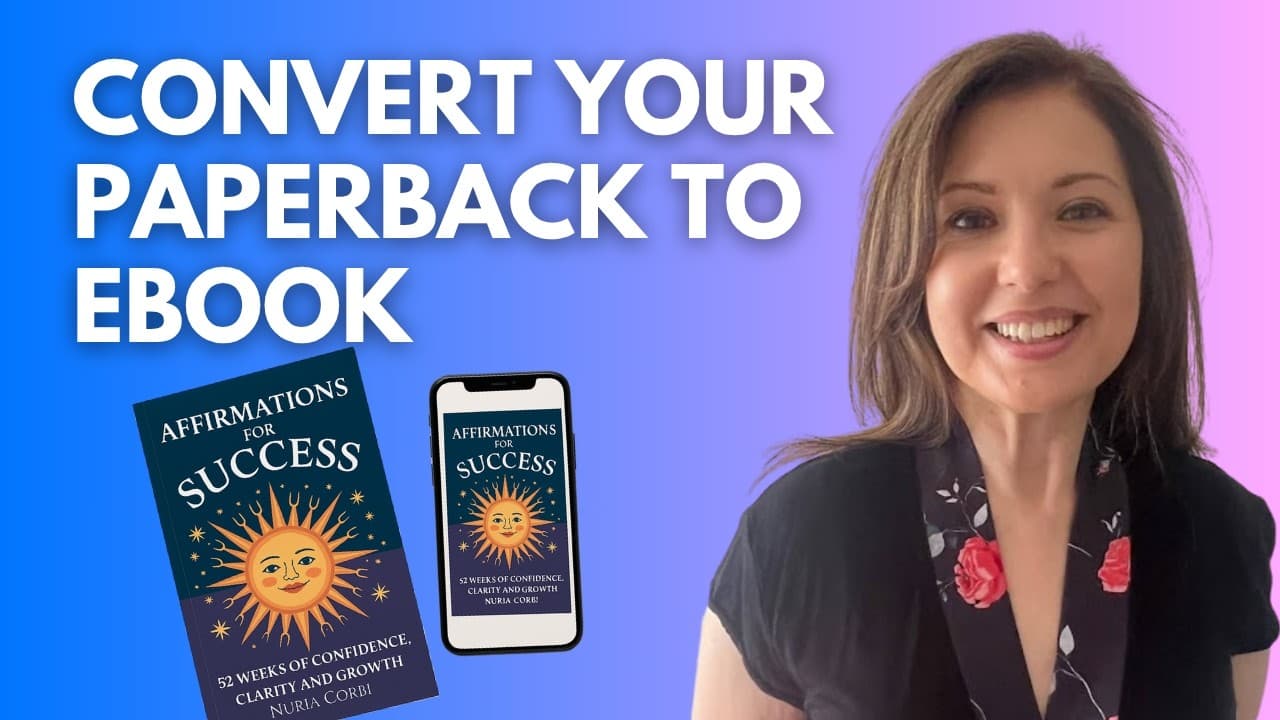
Hello, home bosses. In today's video, I'm going to show you how to convert your paperback book into an ebook and upload it onto Amazon KDP. We'll be using my book, Affirmations for Success, as an example. And I'll walk you through the process step by step from formatting to uploading. But before we dive into the tutorial, let's first talk about wha... Read More
Key Insights
- Ebooks should avoid low content books because readers cannot write in them in ebook form.
- The two main layouts for ebooks are fixed layout and reflowable layout, chosen based on content type.
- Reflowable layout is ideal for text heavy books as it adapts to device screens and font preferences.
- PDFs are not suitable for Kindle ebook uploads, since ebooks require reflowable or fixed formats, not static PDFs.
- Kindle Create is a free tool from Amazon used to convert manuscripts into Kindle compatible files.
- For text heavy or simple books, reflowable format provides better reading experience across devices.
- Fixed layout is preferred when the book relies on exact placement of images or complex designs.
- Some formats like EPUB or KPF are supported for ebook uploads, while PDF may require alternative routes or tools.
Install to Summarize YouTube Videos and Get Transcripts
Explore YouTube Video Summarizer or Get YouTube Transcript Extractor
Questions & Answers
Q: A real search query question about the video (How to..., What is..., Why does..., When should...). Question 1
To turn a paperback into a Kindle ebook you should avoid PDFs and instead export a reflowable or fixed layout from a suitable tool, then use Kindle Create to prepare your manuscript, choose the appropriate reading options, preview on devices, and finally export a KPF file for upload to KDP. This process ensures the content adapts to screens and fonts while preserving the intended reading experience.
Q: Question 2
Kindle Create is a free tool from Amazon that you download to your computer. After opening it, you start a new project or open an existing manuscript, then you import your interior file, which should be in a reflowable format if you want readers to adjust font size. This setup is the foundation for a successful Kindle conversion.
Q: Question 3
Why is a PDF not ideal for Kindle ebooks, and what should you use instead? PDFs are fixed and do not resize or reflow with user font changes, which hampers the reading experience on Kindle devices. Instead, use a reflowable format like EPUB or KPF via Kindle Create, which allows text reflow and device adaptation for better readability.
Q: Question 4
What is the difference between fixed layout and reflowable layout in Kindle publishing? Fixed layout keeps content in exact positions like a PDF, which is useful for books with many images or precise designs. Reflowable layout lets text adapt to screen size and reader font choices, improving readability for text heavy books and allowing dynamic font sizing.
Q: Question 5
How do you decide which layout to use for your book when uploading to KDP? If your book relies on visuals and precise placement, fixed layout may be appropriate. If your book is text heavy with minimal images, reflowable layout is generally better, since it supports font changes and device variety, delivering a smoother reading experience.
Q: Question 6
What file formats are suitable for ebook uploads on KDP, and what should you do if you start with a PDF? Use reflowable formats like EPUB or KPF for Kindle ebooks. If you begin with a PDF, you may need to convert or reformat using a tool like Kindle Create, ensuring your manuscript is compatible with the reflowable workflow before uploading to KDP.
Q: Question 7
What practical steps should a publisher take to test the ebook before publishing? Use the previewer to view the book on Kindle e-readers, tablets, and phones to ensure the layout and font sizes look correct. Adjust reading options and re-export as a KPF, then re-check the preview across devices to catch formatting issues early.
Q: Question 8
What final tips help ensure a smooth Kindle publishing experience? Avoid low content or fillable pages in ebooks, consider using a formatting tool like Attacus to generate EPUB or PDF variants, and test multiple formats or templates (comics or print replica) to verify compatibility. This reduces surprises during the final upload and publication on KDP.
Summary & Key Takeaways
-
The video explains that ebooks perform best when not using low content books like journals, which Amazon does not allow as ebooks, and emphasizes choosing a compatible layout from fixed or reflowable options.
-
Kindle Create is presented as a free tool to convert a manuscript into a Kindle friendly format, with steps to import, adjust reading options, and preview across devices before exporting.
-
The creator shares practical tips and caveats, such as avoiding PDFs for ebooks, testing different formats (EPUB, KPF), and using tools like Attacus for smoother conversions, to ensure a smooth publishing process on KDP.
Read in Other Languages (beta)
Share This Summary 📚
Summarize YouTube Videos and Get Video Transcripts with 1-Click
Try YouTube Summary with ChatGPT & Claude or YouTube Transcript Generator
Explore More Summaries from The Home Boss 📚

Summarize YouTube Videos and Get Video Transcripts with 1-Click
Try YouTube Summary with ChatGPT & Claude or YouTube Transcript Generator