How to connect Kit MCP to Claude for automation
TL;DR
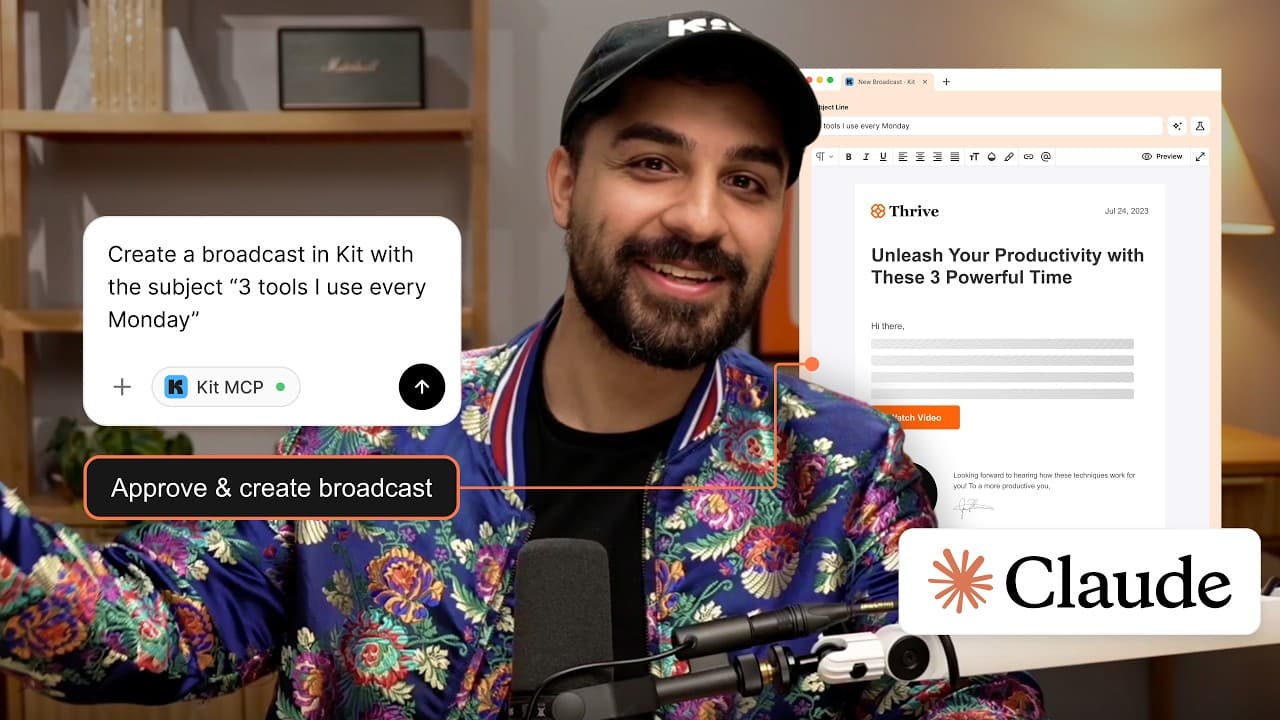
The Kit MCP connects Claude to your Kit account so Claude can analyze subscriber data and take actions like tagging or updating details. Start by copying your Kit MCP URL from Kit settings, then add it as a custom connector in Claude, authorize access, and begin asking Claude to analyze broadcasts or manage subscribers. This workflow turns insights into actions in minutes.
Transcript
You started your business to do what you love, writing, teaching, creating, but somewhere along the way you became an email marketer, a data analyst, a part-time admin. It's clear there's opportunity in your email list. You just don't have the time to find the right insights to act on it. But with the Kit MCP, you not only can learn about those ins... Read More
Key Insights
- Kit MCP is a bridge that grants Claude secure access to your Kit data for analysis and action.
- The setup requires a paid Kit account and a paid Claude account, plus admin approval in a shared organization environment.
- The Kit MCP URL is copied from Kit settings and then pasted into Claude as a new custom connector.
- Claude can read data to analyze broadcasts and subscriber details without affecting your Kit data unless you grant write permissions.
- Permissions are configurable with read only versus write and delete options, giving you control over what Claude can do.
- You can start with read only access to familiarize yourself with Claude before enabling actions.
- The prompt library in Claude provides pre-built prompts to kick off specific use cases quickly.
- A real use case involves evaluating past broadcasts to improve content and engagement strategies.
Install to Summarize YouTube Videos and Get Transcripts
Explore YouTube Video Summarizer or Get YouTube Transcript Extractor
Questions & Answers
Q: What is the Kit MCP and how does it work with Claude?
The Kit MCP is described as a way to connect Kit data to Claude via a custom connector. It acts like a USB with your accounts information that Claude can access so you can analyze subscriber data, review broadcast performance, and then act on that data such as tagging subscribers or updating information. This connection enables a workflow from insight to action inside Claude.
Q: What accounts do you need to enable the integration?
You need a paid Kit account and a paid Claude account to enable the custom tool connections. If you are in a larger organization, the Claude account admin must approve adding new custom connections to ensure proper security and governance before proceeding with the integration.
Q: Where do you copy the Kit MCP URL from in Kit?
In Kit, go to Settings, locate Kit MCP at the bottom, and click to reveal the URL. You then click the copy button to copy app.kit.com/mcp, which you will paste into Claude as the new custom connector. This URL serves as the bridge for Claude to access Kit data.
Q: How do you add Kit as a custom connector in Claude?
In Claude, open customize, select connectors, and click the plus button to add a custom connector. Name it Kit and paste the copied Kit MCP URL into the provided field. After adding, click connect to re-enter Kit and grant access, which finalizes the bridge between Claude and Kit.
Q: What types of data can Claude access once connected?
Claude can access broadcasts, subscriber details, and revenue data to analyze performance and generate insights. This information is used to summarize open and click rates, observe trends, and provide recommendations. Importantly, data access can be configured with read only permissions to avoid unintended changes.
Q: How do permissions affect Claude actions in Kit?
Permissions are split into read only and write delete categories. Read only allows Claude to read and analyze data without changing your Kit account, while write and delete enable actions such as adding tags or creating sequences. The presenter recommends approving actions individually to maintain control over what Claude does.
Q: What practical use case is demonstrated in the video?
A practical use case shows Claude reviewing broadcasts from the last month, identifying performance metrics like open rates and click rates, and then suggesting improvements. It also demonstrates tagging subscribers who clicked YouTube links, enabling targeted follow ups and easier retargeting without manual digging through dashboards.
Q: What ongoing help resources does the video mention?
The video points viewers to the prompt library for pre built prompts, which help users start with relevant use cases. It also invites users to drop their use cases in the comments, and mentions other videos and a dedicated library to explore further examples of Claude and Kit in action, supporting continuous learning and experimentation.
Summary & Key Takeaways
-
The video demonstrates connecting Kit MCP to Claude to enable data access and action execution from within Claude. It explains where to copy the Kit MCP URL and how to add it as a Claude custom connector. It also covers permission settings and a use case analyzing broadcasts for improvement.
-
Once connected, Claude can review broadcast performance, suggest optimizations, and perform actions such as tagging listeners who clicked YouTube links. The tutorial emphasizes user control through permission levels and prompts library for starting prompts.
-
A practical example shows comparing three months of broadcasts and using Claude to identify improvements and automate subsequent steps, illustrating how to move from insight to action with minimal manual work.
Read in Other Languages (beta)
Share This Summary 📚
Summarize YouTube Videos and Get Video Transcripts with 1-Click
Try YouTube Summary with ChatGPT & Claude or YouTube Transcript Generator
Explore More Summaries from Kit 📚

Summarize YouTube Videos and Get Video Transcripts with 1-Click
Try YouTube Summary with ChatGPT & Claude or YouTube Transcript Generator