How to Embed Video and Audio in HTML Pages
TL;DR
Use the HTML video and audio elements with an src attribute to embed media, then add controls so users can play, pause, mute, and adjust volume. Attributes such as autoplay, loop, muted, poster, width, height, and preload control playback, presentation, sizing, repetition, and browser loading behavior.
Transcript
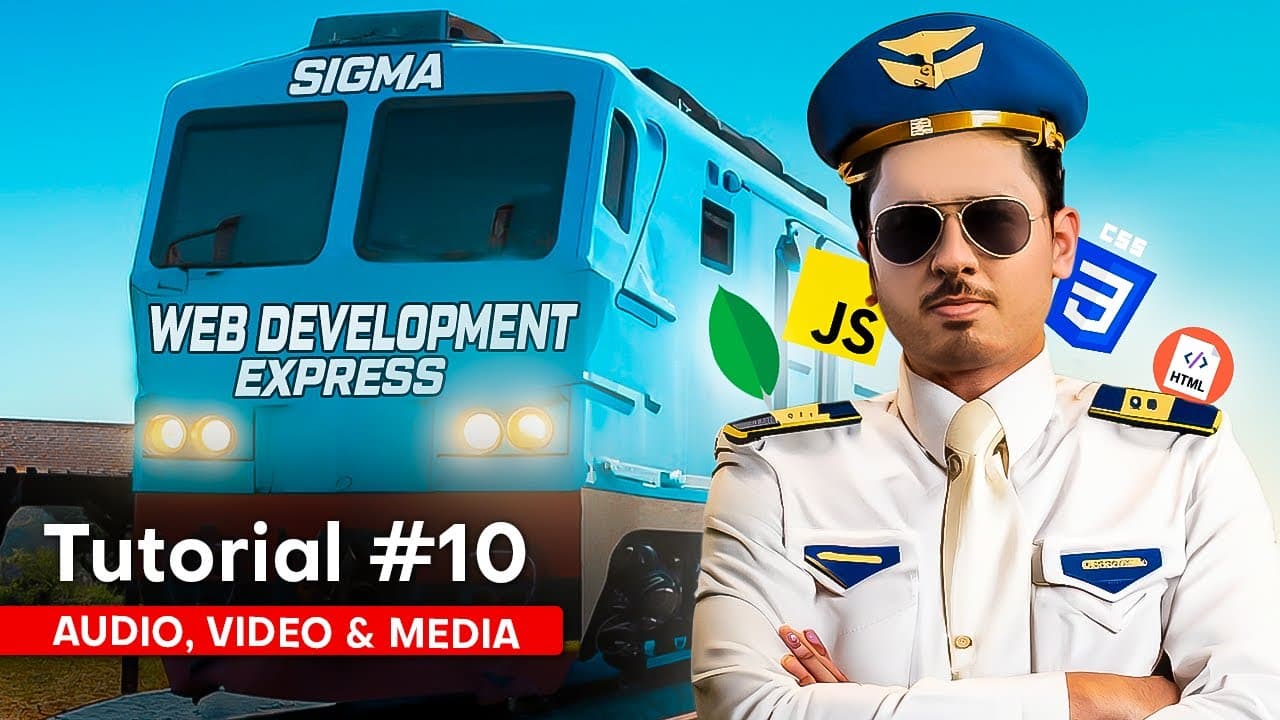
In today's video, we will learn how audio, video and media elements are used in HTML. We saw in our very first video that we can embed videos in HTML. Today I will tell you how the video is auto-played, how to keep a muted video and how you can enable and disable the video controls. Along with that, we will also see very closely about audio, how me... Read More
Key Insights
- The video element is used by assigning a local file path, server location, or third-party URL to its src attribute. A file does not need to remain on the developer's computer because the browser can retrieve it from another accessible location.
- The controls attribute makes the browser display its available video interface. In the demonstration, that interface provides play, pause, volume, mute, download, full-screen, and picture-in-picture options without requiring the developer to build those controls separately.
- The autoplay attribute starts a video or audio file automatically when the page loads. Removing the attribute stops that automatic behavior, allowing playback to begin through the browser controls instead.
- The loop attribute makes media repeat after reaching the end. The demonstrated video starts again after finishing, while the MP3 plays repeatedly when autoplay and loop are applied together.
- The muted attribute starts video or audio without sound. It is useful when a visual demonstration does not need its recorded background audio, and users can later unmute media when controls are available.
- The poster attribute displays an image before a video begins playing. It functions like the demonstrated thumbnail, providing a visible preview that is replaced by the moving video once the user starts playback.
- The width and height attributes specify video dimensions using numeric values such as 555 or 255. The demonstration explains that these values can be written without adding the px suffix.
- The preload attribute controls how audio data is prepared before playback. The lesson describes none as avoiding preloading, metadata as preloading information about the audio file, and auto as preloading the audio file for later playback.
Install to Summarize YouTube Videos and Get Transcripts
Explore YouTube Video Summarizer or Get YouTube Transcript Extractor
Questions & Answers
Q: How do you embed a video in an HTML page?
Embed a video by creating a video element and placing the video file path in its src attribute. The source may be a local MP4 file, a file hosted on your own server, or a URL from a third party such as an uploaded storage location. Add the controls attribute when users need visible browser playback controls.
Q: What does the controls attribute do for HTML media?
The controls attribute asks the browser to display its media interface. For the demonstrated video, the browser provides play, pause, volume, mute, download, full-screen, and picture-in-picture options. For audio, controls make the player visible and allow playback and volume adjustment. Without controls, the demonstrated audio player was not visible on the page.
Q: How do autoplay and loop change HTML media playback?
Autoplay causes a video or audio file to begin playing automatically when the page loads. Loop causes that media to start again whenever it reaches the end. In the audio demonstration, autoplay and loop are combined, so the MP3 starts without manual playback and then repeats after each completion until that behavior is stopped.
Q: When should the muted attribute be used in HTML?
The muted attribute should be used when media needs to begin without audible sound. The lesson gives the example of a recorded website demonstration where scrolling or highlighting an element is important but background noise is unnecessary. It can also be applied when several audio items are displayed, allowing users to choose, play, and unmute one themselves.
Q: What is the poster attribute in the HTML video element?
The poster attribute assigns an image that appears before the video starts. The lesson compares this image to a YouTube thumbnail because it provides a preview in the video area before playback. When the user presses play, the actual video replaces that preview and begins displaying its frames in the same media element.
Q: How can you change the displayed size of an HTML video?
Change a video's displayed dimensions by adding width and height attributes to the video element. The demonstration uses numeric values such as 555 and 255 and states that the px suffix is unnecessary, similar to the demonstrated use of image dimensions. Adjusting these values makes an initially large video appear smaller within the HTML page.
Q: How do you add audio to an HTML page?
Add audio by creating an audio element and assigning an MP3 file path to its src attribute. Add controls so the browser displays the player and gives users access to playback and volume options. The same element can also use autoplay to begin automatically, loop to repeat, and muted to suppress sound by default.
Q: What do the HTML audio preload values mean?
The preload attribute indicates how the browser should prepare audio before the user plays it. The lesson describes none as telling the browser not to preload the audio, metadata as loading information about the audio file, and auto as preloading the audio file itself. Auto can prepare the media so it is already available when playback begins.
Summary & Key Takeaways
-
HTML embeds a video by placing its file path or external URL in the video element's src attribute. Adding controls exposes browser-provided playback options such as play, pause, volume, mute, download, full screen, and picture in picture. Width and height attributes define the displayed dimensions without requiring the px suffix.
-
Video playback can be customized with autoplay, loop, muted, and poster. Autoplay starts playback when the page loads, loop restarts the video after it finishes, and muted removes its sound. The poster attribute displays an image like a thumbnail until playback begins, which gives the media a defined preview.
-
The audio element also uses src, controls, autoplay, loop, and muted. Its preload attribute guides initial fetching: none avoids preloading, metadata loads information about the audio, and auto preloads the audio file. The lesson also introduces SVG files and notes that video, audio, and SVG appear inline in the demonstrated page.
Read in Other Languages (beta)
Share This Summary 📚
Summarize YouTube Videos and Get Video Transcripts with 1-Click
Try YouTube Summary with ChatGPT & Claude or YouTube Transcript Generator
Explore More Summaries from CodeWithHarry 📚



Summarize YouTube Videos and Get Video Transcripts with 1-Click
Try YouTube Summary with ChatGPT & Claude or YouTube Transcript Generator