How to Use Visual Studio Code for Web Projects
TL;DR
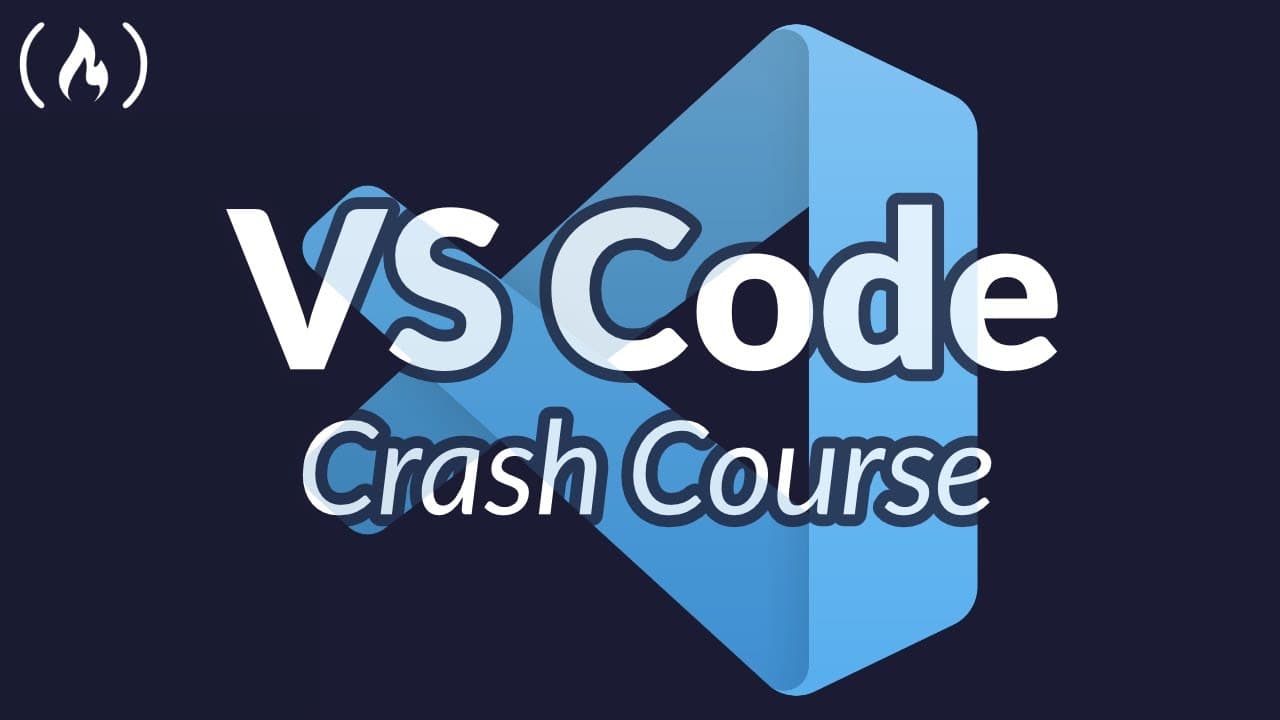
VS Code is a lightweight, cross platform code editor that supports HTML, CSS, JavaScript and many other languages through extensions. This crash course covers installation, comparing stable and insider editions, the core layout, and essential features like IntelliSense, debugging, and source control. It also shows how to customize with themes and shortcuts to boost productivity.
Transcript
Hello, and welcome to this Visual Studio Code VS code crash course where you are going to learn all the ins and outs of the best and most popular and most powerful editor for web development. My name is James q quick, and I run a YouTube channel at James q quick on YouTube, where I do web development tutorials every week. So you can go and ch... Read More
Key Insights
- VS Code is described as the most popular and powerful text editor for web development, designed to be lightweight yet highly extensible.
- The editor runs on Mac, Windows, and Linux thanks to Electron, enabling cross platform distribution from a single codebase.
- There are two editions of VS Code covered: stable and insiders, with the latter offering daily builds and experimental features for early adopters.
- VS Code supports a wide range of languages beyond JavaScript, including Python, Java, PHP, and C sharp, through built in features and extensions.
- Core features highlighted include IntelliSense, debugging, Git integration, and an extensive extension ecosystem for customization.
- The user interface includes a File Explorer, Search, Source Control, and Extensions tabs, which together streamline project management and development workflows.
- Keyboard shortcuts are a key part of the workflow, with Mac and Windows equivalents clearly indicated to speed up editing and navigation.
- Extensions, themes, and keymaps are presented as practical ways to tailor VS Code to individual preferences and project requirements.
Install to Summarize YouTube Videos and Get Transcripts
Explore YouTube Video Summarizer or Get YouTube Transcript Extractor
Questions & Answers
Q: A real search query question about the video (e.g. How to...), 'How to use VS Code for web development?'
VS Code is a cross platform editor built on Electron that runs on Mac, Windows, and Linux, making it suitable for web development across different operating systems. The crash course highlights that it is lightweight yet capable, supports many languages, and can be enhanced with extensions. You can start by opening a folder, which loads the project files for quick access and editing.
Q: What is the difference between stable and insider edition of VS Code?
The stable edition provides the reliable, officially released features that most users rely on for daily work. The insider edition, on the other hand, gives access to the latest code and features that are still being tested, offering early adopters a chance to try new capabilities but with potential instability. Users can switch between editions as needed.
Q: How do you start using VS Code according to the video?
To start, download the appropriate installer for your operating system and run through the setup. On first launch you will see a welcome screen with access to recent projects, a keyboard cheat sheet, and tips. From there you can open a folder or project to begin editing files and exploring the interface.
Q: What core features of VS Code are introduced in the course?
The course covers IntelliSense for smart code completion, debugging with breakpoints and inspection of variables, and built in Git support for source control. It also introduces the extensions ecosystem, which allows you to add features and language support, as well as customizing themes and layouts.
Q: How does the video describe the extensions and customization?
Extensions are presented as the primary way to add language support and workflow enhancements to VS Code. The video demonstrates installing a theme like cobalt two to change the look and feel, and explains that you can also install keymap extensions, snippets, and other tools to tailor the editor to your needs.
Q: What is the role of the command palette and shortcuts in the tutorial?
The tutorial emphasizes shortcuts to speed up navigation and editing, such as using a toggle for the side bar, which improves focus when writing code. It explains that command shortcuts differ between Mac and Windows, and suggests using consistent terminology like command for Mac and Ctrl for Windows to reduce confusion.
Q: How is source control handled in VS Code according to the video?
Source control integration is built into VS Code, showing files that are changed, staged, or ready to commit. This allows developers to manage Git workflows without leaving the editor, providing a streamlined experience for tracking changes, committing updates, and reviewing history as part of daily development tasks.
Q: What kinds of projects or languages does the video claim VS Code can support?
The video notes that VS Code can work with many languages beyond JavaScript, including Python, Java, PHP, and C sharp, and can handle frameworks and tools like React, Node, and Docker through extensions. This broad support makes it a versatile editor for diverse web development workflows.
Summary & Key Takeaways
-
This video introduces Visual Studio Code as a cross platform lightweight editor built with web technologies. It explains the difference between stable and insider editions and why a developer might choose one over the other. It then walks through the main UI, essential features and how to start a project.
-
The tutorial covers core features in VS Code such as the file explorer, search and replace, source control with Git, debugging, and extensions. It emphasizes customization through themes, keyboard shortcuts, and the command palette to fit different workflows.
-
Finally, the course demonstrates practical use cases like opening a folder, navigating files, using shortcuts to toggle panels, and exploring built in tools like IntelliSense and Emmet to accelerate web development workflows.
Read in Other Languages (beta)
Share This Summary 📚
Summarize YouTube Videos and Get Video Transcripts with 1-Click
Try YouTube Summary with ChatGPT & Claude or YouTube Transcript Generator
Explore More Summaries from freeCodeCamp.org 📚
![The Most Important Skills Going Forward with CTO + Homebrew Maintainer Mike McQuaid [Podcast #204] thumbnail](/_next/image?url=https%3A%2F%2Fi.ytimg.com%2Fvi%2F58Tn2xB8kIE%2Fhqdefault.jpg&w=750&q=75)


Summarize YouTube Videos and Get Video Transcripts with 1-Click
Try YouTube Summary with ChatGPT & Claude or YouTube Transcript Generator