How to Use a Sony A Series Camera as a Webcam
TL;DR
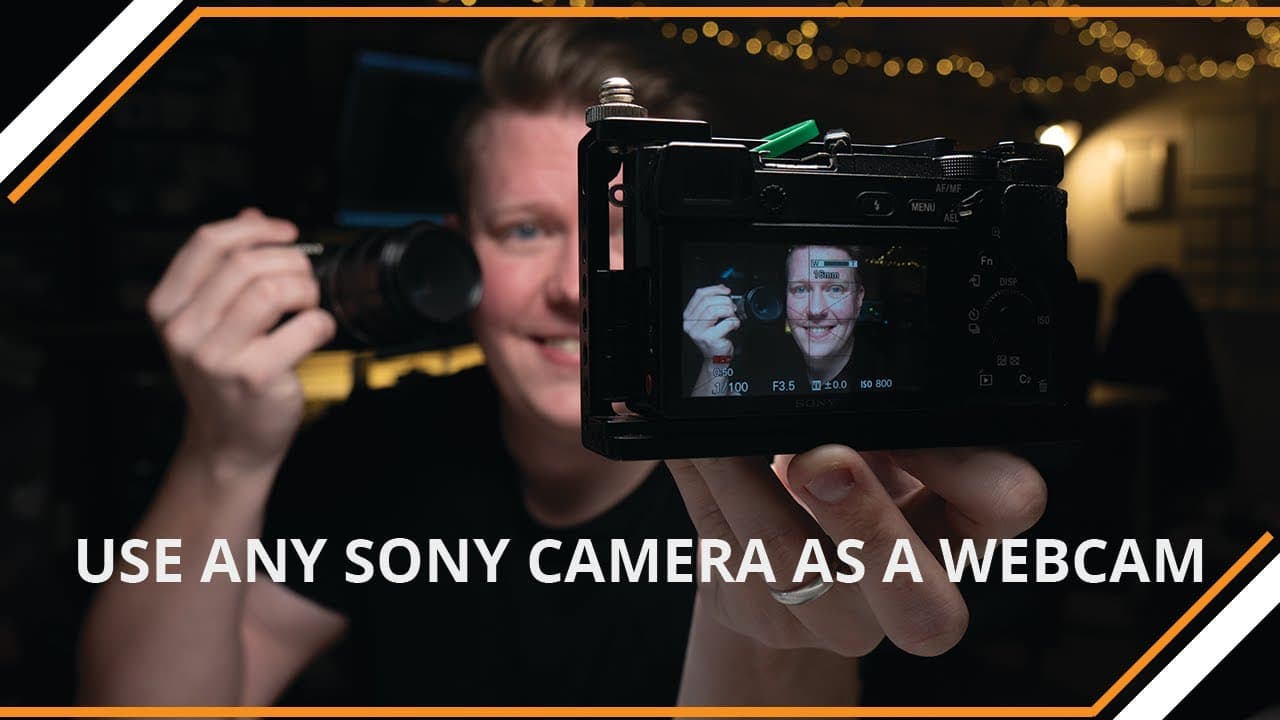
To use a Sony A series camera as a webcam, you'll need a data-enabled micro USB cable, Sony Imaging Software, and OBS Studio. Connect your camera to the PC, select 'PC Remote' in the camera settings, and configure it in OBS to stream high-quality video without overheating or focus issues.
Transcript
welcome back to the YouTube channel my name is Chris I'm a videographer photographer and youtuber I make all sorts of videos from product reviews to demos to how to's to just me sat here talking to you guys about my experiences if you think that would be something you're interested in long term then please hit that subscribe button today we're goin... Read More
Key Insights
- 🎥 The video provides a step-by-step tutorial on how to use Sony A series cameras as webcams for streaming or gaming.
- ❓ The recommended software for the process includes Sony Imaging Software and OBS Studio.
- 😒 It is important to use a data-enabled micro USB cable, preferably the one that came with the camera, for a stable connection.
- 🧑🦽 Adjusting the camera settings, such as switching to manual mode and disabling autofocus, can improve the image quality and prevent focus issues.
- 👻 Once connected, the camera can be used as a webcam source in OBS Studio, allowing for customization and resizing according to preference.
- 🎥 The method shown in the video ensures the camera does not overheat or encounter focus problems during long streaming sessions.
- 🧡 The tutorial is applicable to a wide range of Sony A series cameras, including the a6000, a6300, a6400, a6500, and others.
Install to Summarize YouTube Videos and Get Transcripts
Explore YouTube Video Summarizer or Get YouTube Transcript Extractor
Questions & Answers
Q: What do I need to turn my Sony A series camera into a webcam?
To convert your Sony A series camera into a webcam, you will need a Sony camera, a data-enabled micro USB cable, Sony Imaging Software, and OBS Studio.
Q: Can I use any USB cable to connect the camera to my computer?
It is recommended to use the micro USB cable that came with your Sony camera. If you don't have it, make sure to use a data-enabled cable instead of a charging-only cable.
Q: How do I configure the camera settings to enable PC remote connection?
On the camera's menu, navigate to the Tools section, select the USB connection option, and set it to PC remote. Make sure the camera is powered on and connected to the computer with the correct USB cable.
Q: What software do I need on my computer to use the camera as a webcam?
You will need to download and install the Sony Imaging Software and OBS Studio. The Sony Imaging Software allows you to connect and control your camera remotely, while OBS Studio is used for live streaming purposes.
Key Insights:
- The video provides a step-by-step tutorial on how to use Sony A series cameras as webcams for streaming or gaming.
- The recommended software for the process includes Sony Imaging Software and OBS Studio.
- It is important to use a data-enabled micro USB cable, preferably the one that came with the camera, for a stable connection.
- Adjusting the camera settings, such as switching to manual mode and disabling autofocus, can improve the image quality and prevent focus issues.
- Once connected, the camera can be used as a webcam source in OBS Studio, allowing for customization and resizing according to preference.
- The method shown in the video ensures the camera does not overheat or encounter focus problems during long streaming sessions.
- The tutorial is applicable to a wide range of Sony A series cameras, including the a6000, a6300, a6400, a6500, and others.
- The process is simple and accessible for both occasional streamers and full-time gamers who want to enhance their webcam quality.
Summary & Key Takeaways
-
This video tutorial demonstrates how to use a Sony A series camera as a webcam for live streaming or gaming purposes.
-
The required materials include a Sony camera, a data-enabled micro USB cable, Sony Imaging Software, and OBS Studio.
-
By following a few simple steps, you can connect your Sony camera to your computer and use it as a high-quality webcam.
Read in Other Languages (beta)
Share This Summary 📚
Summarize YouTube Videos and Get Video Transcripts with 1-Click
Try YouTube Summary with ChatGPT & Claude or YouTube Transcript Generator