How to Edit and Export a PDF Using Canva
TL;DR
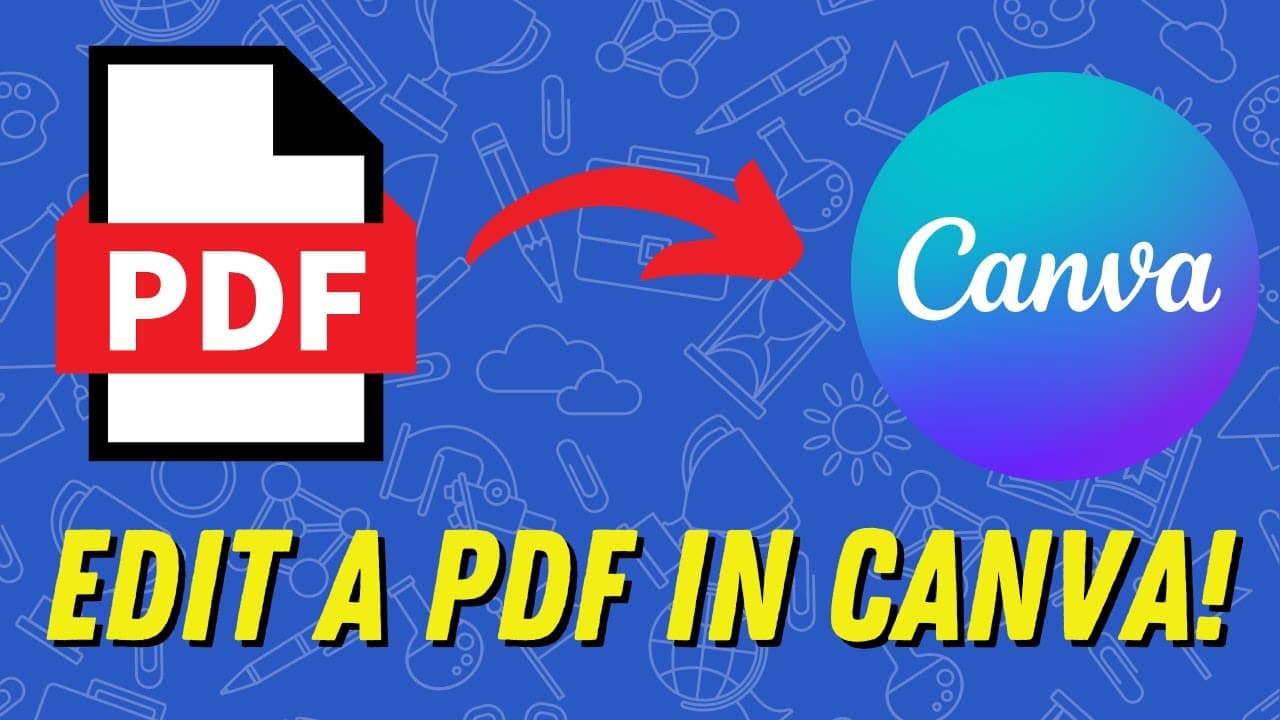
To edit and export a PDF using Canva, first, import the PDF file into Canva, where it will be converted into an editable design. Make your desired changes, such as modifying text and images, and then export the final product as a PDF for printing or sharing.
Transcript
in this video i'm going to show you how you can edit and export any pdf using canva but before i do consider subscribing to my youtube channel where each week i'll be uploading new videos on a variety of different topics so thanks for consideration and now let's get to the video so this is a pdf file that i was able to download for free from teache... Read More
Key Insights
- 👤 Canva offers a convenient solution for editing and customizing PDF files, providing flexibility for users who need to make changes to existing documents.
- 🥶 Educators can benefit from a free Canva educator account, which includes a Canva Pro license, allowing access to additional features and resources.
- 👤 While Canva's conversion of PDFs may not always be identical, it provides a user-friendly interface for modifications and adjustments.
- 🥰 Users can easily add or remove text, images, and clip art to the PDF files they edit using Canva.
- 👻 Canva allows for the repositioning of elements, such as moving text boxes or images, to achieve the desired layout.
- 👀 Adjustments to spacing, alignment, and other design elements may be necessary to ensure the modified PDF looks visually pleasing and professional.
- 📄 Canva provides options for exporting edited PDF files, allowing users to choose between printing the entire document or selecting specific pages.
Install to Summarize YouTube Videos and Get Transcripts
Explore YouTube Video Summarizer or Get YouTube Transcript Extractor
Questions & Answers
Q: How can Canva be used to edit PDF files?
Canva enables users to import PDF files and convert them into editable designs, allowing for modifications to text, colors, and images.
Q: Can I add my own text or images to a PDF using Canva?
Yes, Canva provides the option to add or delete text, as well as search for and include new images or clip art in the modified PDF.
Q: What happens if the converted PDF in Canva doesn't match the original file perfectly?
In such cases, some adjustments may be required, like dragging elements, adjusting spacing, or adding lines, to ensure the desired outcome.
Q: How can I export the edited PDF file from Canva?
After completing the modifications, users can click on the share button, select the download option, and choose PDF format for exporting the file.
Summary & Key Takeaways
-
The video demonstrates how to use Canva to edit and customize PDF files, which cannot easily be done in other PDF viewing programs.
-
Canva allows users to import PDF files, convert them into editable designs, and make changes such as modifying text, colors, and images.
-
After editing, users can export the modified PDF file for printing or other purposes.
Read in Other Languages (beta)
Share This Summary 📚
Summarize YouTube Videos and Get Video Transcripts with 1-Click
Try YouTube Summary with ChatGPT & Claude or YouTube Transcript Generator
Explore More Summaries from EdTech Hustle 📚
![Keynote: Remove The Background of Any Photo [Using Instant Alpha] thumbnail](/_next/image?url=https%3A%2F%2Fi.ytimg.com%2Fvi%2F0Ji-uTffzJE%2Fhqdefault.jpg&w=750&q=75)


Summarize YouTube Videos and Get Video Transcripts with 1-Click
Try YouTube Summary with ChatGPT & Claude or YouTube Transcript Generator