How to Set Up DJI Osmo Action 5 Pro Video
TL;DR
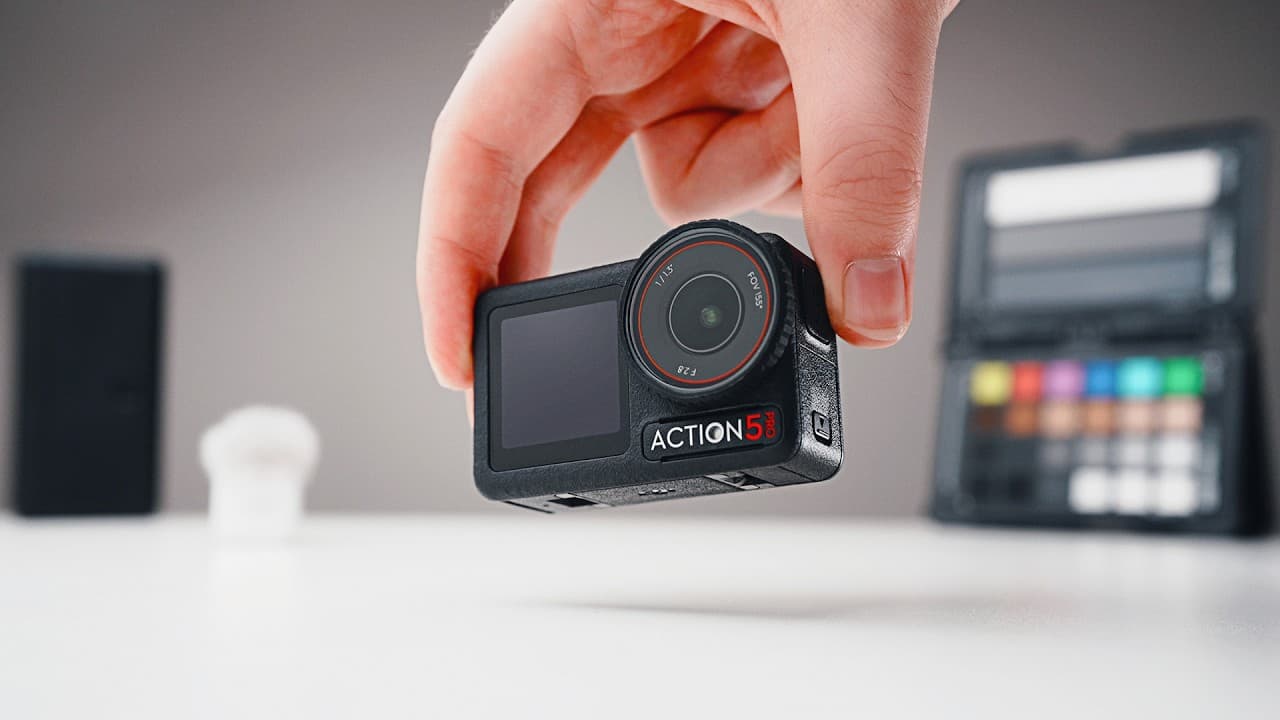
Shoot most horizontal footage in 4K 16:9 at 24 or 30 frames per second, then use HorizonBalancing with Standard Dewarp for stable, natural-looking results. Set texture and noise reduction to -2, select high bitrate, and use Normal 10-bit for easy editing or D-Log M 10-bit when you want greater color-grading flexibility.
Transcript
if you're new to the osmo action 5 Pro and feel a bit overwhelmed then this video is perfect for you as I'll share the best settings to get stunning video quality we'll be covering how to shoot Cris 4K video how to keep your footage smooth with the right stabilization mode and the best color and exposure settings for any situation plus I'll recomme... Read More
Key Insights
- The recommended general-purpose format is 4K 16:9 at 24 or 30 frames per second. This combination suits horizontal talking-head videos and vlogging, while higher frame rates up to 120 frames per second are intended for footage that will be slowed during editing.
- The 4:3 recording mode captures a taller image than 16:9. That extra image area makes reframing easier and supports vertical-content crops without sacrificing as much resolution, although 16:9 remains the recommended choice for most ordinary horizontal recording situations.
- RockSteady is designed to stabilize handheld movement, while RockSteady+ applies more cropping for additional stabilization. Stabilization can be disabled when the camera is fixed on a tripod, where electronic correction is unnecessary and preserving the uncropped field of view may be preferable.
- HorizonBalancing keeps recorded footage level when the camera rotates as much as 45 degrees. Paired with Standard Dewarp, it creates stable footage with a more natural perspective and less of the fisheye-style distortion commonly associated with wide action-camera views.
- Custom image adjustment produces a more natural appearance when texture and noise reduction are both lowered from zero to -2. The daily stabilization scenario is suitable for most users, while the separate sport option is available for more movement-focused recording conditions.
- Manual exposure at 24 frames per second can use a shutter speed of roughly 1/50 second to create suitable motion blur. Outdoor use at that shutter speed may admit too much light, so ND filters can help maintain both the desired shutter setting and proper exposure.
- Normal 10-bit is the practical color mode for footage that should look good immediately while retaining room for editing adjustments. D-Log M 10-bit provides more color-grading flexibility and can be paired with DJI's color correction LUT during post-production.
- High bitrate is the preferred option when video quality matters more than conserving storage space. The camera also includes internal storage for recording when an SD card is unavailable, and completed configurations can be saved as profiles for quick reuse across different shooting scenarios.
- Related book: YouTube Secrets
Install to Summarize YouTube Videos and Get Transcripts
Explore YouTube Video Summarizer or Get YouTube Transcript Extractor
Questions & Answers
Q: What are the best general video settings for DJI Osmo Action 5 Pro?
For most talking-head videos and vlogs, use video mode with 4K resolution, a 16:9 aspect ratio, and either 24 or 30 frames per second. The presenter personally prefers 24 frames per second. HorizonBalancing and Standard Dewarp are recommended together for stable, level footage with a natural-looking field of view, while high bitrate preserves the best available recording quality.
Q: When should you use 4:3 instead of 16:9 on the Osmo Action 5 Pro?
Use 4:3 when you want a taller recorded image and expect to reframe the footage during editing. The additional image area makes it easier to choose a crop later and can help when producing vertical content without losing as much resolution. For ordinary horizontal talking-head videos and vlogging, 4K 16:9 remains the recommended starting format.
Q: Which stabilization mode should you choose on the Osmo Action 5 Pro?
Turn stabilization off when the camera is locked on a tripod. For handheld movement, use at least RockSteady, or select RockSteady+ when you accept a tighter crop in exchange for additional stabilization. HorizonBalancing is especially useful for quick recording on the move because it can keep the image level even when the camera rotates by as much as 45 degrees.
Q: What field of view gives the most natural Action 5 Pro footage?
Standard Dewarp is recommended for most situations because it reduces the fisheye-style appearance associated with action cameras and creates a more natural-looking perspective. Wide provides a broader view, while Ultra Wide captures the maximum field of view. Pairing Standard Dewarp with HorizonBalancing gives a practical combination of natural perspective, stable movement, and a level horizon.
Q: How should exposure be set for cinematic motion blur at 24 fps?
When recording manually at 24 frames per second, set the shutter speed to roughly double the frame-rate interval, with 1/50 second given as the suitable camera setting. This produces the intended amount of motion blur. Outdoors, that shutter speed may allow too much light into the camera, so ND filters are recommended to control exposure while preserving the shutter setting.
Q: Which color profile should beginners use on the Osmo Action 5 Pro?
Normal 10-bit is recommended when you want a strong image directly from the camera without a demanding grading workflow. It still provides room to adjust color and exposure in editing software. Normal 8-bit, HLG 10-bit, and D-Log M 10-bit are also available, but D-Log M is aimed at users seeking greater flexibility during color grading.
Q: How do you use D-Log M 10-bit footage on the Action 5 Pro?
Select D-Log M 10-bit when you want the most flexibility for adjusting color during editing. The captured image appears gray before grading, and DJI's color correction LUT can be applied to produce a finished look. Color Recovery can be enabled on the camera display so the preview more closely represents how the footage will appear after color correction.
Q: How can you improve audio and recording quality on the Osmo Action 5 Pro?
Set bitrate to high when your priority is the best video result, or use standard bitrate when conserving storage space matters more. For clearer speech at a distance, connect a DJI Mic 2 or Mic Mini wirelessly, since the built-in microphone loses volume as the subject moves farther away. The wireless microphone settings can generally remain at their defaults because the demonstrated connection already sounds good.
Summary & Key Takeaways
-
For general talking-head videos and vlogging, select video mode, 4K resolution, a 16:9 aspect ratio, and either 24 or 30 frames per second. The presenter prefers 24 frames per second. Choose 4:3 when you need a taller recorded image that offers additional flexibility for reframing or producing vertical content later.
-
Choose stabilization and field of view according to the shot. Turn stabilization off when the camera is locked on a tripod, use RockSteady for handheld movement, or select HorizonBalancing to keep footage level through rotations up to 45 degrees. Standard Dewarp produces a more natural perspective by reducing the fisheye-style action-camera appearance.
-
For more natural detail, set custom texture and noise reduction to -2. Auto exposure and automatic white balance simplify changing conditions, while manual exposure offers greater control. Normal 10-bit produces attractive footage with editing flexibility, whereas D-Log M 10-bit provides more room for grading. Save configurations as reusable shooting profiles for rapid switching.
Read in Other Languages (beta)
Share This Summary 📚
Summarize YouTube Videos and Get Video Transcripts with 1-Click
Try YouTube Summary with ChatGPT & Claude or YouTube Transcript Generator
Explore More Summaries from Think Media 📚
Summarize YouTube Videos and Get Video Transcripts with 1-Click
Try YouTube Summary with ChatGPT & Claude or YouTube Transcript Generator