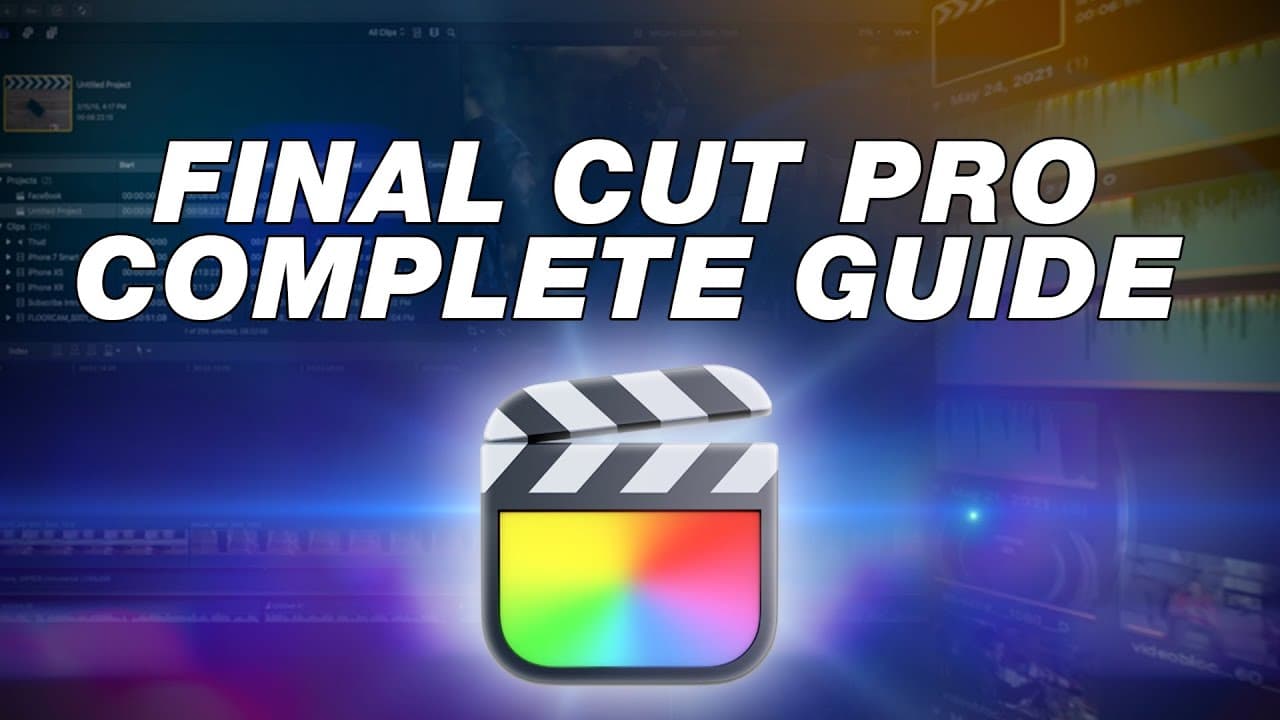
Final Cut Pro Tutorial: Complete Beginners Guide to Editing
TL;DR
A comprehensive guide for beginners on how to edit videos in Final Cut Pro 10, including tips for editing faster and improving audio quality.
Transcript
welcome to the complete guide to editing inside a final cut pro 10 for beginners so if you're brand new to this software then this is going to be the perfect video for you i'm going to walk you through everything that you need to know to get started so you can start making videos in final cut pro 10. this is definitely a video that i wish i had whe... Read More
Key Insights
- 🔰 Final Cut Pro 10 offers various tools and features to help beginners edit videos effectively.
- 📁 Organizing files and folders is essential to stay organized and avoid missing files.
- 🚄 Keyboard shortcuts can significantly speed up the editing process.
- 🎚️ Applying audio effects and adjusting levels can greatly improve audio quality.
Install to Summarize YouTube Videos and Get Transcripts
Explore YouTube Video Summarizer or Get YouTube Transcript Extractor
Questions & Answers
Q: What are some practical tips for editing faster in Final Cut Pro 10?
To edit faster in Final Cut Pro 10, you can use keyboard shortcuts such as b for the blade tool and a for the select tool. Additionally, you can utilize the loop playback feature to focus on specific sections for editing.
Q: How can I improve audio quality in Final Cut Pro 10?
You can improve audio quality in Final Cut Pro 10 by using the equalization tool to adjust frequencies and make your voice sound clearer. Additionally, the compressor tool can help balance audio levels and prevent clipping. Removing background noise with the noise removal tool can also enhance audio quality.
Q: How can I organize my files in Final Cut Pro 10 to stay organized?
It is recommended to create separate folders for different assets such as footage, music, and images. Within each project folder, you can also create separate events or subfolders to further organize your files based on categories or days of shooting.
Q: Can I edit audio separately from video in Final Cut Pro 10?
Yes, you can detach the audio from a video clip in Final Cut Pro 10 to edit it separately. This allows you to apply specific audio effects or adjust levels without affecting the visuals. You can also solo specific audio tracks to focus on editing only certain parts of the audio.
Key Insights:
- Final Cut Pro 10 offers various tools and features to help beginners edit videos effectively.
- Organizing files and folders is essential to stay organized and avoid missing files.
- Keyboard shortcuts can significantly speed up the editing process.
- Applying audio effects and adjusting levels can greatly improve audio quality.
- The use of proxies can enhance editing speed and performance, especially for slower computers.
Summary & Key Takeaways
-
The video provides a step-by-step guide for beginners on how to get started with Final Cut Pro 10, including importing footage, creating projects, and using basic editing tools.
-
The video also offers practical tips for editing faster and improving audio quality, such as using color grading and audio editing techniques.
-
The importance of organizing files and folders is emphasized to stay organized and avoid missing files in future projects.
Read in Other Languages (beta)
Share This Summary 📚
Summarize YouTube Videos and Get Video Transcripts with 1-Click
Try YouTube Summary with ChatGPT & Claude or YouTube Transcript Generator
Explore More Summaries from Think Media 📚



Summarize YouTube Videos and Get Video Transcripts with 1-Click
Try YouTube Summary with ChatGPT & Claude or YouTube Transcript Generator