How to Create AI Videos with Multitalk & VACE
TL;DR
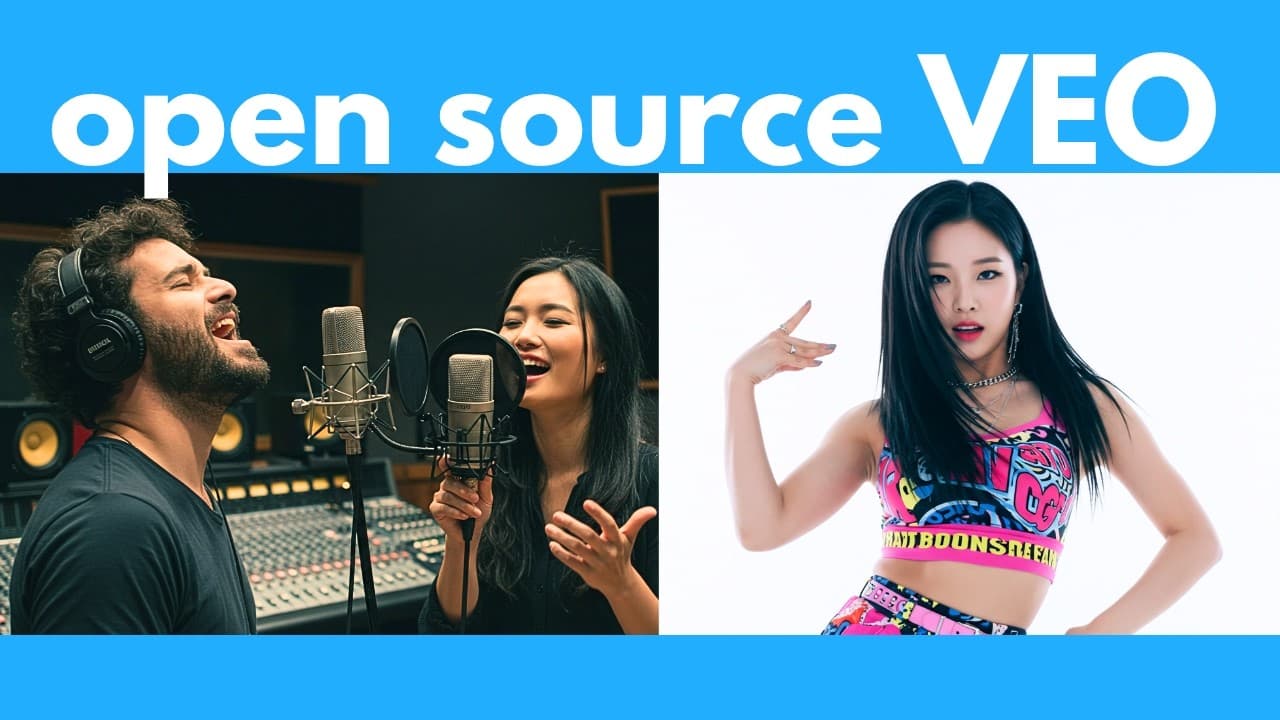
Multitalk is a powerful, free, and open-source AI tool that enables users to create realistic lip-sync videos with multiple characters, using reference images and audio clips. It allows for control over movements and expressions, and can generate videos in different art styles. The video provides a step-by-step guide to install and use Multitalk on your computer, even with low VRAM.
Transcript
This AI can make anyone say anything. When someone gets angry, their voice tends to lower in pitch as well as getting somewhat louder. Can we just get on with it already? Plus, you can even get multiple characters to talk in the same video using different voices. The $6 haircuts for poor people from the people who don't really know how to cut hair.... Read More
Key Insights
- Multitalk is a free and open-source tool for creating realistic AI lip-sync videos.
- The tool allows for the use of reference images and audio clips to generate videos.
- Multitalk supports multiple characters speaking or singing in a single video.
- It can handle different art styles, including 3D and anime, with realistic lip-sync.
- Users can control character movements using reference videos.
- The tool is compatible with low VRAM setups, enabling broader accessibility.
- Multitalk integrates with One VACE and FusionX for enhanced video quality and speed.
- The video provides a comprehensive installation guide for setting up Multitalk.
Install to Summarize YouTube Videos and Get Transcripts
Explore YouTube Video Summarizer or Get YouTube Transcript Extractor
Questions & Answers
Q: How to install Multitalk on a computer?
To install Multitalk, navigate to the GitHub repository for One GP, clone the repository, and ensure you have the necessary dependencies by running 'pip install -r requirements.txt'. Activate your virtual environment and execute the command to start the Gradio interface. The video provides a detailed step-by-step guide to assist with the installation process.
Q: What are the capabilities of Multitalk?
Multitalk can create realistic lip-sync videos by using reference images and audio clips. It supports multiple speakers, allows for the control of character movements, and can generate videos in various art styles, including 3D and anime. It also handles different expressions and emotions effectively, making it a versatile tool for video creation.
Q: What is the role of One VACE and FusionX in Multitalk?
One VACE and FusionX are integrated with Multitalk to enhance video quality and speed. One VACE allows for the transfer of movements from a reference video to the output video, while FusionX fine-tunes the video generation process, reducing the number of steps needed and improving overall efficiency.
Q: Can Multitalk handle different art styles?
Yes, Multitalk can generate videos in various art styles, including 3D and anime. It offers realistic lip-sync and can animate characters in different styles while maintaining high-quality output. The tool's flexibility allows users to create videos that match their desired aesthetic.
Q: How does Multitalk manage multiple speakers in a video?
Multitalk can manage multiple speakers by allowing users to upload separate audio clips for each speaker. The tool can play these clips sequentially or in parallel, depending on the chosen settings. It assigns voices to characters based on their position in the reference image, ensuring accurate lip-sync for multiple speakers.
Q: What is the significance of low VRAM compatibility in Multitalk?
Low VRAM compatibility in Multitalk makes it accessible to a wider audience, including those with less powerful hardware. This feature allows users to create high-quality AI videos without needing expensive, high-end graphics cards, broadening the tool's usability and appeal.
Q: How does Multitalk handle emotions and expressions?
Multitalk effectively handles emotions and expressions by allowing users to upload reference images depicting the desired expression. The tool can animate these expressions realistically, ensuring that characters' facial movements match the tone and emotion of the audio, enhancing the overall realism of the video.
Q: What are the advanced settings available in Multitalk?
Multitalk offers advanced settings such as guidance for following prompts, audio guidance for lip-sync accuracy, and options for temporal and spatial upsampling to improve video quality. Users can also adjust the number of inference steps and enable caching options to speed up video generation, allowing for customization based on their specific needs.
Summary & Key Takeaways
-
Multitalk is a versatile AI tool that enables the creation of realistic lip-sync videos using reference images and audio. It supports multiple characters and different art styles, offering detailed control over movements and expressions. The video guides users through the installation process, making it accessible even for those with low VRAM setups.
-
The tool integrates with One VACE and FusionX, allowing for faster and higher-quality video generation. Users can create scenes with multiple speakers, singing duets, and even incorporate complex movements using reference videos. Multitalk's open-source nature ensures it is freely available to users.
-
The video demonstrates various applications of Multitalk, including handling emotions, creating anime and 3D videos, and controlling character movements. It provides a step-by-step tutorial for installation and usage, making it easy for viewers to start creating their own AI videos.
Read in Other Languages (beta)
Share This Summary 📚
Summarize YouTube Videos and Get Video Transcripts with 1-Click
Try YouTube Summary with ChatGPT & Claude or YouTube Transcript Generator
Explore More Summaries from AI Search 📚




Summarize YouTube Videos and Get Video Transcripts with 1-Click
Try YouTube Summary with ChatGPT & Claude or YouTube Transcript Generator