How to Create Engaging Videos Using Canva
TL;DR
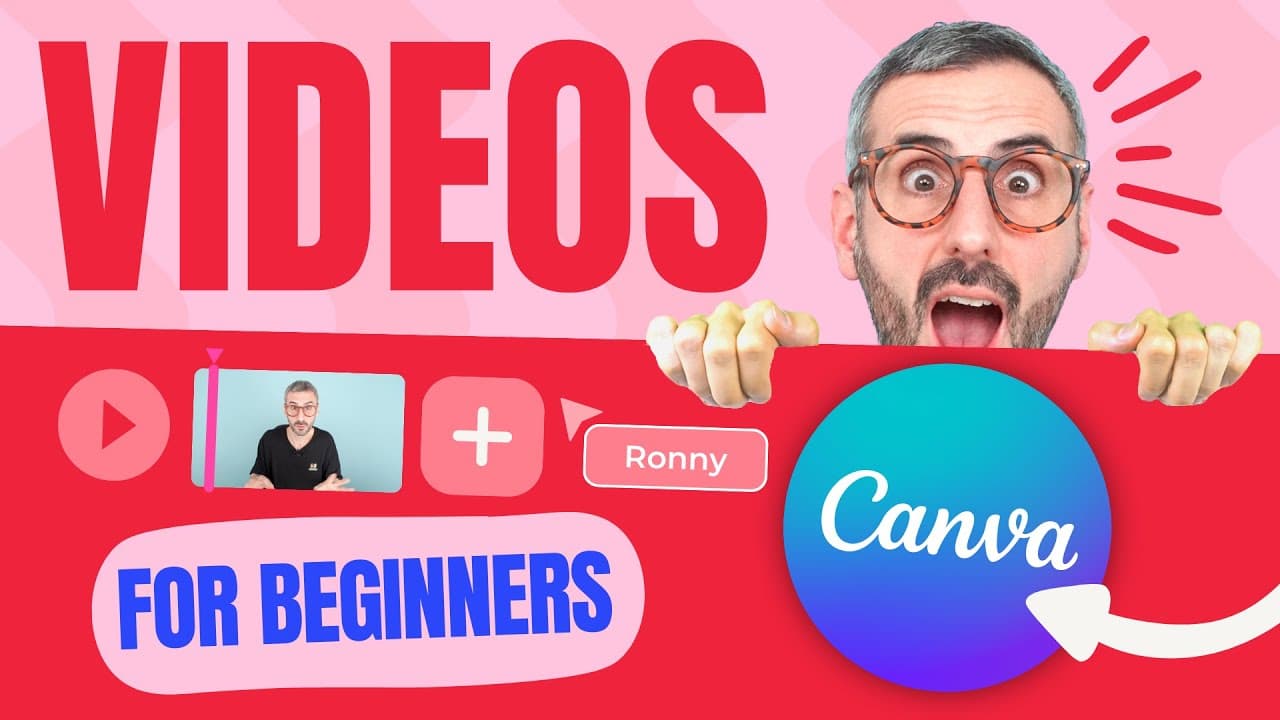
To create videos in Canva, start by selecting a video format and template that suits your project. Use the platform's extensive library of free video assets and customize them through editing features like text, colors, and transitions. Finally, share your finished product via download or direct social media links.
Transcript
canva has been adding some solid video features recently making it a serious option for all of you out there looking for free video editing platform in this video we will cover the basics of making videos with canva and my goal is to give you a tour of all the major video features in canva so that you feel confident enough to create your first vide... Read More
Key Insights
- 🎮 Canva has become a strong contender in the free video editing platform market due to its recent additions of video features.
- 💁 Starting a video project in Canva is easy, with various templates and formats to choose from.
- 📼 Canva provides a vast library of free video assets, and users can also upload their own video clips.
- 👻 The editing features in Canva allow for customization of video templates, including text, colors, and media replacement.
- 🍻 Canva offers multiple sharing options, including generating shareable links, downloading video files, and sharing directly on social media platforms.
- 🎮 Canva's video editing capabilities make it an accessible tool for beginners looking to create their own videos.
- 🎮 The ability to remove backgrounds and customize animations adds creativity and professional touches to video projects.
Install to Summarize YouTube Videos and Get Transcripts
Explore YouTube Video Summarizer or Get YouTube Transcript Extractor
Questions & Answers
Q: What are the steps to start a video project in Canva?
To start a video project, click on the video icon on the Canva homepage. Choose your preferred video format and select a template or start a blank project.
Q: How can I find free video assets in Canva?
Canva offers a video library with a wide selection of free video clips. You can browse the library and use filters by style, theme, or color to find the perfect video assets for your project. Canva also allows you to upload your own video clips.
Q: Can I customize the video templates in Canva?
Yes, you can customize the video templates in Canva by replacing the text, adjusting the colors, and adding your own video or audio clips. Canva provides an easy-to-use editor that allows for customization.
Q: How can I share my video project created in Canva?
You can share your video project by generating a shareable link, downloading the video file, or directly sharing it on social media platforms such as Facebook, Instagram, or Twitter. Canva provides options for sharing on various platforms.
Summary & Key Takeaways
-
Canva has recently added solid video features, making it a serious option for free video editing platforms.
-
This tutorial covers the basics of creating videos with Canva, including starting a project, finding free video assets, using editing features, and sharing the final video.
-
Canva provides a variety of video formats and templates to choose from, allowing for customization based on your intended platform.
Read in Other Languages (beta)
Share This Summary 📚
Summarize YouTube Videos and Get Video Transcripts with 1-Click
Try YouTube Summary with ChatGPT & Claude or YouTube Transcript Generator
Explore More Summaries from Design with Canva 📚



Summarize YouTube Videos and Get Video Transcripts with 1-Click
Try YouTube Summary with ChatGPT & Claude or YouTube Transcript Generator