How to Edit Your First YouTube Video in CapCut
TL;DR
Start by choosing beginner-friendly editing software, organizing footage into A-roll, B-roll, and project-file folders, then importing those folders into CapCut. Build the main story by syncing audio, removing weak takes, mistakes, and rambling, then add carefully trimmed B-roll above the talking-head footage to reinforce explanations, conceal cuts, and make the finished edit feel more seamless.
Transcript
If you've never edited a YouTube video before, it can feel pretty overwhelming at the beginning, but the good news is this, it's actually a lot easier than you think if you follow the right process. So, in this video, I'm going to teach you how to edit your first ever YouTube video so you can start making your own videos. So, step one is to choose ... Read More
Key Insights
- CapCut is a beginner-friendly editing option that is free to get started, provides useful tools for faster video creation, and has desktop versions for Mac and Windows. DaVinci Resolve is another option for editors seeking more professional software, and its free version is described as highly capable.
- Project organization is an essential first step because placing assets into distinct folders makes them easier to manage after import. The recommended structure separates talking-head A-roll, supplemental B-roll, and other project files such as graphics, logos, animations, stock footage, and music.
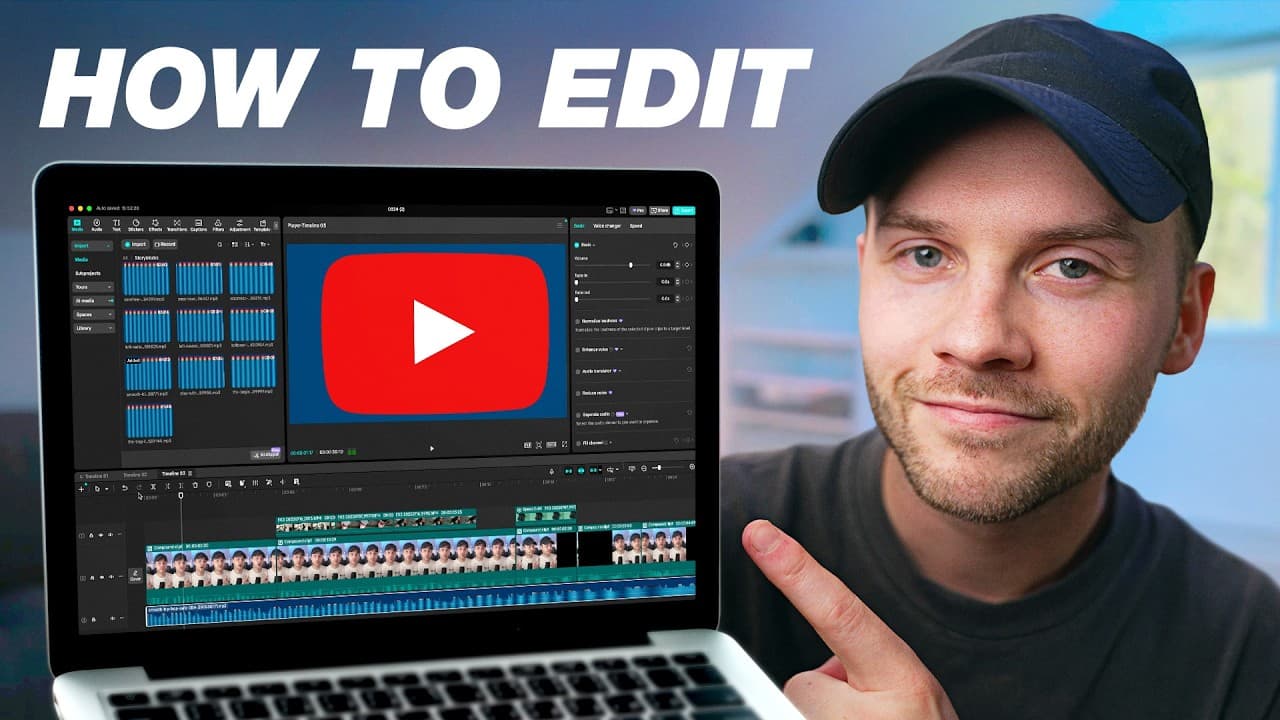
- CapCut's workspace is divided into four main areas: a top-left panel for importing media and adding audio, text, or effects, a center preview window, a top-right panel for clip details and adjustments, and a bottom timeline where the edit is assembled.
- A-roll is the main story and talking-head portion of a YouTube video. The first editing pass should tighten that story by selecting the strongest takes and removing mistakes, repeated attempts, unnecessary material, and sections where the presenter rambled.
- Separately recorded audio can be synchronized by placing it under the corresponding video and aligning the audio layers. After the original camera audio is muted, the video and preferred external audio can be combined into a compound clip so they behave more like one file.
- CapCut's blade and selection tools support fast timeline cleanup. Pressing B activates the blade for making cuts, while pressing A returns to the selection tool so unwanted sections can be highlighted and deleted. Automatic snapping then closes gaps by moving remaining material into place.
- B-roll is supplemental footage that visually reinforces the spoken explanation and can conceal cuts in the A-roll. A useful overlay should correspond directly to what is being discussed, such as showing a carrying case precisely when the narration mentions that case.
- In and out points isolate only the useful section of a source clip before it enters the timeline. Pressing I marks the beginning and O marks the end, avoiding the need to import an entire clip and then remove large unwanted portions afterward.
Install to Summarize YouTube Videos and Get Transcripts
Explore YouTube Video Summarizer or Get YouTube Transcript Extractor
Questions & Answers
Q: How do beginners edit their first YouTube video in CapCut?
Begin by downloading the CapCut desktop version for Mac or Windows and organizing all recorded material before importing it. Create separate folders for A-roll, B-roll, and project files. Import those folders, place the main talking-head footage on the timeline, synchronize any separately recorded audio, remove mistakes and weaker takes, then add relevant B-roll over cuts and spoken descriptions.
Q: Which video editing software should a YouTube beginner choose?
CapCut is the recommended starting option because it is user-friendly, completely free to get started, and offers tools intended to help beginners make videos faster. The tutorial specifically uses its desktop version on Mac or Windows. DaVinci Resolve is presented as a more professional alternative used by professional editors, with a free version described as very capable.
Q: How should YouTube footage be organized before editing?
Transfer the recorded files from the computer, smartphone, or dedicated camera onto the editing computer, then sort them into three main folders. Put talking-head footage in A-roll, supplemental clips in B-roll, and supporting assets in project files. The supporting folder can contain graphics, logos, animations, stock footage, or music intended for the finished project.
Q: What are A-roll and B-roll in YouTube video editing?
A-roll is the main story footage, usually the recording of the presenter speaking directly to the camera. B-roll consists of shorter supplemental clips that reinforce what the presenter is discussing. For example, footage of a microphone or its carrying case can appear while those items are mentioned, helping viewers understand the explanation and covering visible edits in the A-roll.
Q: How do you synchronize separately recorded audio in CapCut?
Drag the separate audio recording into the timeline beneath the corresponding video, then manually align the audio layers until they are synchronized. If the external recording is the preferred high-quality source, lower the original A-roll audio level completely to mute it. Highlight the synchronized video and audio, right-click, and create a compound clip so they are easier to handle together.
Q: How do you remove mistakes and unwanted takes in CapCut?
Place the A-roll on the timeline and identify the strongest take, along with any mistakes, repeated introductions, or rambling sections that should be removed. Press B to activate the blade tool and cut around unwanted material. Press A to return to the selection tool, select the unnecessary clips, and delete them. Automatic snapping can move the remaining footage together and close gaps.
Q: How do you add only part of a B-roll clip in CapCut?
Preview the B-roll in the media area and locate the precise section that supports the narration. Press I at the desired starting position to create an in-point, then press O at the desired ending position to create an out-point. Drag that selected portion onto the timeline above the A-roll, position it over the relevant narration, and adjust its edges if necessary.
Q: How can B-roll be slowed down smoothly in CapCut?
Select the B-roll clip on the timeline, open the speed controls in the top-right panel, and reduce its playback speed when the source footage supports that change. In the demonstrated example, footage recorded at 60 frames per second is slowed to 40 percent on a 24-frames-per-second timeline while remaining smooth. The extended clip is then positioned to cover the required cut.
Summary & Key Takeaways
-
CapCut is recommended for a first YouTube edit because it is user-friendly, free to get started, and includes tools designed to help beginners make videos faster. DaVinci Resolve is presented as a more professional alternative with a capable free version, but the demonstrated workflow uses the CapCut desktop application on Mac or Windows.
-
Before editing, footage should be transferred to the computer and divided into A-roll, B-roll, and project-file folders. A-roll contains the main talking-head recording, B-roll contains supplemental visuals, and project files include materials such as graphics, logos, animations, stock footage, or music that may be used during the edit.
-
The editing process begins by building a timeline from the A-roll, synchronizing separately recorded audio, and cutting unwanted takes, mistakes, or rambling. B-roll is then placed above relevant sections to illustrate the narration and cover visible cuts. In and out points select precise excerpts, while compatible high-frame-rate footage can be slowed smoothly.
Read in Other Languages (beta)
Share This Summary 📚
Summarize YouTube Videos and Get Video Transcripts with 1-Click
Try YouTube Summary with ChatGPT & Claude or YouTube Transcript Generator
Explore More Summaries from Think Media 📚
Summarize YouTube Videos and Get Video Transcripts with 1-Click
Try YouTube Summary with ChatGPT & Claude or YouTube Transcript Generator