How to Publish a PWA on Google Play with TWA
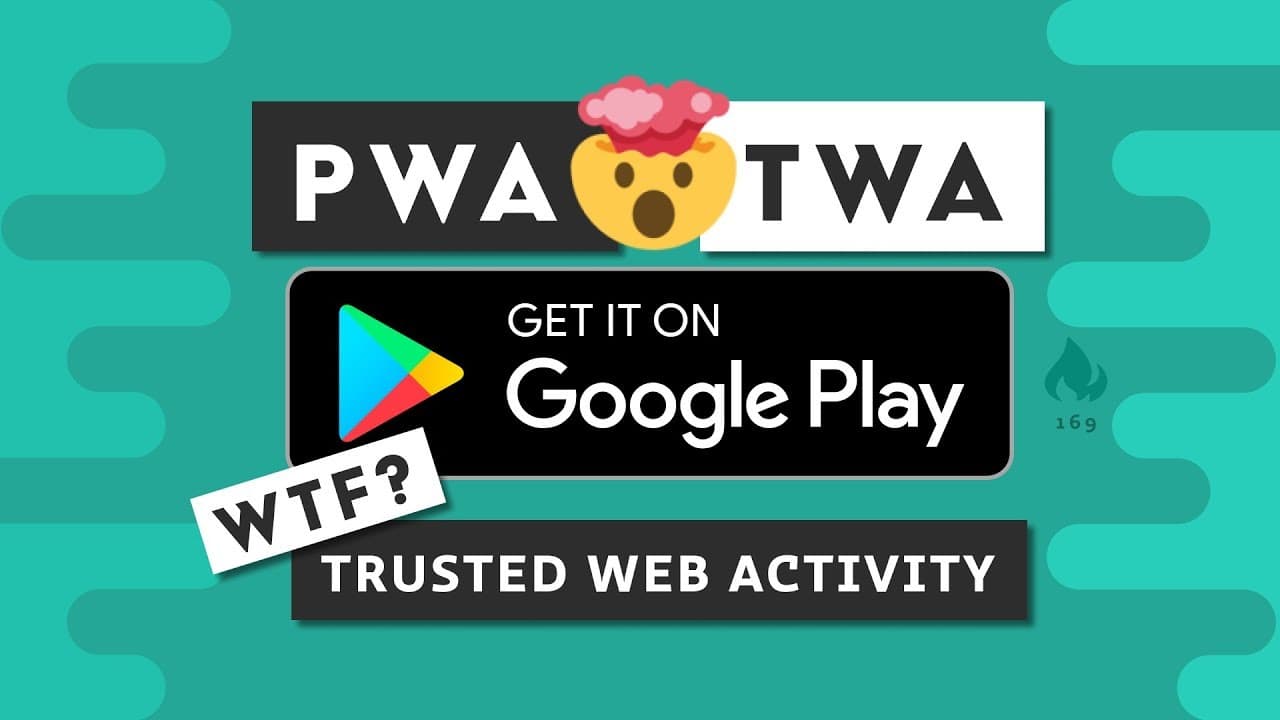
TL;DR
To publish a Progressive Web App (PWA) on the Google Play Store using Trusted Web Activities (TWA), first ensure your PWA is set up and capable of being installed. Then, use Android Studio to create a signed APK, verify ownership with a digital asset link, and upload your app to the Google Play Store. This process allows your PWA to be discoverable and provide a native-like experience on Android devices.
Transcript
over the last couple years progressive web apps have revolutionized the way we build products on the web but one of the biggest limitations is that they're not discoverable on the app stores if you want to write your web code once and then reuse it everywhere you'll most likely use a framework like ionic to wrap your code in a web view but get read... Read More
Key Insights
- 🕸️ Progressive web apps (PWAs) have gained popularity due to their ability to offer a native-like experience on web browsers.
- 🫱 Trusted web activities (TWAs) provide a solution for making PWAs discoverable on the Google Play Store.
- 👻 TWAs allow access to PWA features and reflect updates in real-time, but are limited to the Google Play Store and lack native device feature integration.
- 😀 Deploying a PWA on Google Play Store with TWAs involves several steps, including building a PWA, setting up Android Studio, creating an Android app with TWA integration, and publishing the app on the Google Play Store.
Install to Summarize YouTube Videos and Get Transcripts
Explore YouTube Video Summarizer or Get YouTube Transcript Extractor
Questions & Answers
Q: What is a trusted web activity?
A trusted web activity allows you to run a website in full-screen mode within an Android package, enabling PWAs to be discoverable on the Google Play Store.
Q: What are the advantages of using a TWA?
TWAs are easy to set up, provide access to all PWA features, and automatically reflect updates made to the PWA. They also bypass the need for web view sandboxing.
Q: Are there any drawbacks to using TWAs?
TWAs are only compatible with the Google Play Store and do not have access to native device features. Additionally, there is no plugin ecosystem for TWAs, and they must comply with Google Play Store policies.
Q: How can I deploy my PWA on the Google Play Store using TWAs?
Follow these steps: 1) Build a progressive web app. 2) Install Android Studio. 3) Sign up for a developer account on Google Play. 4) Create an Android app with TWA integration. 5) Update the app build.gradle file with your information. 6) Create a keystore in Android Studio. 7) Generate a digital asset link to verify ownership. 8) Save the asset links JSON file in your PWA code. 9) Generate a signed APK in Android Studio. 10) Create an internal track release on Google Play Store. 11) Fill out the store listing and content details. 12) Wait for the app to be published.
Summary & Key Takeaways
-
Progressive web apps (PWAs) have transformed web development, but one limitation is their lack of discoverability on app stores.
-
Trusted web activities (TWAs) offer an alternative approach, allowing PWAs to run in full-screen mode within an Android package.
-
TWAs are easy to set up and provide access to PWA features, but they are only compatible with the Google Play Store and lack a plugin ecosystem.
Read in Other Languages (beta)
Share This Summary 📚
Summarize YouTube Videos and Get Video Transcripts with 1-Click
Try YouTube Summary with ChatGPT & Claude or YouTube Transcript Generator
Explore More Summaries from Fireship 📚





Summarize YouTube Videos and Get Video Transcripts with 1-Click
Try YouTube Summary with ChatGPT & Claude or YouTube Transcript Generator