How to Use Google Pixel Watch for Beginners
TL;DR
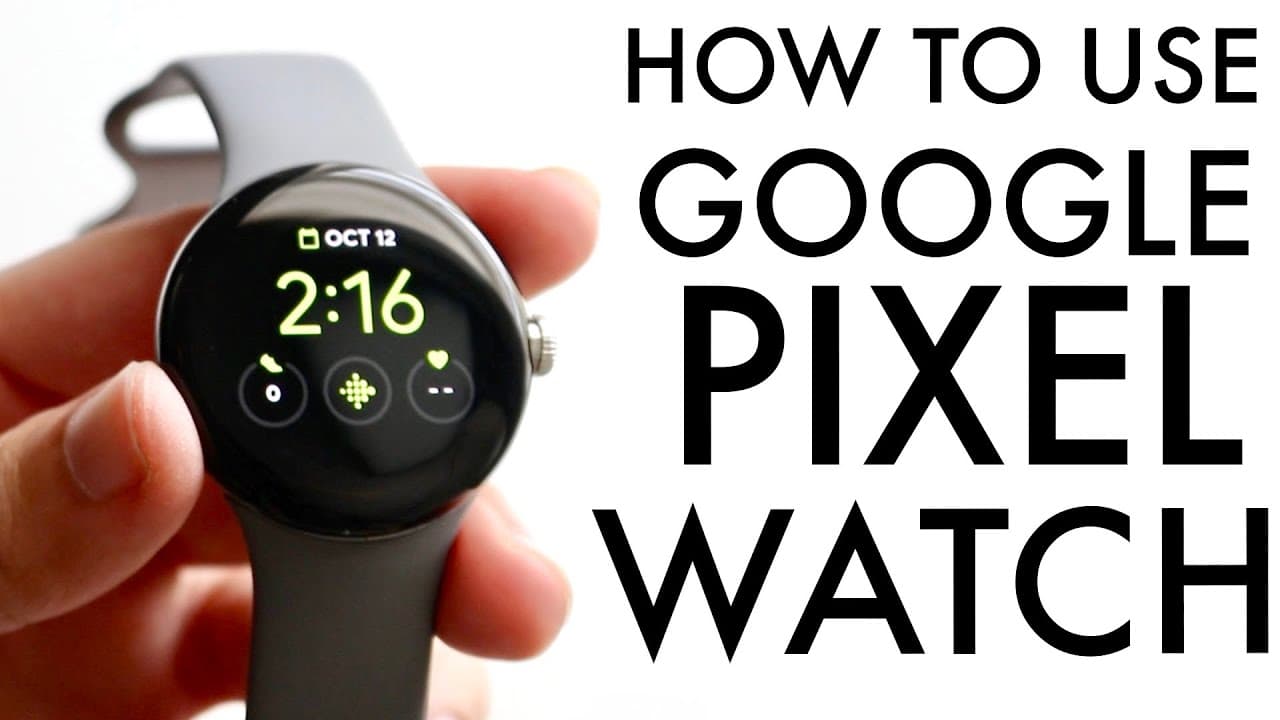
To use the Google Pixel Watch, start by securing it to your wrist and customizing your watch face through touchscreen gestures. Charge it with the provided wireless puck by placing it on the back, and navigate settings and notifications using the side buttons and touch interface. Keep your watch updated for optimal performance and explore various features like fitness tracking and app management.
Transcript
congratulations if you just picked up a Google pixel watch now this was a great decision I think for the most part hopefully I went and bought this thing and I've already connected it to my pixel you know itself so if you want a tutorial on exactly how to connect your pixel or really any Android phone to your pixel watch I will go and leave a link ... Read More
Key Insights
- 👀 The Google Pixel Watch combines traditional watch aesthetics with modern smart features, making it appealing for various users.
- 🤟 Its interface utilizes familiar smartphone-like gestures, which simplifies the learning curve for new users and enhances accessibility.
- 👀 The included wireless charging solution provides quick and easy charging, adding to the watch's convenience.
- 😀 Users have a broad range of customization options for both watch faces and settings, allowing for personalization that caters to individual tastes.
- 👤 Navigation through notifications and quick settings mirrors Android operating systems, promoting familiarity for users with Android phones.
- 💝 A robust update system ensures that users benefit from the latest features and security enhancements.
- 🤕 Detachable bands allow for easy customization and replacements, accommodating different styles and preferences.
Install to Summarize YouTube Videos and Get Transcripts
Explore YouTube Video Summarizer or Get YouTube Transcript Extractor
Questions & Answers
Q: What makes the design of the Google Pixel Watch user-friendly?
The Google Pixel Watch has a design that mirrors traditional and smartwatches, featuring a circular display and easy-to-use buttons. Users familiar with any watch type will find navigating the Pixel Watch straightforward. Its simple layout and tactile buttons contribute to a seamless transition for new users.
Q: How do I charge the Pixel Watch?
Charging the Pixel Watch involves using the provided wireless charging puck, which connects magnetically to the back of the watch. Users can plug the puck into any USB-C compatible power source, including laptops and power adapters. Proper orientation ensures the watch powers up, making it convenient for users to keep their device charged.
Q: Can I customize the watch face on my Pixel Watch?
Yes, the Google Pixel Watch allows extensive customization of the watch face. Users can long press on the watch face to access customization options, swipe through different designs, and select various modules. This personalizes the watch to reflect individual preferences and styles.
Q: What are the main navigation methods for the Pixel Watch?
Users can navigate the Pixel Watch using the touchscreen and buttons. Swiping down accesses quick settings, while swiping up reveals notifications. The side buttons allow for scrolling and returning to previous screens, enhancing accessibility and ease of use.
Q: How do I update the Pixel Watch software?
To ensure optimal performance, users should regularly update their Pixel Watch's software via the settings menu. By navigating to "System" and selecting "System Update," users can check for and download the latest updates, which are crucial for improving battery life and accessing new features.
Q: What should I do if I encounter issues with my Pixel Watch?
If users face issues with their Pixel Watch, they are encouraged to check for software updates and reboot the device. Additionally, consulting user manuals or online tutorials can provide helpful guidance. Community forums may also offer solutions based on similar user experiences.
Q: How can I change the brightness settings on my Pixel Watch?
Brightness settings on the Pixel Watch can be altered by swiping down to access quick toggles. Users can find the brightness control and adjust it to their preference. Enabling adaptive brightness can optimize visibility based on ambient light conditions.
Q: Why is updating my Pixel Watch's software important?
Updating the Pixel Watch software is vital for maintaining device performance and security. New updates can introduce features, enhance battery life, and fix bugs. Users should regularly check and apply these updates to ensure a smooth and efficient user experience.
Summary & Key Takeaways
-
The Google Pixel Watch features a sleek design similar to traditional watches, making it user-friendly for those familiar with non-smart watches. It includes a circular display and various buttons for navigation.
-
Users can easily charge the Pixel Watch using a wireless charging puck that connects to the back of the device, ensuring convenience and ease of operation. The process has been detailed in the video, along with notifications and quick toggle settings.
-
The watch interface allows for customization through swipes and button usage, enabling users to change watch faces and quick settings efficiently while ensuring their devices stay updated to enhance functionality.
Read in Other Languages (beta)
Share This Summary 📚
Summarize YouTube Videos and Get Video Transcripts with 1-Click
Try YouTube Summary with ChatGPT & Claude or YouTube Transcript Generator
Explore More Summaries from Simple Alpaca 📚



Summarize YouTube Videos and Get Video Transcripts with 1-Click
Try YouTube Summary with ChatGPT & Claude or YouTube Transcript Generator