How to Create Interactive Buttons in Python with PyGame
TL;DR
To create interactive buttons in Python using PyGame, implement a hover effect by changing the button's color based on mouse coordinates. Use RGB to define lighter colors for the hover state and conditional statements to check if the mouse is within the button's boundaries. This technique enhances user experience by giving the illusion of interactivity.
Transcript
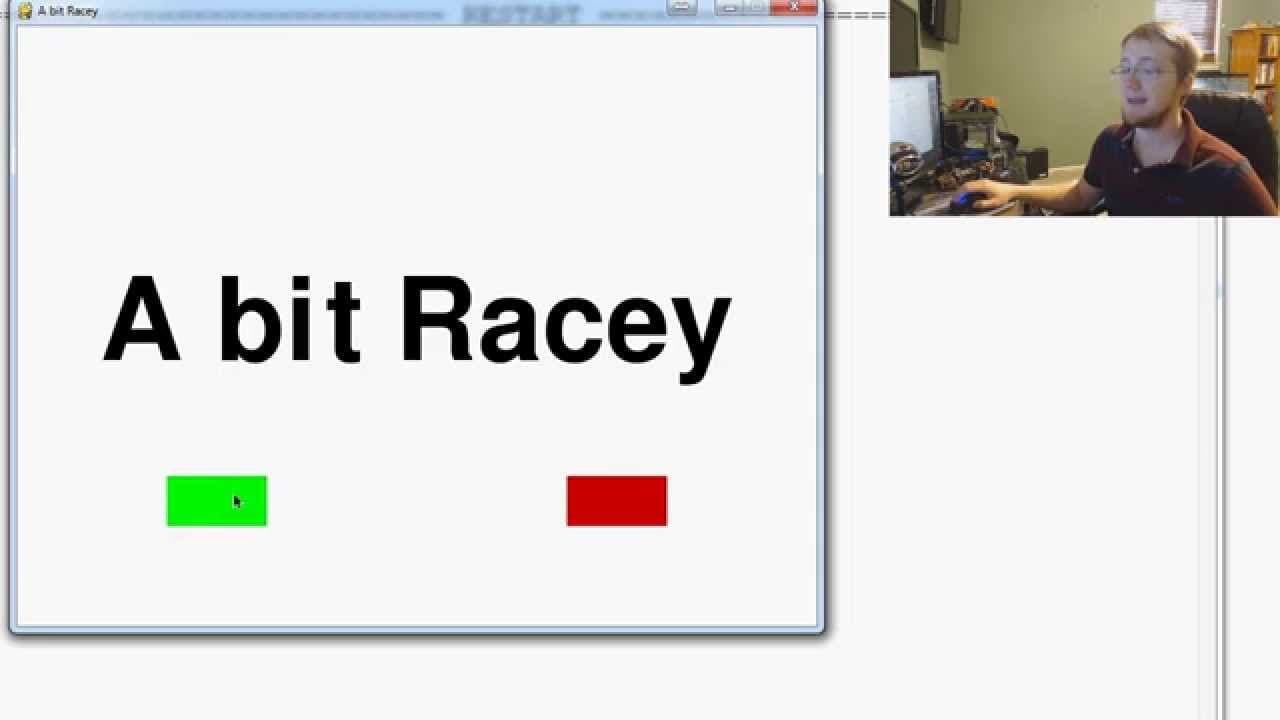
what's going on everybody welcome to another P game tutorial video in this video we're going to be building on the last video in our sort of like miniseries in P game about how to make buttons in P game so um the way that we're going to give the feel of an interactive button is by having the button change color as we hover it so this is something t... Read More
Key Insights
- 🔄 Changing the color of buttons when hovered is a common technique to make them appear interactive.
- 🐭 Understanding how to grab mouse coordinates and compare them with button boundaries is crucial for implementing the hover effect.
- 🙂 Defining lighter colors through RGB allows for the creation of brighter color variations to enhance the interactive illusion.
- 👨💻 Organizing code using functions helps improve code readability and maintainability.
- 🪜 Adding text to buttons and assigning click functionality are tasks that can be done in subsequent tutorials.
- 🪜 The hover effect adds a sense of interactivity to buttons, even though they are not fully interactive elements.
- 👤 Balancing the usability of buttons and their aesthetics can greatly enhance the user experience.
Install to Summarize YouTube Videos and Get Transcripts
Explore YouTube Video Summarizer or Get YouTube Transcript Extractor
Questions & Answers
Q: How does changing the button color when hovered create the impression of interactivity?
Changing the button color when hovered mimics the behavior of URLs, where the underline or color change gives the visual cue that it is clickable. This illusion of interactivity helps users identify the buttons as clickable elements.
Q: How can mouse coordinates be used to determine if the mouse is within the button's boundaries?
By obtaining the mouse coordinates using the Pygame library's 'pygame.mouse.get_pos()' function, the X and Y positions of the mouse can be compared with the button's X, Y, width, and height values to check if the mouse is within the button's boundaries.
Q: What is the purpose of defining lighter colors using RGB?
Defining lighter colors allows for the creation of a brighter button appearance when hovered. By reducing the light component in an RGB color code, the button can be drawn using the lighter color to give the impression of interactivity.
Q: Why is it suggested to create a button function in the code?
Creating a button function helps organize the code and makes it more modular. With a button function, it becomes easier to manage and update button properties such as its location, appearance, and functionality in one centralized place.
Summary & Key Takeaways
-
In this P Game tutorial video, the focus is on making buttons appear interactive by changing color when hovered, similar to URLs.
-
The video explains how to define lighter colors using RGB and how to grab mouse coordinates to determine if the mouse is within the button's boundaries.
-
By implementing conditional statements, the video demonstrates how to draw the button in a brighter color when hovered and a regular color otherwise.
Read in Other Languages (beta)
Share This Summary 📚
Summarize YouTube Videos and Get Video Transcripts with 1-Click
Try YouTube Summary with ChatGPT & Claude or YouTube Transcript Generator
Explore More Summaries from sentdex 📚
Summarize YouTube Videos and Get Video Transcripts with 1-Click
Try YouTube Summary with ChatGPT & Claude or YouTube Transcript Generator