YouTube Video Has No Transcript? How to Transcribe It with Glasp

Oct 12, 2026
5 min read
34 views
You found the video you need, a talk, a lecture, or yesterday's live stream, and you want the words as text. But YouTube shows no transcript, or the Glasp panel says Transcript Not available. This guide explains why that happens, what to try for free, and how to get a transcript anyway.
The usual way, and where it breaks
YouTube's own transcript. When a video has captions, YouTube can show them as a transcript. Expand the video description and look for Show transcript. A panel opens with the text and timestamps, and you can click any line to jump to that moment. If the button is there, start with it: it is free and instant.
Why it is sometimes missing. The transcript only exists when captions exist. Common reasons it does not:
The video was just uploaded and automatic captions have not been generated yet.
It is a live stream, or a recent one that was just archived.
The creator turned captions off or removed them.
The spoken language is not covered by automatic captions, or the audio is mostly music or noise.
In those cases there is no text to show, and no setting on your side will make it appear. The usual fallback is to type it out yourself while pausing the video, which takes far longer than the video itself.
The Glasp way
1. Open the video with the Glasp extension
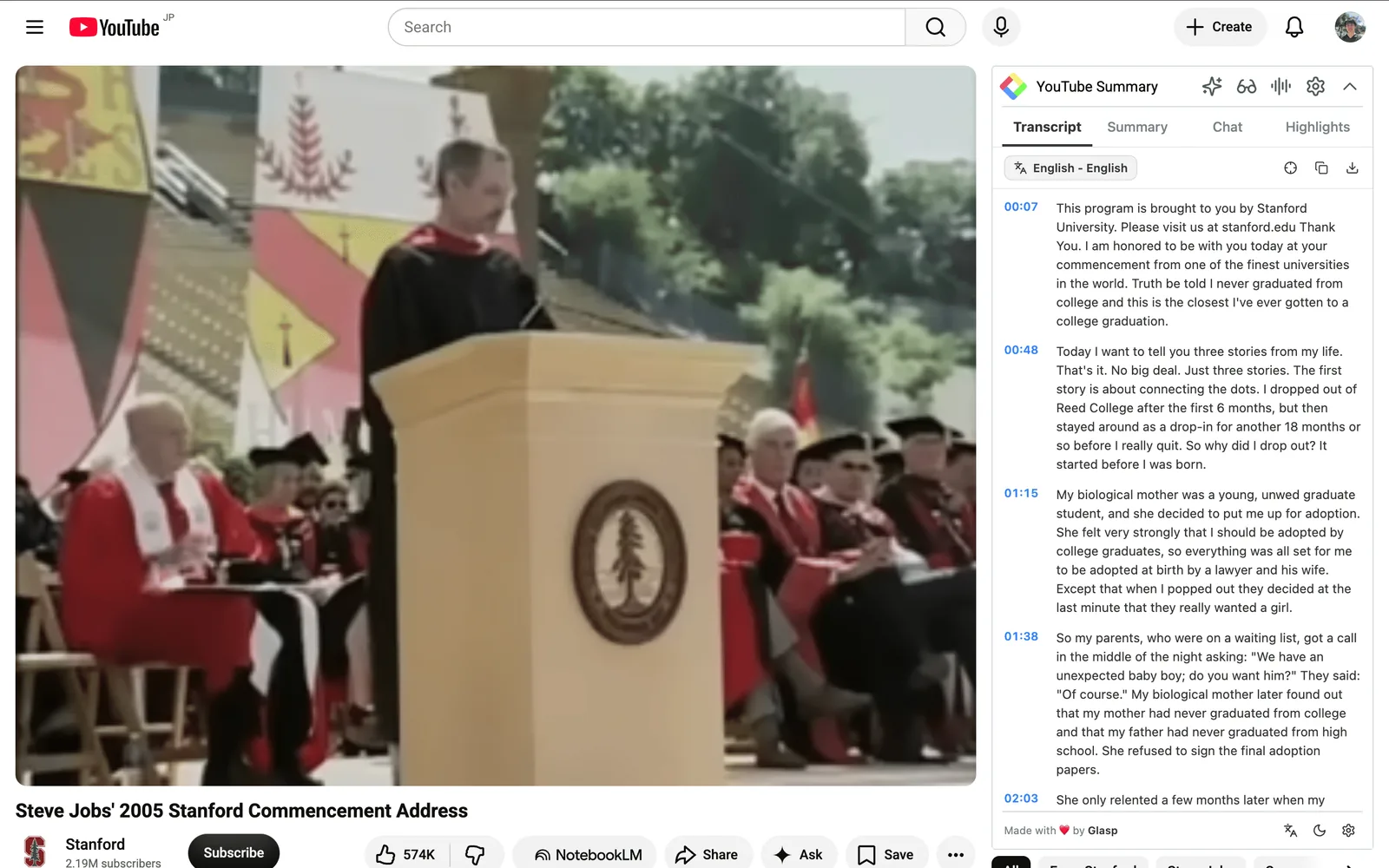
With the Glasp extension installed, a panel appears next to the YouTube video. When the video has captions, the transcript is already there, with timestamps, in the Transcript tab. If the video has captions and you only need its text, the free YouTube Transcript page and How to Get Transcripts of the YouTube Video cover that. The rest of this guide is for videos with no transcript at all.
2. Click the audio icon to transcribe the video
When a video has no captions, click the audio icon in the panel header. Glasp runs Audio Transcription on the video's audio and produces the transcript for you. Long videos are fine, including recordings that run for a few hours.
Audio Transcription is measured in minutes per month: 30 on Free, 300 on Pro, and 1,500 on Unlimited. If you transcribe long streams or lectures regularly, check the pricing page.
Not in a hurry? Paid plans fill the gap automatically
On Pro and Unlimited, when Glasp sees that a video's transcript could not be fetched, it runs an automatic backup in the background. The transcript can appear in as little as about 10 minutes, or take a few hours. Reopen the video later and check the Transcript tab. Some videos, such as music-only videos or videos with no speech, may still not get a transcript.
On the Glasp iPhone and Android apps, a video without a transcript works the same way: wait for the automatic backup on a paid plan, or run Audio Transcription on a computer.
3. Summarize it
Once there is a transcript, the Summary tab works the same way as for any other video. In the panel settings you can pick the AI model (ChatGPT, Claude, Gemini, Grok, Mistral AI, and others), the summary language, and the prompt. Summaries you create are saved on the Summaries tab of your Glasp profile, so you can find them later. More in How to See a Summary of a YouTube Video with Glasp and on glasp.co/youtube-summary.
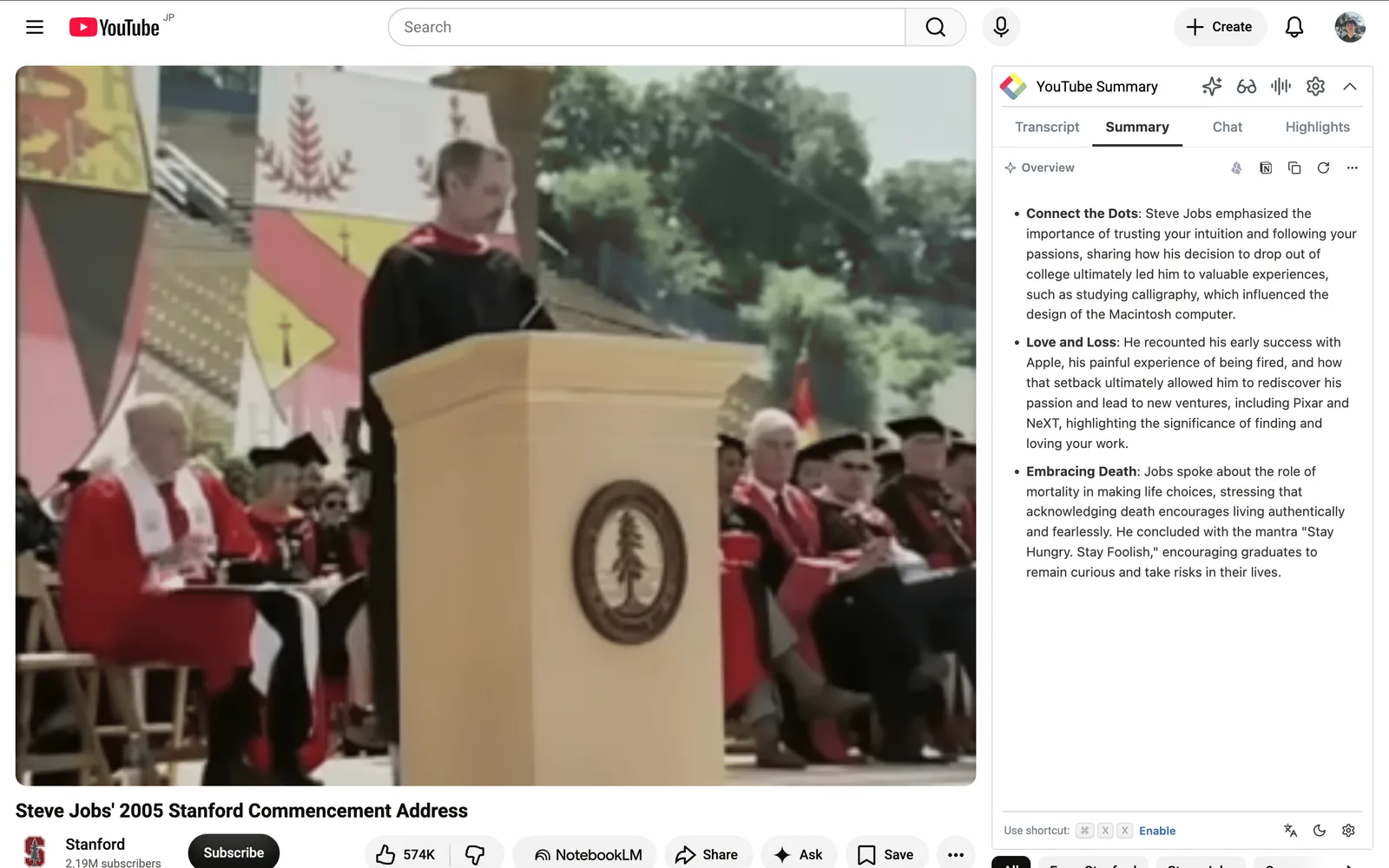
A custom prompt is where this gets useful for a video you plan to study or quote. For example:
"List the main arguments in this talk with the timestamp where each one starts."
"Summarize this live stream for someone who missed it: what was announced, what was asked, and what is still open."
"Pull out every book, tool, or person mentioned, with one line on why it came up."
4. Highlight the lines you want to keep
Select any line in the transcript and highlight it. Each highlight is saved with its timestamp, so later you can click back to the exact moment in the video. See How to Highlight YouTube Transcript.
5. Download the transcript
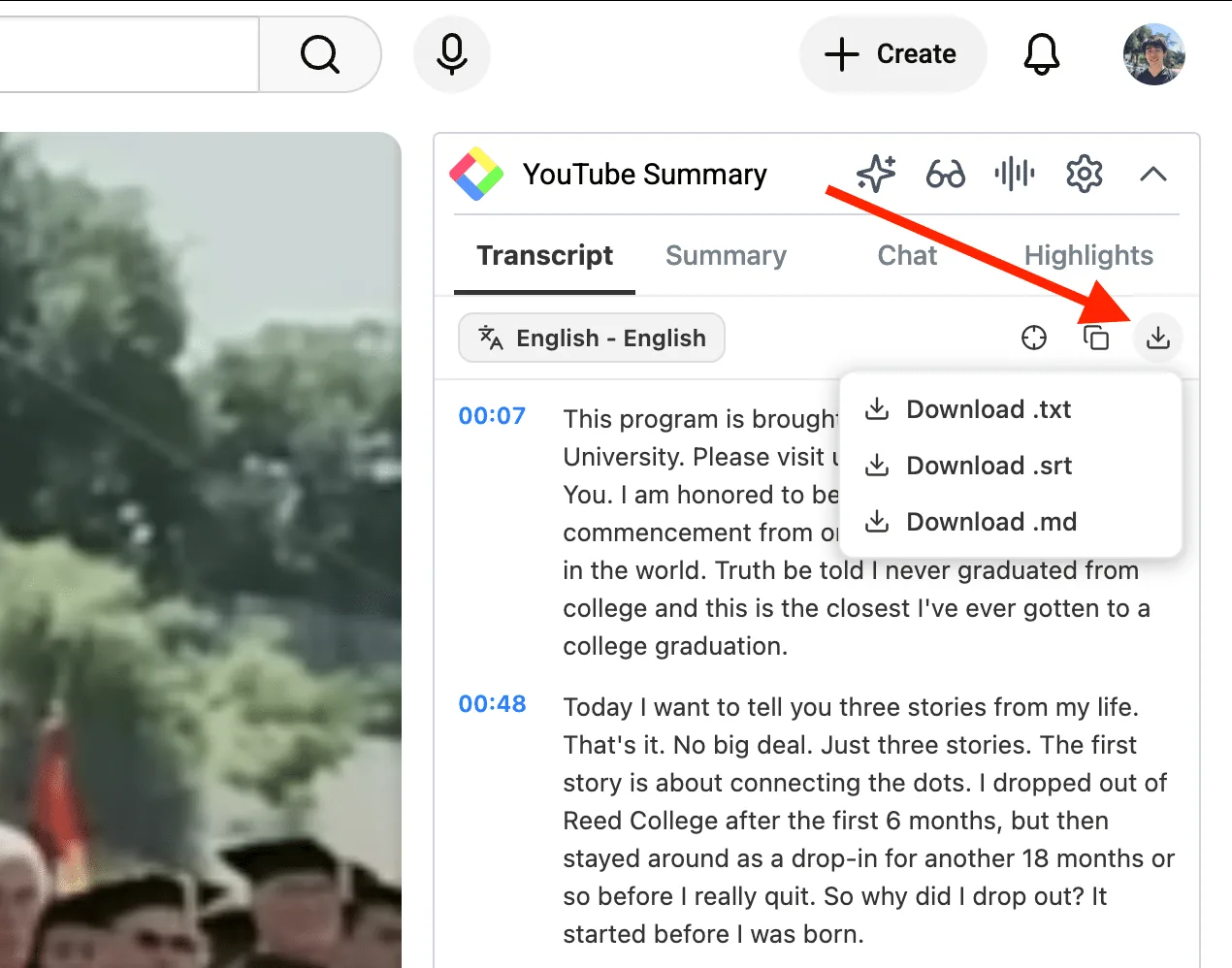
Use the download button in the Transcript tab to save it as .txt, .srt, or .md. Plain text is good for pasting into notes or an AI assistant, .srt keeps timestamps for subtitle tools, and Markdown drops cleanly into Obsidian, Notion, and similar apps.
FAQs
Why does YouTube not show a transcript for this video?
YouTube's transcript comes from the video's captions. If the video is brand new, a live stream, in a language without automatic captions, or the creator turned captions off, there is nothing for YouTube to show.
Can Glasp transcribe a video with no captions at all?
Yes. Click the audio icon in the Glasp panel header, and Glasp runs Audio Transcription on the video's audio.
Is it free?
The Free plan includes 30 minutes of audio transcription per month. Pro includes 300 minutes and Unlimited 1,500 minutes per month.
Does it work on long videos and live stream recordings?
Long videos are fine, including ones that run a few hours.
Can I choose which AI writes the summary?
Yes. In the panel settings you can pick the AI model, the summary language, and your own prompt.
What file formats can I download?
.txt, .srt, and .md.
Before you leave
If you have any questions, please refer to the FAQ or contact us.
👉 X
See you next time,
Glasp team