How to See Personalized AI Summary of Articles

Sep 22, 2025
4 min read
102 views

Want a faster way to review what you’ve learned from articles? ✨ With Glasp’s personalized AI summary feature, you can instantly generate summaries tailored to your highlights and notes. Instead of reading an entire article again, Glasp helps you revisit only the most important insights — personalized just for you.
This tutorial will guide you step by step on how to access and use Glasp’s AI-powered summaries.
Personalized AI Summary with Glasp Chrome Extension (YouTube)
Step 1: Sign up for Glasp
Choose a browser you’re going to use: either Google Chrome, Brave, Safari, Microsoft Edge, Firefox, etc.
On your search tab, type in “glasp.co” and you will be automatically directed to the page of Glasp. Or access it from the link below.
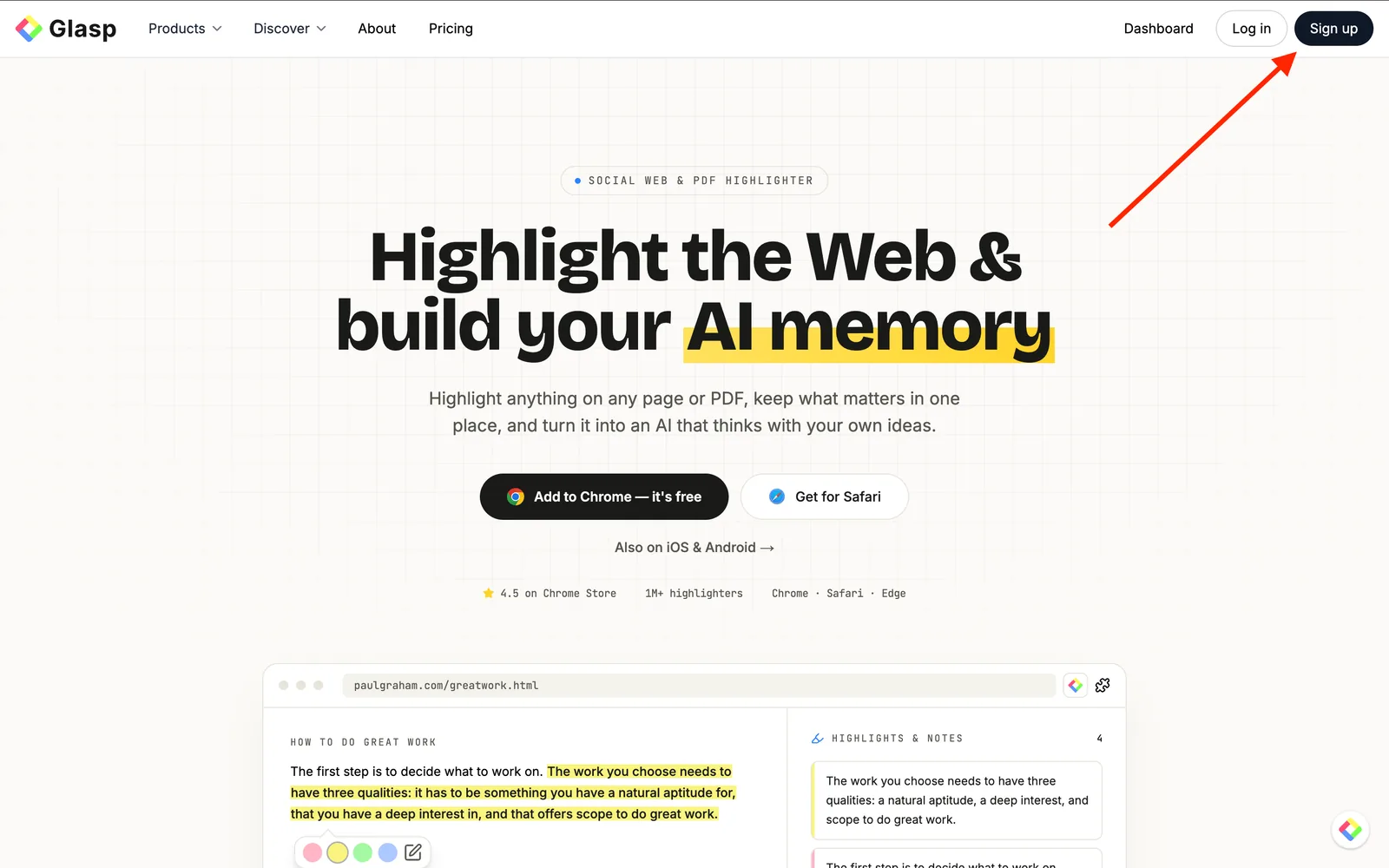
Upon reaching it click Sign up and continue using your Google Account.
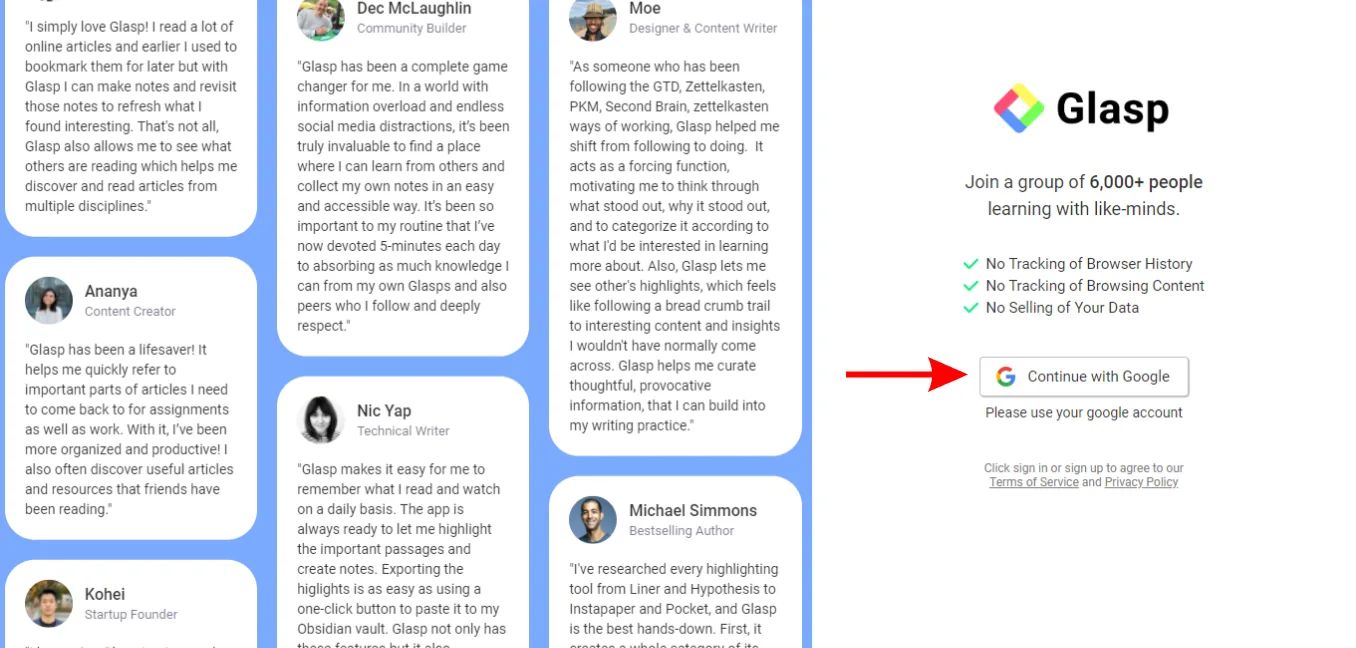
After finalizing your account, you will be redirected to the Chrome Web Store.
Step 2: Install the Glasp extension to your browser
Click Add to Chrome(Brave, Safari, Edge, or Firefox) and install Glasp on your chosen browser.
Step 3: Go to the Home page on Glasp
Once you’ve installed your Glasp extension, go to its home page. Here, you will see the sidebar opened where you can test highlighting words or sentences.
Also, you are free to choose your favorite topics. Choosing your topics could be a leap step as this will help you identify the articles in line with your interests.
Step 4: Open and highlight an article
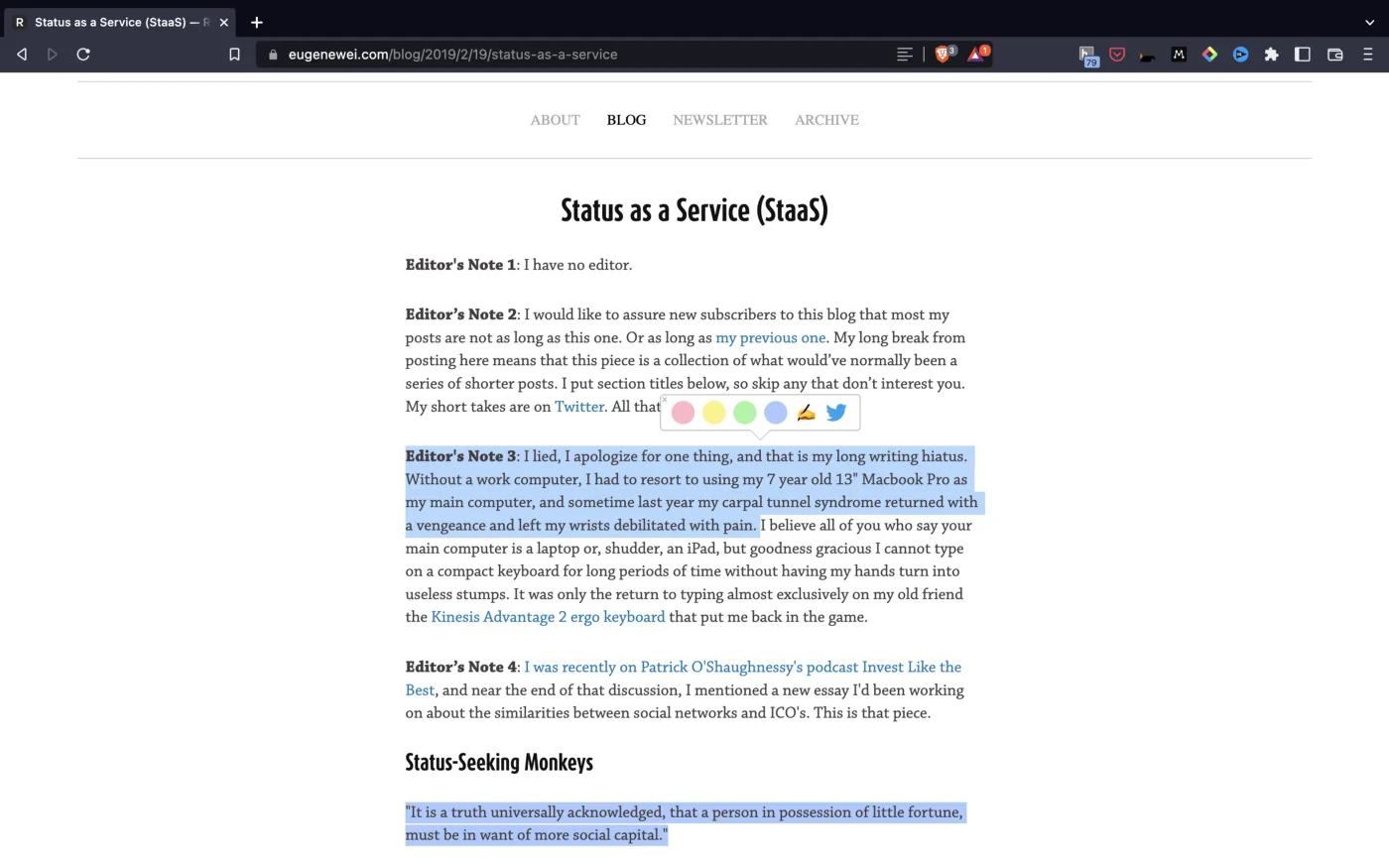
Open any article you want and start highlighting sentences you resonate with. When you select a sentence, you can see a popup showing up, so please click any color you want.
Step 5: View an AI Summary
There are two ways to see the AI summary. The first one is to see it via the sidebar on the browser extension. And the other one is on the website.
View the AI summary on the browser extension
This way is straightforward. While you’re reading and highlighting web articles, please open the sidebar. You can click the Glasp icon on the toolbar to open it.
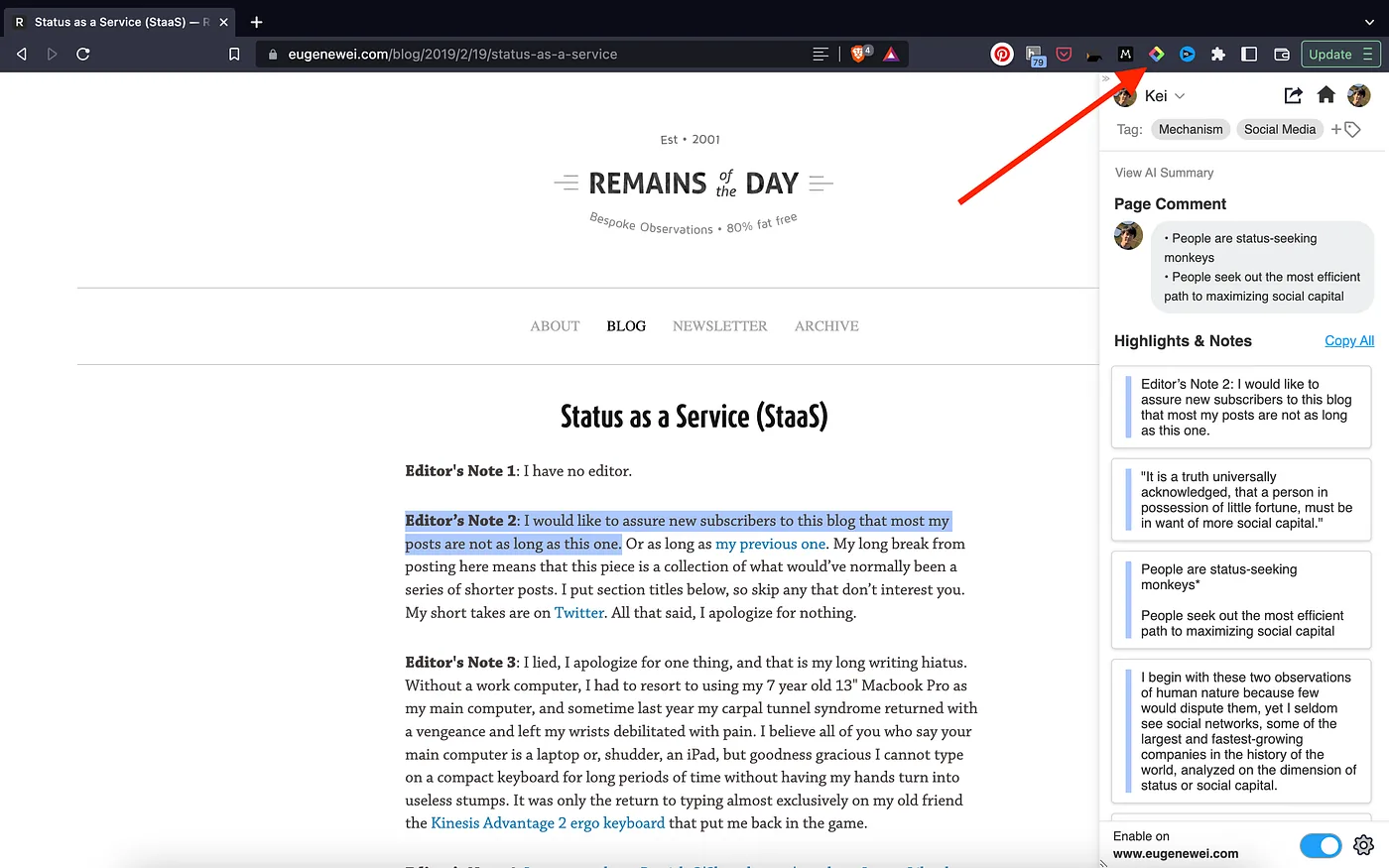
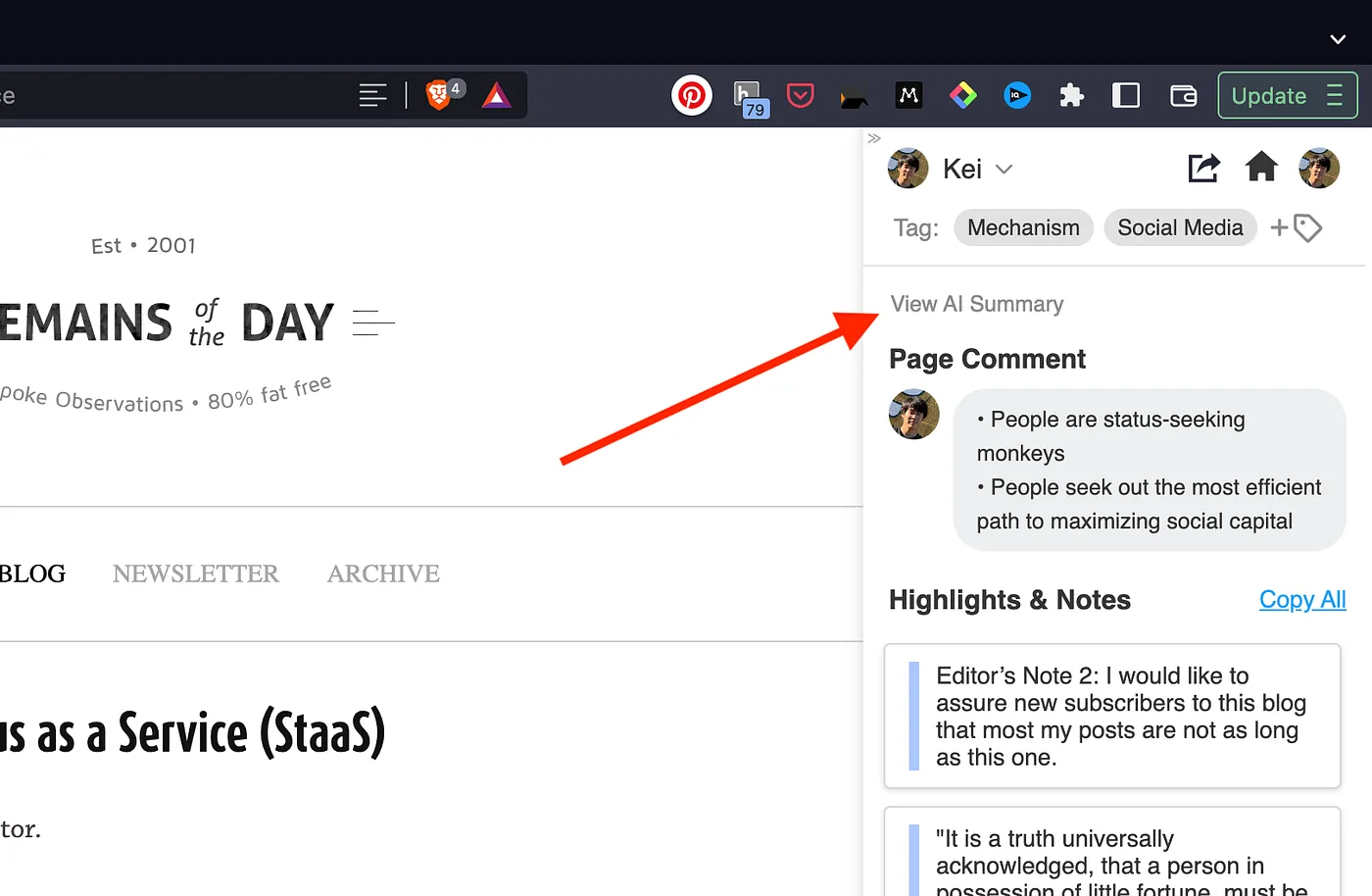
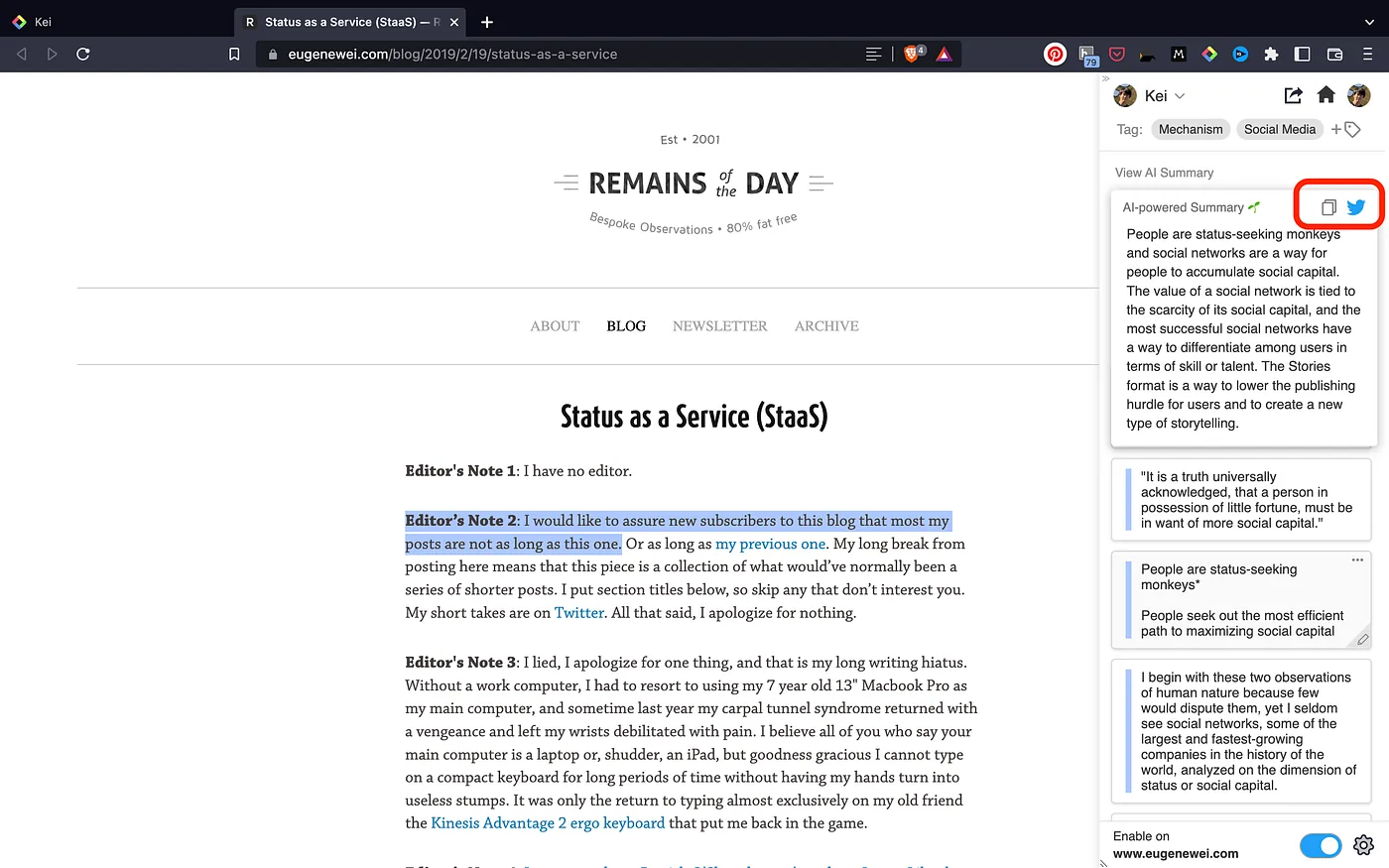
On the sidebar, you can see View AI Summary. So, please click it to see the AI summary. If you don’t highlight the article at all, you cannot see the summary.
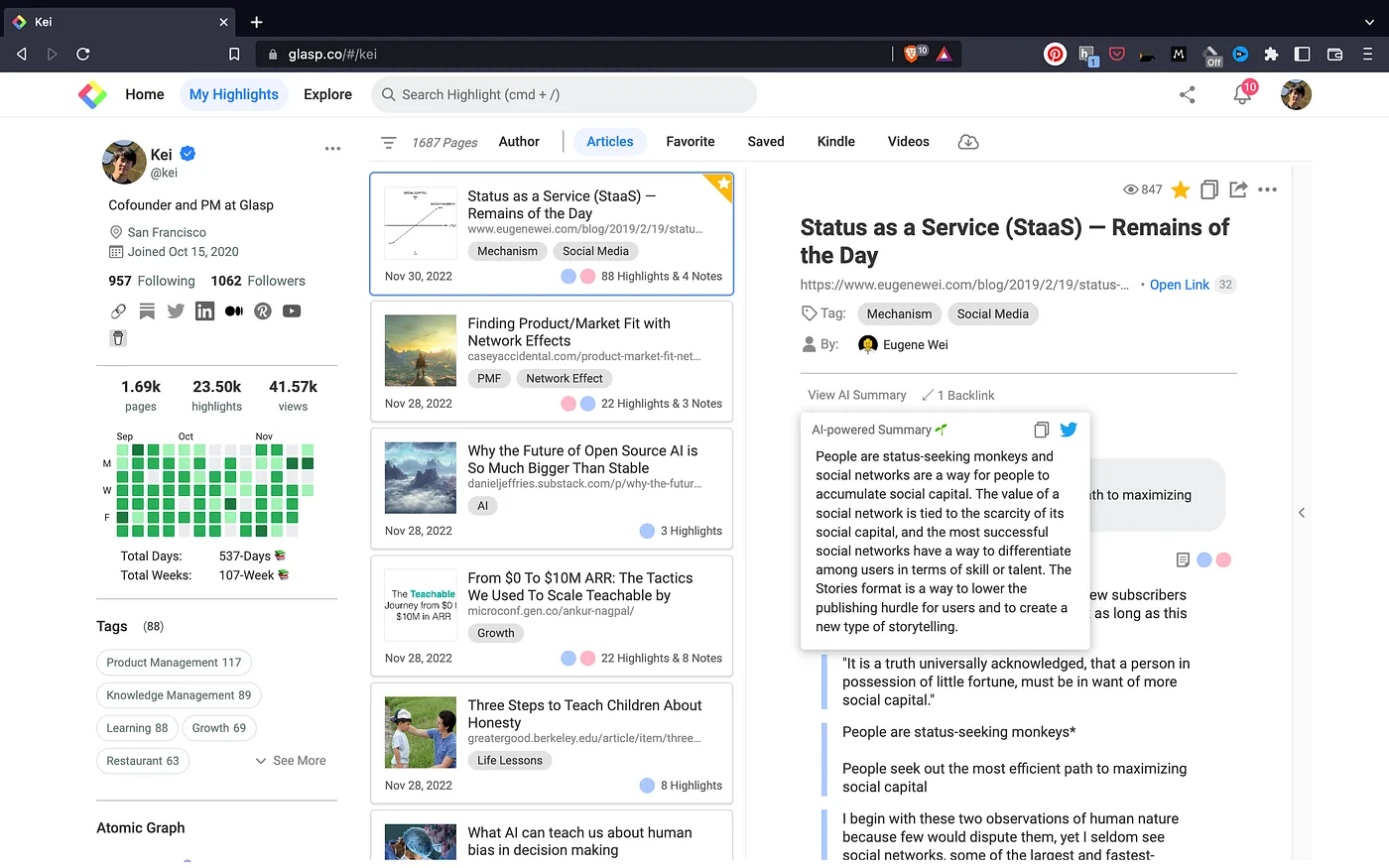
If you click a button or an X icon at the top right of the popup, you can copy-n-paste the AI summary or post the AI summary on X.
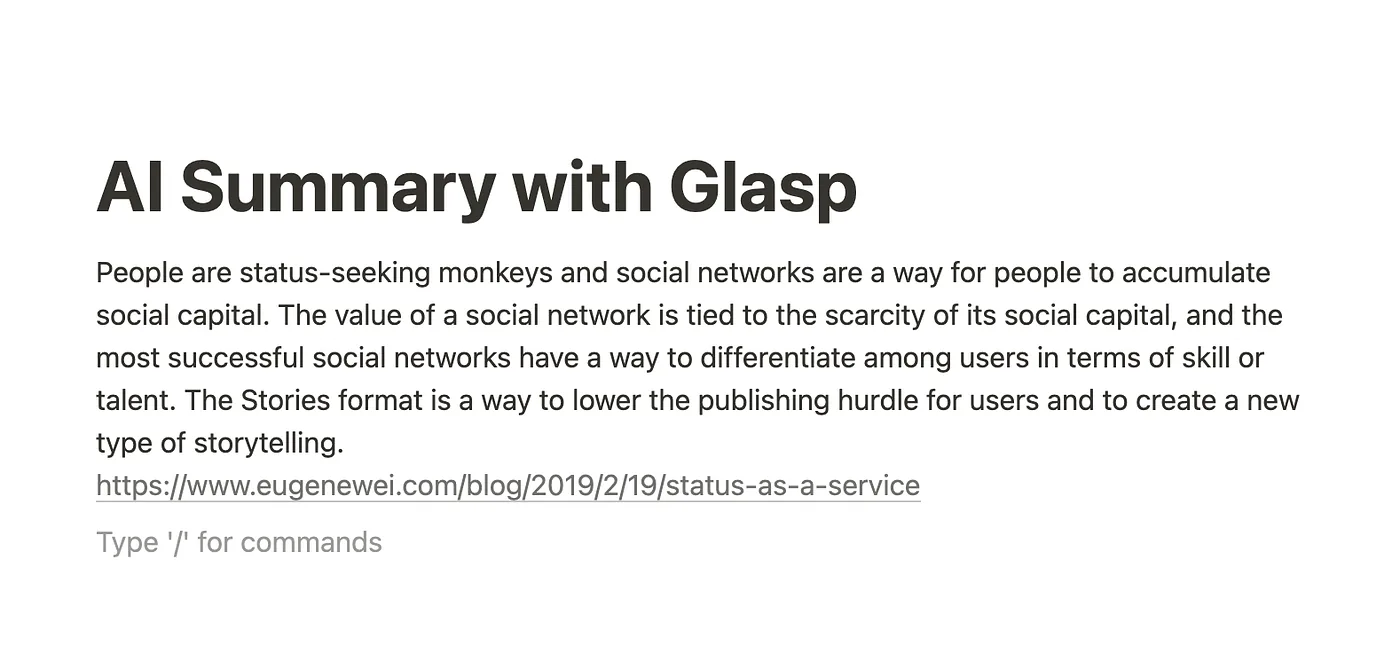
For example, if you paste the AI summary on Notion, it looks like the one below.
View the AI summary on the web page
On your profile page, you can see the AI summary. To go to your profile page, please click a button on the sidebar as shown below.
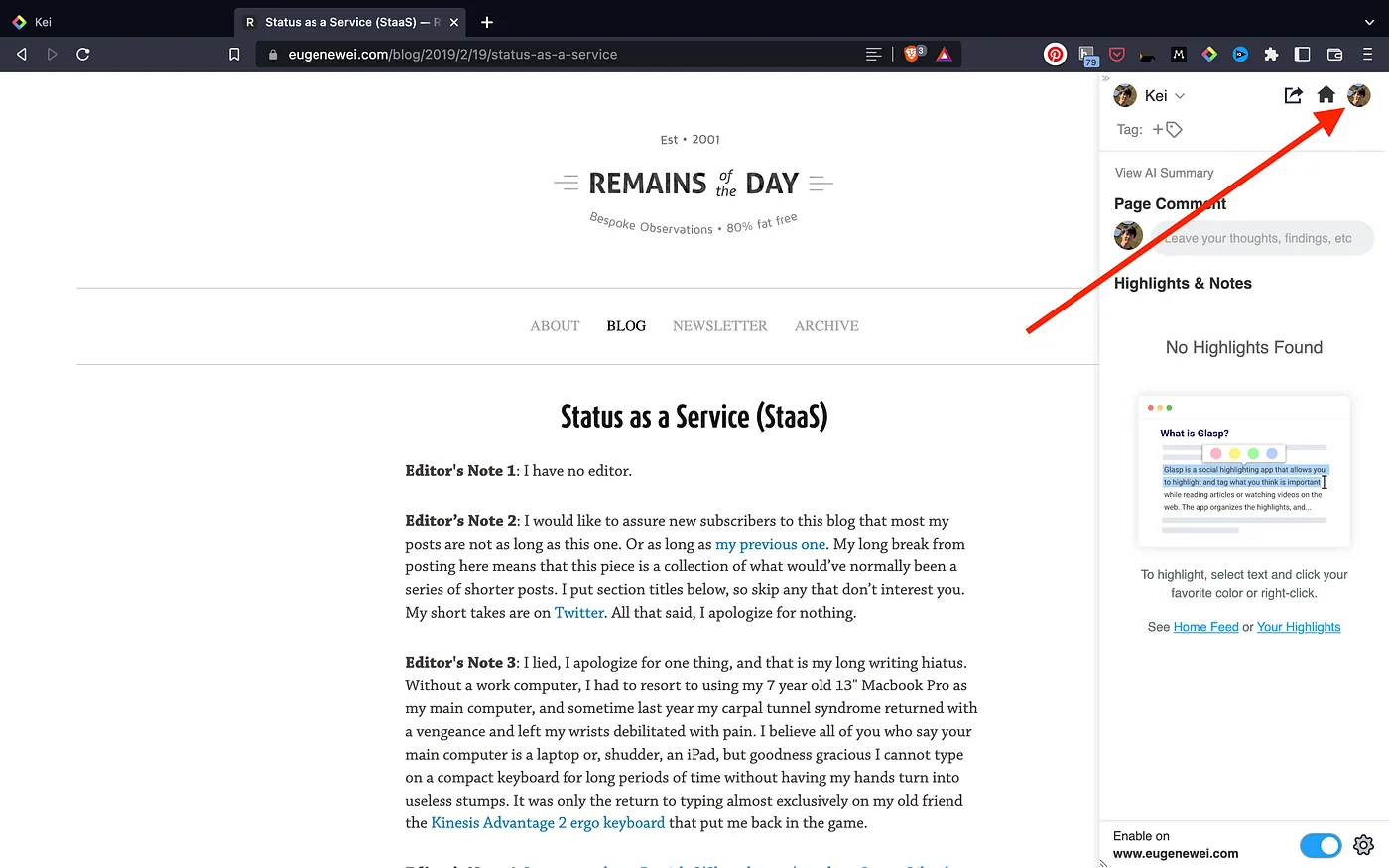
Please click View AI Summary on your profile page.
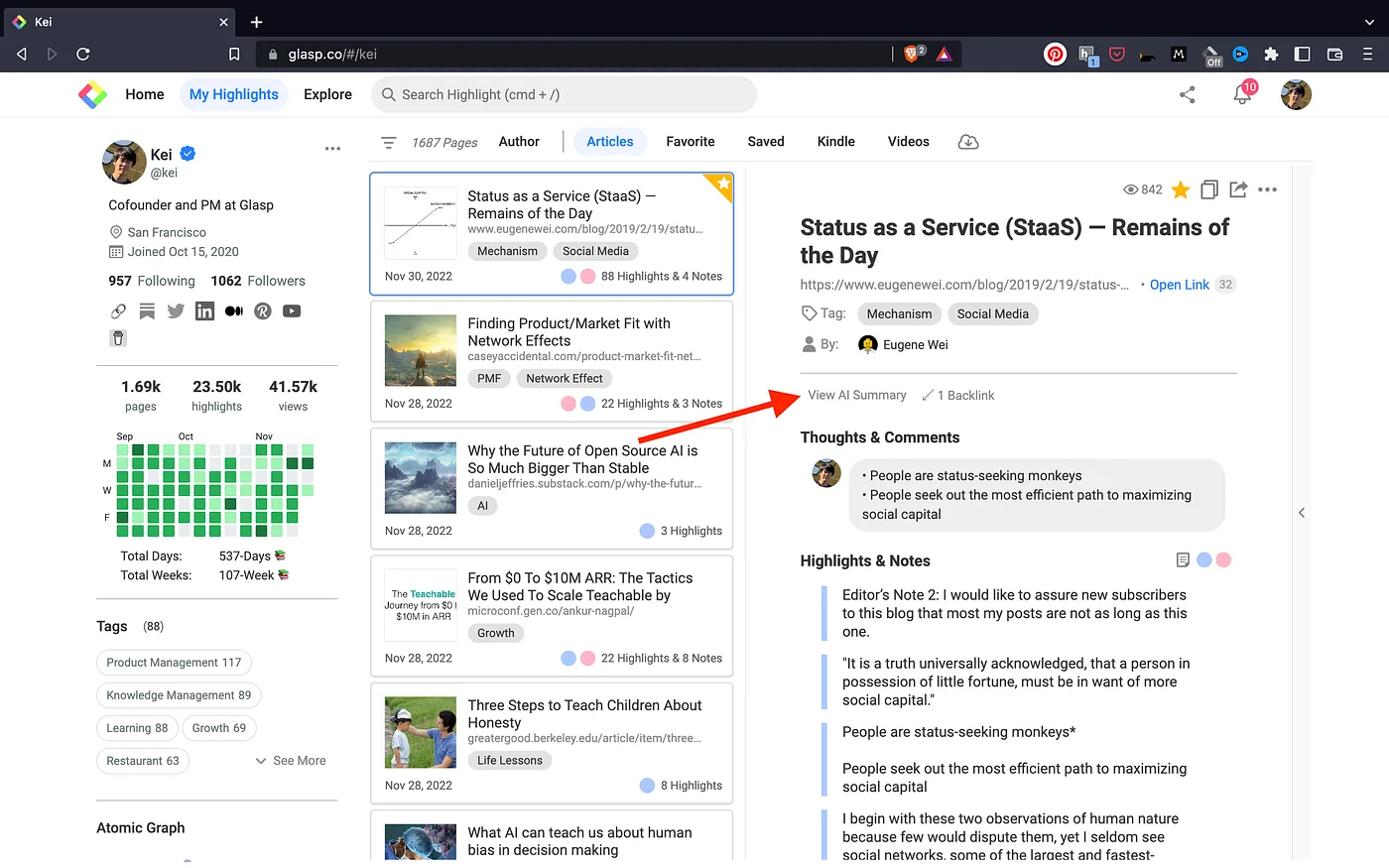
It shows the AI summary on a popup. From the popup, you can copy-n-paste the AI summary and tweet it.
Tips
Glasp provides a personalized AI summary based on your highlights and notes. So, if you go to other people’s pages, you can see their unique AI summaries. Here, you can see Kazuki’s AI summary about “Status as a Service.”
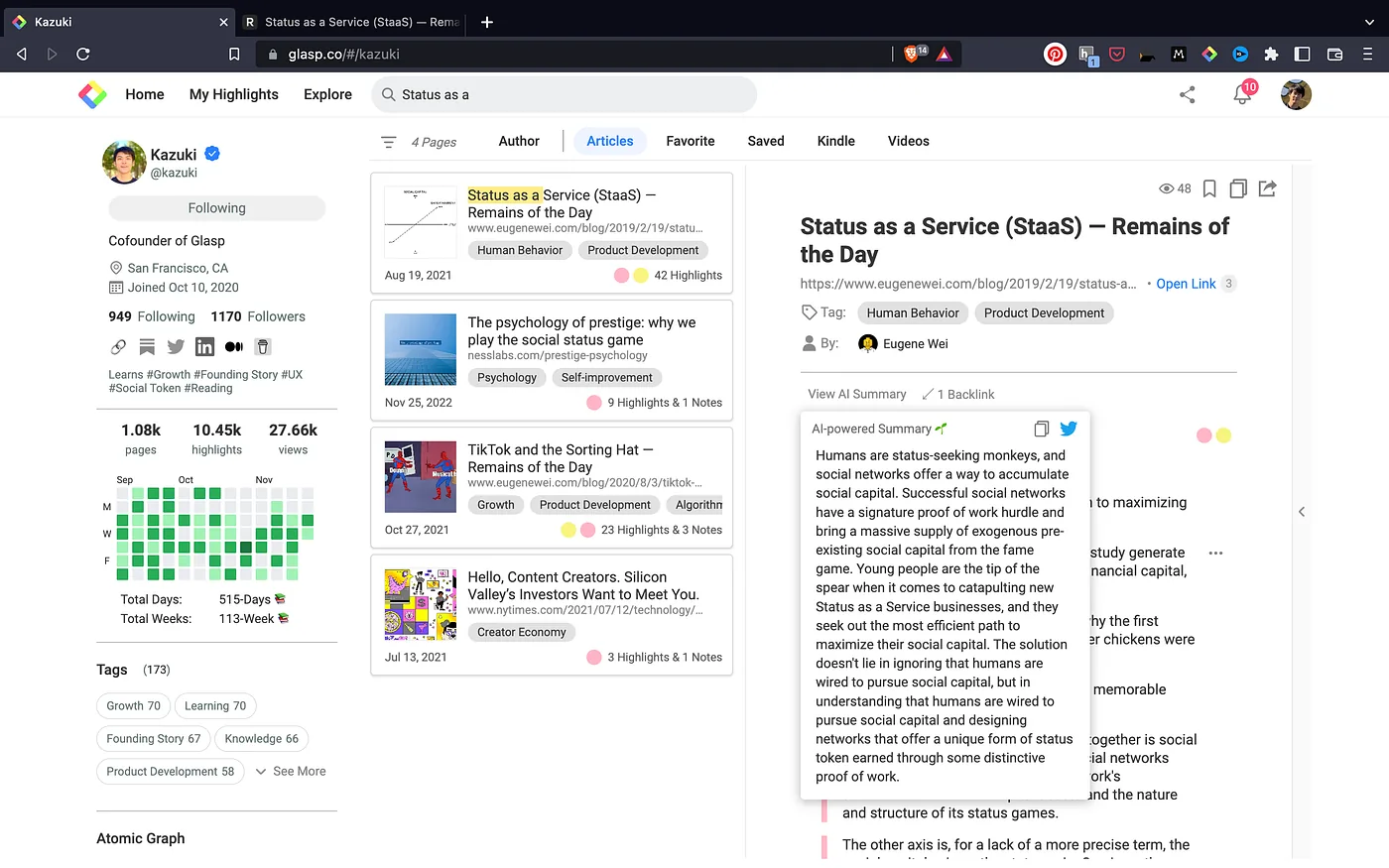
It's also a fun activity if you explore other people's profile pages and see their unique AI summaries. It might give you serendipitous discoveries and connections!
It’s easy and useful, right? Glasp shows personalized AI summaries, so it helps your learning and increases productivity!
FAQs
Q. Do I need highlights to generate an AI summary?
Yes. The AI summary is based on your highlights and notes. Without highlights, the option won’t appear.
Q. Can I see other users’ AI summaries?
Yes! Each person’s AI summary is unique to their highlights. Exploring others’ pages can give you fresh insights.
Q. Can I copy AI summaries into apps like Notion or Obsidian?
Absolutely. You can copy and paste them directly into your note-taking app.
Q. Is the AI summary feature free?
The feature is free to try, but some advanced functions may require a Pro plan in the future.
Q. Can I share AI summaries on social media?
Yes. You can copy the text or share it directly to X with one click.
Q. Can Claude or ChatGPT read my Glasp highlights?
Yes. With the Glasp MCP Connector, AI assistants such as Claude, ChatGPT, and Claude Code can search and read your own highlights, notes, Kindle highlights, and AI summaries, including your YouTube summaries. The connection is read-only and private to you. See How to Connect Glasp to Claude, ChatGPT, and Claude Code (MCP Connector).
Before you leave
If you have any questions, please refer to the FAQ or contact us.
👉 FAQs
👉 X
Please look into the tutorials below for other features of Glasp.
👉 How to Export Highlights & Notes to Notion
👉 How to Download Highlights and Notes from Kindle
👉 How to Highlight YouTube Transcript
See you next time,
Glasp Team