How to See a Summary of the Article with One-Click

Sep 22, 2025
5 min read
133 views

Do you want to summarize articles instantly with one click? With the Glasp Chrome extension, you can generate AI-powered summaries of any web article in seconds. Instead of reading the entire piece, you’ll get a concise overview of the key points, perfect for students, researchers, and busy professionals who want to save time and focus on what matters most.
This guide will show you step by step how to install the Glasp extension, use the one-click article summary feature, and optionally save or highlight important passages for future reference. By the end, you’ll know exactly how to summarize online articles automatically with Glasp + ChatGPT and streamline your reading workflow.
👉 Related: How to See a Summary of a YouTube Video with Glasp
Step 1: Access the Glasp page
You can access the Glasp page from the link below
Step 2: Install Glasp’s Chrome extension
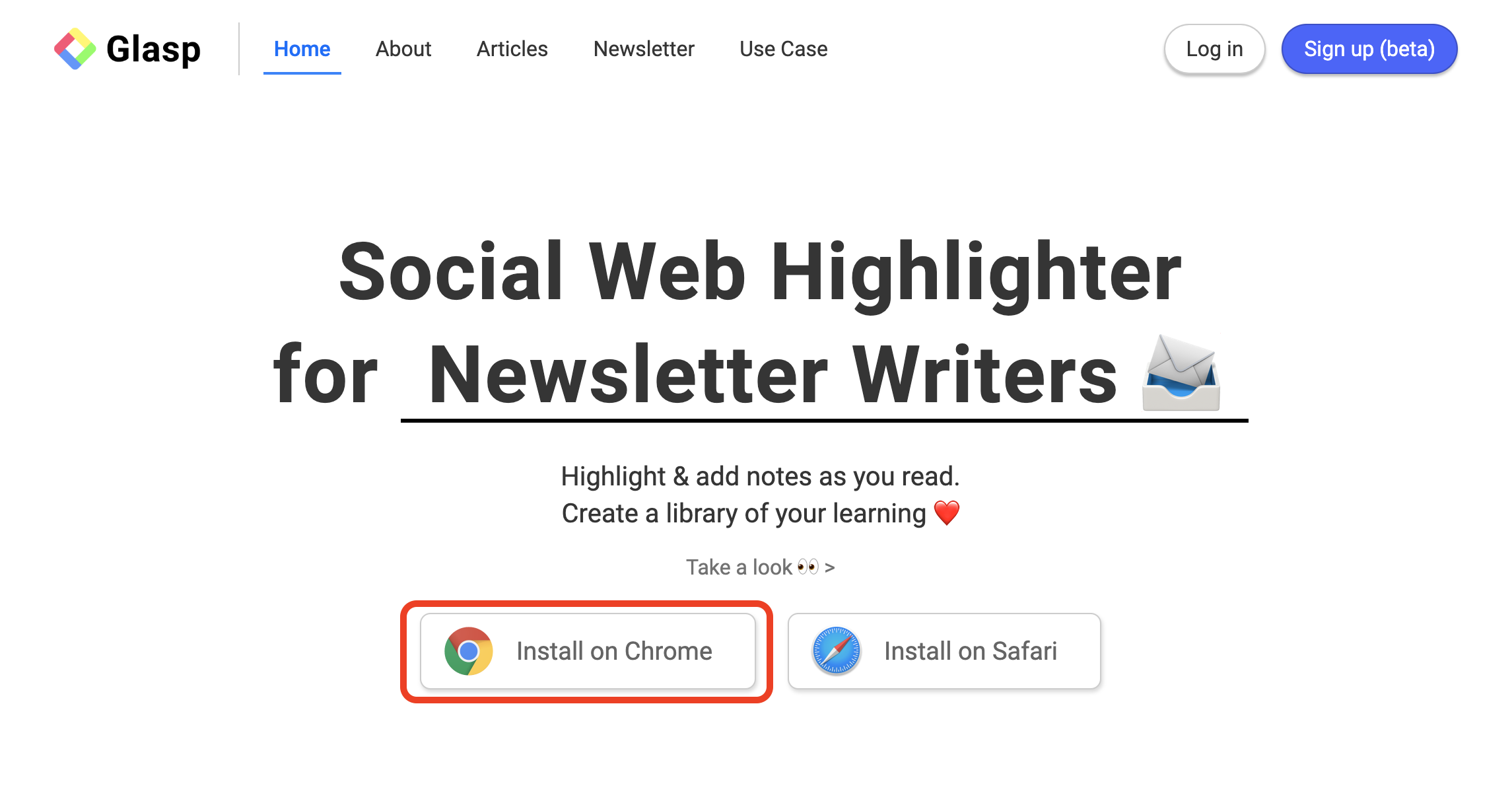
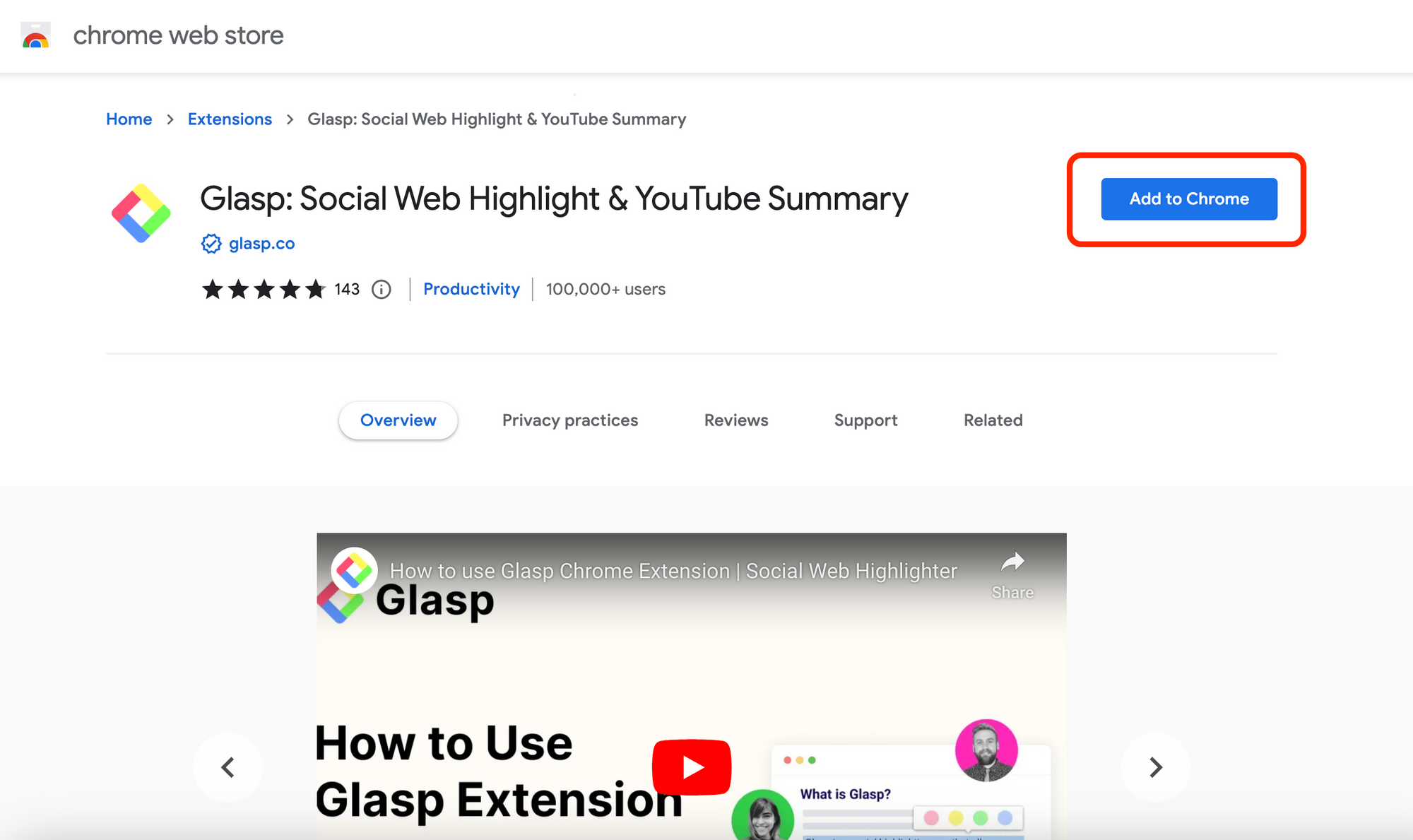
As you can see a square in red in the photo above, you can click Install on Chrome and go to the web page. And please click Add to Chrome to install the extension.
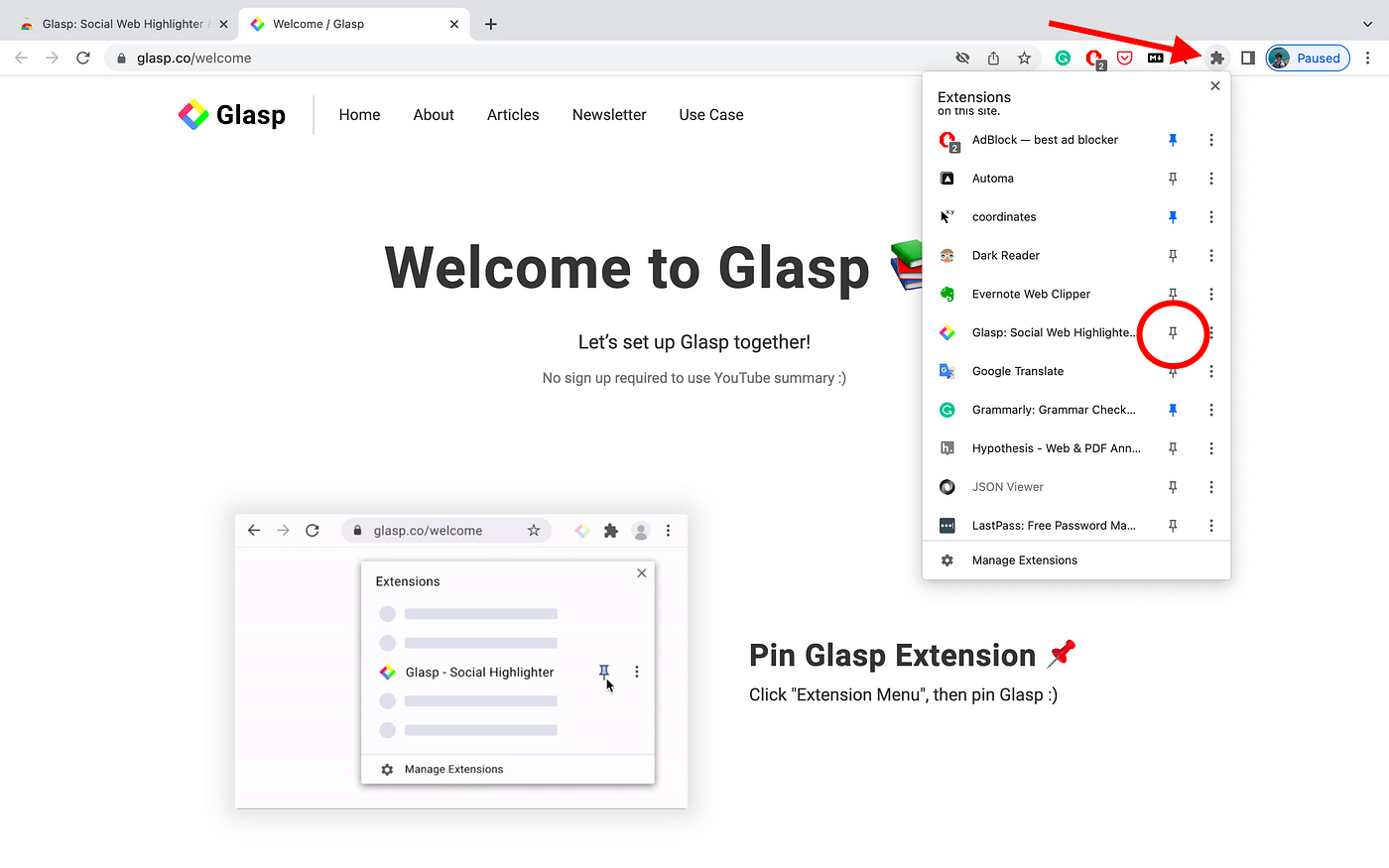
After you install the Chrome extension, it’d be nice if you pin the Glasp extension for your efficiency.
Step 3: Open an article
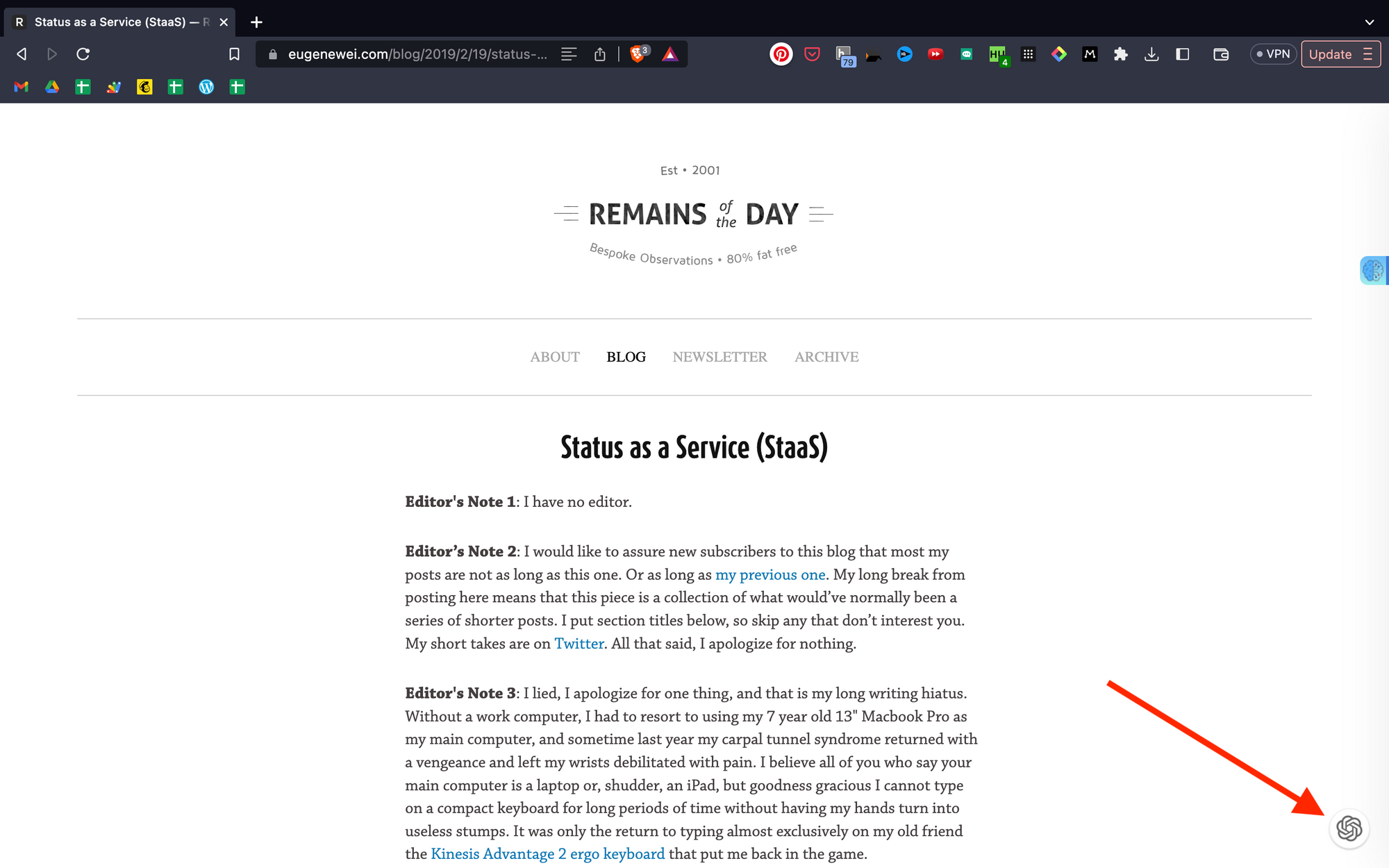
In this step, please open an article that you’d like to see the summary of. You can see an icon at the bottom right. So, please click it.
Step 4: Sign up or Log in to ChatGPT
It opens ChatGPT’s page on a new tab. If you haven’t created an account for ChatGPT, please make one. And if you already have it, please log in. If you can successfully sign up or log in, you can see a page like below.
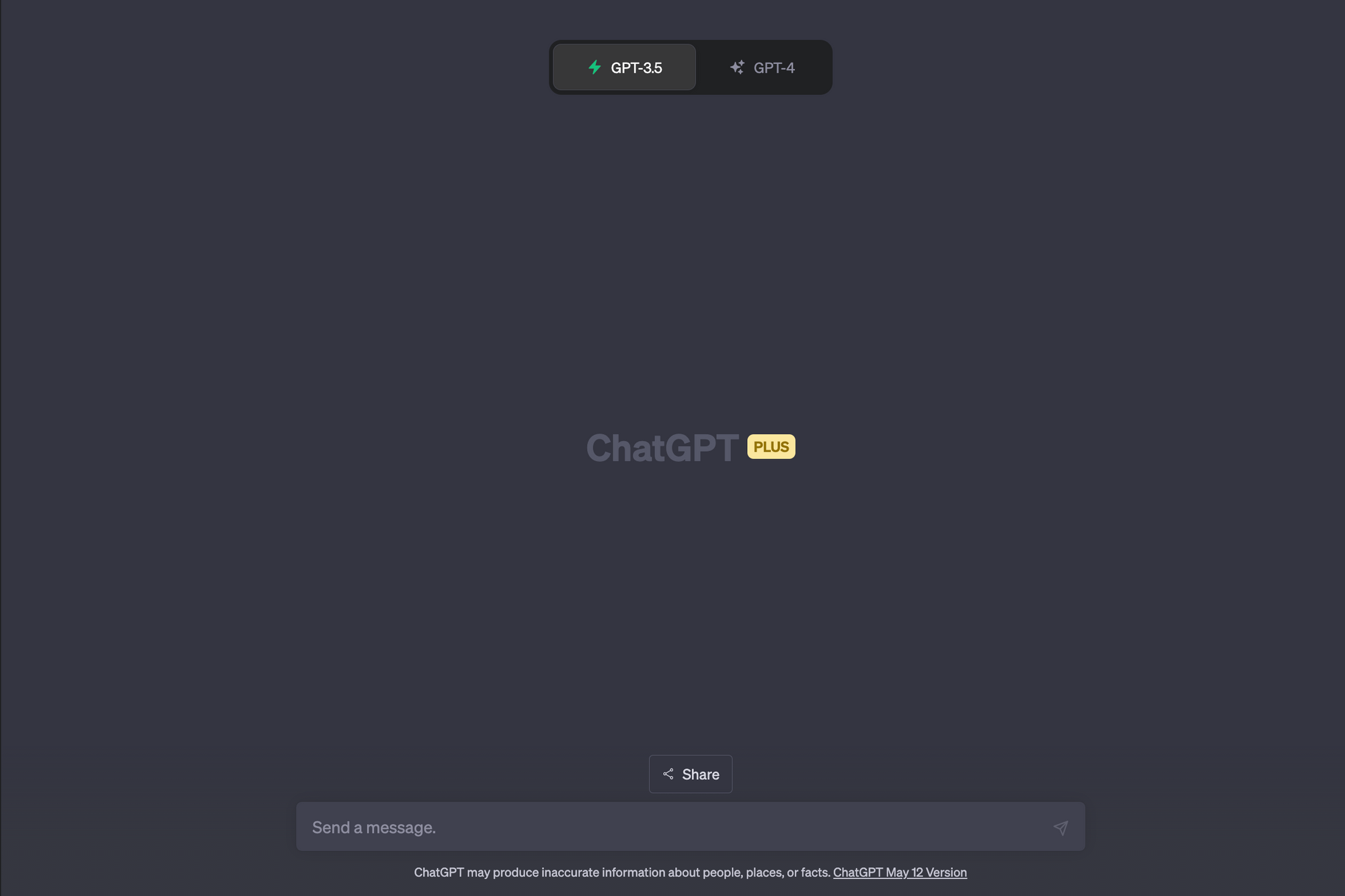
Then, please go back to the article and click the OpenAI icon again as you did in Step 3. It opens a new tab of OpenAI.
Step 5: Summarize the article
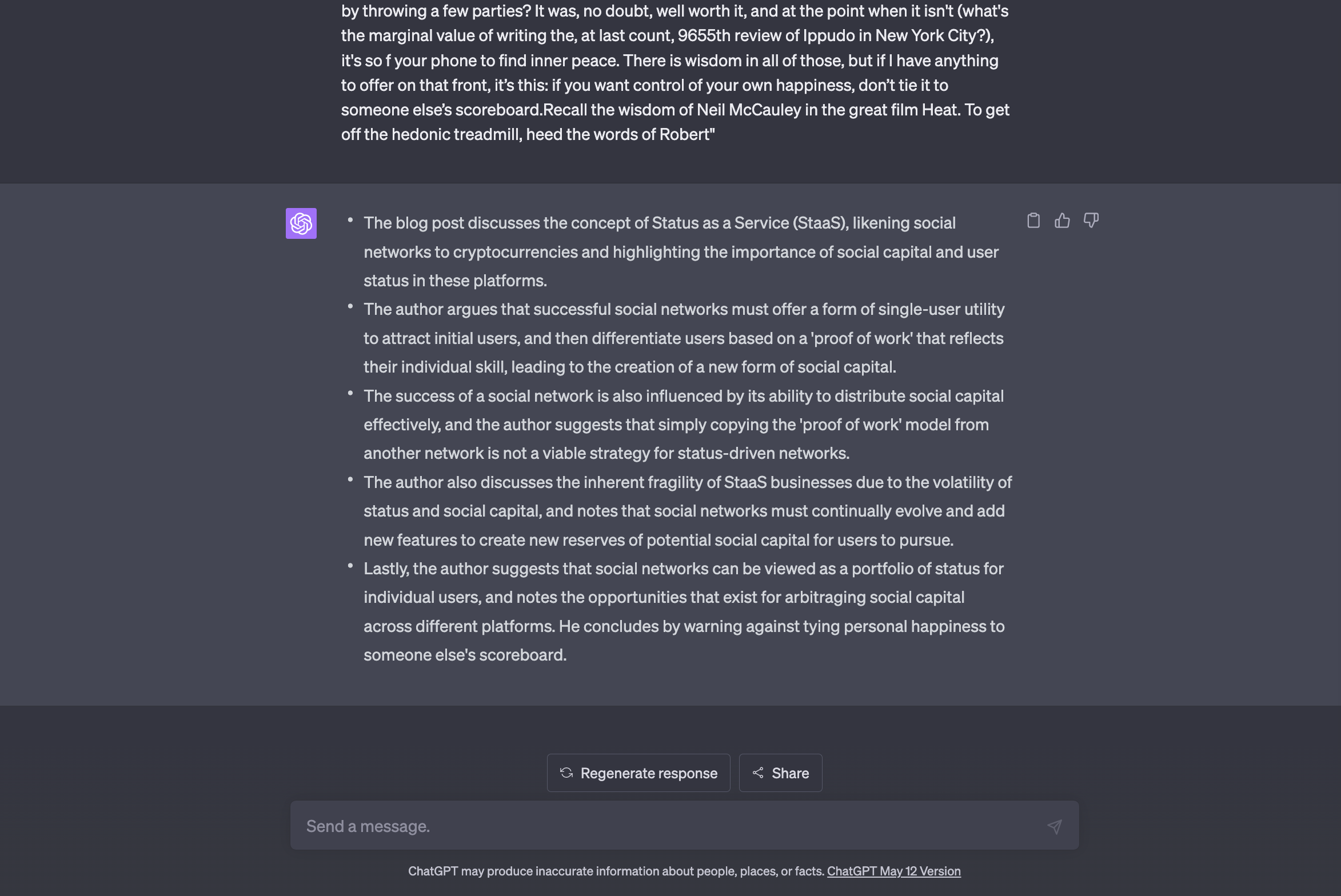
After you successfully signed up or logged in to ChatGPT, please click the icon at the bottom right of the article as you did in step 3. It opens ChatGPT and puts all the text of the article with a prompt to summarize. Wait until ChatGPT gives you a summary of the article.
Step 6: Save the important part of the article (Optional)
This is an optional step for people who’d like to save the important points of the article.
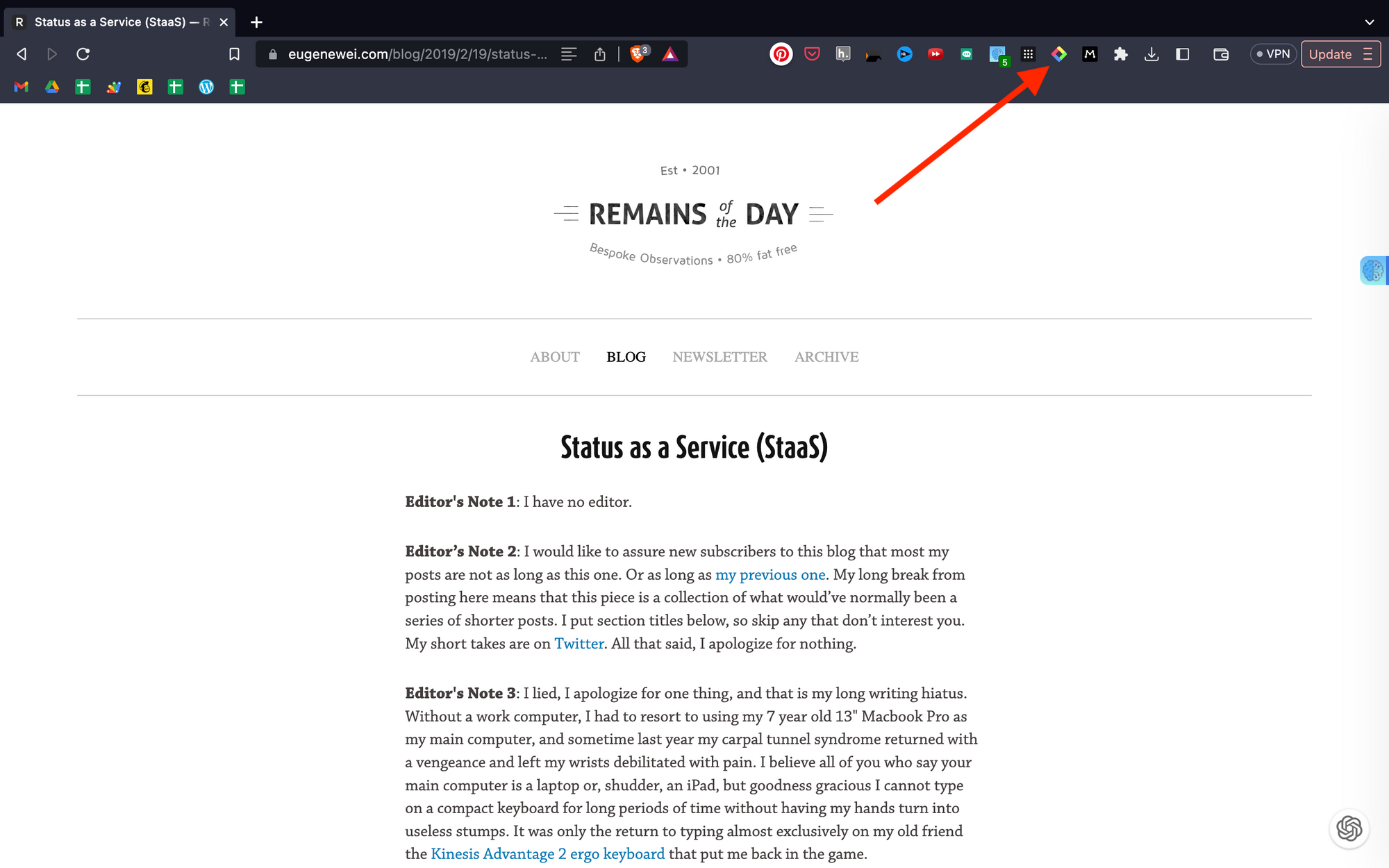
To do that, you need to have a Glasp account. In order to make one, please click the Glasp icon on the toolbar.
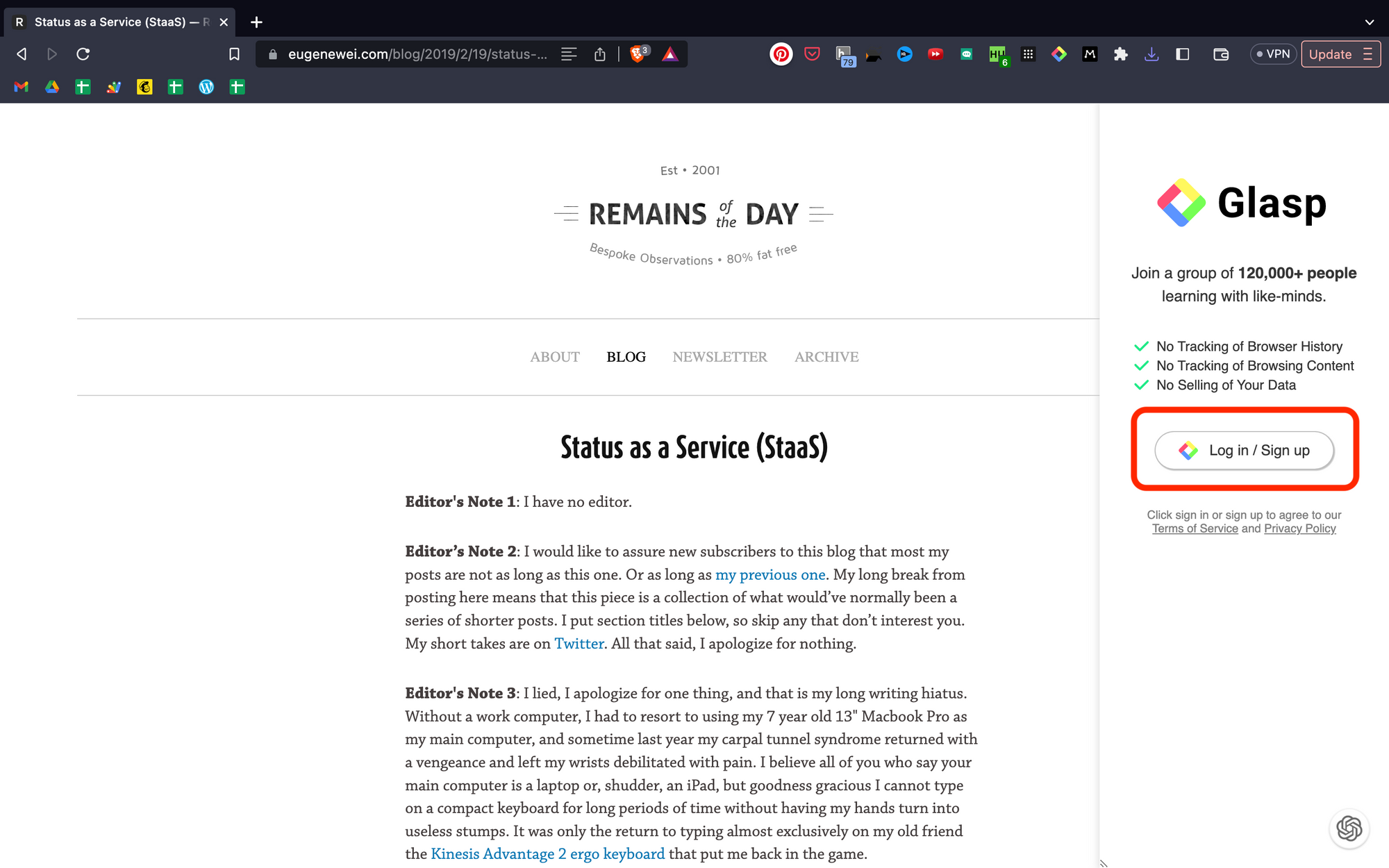
It opens the sidebar, and you can see Log in / Sign up, so please click it. You can sign up with either Google or Apple.
Step 7: Highlight the article (Optional)
After you successfully create a Glasp account, please try to select sentences on the article.
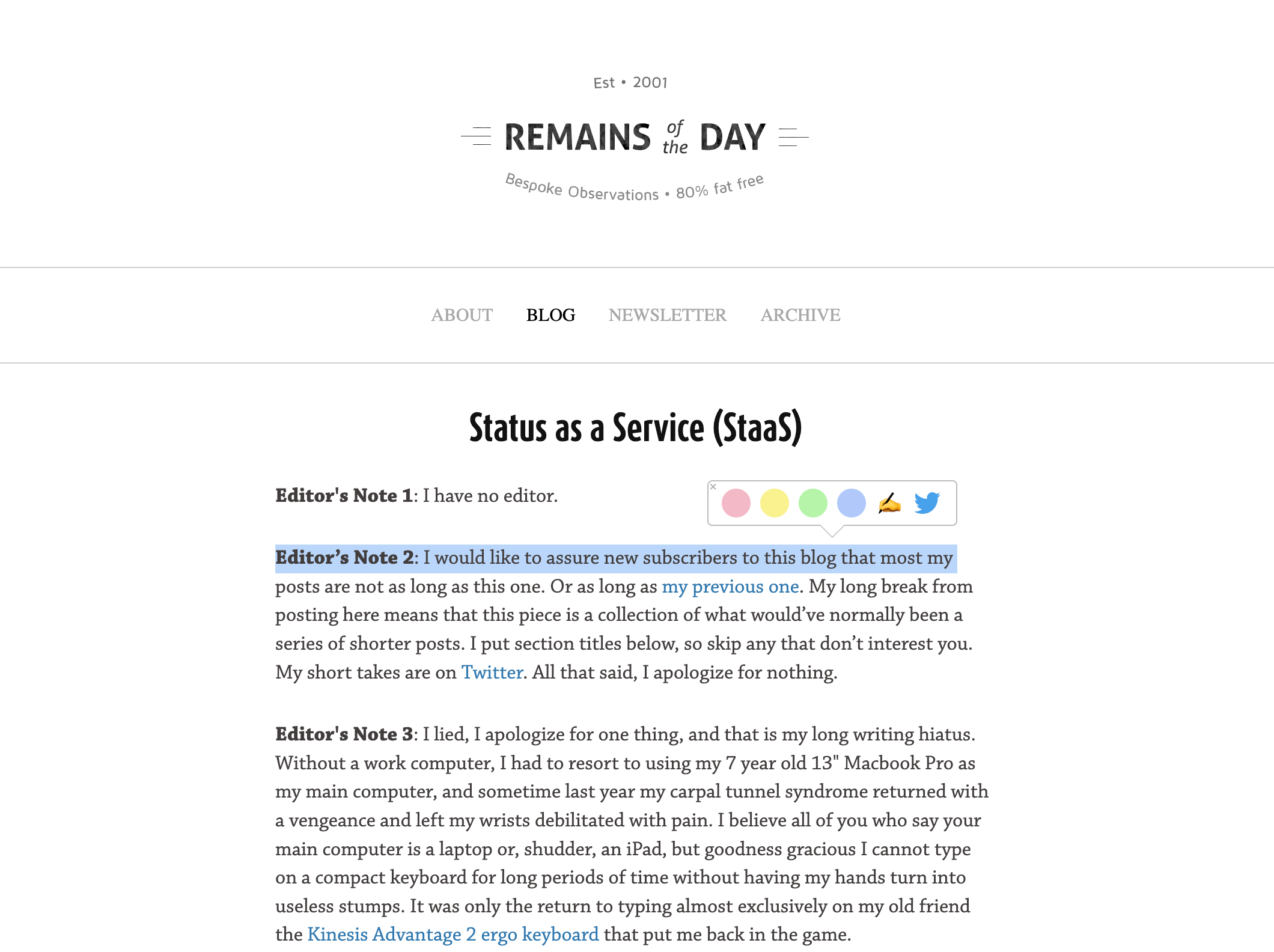
After highlighting sentences, please open the sidebar by clicking the Glasp icon on the toolbar. It shows all of your highlights.
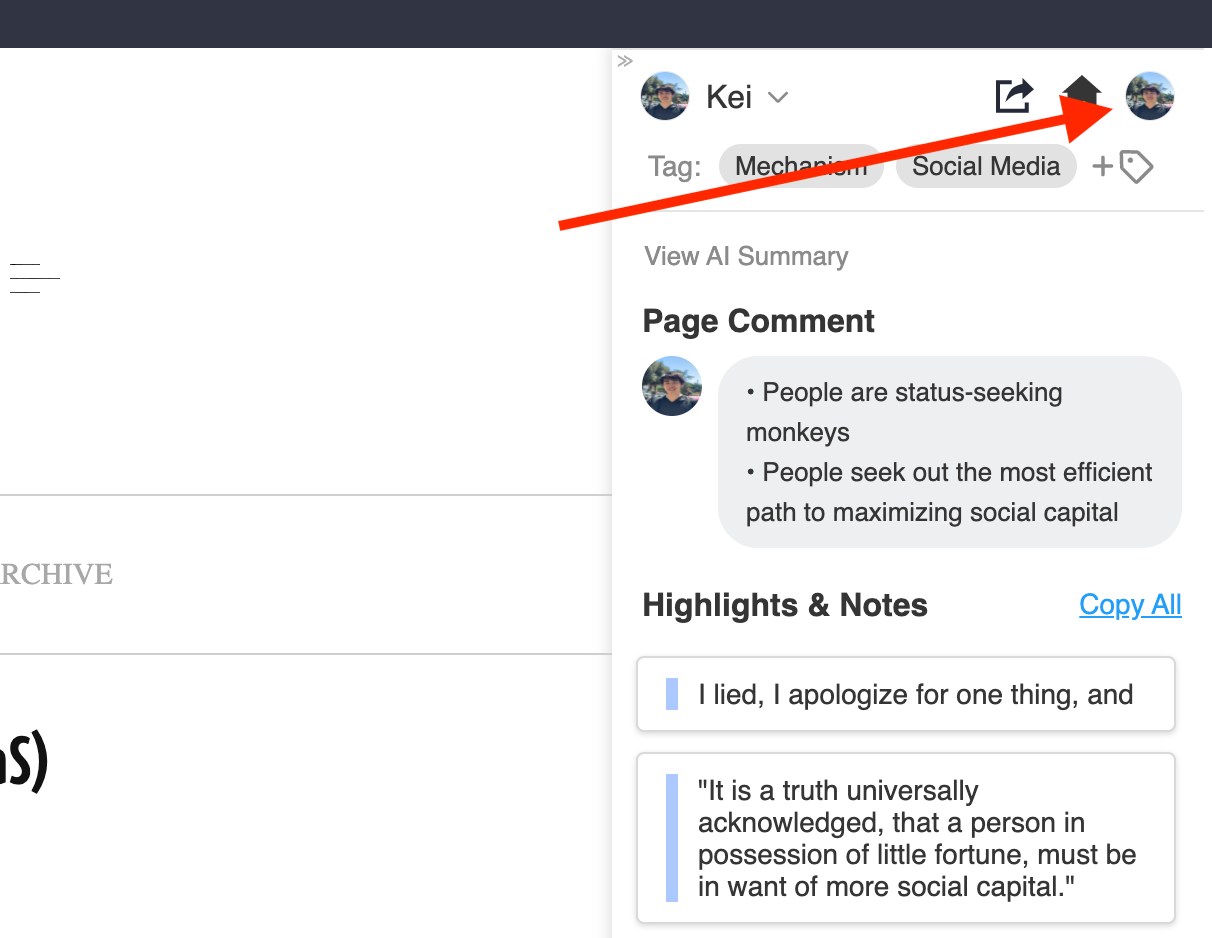
And by clicking your profile icon at the top right, you can go to your profile page.
Step 8: See your article highlights (Optional)
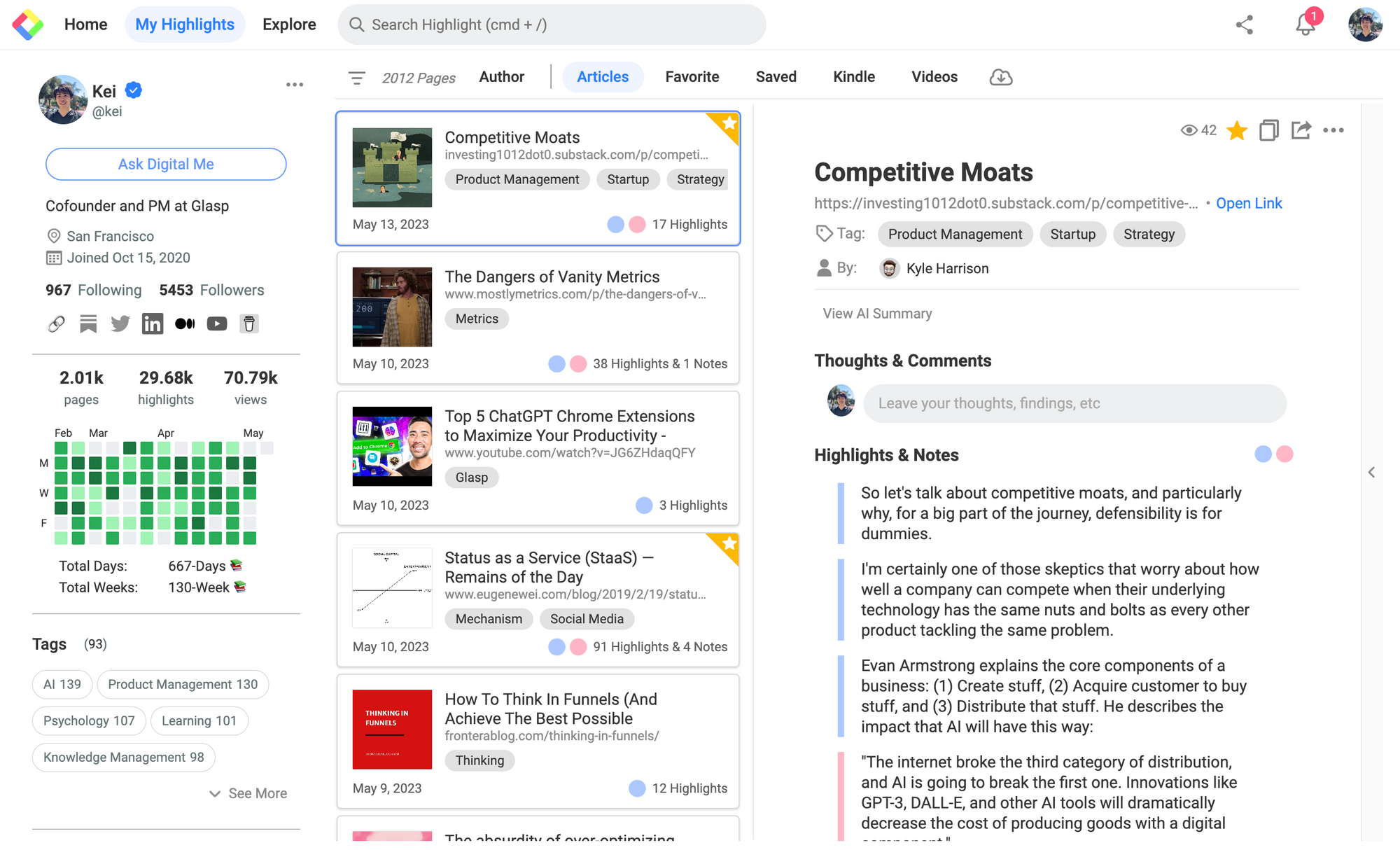
This is your profile page. On this page, you can see your highlights and notes. As you can see in the picture above, you can see highlights from the article.
If you want to share your highlights & notes, you can just copy the link to Glasp (this page). The recipient of the link can open this page and see your highlights.
Step 9: Hide the Summary Icon from the web (Optional)
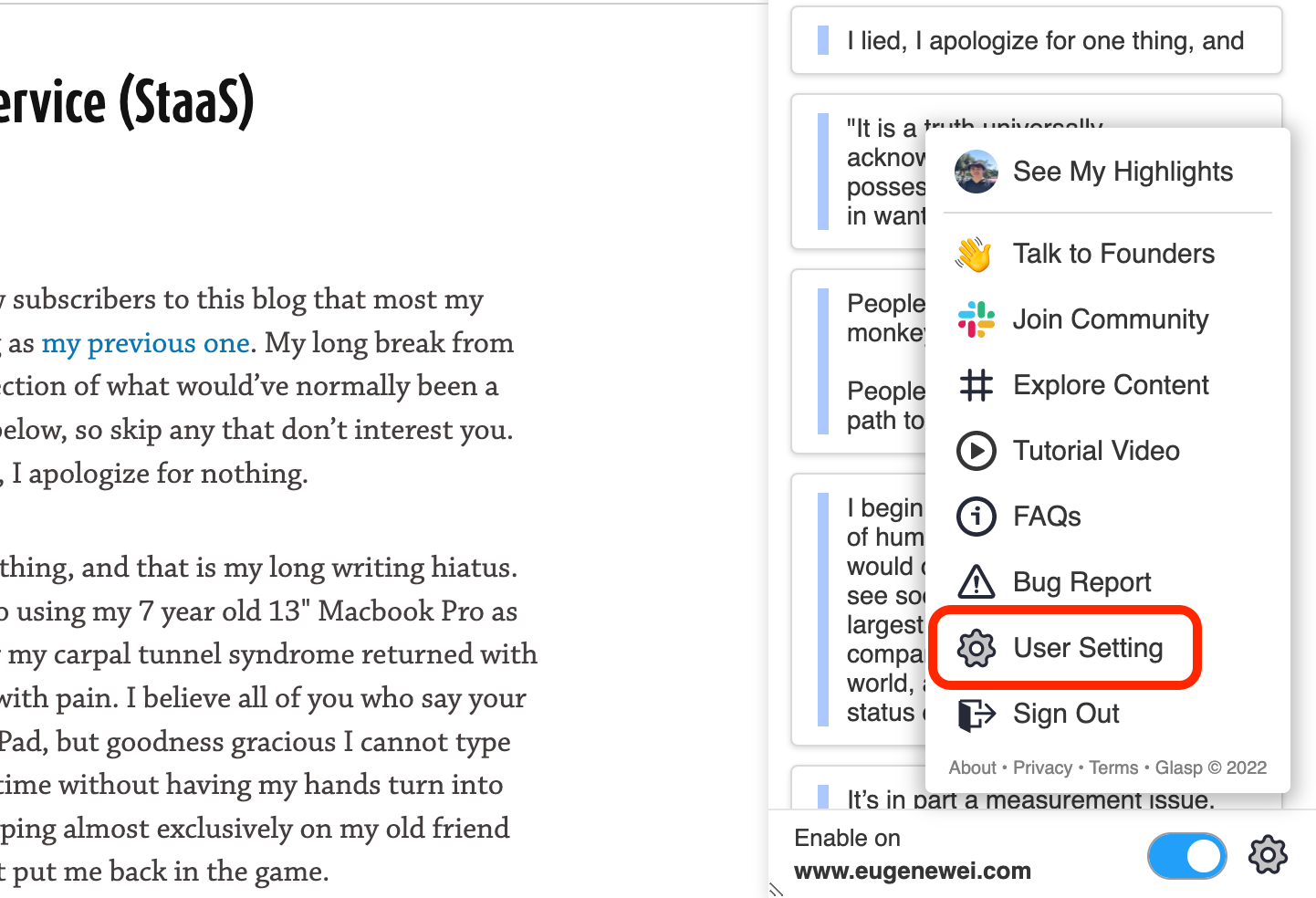
If you don't like to see the summary icon on the web, you can hide it. To do that, please go to the Settings page by clicking the Setting icon at the bottom right on the sidebar.
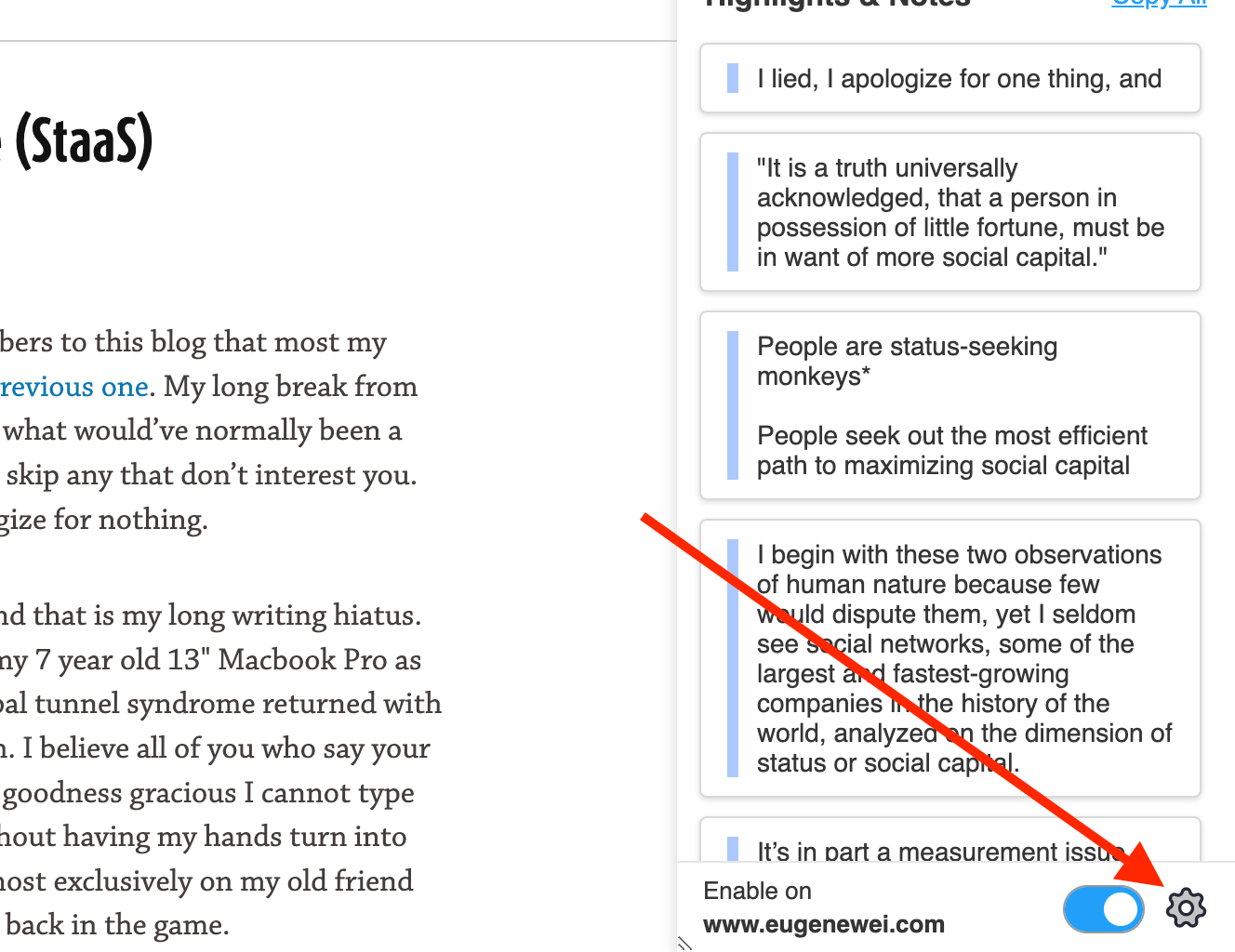
You can see User Setting, please click it.
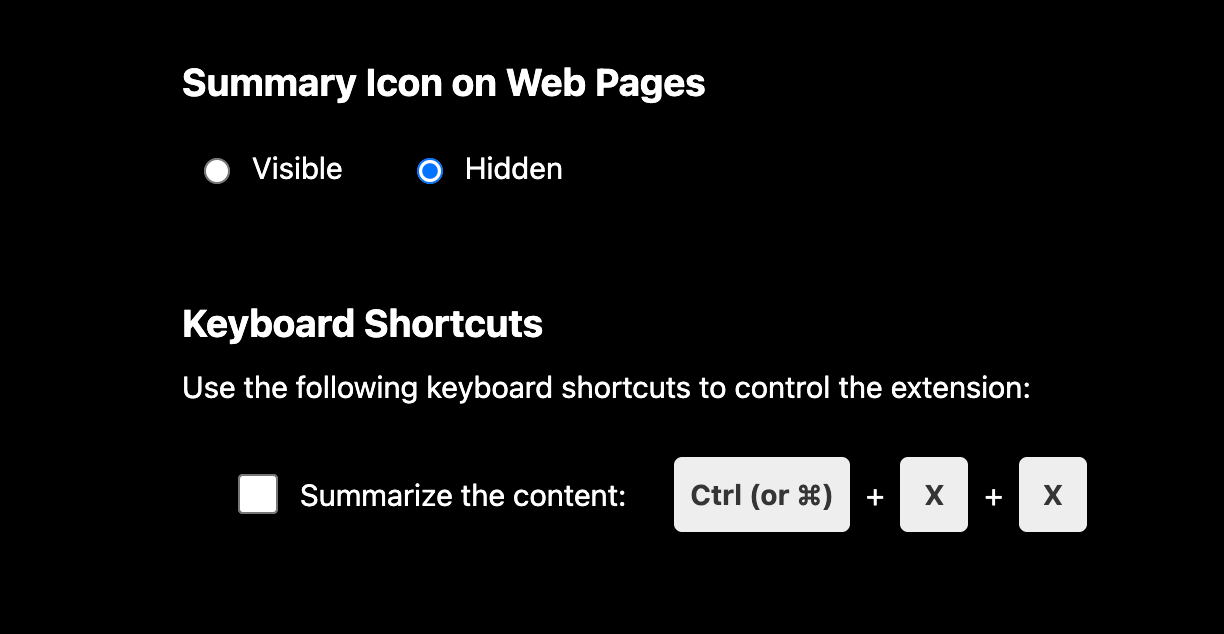
On the Settings page, please scroll down to the Summary Icon in Web Pages section. You can see Visible and Hidden. To hide the icon, please choose Hidden.
Step 10: Set up a keyboard shortcut for the article summary
If you'd like to summarize the article through a keyboard shortcut. You can set it up. Below the Summary Icon in Web Pages section, you can see Keyboard Shortcuts. Click the check box to use the shortcut.
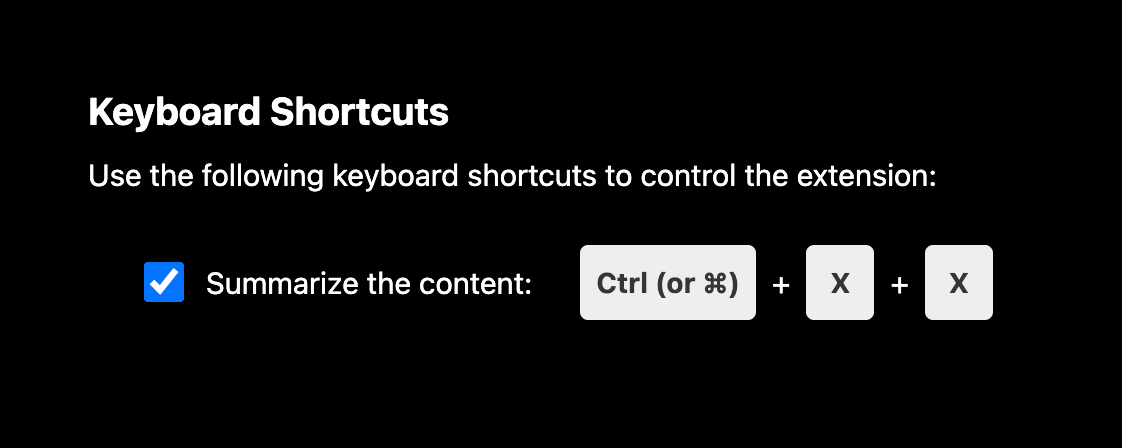
To use the shortcut, you can click Ctrl (or Command) + X twice.
FAQs
Q. Do I need a Glasp account to see article summaries?
No. You can use the article summary feature without creating a Glasp account. However, if you want to save highlights and notes, you’ll need to sign up for a free account.
Q. Does Glasp summarize articles on all browsers?
The one-click summary feature works on Chrome, Safari, Brave, Edge, and Opera.
Q. Why can’t I see the summary icon on some web pages?
Some sites may block third-party extensions. If the icon doesn’t appear, try refreshing the page or check your Glasp settings to make sure the Summary Icon in Web Pages is set to Visible.
Q. Do I need a ChatGPT account for article summaries?
Yes. The summary feature uses ChatGPT. If you don’t have an account, you’ll be asked to sign up (free). If you already have one, simply log in.
Q. Can I hide the summary icon if I don’t want to see it?
Yes. In Glasp settings, scroll down to Summary Icon in Web Pages and switch from Visible to Hidden.
Q. Can I use a keyboard shortcut instead of clicking the icon?
Yes. You can enable the shortcut in settings. Use Ctrl (or Command) + X twice to trigger the article summary.
Q. Can I highlight or save parts of the article after summarizing?
Yes. Once you create a Glasp account, you can highlight text, take notes, and save them on your profile page.
Q. Is this feature free?
Yes. The article summary feature is free to use with the Glasp Chrome extension.
Before you leave
If you have any questions, please refer to the FAQ or contact us.
👉 FAQs
👉 X
See you next time,
Glasp team