How to Import Highlights from Matter to Glasp

Jul 25, 2026
3 min read
12 views
Do you read and highlight with Matter? With Glasp's new Matter import integration, you can bring your Matter highlights into Glasp with just an API token. There's no file export needed, and your highlights join everything else you've saved on Glasp, ready to be searched, tagged, and exported to your note-taking apps.
In this tutorial, you'll learn step by step how to connect Matter to Glasp and import your highlights. One thing to know before you start: generating a Matter API token requires a paid Matter plan.
If you haven't signed up for Glasp or installed the Glasp browser extension, please do so. You can refer to this tutorial.
Step 1: Open the Matter card
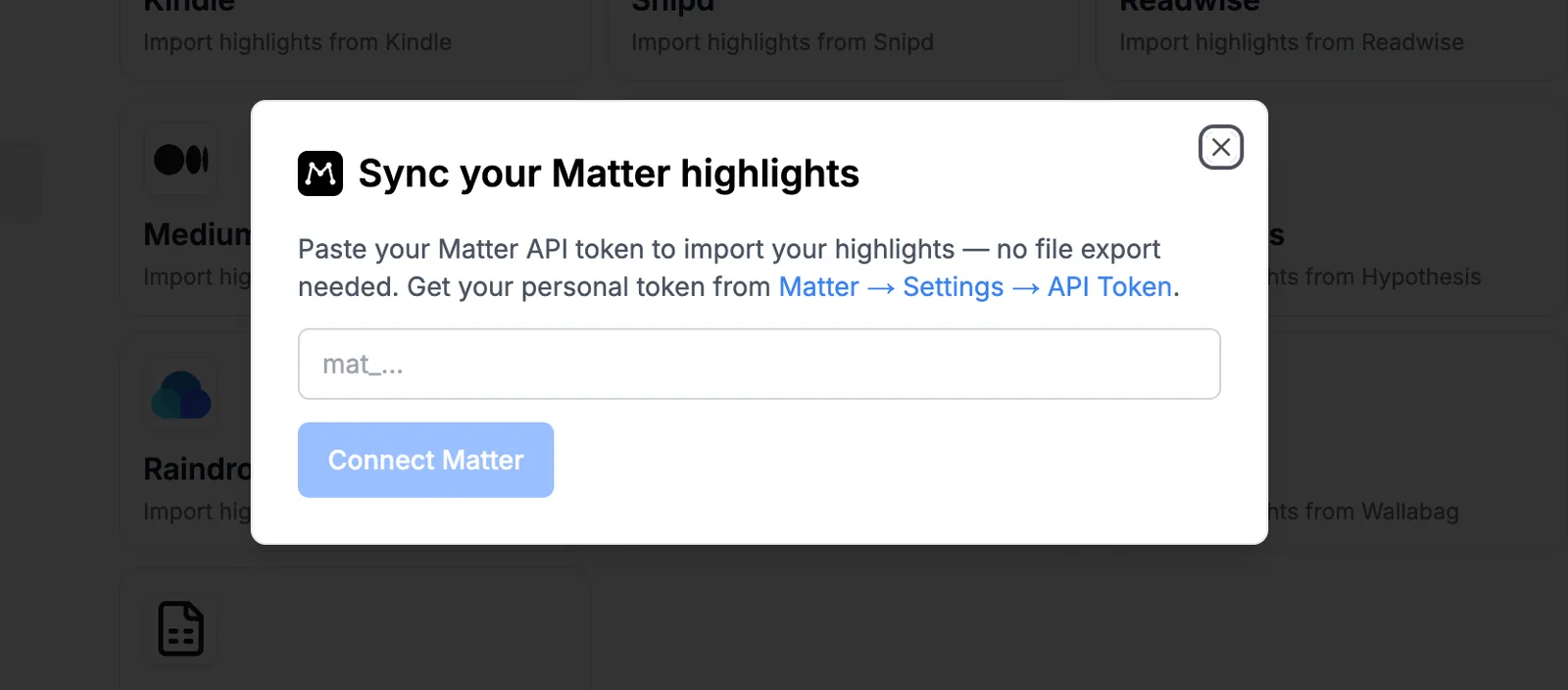
Go to the Settings page on Glasp and click Integrations in the left sidebar. In the Import tab, find Matter and click it. It opens the Sync your Matter highlights modal.
Step 2: Get your Matter API token
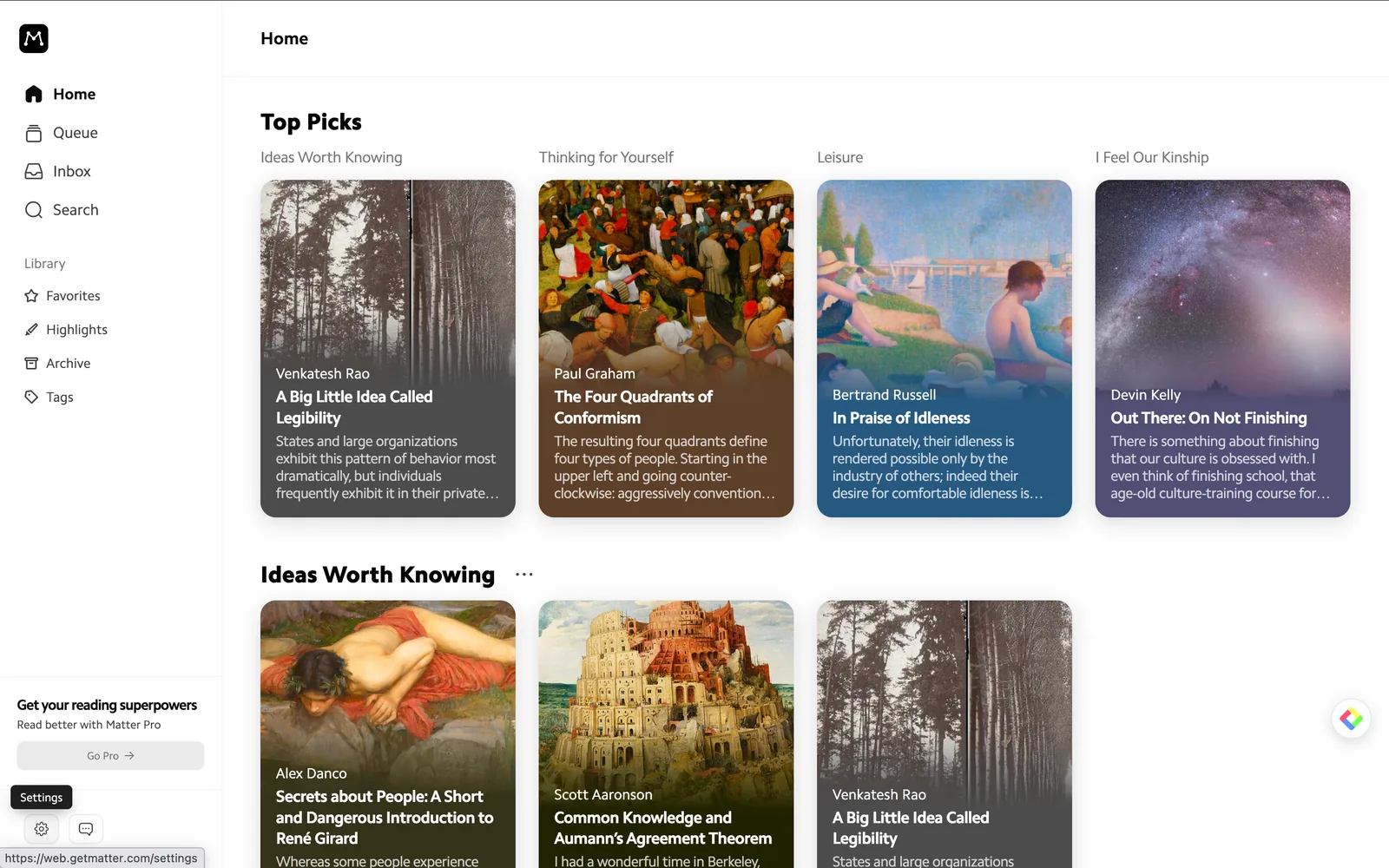
Open the Matter web app and click the Settings gear at the bottom left.
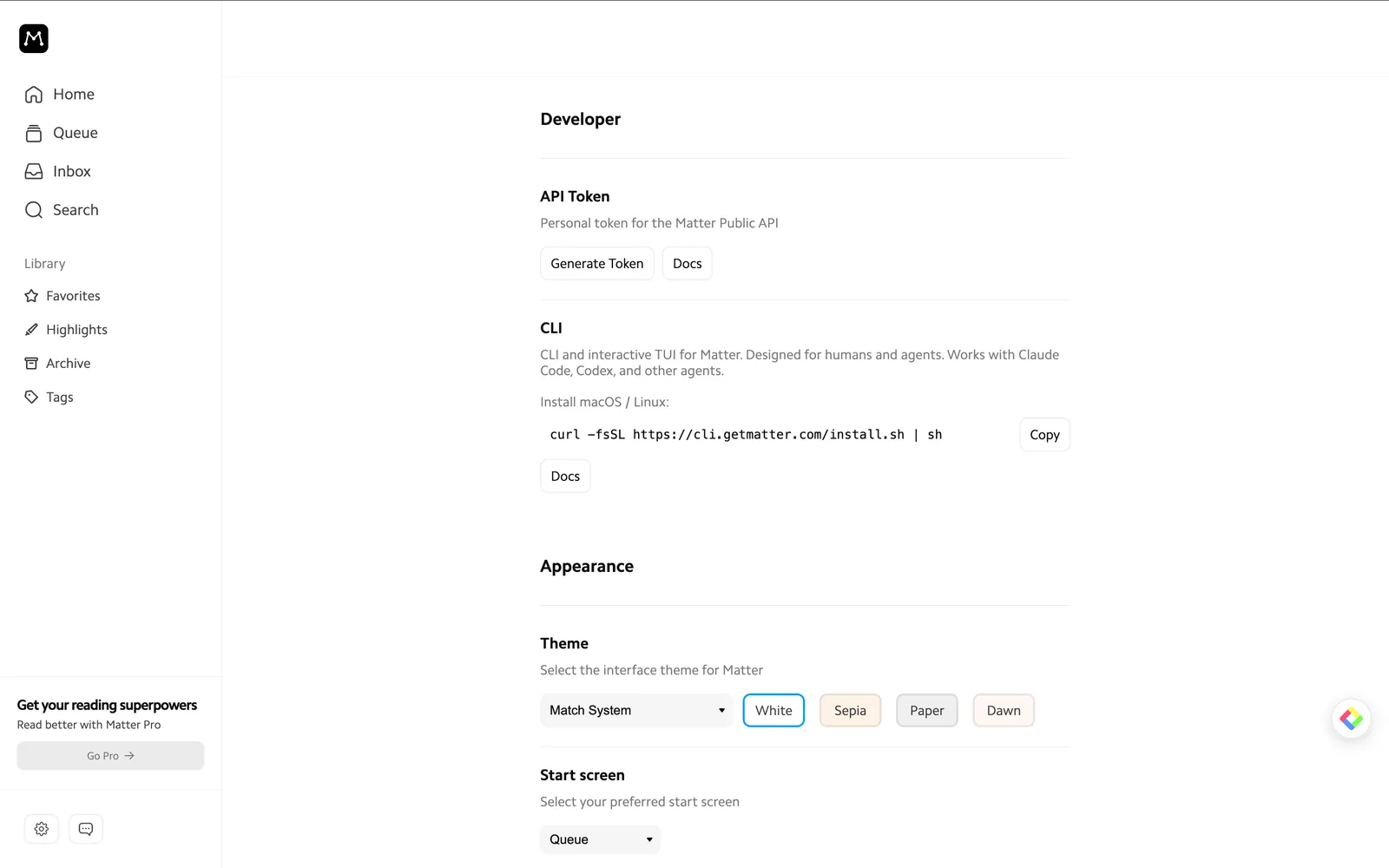
On the Settings page, scroll to the Developer section and find API Token. Click Generate Token and copy the token. It starts with mat_. Please don't share the token anywhere.
Please note that the Matter API token is available on a paid Matter plan. If you don't see the option, you may need to upgrade in Matter first.
Step 3: Paste the token and connect
Back in the Glasp modal, paste the token and click Connect Matter. That's it. Glasp starts importing your Matter highlights, with no file export needed.
It's easy and useful, right? With the Matter integration, the highlights from your Matter reading flow into Glasp, so everything you've learned lives in one place.
FAQs
Q. Do I need a paid Matter plan to use this integration?
Yes. Generating a Matter API token requires a paid Matter plan. The Glasp side is free.
Q. Where do I find my Matter API token?
In the Matter web app, click the Settings gear at the bottom left, scroll to the Developer section, and click Generate Token under API Token. The token starts with mat_.
Q. Do I need to export a file from Matter?
No. The integration imports your highlights directly through Matter's API, so there's no file export or upload involved.
Q. How do I re-sync new highlights from Matter?
Open the Matter card in Settings → Integrations and sync again. Your new highlights are imported without creating duplicates.
Q. How do I disconnect Matter from Glasp?
Open the Matter card in Settings → Integrations anytime to manage or disconnect the integration.
Q. Can Claude or ChatGPT read my Glasp highlights?
Yes. With the Glasp MCP Connector, AI assistants such as Claude, ChatGPT, and Claude Code can search and read your own highlights, notes, Kindle highlights, and AI summaries, including your YouTube summaries. The connection is read-only and private to you. See How to Connect Glasp to Claude, ChatGPT, and Claude Code (MCP Connector).
Q. Can I use Glasp on my phone?
Yes. Glasp has native apps for iPhone, iPad, and Android, and the Glasp Safari extension for iPhone and iPad comes with the iOS app. Your highlights sync between the apps, the web, and the desktop extension. See How to Use the Glasp Mobile App on iOS, iPad, and Android.
Before you leave
If you have any questions, please refer to the FAQ or contact us.
👉 FAQs
👉 X
See you next time,
Glasp team