How to Import Highlights from Instapaper to Glasp

Sep 21, 2025
4 min read
52 views

If you’ve been using Instapaper to save and highlight articles, you might be wondering how to keep your notes safe and continue using them in another platform. With Glasp, you can easily import your Instapaper highlights and notes in just a few clicks — making it easier to organize, revisit, and share your learnings.
This tutorial will walk you step by step through importing Instapaper highlights into Glasp.
If you haven't signed up for Glasp or installed the Glasp browser extension, please do so. You can refer to this tutorial.
How to Import Highlights from Instapaper to Glasp (YouTube)
Step 1: Go to the Integrations page
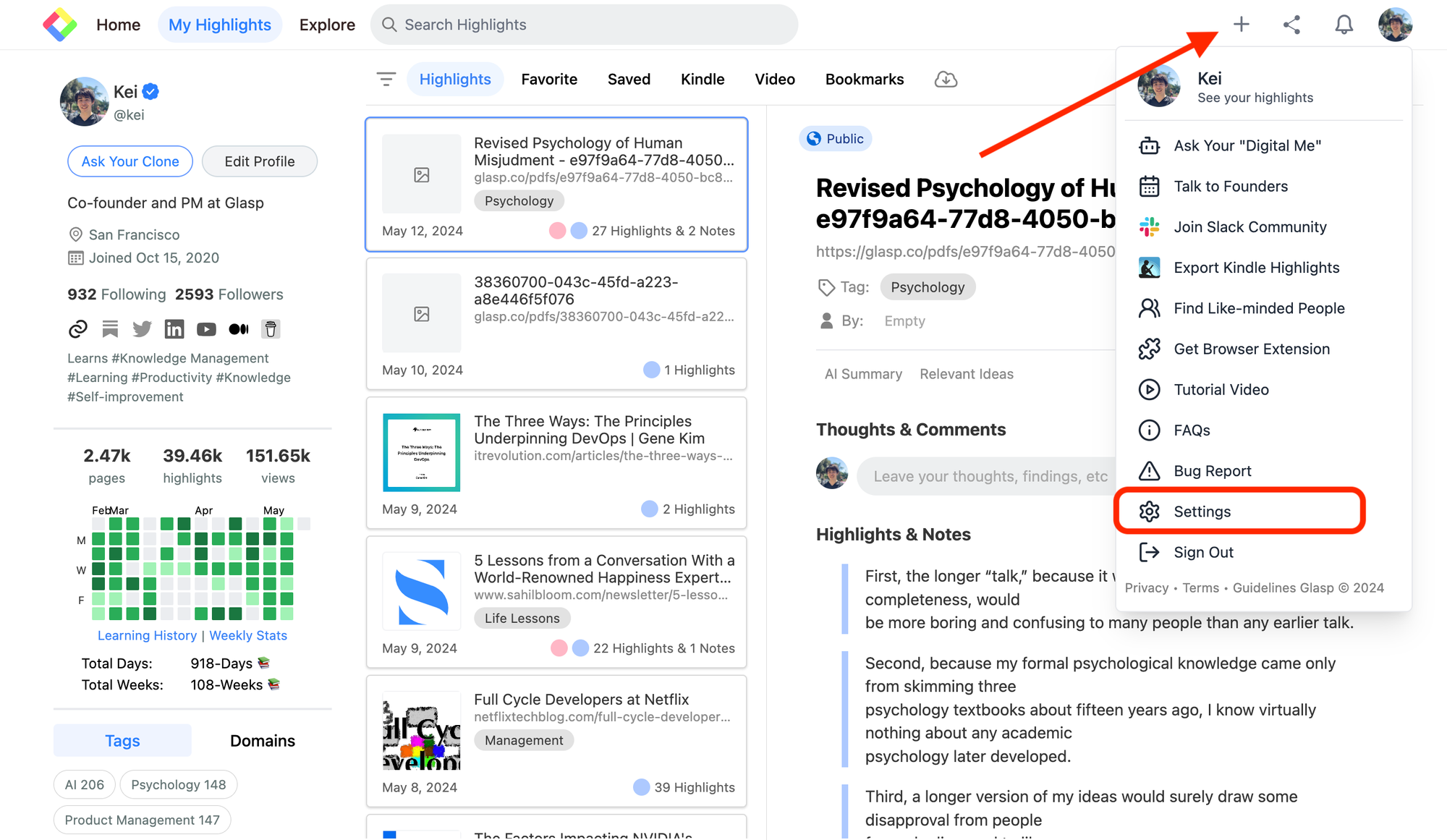
Please click your profile icon at the top right on the Home page or your profile page. It shows a modal, so click Settings to go to the Settings page.
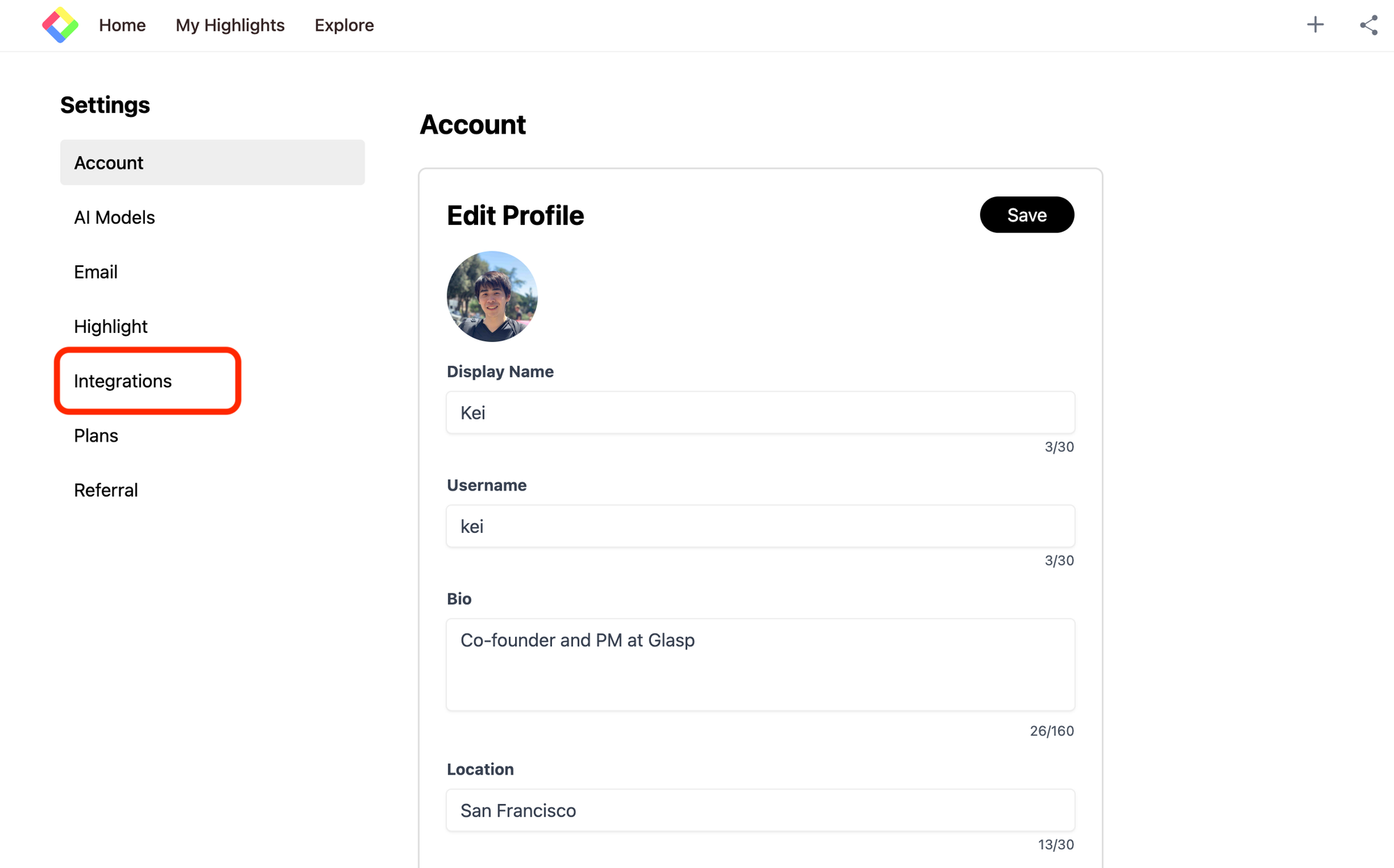
On the Settings page, click Integrations on the left.
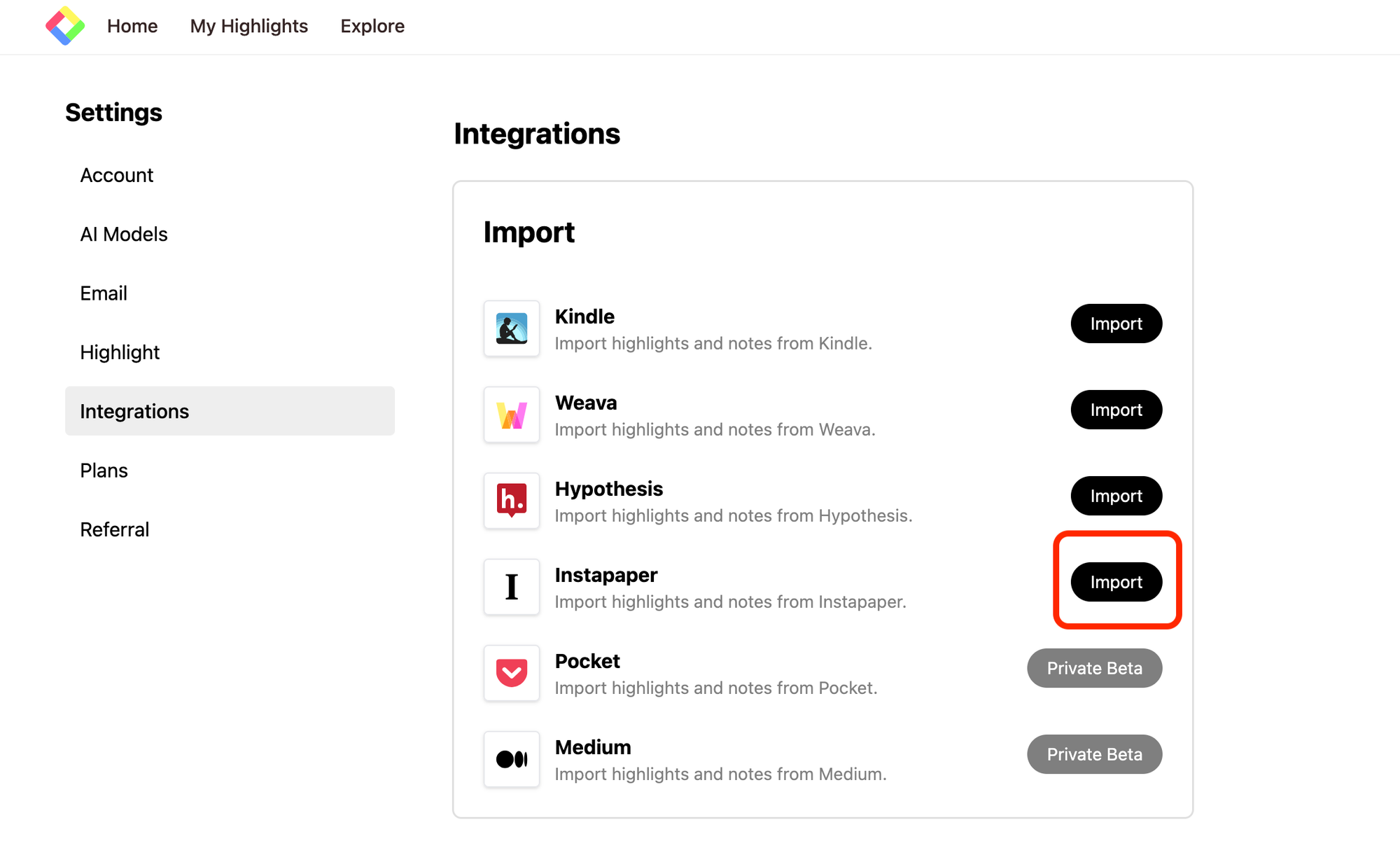
Then, click Import on the Instapaper section.
Step 2: Sign in and import highlights from Instapaper
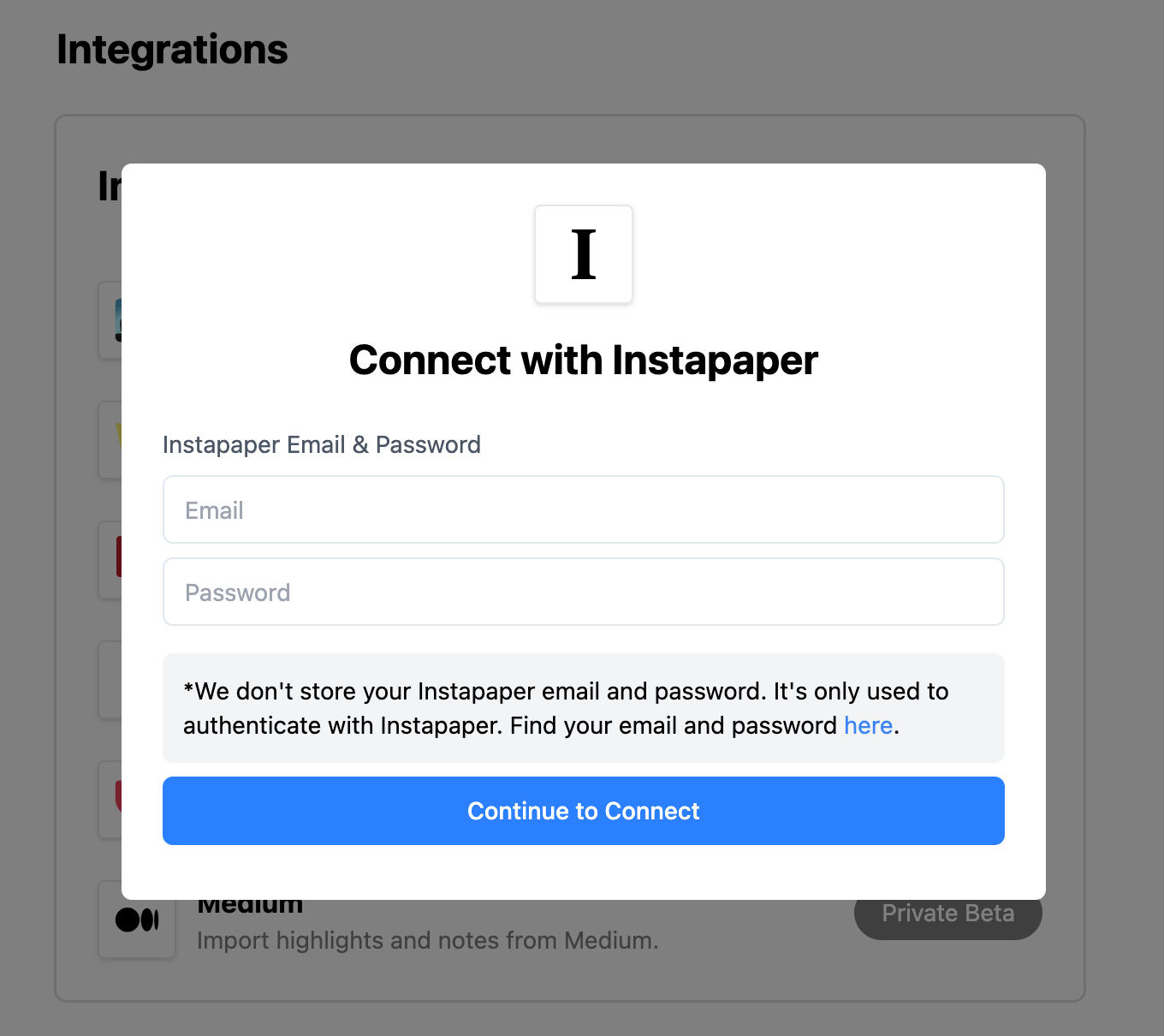
It opens a modal to sign in to Instapaper. Please sign in to connect Glasp to Instapaper. As it says, we don't store your Instapaper email and password. It's only used to authenticate with Instapaper.
When you click the Continue to Connect button on the modal, it starts importing highlights (notes) from Instapaper to Glasp.
Step 3: Check the imported highlights
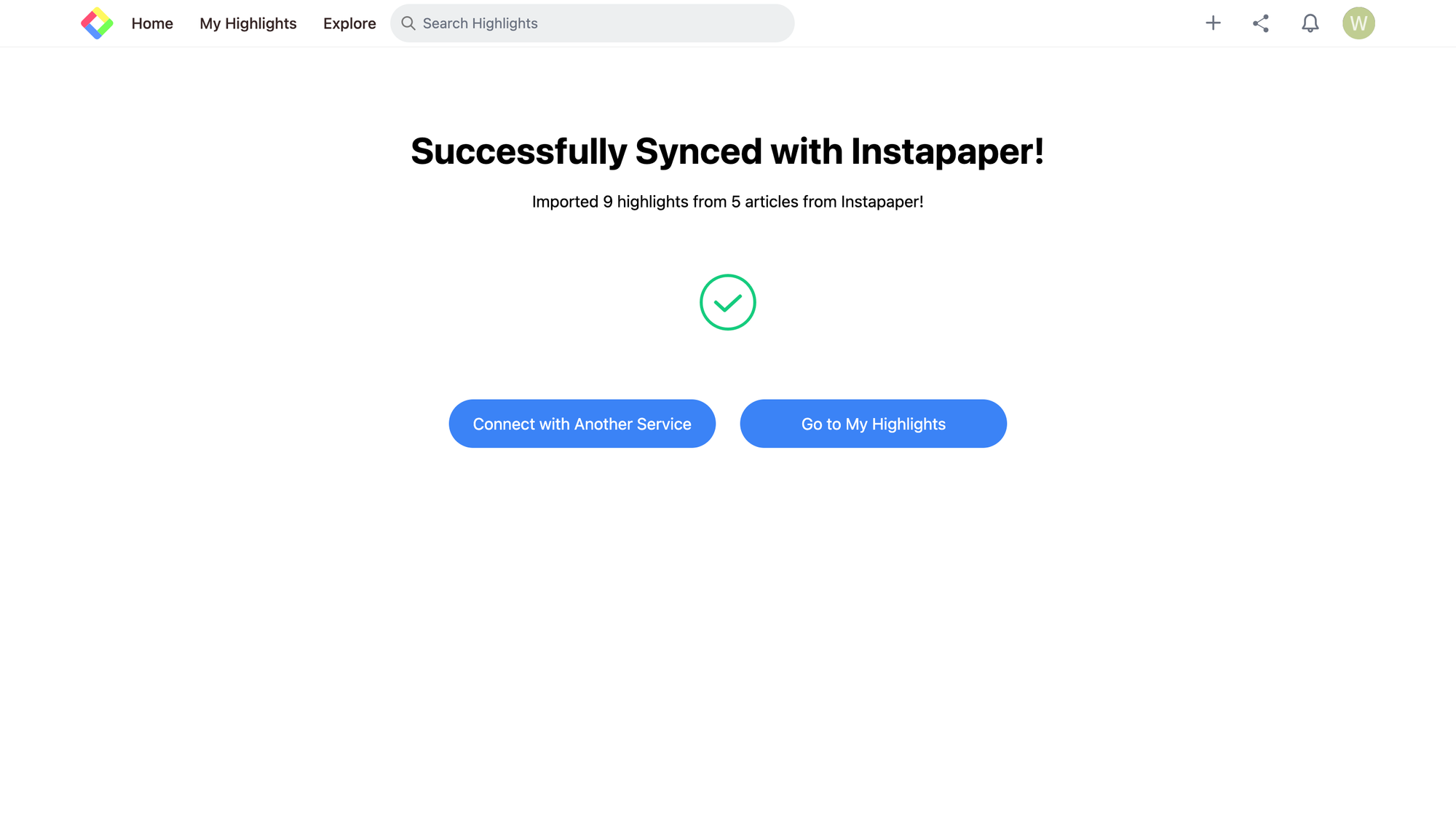
Once highlights are imported, the page turns into the next page. If you want to check the imported highlights, please click Go to My Highlights.
If you click Connect with Another Service, you can go back to the Integrations page.
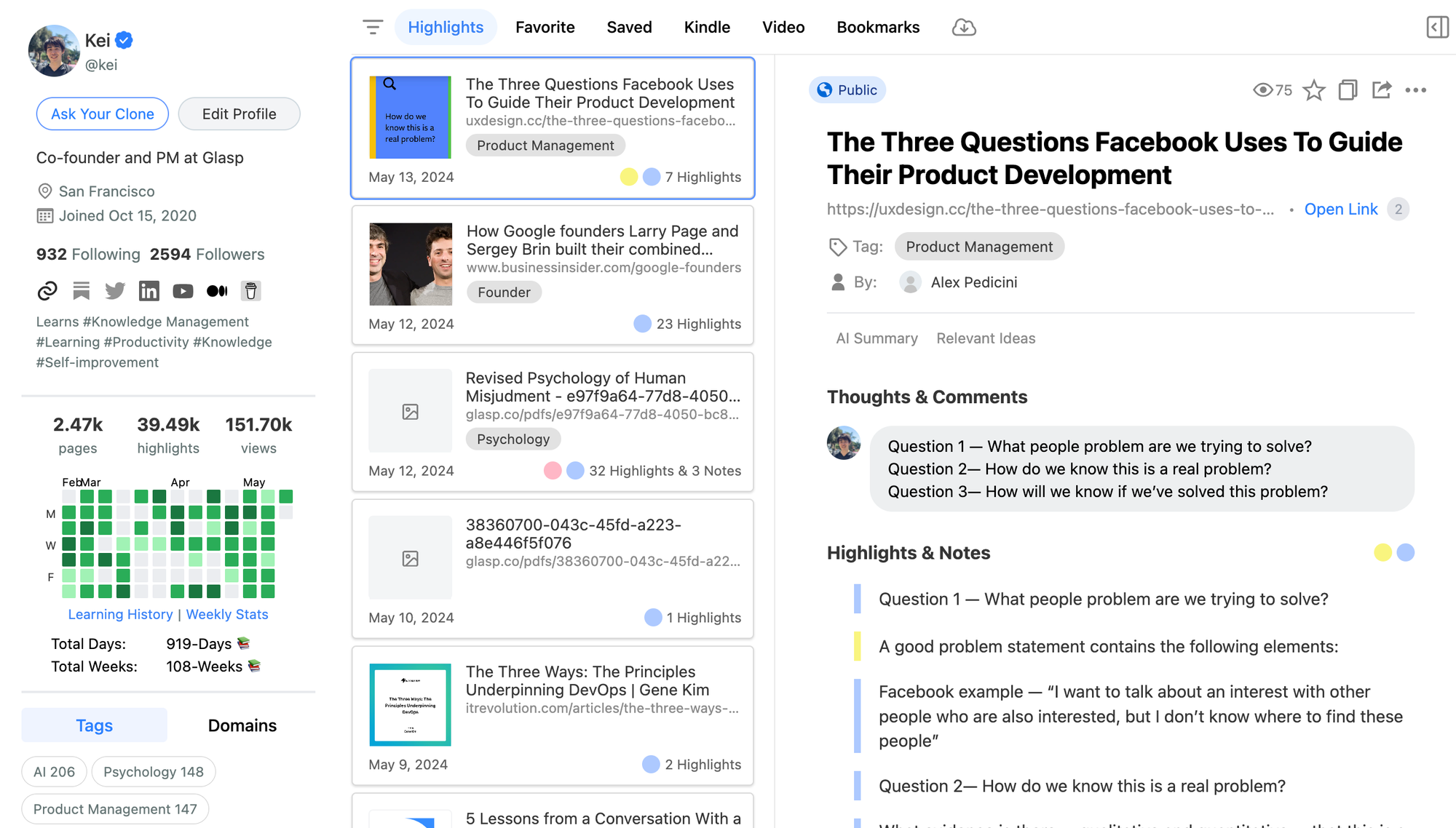
On your profile page, you can see the imported highlights.
Please see that the imported highlights are visible to other people. If you'd like to hide them in a private space, please update to the Pro plan.
The importing feature is not automated, so if you'd like to import highlights from Instapaper to Glasp, sync the highlights manually whenever you want.
(Optional) Step 4: Delete the imported highlights
If you'd like to delete the imported highlights, please go to your profile page. On the page, you can select the imported highlights and click the three dots at the top right.
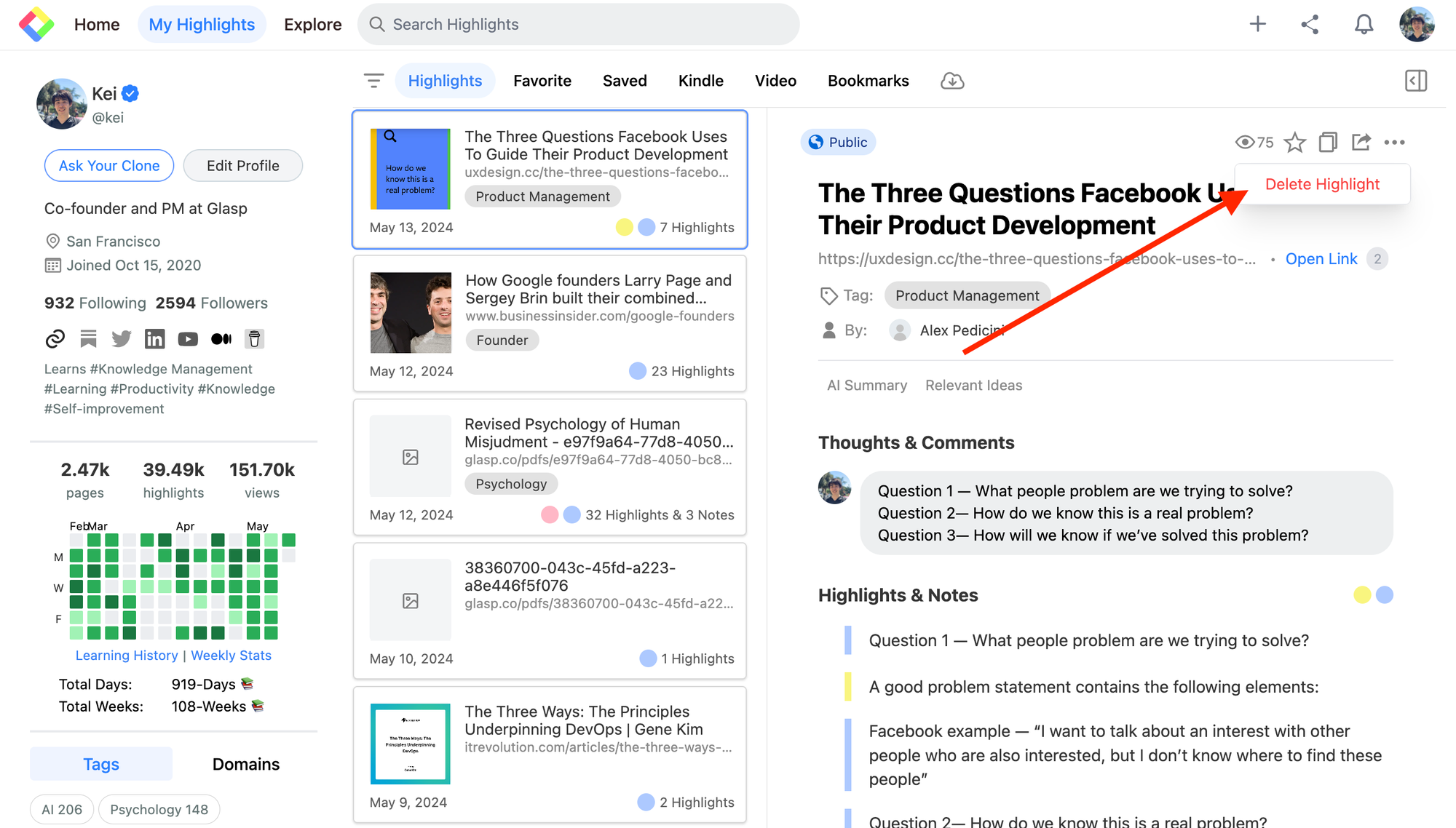
It shows the modal to delete, so please click Delete Highlight.
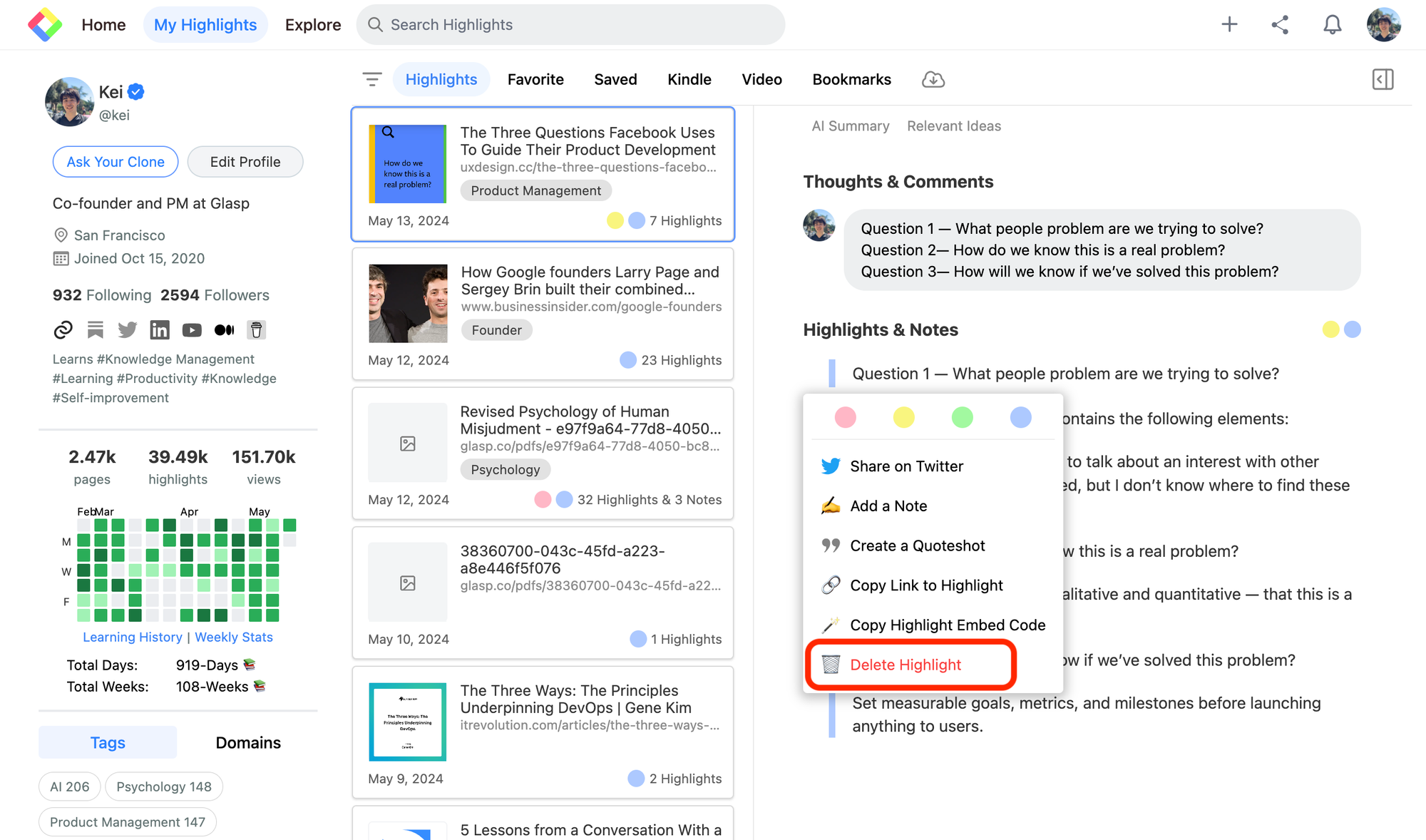
If you'd like to delete only a highlight from the page, click the six dots on the right. It shows the modal containing Delete Highlight, so click it to delete the highlight.
FAQs
Q. Do I need to have a Glasp account to import Instapaper highlights?
Yes. You’ll need to sign up for a free Glasp account and install the browser extension before importing.
Q. Does Glasp store my Instapaper login details?
No. Your Instapaper email and password are never stored. They are used only for authentication.
Q. Are imported Instapaper highlights public or private?
By default, imported highlights are public on your Glasp profile. If you’d like to keep them private, you’ll need to upgrade to Glasp Pro and enable private mode.
Q. Can I automatically sync new Instapaper highlights to Glasp?
No. The integration is manual. You’ll need to click “Sync” each time you want to import new highlights from Instapaper.
Q. What happens if I delete highlights in Glasp — are they also deleted from Instapaper?
No. Deleting highlights in Glasp does not affect your Instapaper account. The two platforms remain independent after import.
Q. Can I delete imported Instapaper highlights from Glasp later?
Yes. You can delete highlights individually or remove entire articles via your profile page.
Q. Is this feature free?
Yes. Importing Instapaper highlights into Glasp is free. Pro is only required if you want private visibility or advanced features.
Q. Can Claude or ChatGPT read my Glasp highlights?
Yes. With the Glasp MCP Connector, AI assistants such as Claude, ChatGPT, and Claude Code can search and read your own highlights, notes, Kindle highlights, and AI summaries, including your YouTube summaries. The connection is read-only and private to you. See How to Connect Glasp to Claude, ChatGPT, and Claude Code (MCP Connector).
Q. Can I use Glasp on my phone?
Yes. Glasp has native apps for iPhone, iPad, and Android, and the Glasp Safari extension for iPhone and iPad comes with the iOS app. Your highlights sync between the apps, the web, and the desktop extension. See How to Use the Glasp Mobile App on iOS, iPad, and Android.
Before you leave
If you have any questions, please refer to the FAQ or contact us.
See you next time,
Glasp team