How to Generate Quote Shots from Webpages Using Glasp

Sep 21, 2025
3 min read
63 views
Want to turn your favorite highlights into beautiful quote images you can share on X, Instagram, LinkedIn, or anywhere else? With Glasp’s quoteshot feature, you can instantly create elegant, customizable quote images directly from web pages — no need for Canva or Photoshop.
In this tutorial, we’ll walk you through how to generate quoteshots step by step.
If you haven't signed up for Glasp or installed the Glasp browser extension, please do so. You can refer to this tutorial.
Generate Beautiful Quoteshots from Webpages with Glasp (YouTube)
Step 1: Open a Web Page
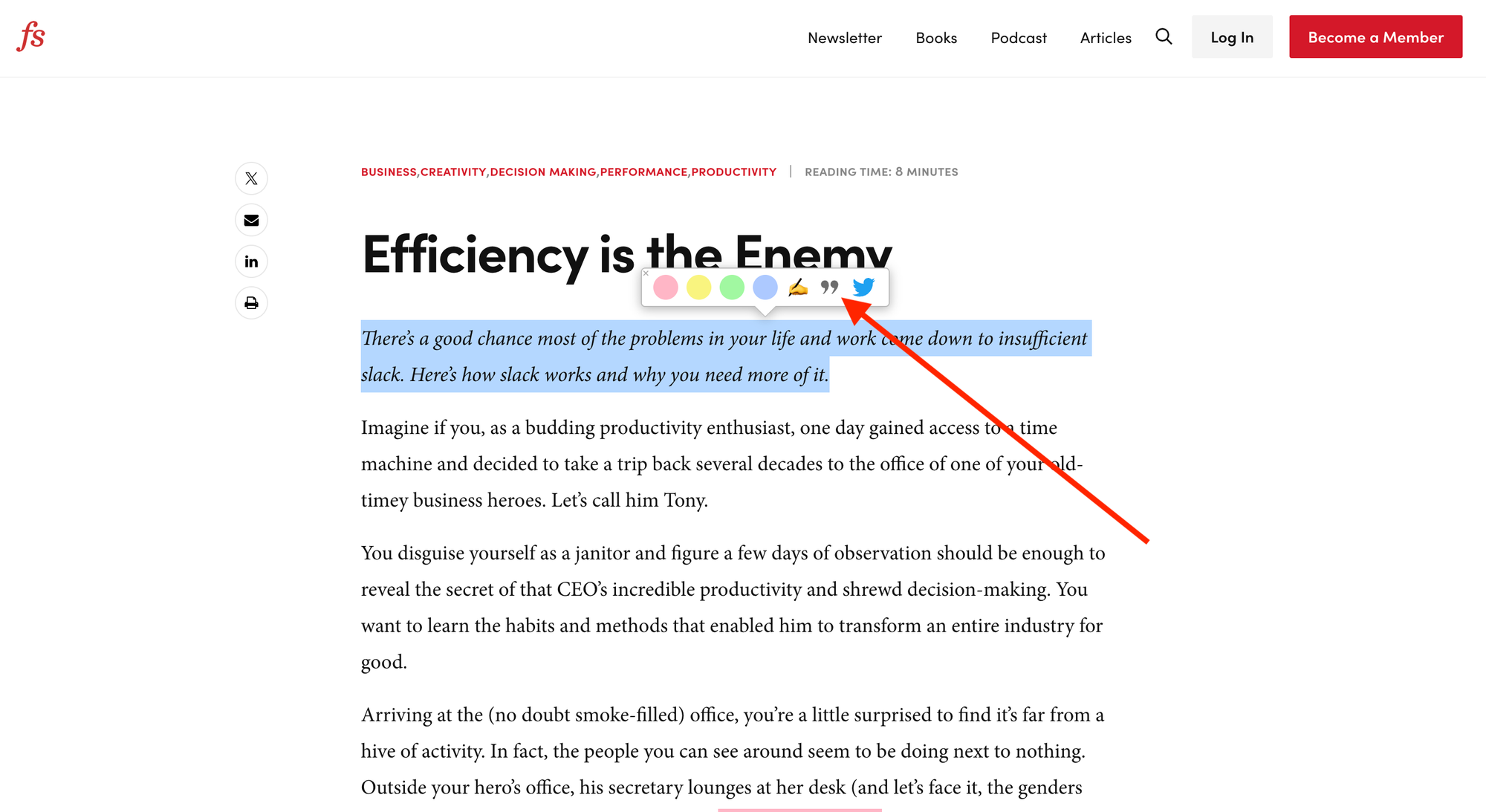
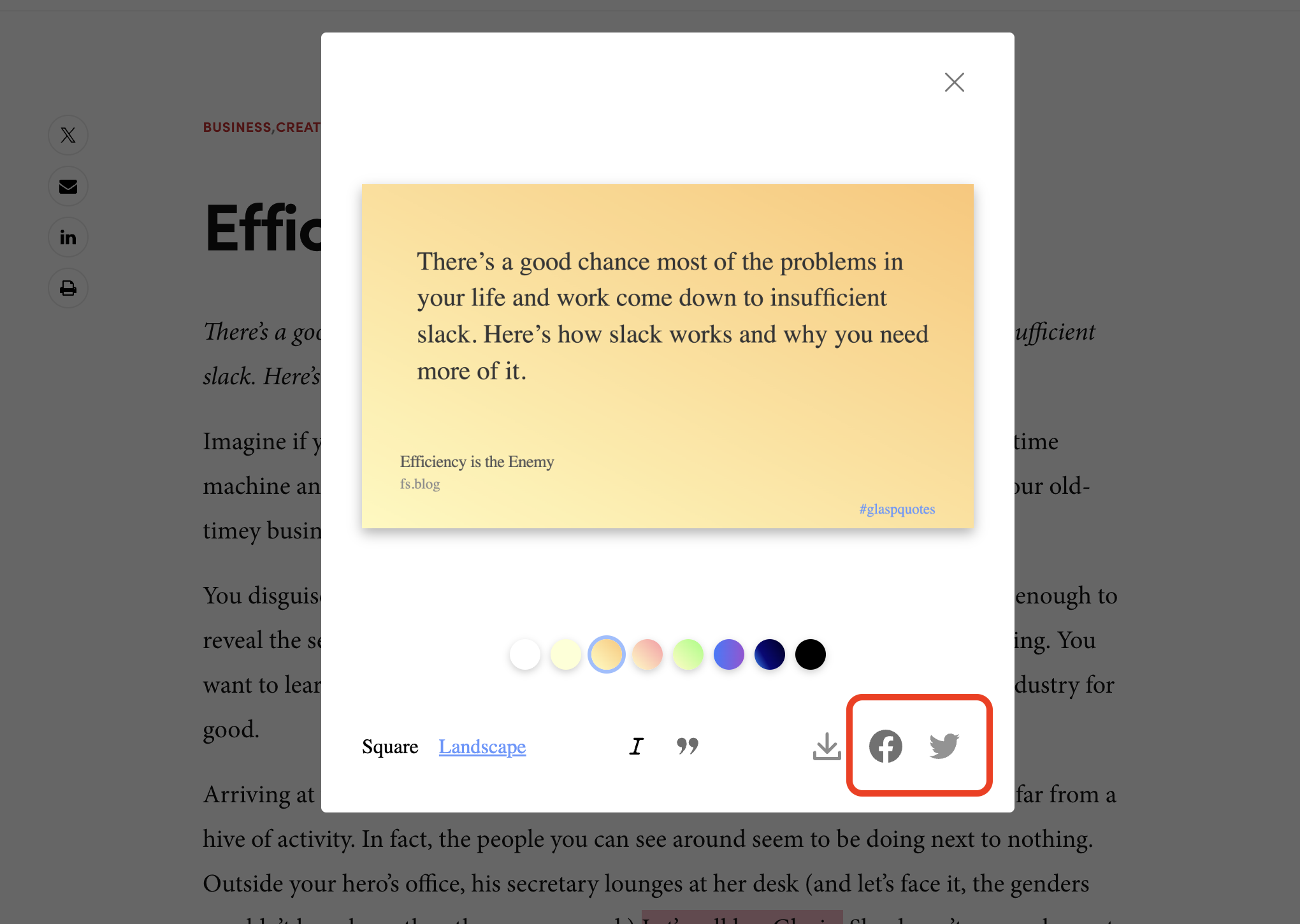
Open any page that contains a sentence you want to make a quote shot. Then, select a sentence you want to make a quote shot. You can see a quote sign on the popup, so please click it.
It shows a modal to customize the quote shot.
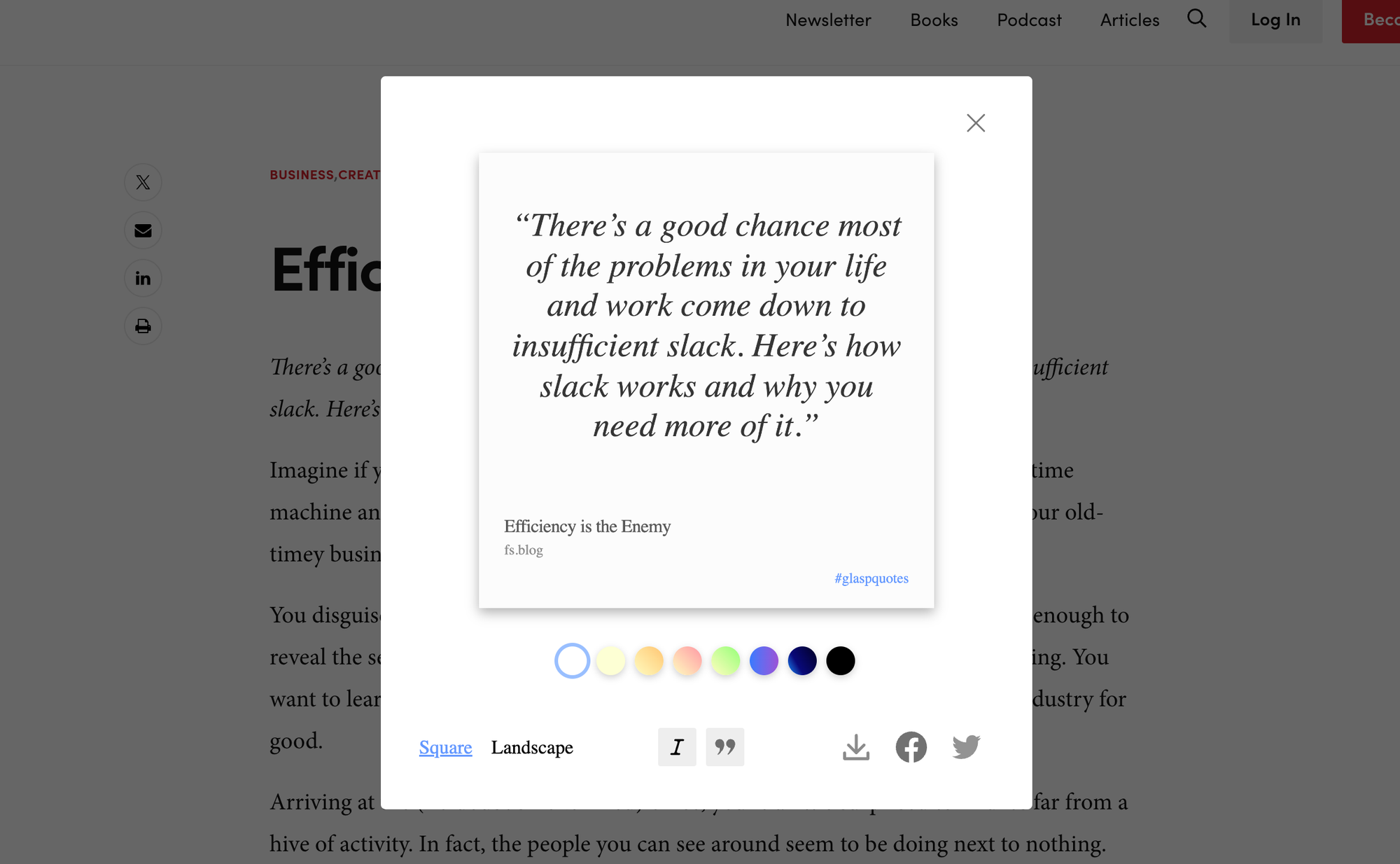
There are four options you can customize;
Shape: Square or Landscape
Font: Italic or Regular
Background Color: White, Yellow, Orange, Pink, Green, Blue, Dark blue, and Black
Quotation Marks: With quotation marks or without quotation marks
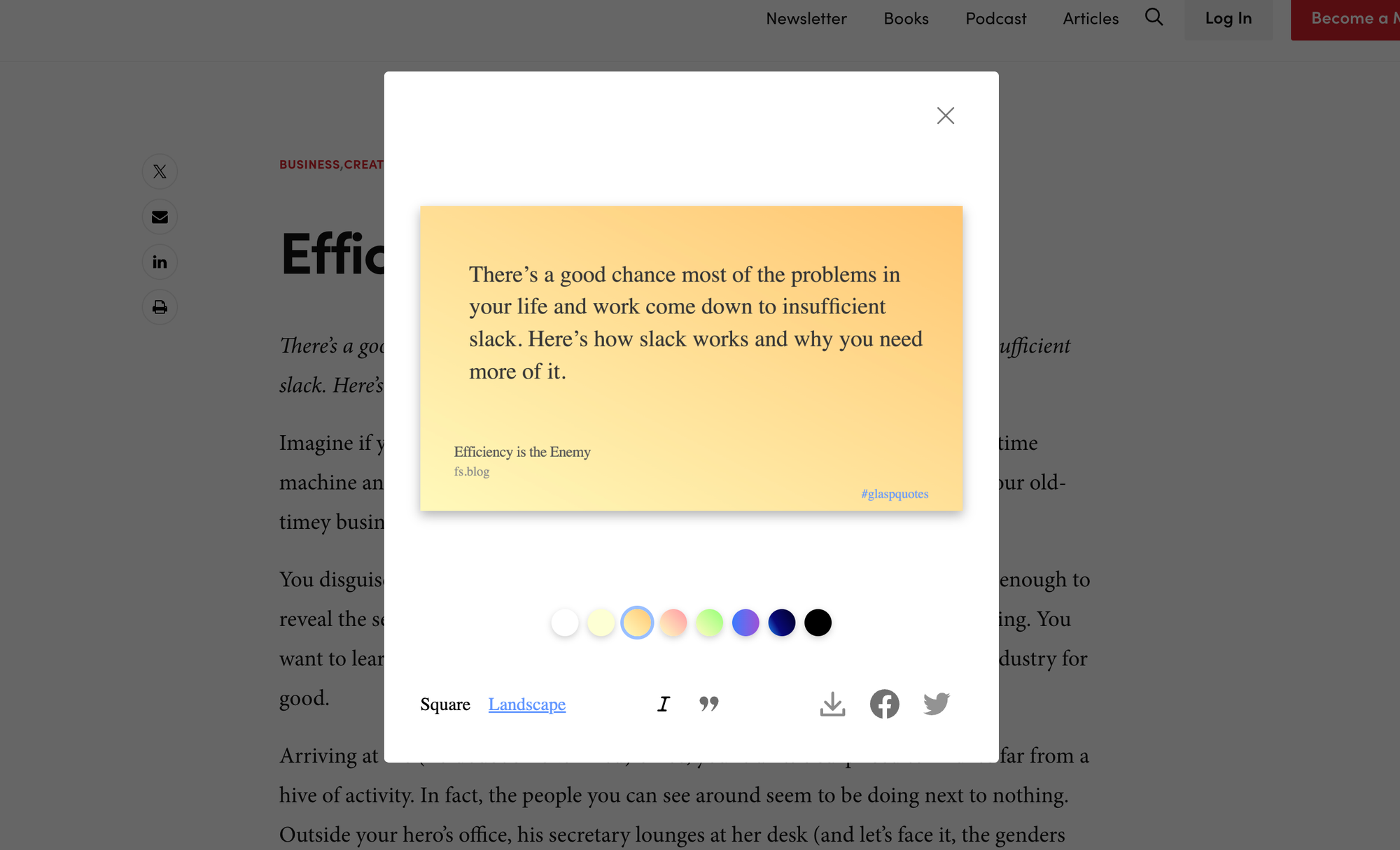
For example, if you choose landscape, regular, orange, and without quotation marks, it appears below.
Step 2: Get a Quote Image
After you customize the quote shot, get an image. You can copy or save the image.
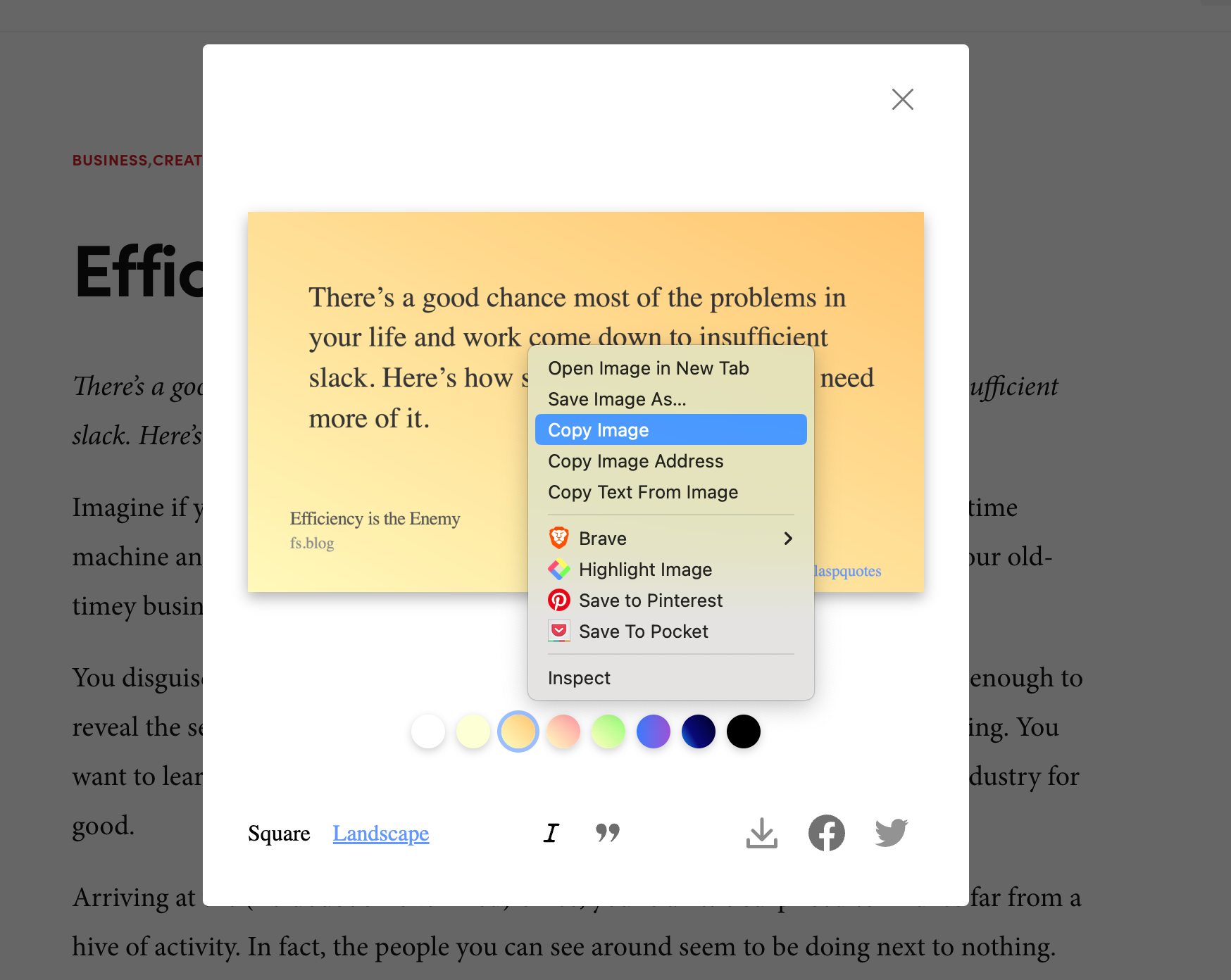
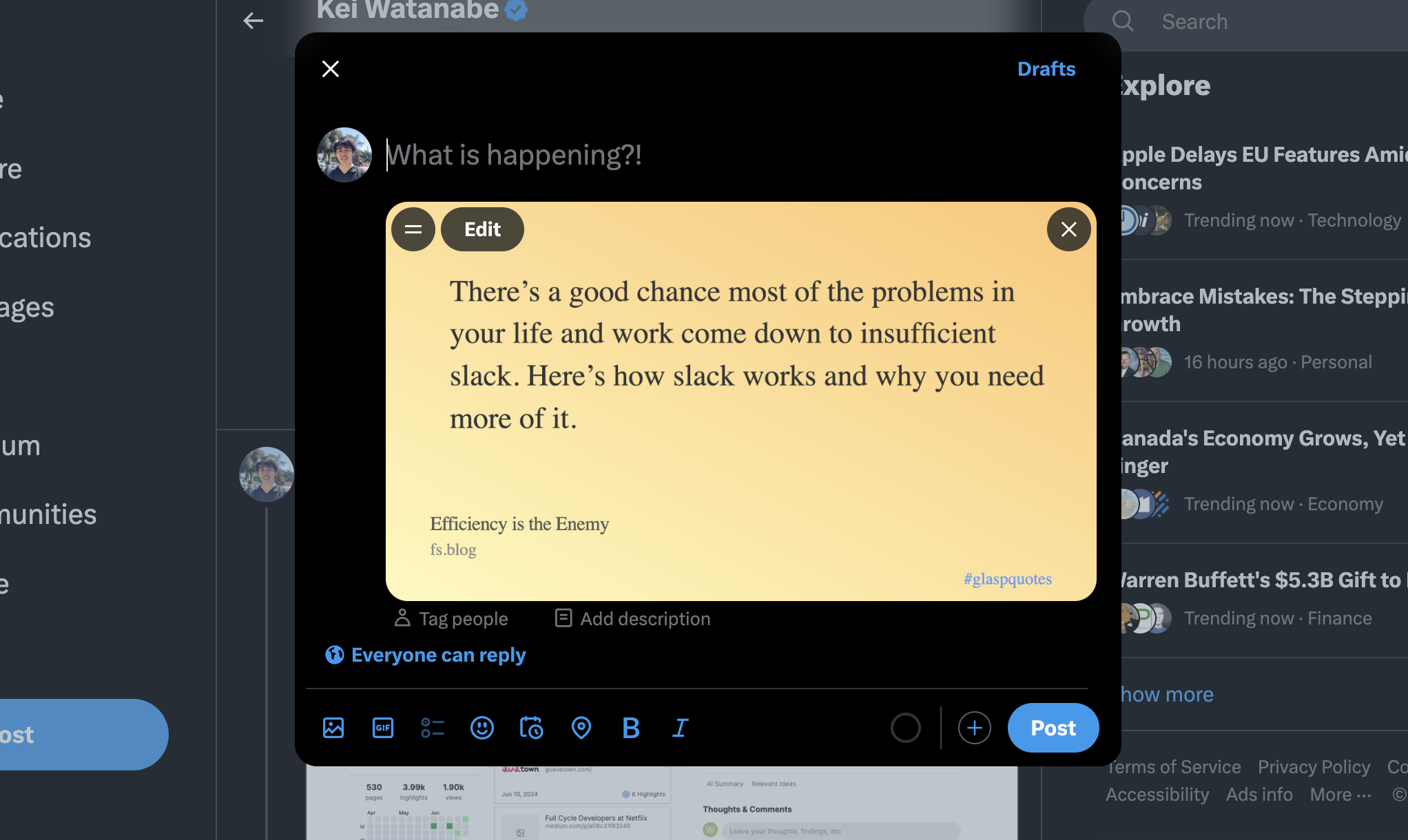
If you want to use the image for X and don’t need to save it, you can copy and paste it on X. Please right-click over the image and click Copy Image on the options.
Then, paste it on X.
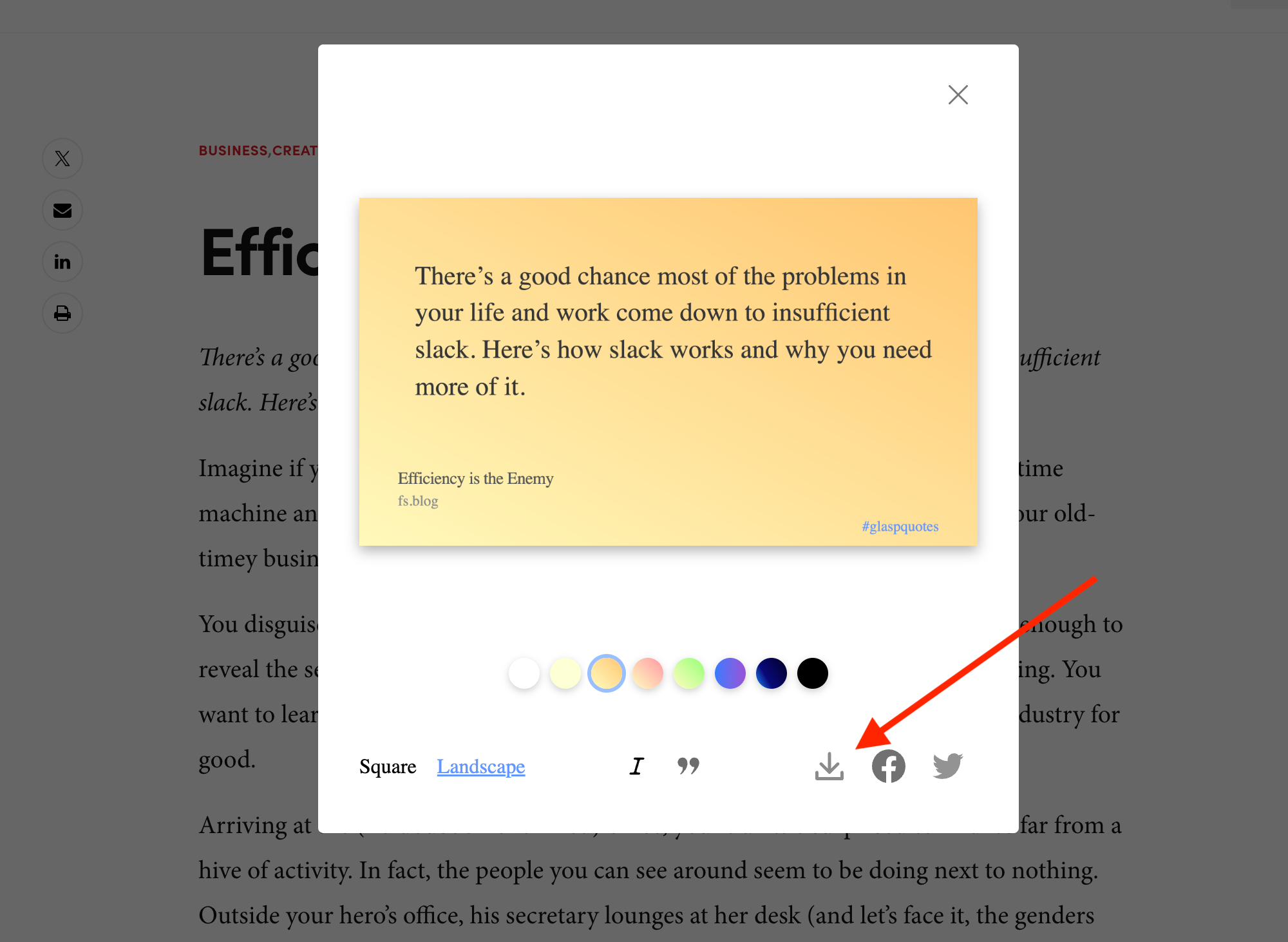
If you want to save the image, click the download button at the bottom of the modal.
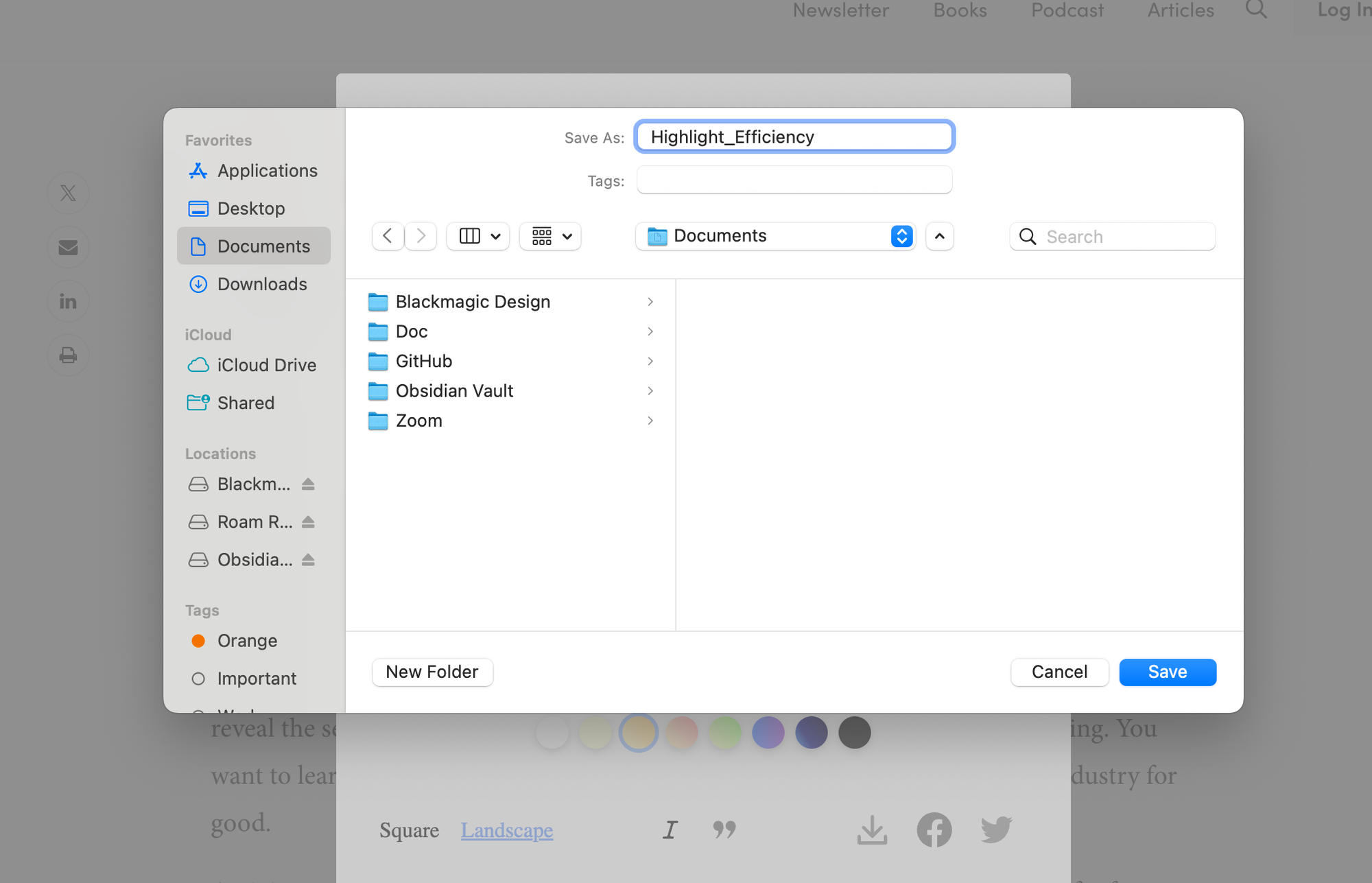
It opens the OS's file system such as Finder, so name and save it.
(Optional) Step 3: Post a Sentence and Save an Image
If you want to post a sentence on X or Facebook and save the image, click the X or Facebook icon at the bottom of the modal.
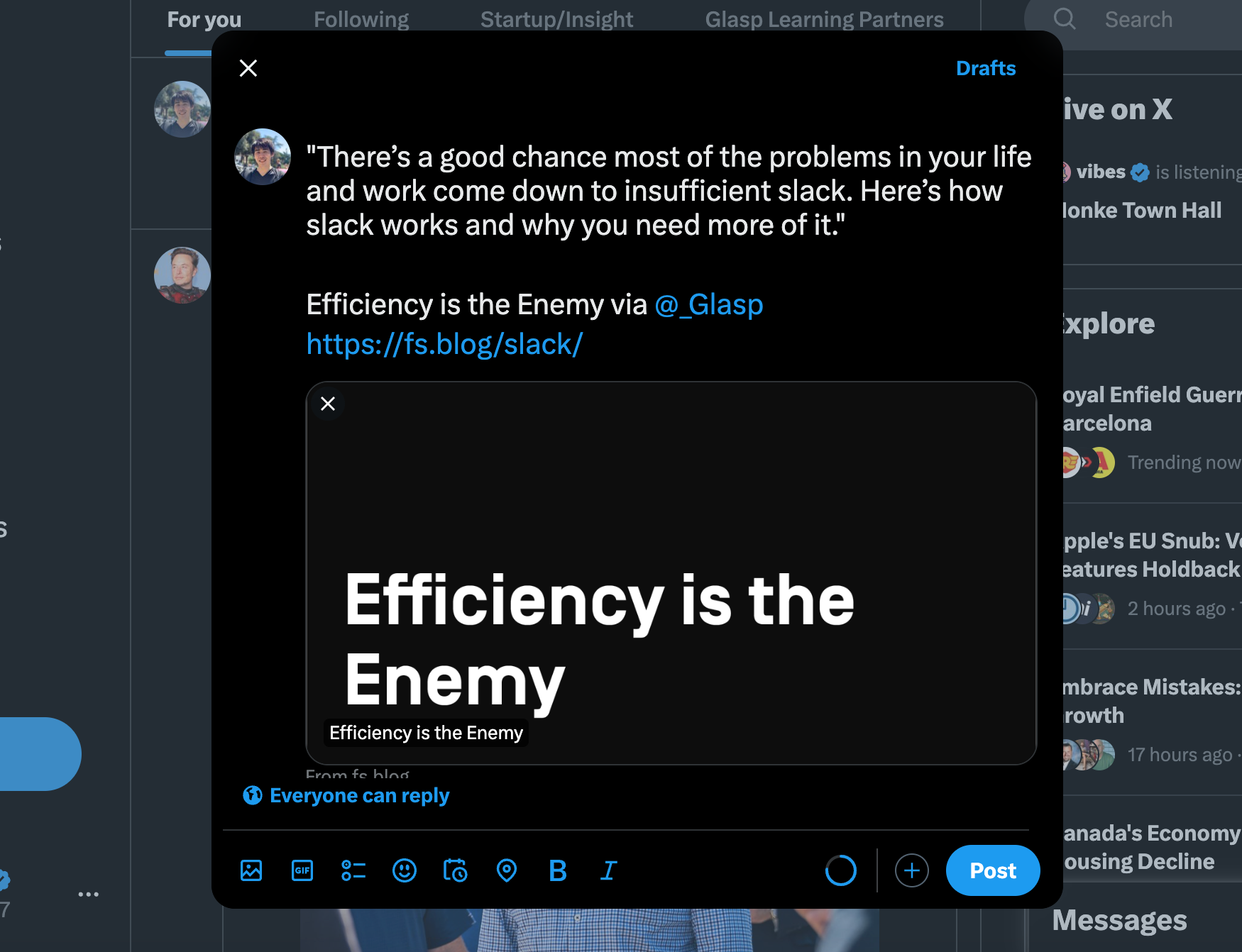
If you click either, it opens a page to post. For example, when I click the X icon button, it opens X's post page. It contains the sentence you select, the title of the article, and the link to the article.
FAQs
Q. Do I need a Glasp account to generate quoteshots?
Yes. Please sign up and install the Glasp browser extension first.
Q. Can I customize the design of quoteshots?
Yes. You can choose the shape, font style, background color, and whether to include quotation marks.
Q. Can I use quoteshots on Instagram or LinkedIn?
Absolutely! Just download the image and upload it anywhere — Instagram, LinkedIn, blog posts, or even presentations.
Q. Is the quoteshot feature free?
Yes. Quoteshots are included in the free version of Glasp.
Q. Do quoteshots include attribution to the source article?
Yes. If you share directly to X or Facebook, Glasp includes the highlight, article title, and link, giving proper credit.
Q. Can Claude or ChatGPT read my Glasp highlights?
Yes. With the Glasp MCP Connector, AI assistants such as Claude, ChatGPT, and Claude Code can search and read your own highlights, notes, Kindle highlights, and AI summaries, including your YouTube summaries. The connection is read-only and private to you. See How to Connect Glasp to Claude, ChatGPT, and Claude Code (MCP Connector).
Q. Can I use Glasp on my phone?
Yes. Glasp has native apps for iPhone, iPad, and Android, and the Glasp Safari extension for iPhone and iPad comes with the iOS app. Your highlights sync between the apps, the web, and the desktop extension. See How to Use the Glasp Mobile App on iOS, iPad, and Android.
✨ With quoteshots, you can make your highlights more visual, shareable, and engaging in just a click. Try it today and start sharing your favorite insights beautifully!
👉 Install Glasp Browser Extension
Before you leave
If you have any questions, please refer to the FAQ or contact us.
👉 FAQs
👉 X
See you next time,
Glasp team